This topic contains the following sections.
This topic shows you how to use a blob result as the input region to another vision tool. Not all vision tools support polygons as input regions, and among the tools that do support them, the level of support varies from tool to tool. See How to Use Polygon Input Regions for a list of vision tools that support input regions.
In this example, the goal is to locate a six-dot pattern but only when it is within a large dark ring. The example uses the Blob tool to find the rings and the Cognex PatMax Align tool to find the six-dot pattern within the largest ring.
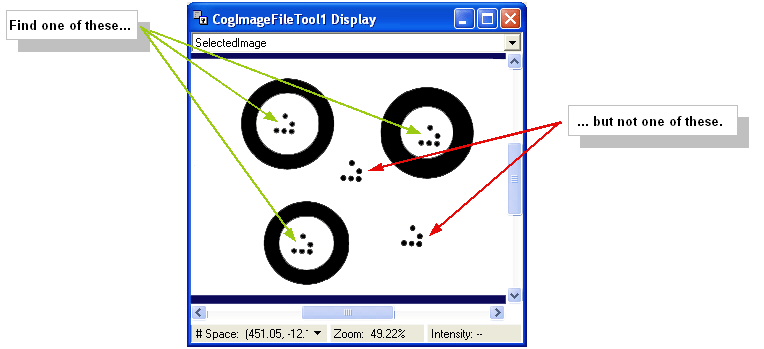
This technique works with any tool that supports polygon input regions. For example you can use a polygon as the input region of the Copy Region tool to create a new image that contains only the contents enclosed by the polygon.
This example uses QuickBuild so that you can experiment with the technique. A description of using this technique programatically appears near the end of this topic.
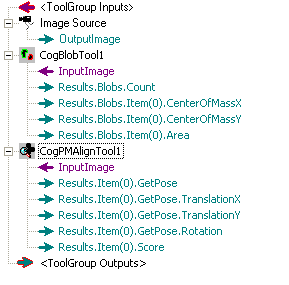
In QuickBuild, create a tool group that contains two tools:
- Blob Tool (CogBlobTool)
- PatMax Align Tool (CogPMAlign Tool)
Your tool group should look like the following picture.
By default, the Blob tool does not expose the boundary of the blob results. You need to add a new output terminal to expose this property. See Defining Inputs and Outputs in the ToolGroup Edit Control topic for more information about adding terminals to an edit control.
Follow these steps to add the boundary result terminal to the Blob tool:
- Right click on the CogBlobTool1 icon, and choose Add Terminals....
The following Member Browser dialog opens.
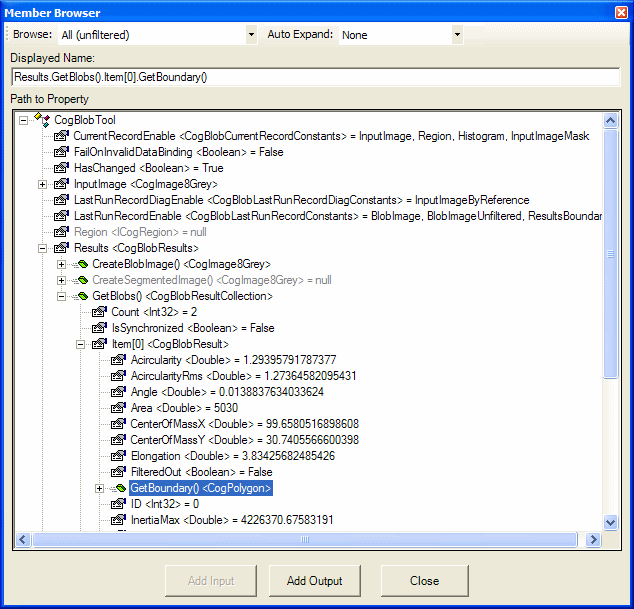
The Member Browser exposes the underlying structure of the tool which can be fairly complex. To reduce this complexity the browser provides three structure levels; Typical, Expanded and All which you can choose from the top pull-down menu. Typical, the default, displays only the most often used elements. Expanded displays a somewhat longer list and All displays the entire structure. Choose All from the pull-down menu to expose GetBoundary (as shown).
The Auto Expand pull down menu gives you the option to automatically expand commonly used property collections. When you choose Common Members, the default, common members are expanded automatically when they are displayed. If you choose None, no property collections are expanded automatically. We use None in this example to minimize screen clutter.
- Select GetBoundary.
- Click the Add Output button.
- Click Close.
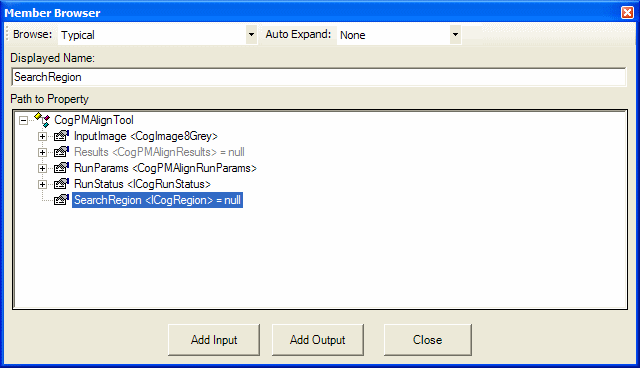
Similarly, the search region property is not exposed in the PatMax Align tool. You need to add a new input terminal to expose this property:
- Right click on the CogPMAlign Tool, and choose Add Terminals
- Choose SearchRegion
- Click Add Input
- Click Close
Connect the Image File Tool's Output Image to the Input Image terminals of the Blob Tool and of the PMAlign Tool.
Connect the Blob Tool's GetBoundary output terminal to the Search Region input terminal of the PMAlign Tool. Since you have not yet run any of the tools, the link will appear with a dotted red line. Once you run the Blob tool, it will turn int a normal solid blue line.
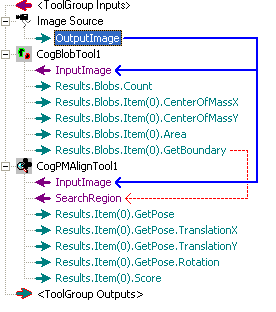
Set the Blob Tool parameters as necessary for your application. This example assumes that you are looking for the six-dot pattern in the largest ring, so the Blob Tool's minimum area parameter is set rather high: 12500 pixels. This setting insures that the blobs that result from the pattern itself are ignored.
In the PMAlign Tool, set the trained pattern to one of the six-dot patterns. You may want to adjust the Search Region parameters to account for rotation and scale if necessary.
When you run the tool group now, the PMAlign tool uses the first result of the Blob Tool (the largest ring) as its search region, finding the single six-dot pattern in the largest ring.
You can pass a Blob result to PatMax align programatically as well as in QuickBuild. In fact, using Visual Studio lets you iterate over several blob results more easily.
Assume that mobjBlobOp is a CogBlob object and the mobjImg is the image. The following steps show how to get the blob results as a polygon:
' Valid for COM, .NET similar
Dim aRS As CogBlobResults
Set aRS = mobjBlobOp.Execute(mobjImg,Nothing)

Dim aR As CogBlobResult
Set aR = aRS.Blobs.Item(0)

Dim aPoly As CogPolygon
Set aPoly = aR.GetBoundary
You can then pass aPoly as the SearchRegion parameter to CogPMAlignPattern's Execute method.