This topic contains the following sections.
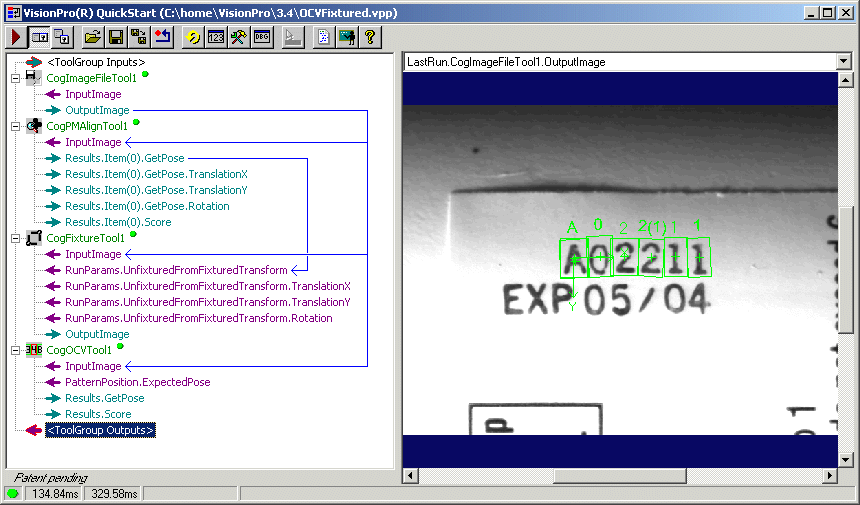
The Tool Group edit control provides a graphical user interface to the CogToolGroup tool, a vision tool that groups a set of other vision tools into one logical collection. A Tool Group edit control allows you to create a set of vision tools, configure them, define the data flow between them and then define type of output results the tool group will generate, results which can be used by other vision tools or even other tool groups in the same application. You can develop an entire vision application with a single Tool Group edit control, and then run it directly or migrate it to compiled code that can be included in an application.
You also use the Tool Group edit control by running the QuickBuild application.
The Tool Group edit control has the following components:
- A row of control buttons at the top left
- A tree view window displays the vision tools currently within the tool group and their data links
- An image window displays the tool group output images
- An object editor lets you browse and modify properties of the tool group and the tools within the tool group
- A toolbox lets you select which vision tools you want to add to the tool group
- A grid results window displays the status of every vision tool in the tool group after the tool group has run
- A status bar for the tool group as a whole.

The following table describes the buttons along the top of the control:
| Button | Description |
 | Run all the tools in the tool group. The tools run in order from top to bottom. |
 | Open the local display window, which displays the output image buffers that have been defined for the tool group. |
 | Open a floating tool display window, which displays the input and output image buffers been defined for this tool group. Unlike the local tool display, you can resize or move the position of a floating tool display window. |
 | Load a VisionPro persistence (.vpp) file, which contains a set of saved tool group properties. Loading a persistence file for another object type will generate an error. For more information about VisionPro persistence features, see the topic Persistence in VisionPro. |
 | Save the current properties of the tool group to a VisionPro persistence file. You can save a complete set of properties for the tool group or else save the state of the tool group without its images or results. |
 | Save the current tool group to a new VisionPro persistence file. |
 | Reset the underlying tool group to a default state. The tool gives you a choice between resetting to the default-constructed state, which is appropriate when you are using it in a Visual Studio.NET application, or its template-initialized state, which is appropriate for QuickBuild applications. |
 | Run this tool group in a continuous loop. Click this button again to stop the looping. |
 | Open a results window that displays the status of each tool within the tool group. |
 | Open the toolbox, which contains all the available vision tools you can add to the tool group. |
 | Open the object editor window. This window exposes all of the tool group's CogToolGroup properties and the properties of each tool. |
 | Select from a list of QuickBuild sample applications, each of which contains a complete vision application related to a specific vision task. |
 | Select from a list of Show Me How topics, which show how to use various vision tools in a QuickBuild application. |
 | Open the VisionPro online help. |
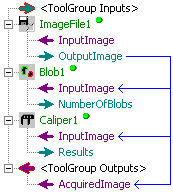
The tree view appears in the left half of the Tool Group edit control. This is the primary window of edit control, where you define the vision tools of the tool group and the data links between them. See the topic Adding a Vision Tool and the topic Defining Inputs and Outputs for instructions on how to add tool group inputs and outputs using this window. See the topic Creating Data Links for information about adding data links between the vision tools in the tool group.
You can adjust the relative sizes of the tree view and tool display windows by moving the splitter between them.
Once a vision tool appears in the tree view, you can configure it through its popup menu. To bring up the popup menu, right click on the tool. The configuration menu contains the following options:
| Option | Description |
| Edit | Open the edit control for the vision tool, which provides a graphical access to the tool's methods and properties. See the online help for each individual edit control for further information. |
| Run | Execute the Run method for that tool alone. Equivalent to the tool's Run method. |
| Delete | Delete the tool from the tool group. Equivalent to the Remove method. |
| Rename | Change the name of the tool. Equivalent to the Name property. |
| Enabled/Disabled | Enable or disable the tool. Disabled tools are shown with a grey "x". Enabled tools display the status of their most recent call to Run: a green circle for a successful run, a red square for an error, and no icon if the Run method has not been called. |
| Add Terminals.. | Open the Add Terminals dialog box for the tool, which allows you to specify a vision tool property to expose as an input or an output. |
| Cut | Delete the selected vision tool from the tool group, but copies the tool and its entire configuration to the Windows clipboard. |
| Copy | Copy the selected vision tool and its entire configuration to the Windows clipboard. |
Paste | Copy the vision tool that is currently on the Windows clipboard (from a previous Cut or Copy operation) back into the tree view. The Cut, Copy and Paste commands are useful if you want to rearrange the existing tools in the tool group or if you want to duplicate a particular tool and its configuration. |
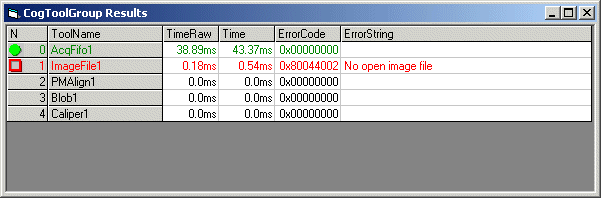
Open the floating results window by clicking the Results control button.
The tool group edit control supports a RunStatus property to reflect the status of all the active tools the tool group contains. Use the floating results window to graphically view the contents of the RunStatus property for each execution of the tool group. A green circle next to a vision tool indicates successful execution, while a red square indicates an error. The window includes a description of the Message, if any occurred, for each vision tool. The ProcessingTimecolumn indicates the amount of time the tool required to execute while the TotalTime column indicates the amount of time to both execute the tool and update all the controls that are sinking events from it. Controls are only updated when they are visible. Status information about the entire tool group is displayed in the status bar at the bottom left of the tool group edit control.
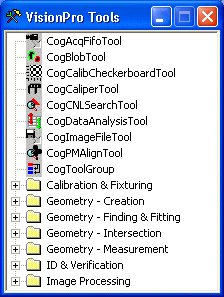
You can open the toolbox by clicking the Toolbox control button.
The Toolbox lists the available vision tools that you can add to a tool group. Double-click on a tool to add it to your QuickBuild application. Once a vision tool appears in the tree view, you can configure it and define any inputs and outputs links your application requires. See the topic Adding A Vision Tool for more information.
Note: The hierarchical structure of the Toolbox is controlled by the files and directories in the Templates directory within the VisionPro\bin directory. Each folder within Templates corresponds to a like-named folder in the ToolBox window, while each of the .VTT files corresponds to the like-named tool within the window. You can change the organization of the Toolbox window by moving or renaming the files and folders with the Templates directory.
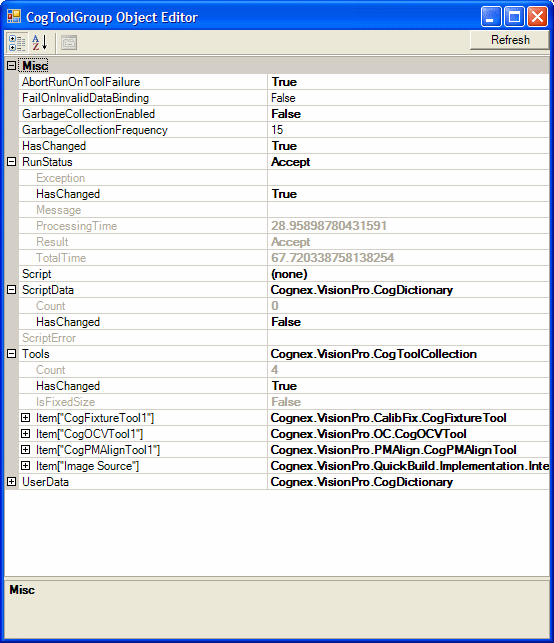
Use the Tool Group Object Editor to browse through properties and sub-objects defined in the tool group. Property names are listed in the left-hand column; property values in the right-hand column. Writable properties can be edited by clicking on the value.
To add a vision tool to the tool group, open the toolbox by clicking
When you run the tool group (by clicking the Run button), the tools in the tool group are run in order, from top to bottom. To change the configuration of an individual tool, double click on the tool or right-click and select Edit.
You can copy and paste one or more tools within a tool group, or between tool groups. When you perform a copy operation, the persisted XML state of a tool group that contains the selected tools is placed on the clipboard.
To open a tool edit control, double-click its icon in the tool group window or right-click on it and choose Edit. Edit controls appear in their own windows.
To close a tool edit window, click its close box. When you close a tool edit window, VisionPro unloads the control to conserve user or GDI window resources. Although VisionPro preserves the state of the vision tool when it is closed, it does not preserve the state of the edit control. This means, for example, that if you close a PMAlign tool’s edit window, the tool will preserve any training region and run parameters information, but the control will not preserve which tab you had selected or which image was visible in the tool display.
If it is important to preserve the state of the control, you can minimize the edit window instead of closing it. However, if user or GDI window resources of the process are running low, you may not be able to open a new edit window without first closing an open window. The number of edit windows you can have open at one time depends on the complexity of each edit control.
Use the tree view to establish data links between tools. A data link connects a source property in one tool to a destination property in another tool. When the source tool executes, the source property assigns its value to the destination property.
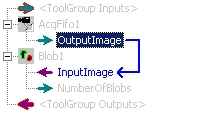
To create a data link, select a source property (indicated by a green arrow pointing to the right) and drag the cursor to the desired destination property (indicated by a purple arrow pointing to the left). Once you release the cursor, the tree view displays the link as a blue line leading from the source to the destination as shown in the following figure:
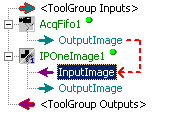
If a data link could not be updated, the tree view window displays a dashed red line instead of a solid blue line as shown in the following figure:
Defining the data links between the vision tools using the Tree View window is equivalent to using the CogToolGroupLink interface.
As you are creating a link, the tree view automatically dims all destination properties that are not a compatible data type. For example, if you select the OutputImage property of a tool and begin to drag the cursor down the tree view, only the destination properties of type <CogImage8Grey> are available. The same is essentially true for numeric data properties. If you select a source property with a data type of <Byte>, <Long>, or <Double>, the tree view will allow you to link it to any destination property of those same data types. Numeric data types do not have to match exactly, as the Tool Group edit control performs a numeric conversion automatically. For example, if you link a source property of type <Double> to a destination property of type <Long>, the tool group will round the <Double> value up or down to an integer value accordingly.
In some cases, a link between numeric data types will fail and the link will appear as a dotted red line. For example, you cannot assign a source property with a value outside the range of 0 through 255 to a destination property of type <Byte>. To see why a link failed, enable ToolTips from the Control Bar and place the cursor over the broken link to view an error message.
Each VisionPro tool supports a default collection of exposed input and output properties, which appear as terminals in the tree view. If you need to expose a property or method not currently available, you can add a terminal for it and use it to link to one or more terminals of other tools. Tool properties can be exposed as either an input or an output terminal, while tool methods can be exposed as output terminals only.
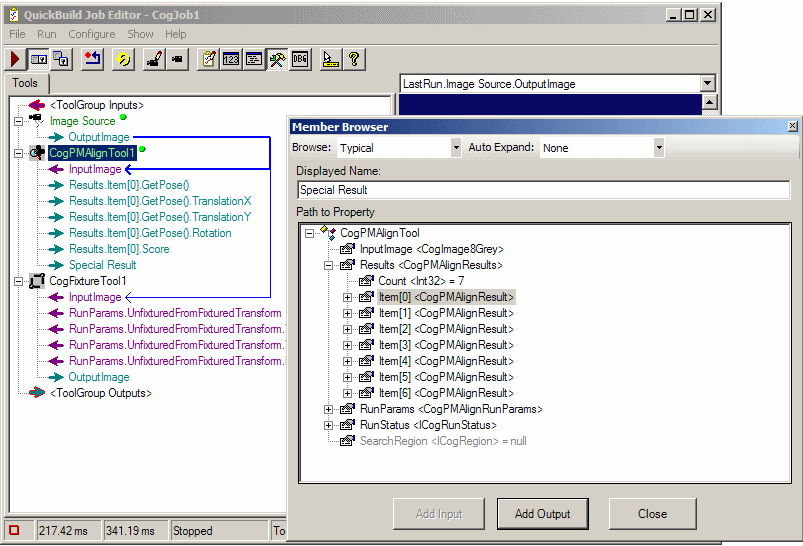
To add an output property, select the tool, right-click, and choose Add Terminals.... The Member Browser window appears as shown in the following figure:
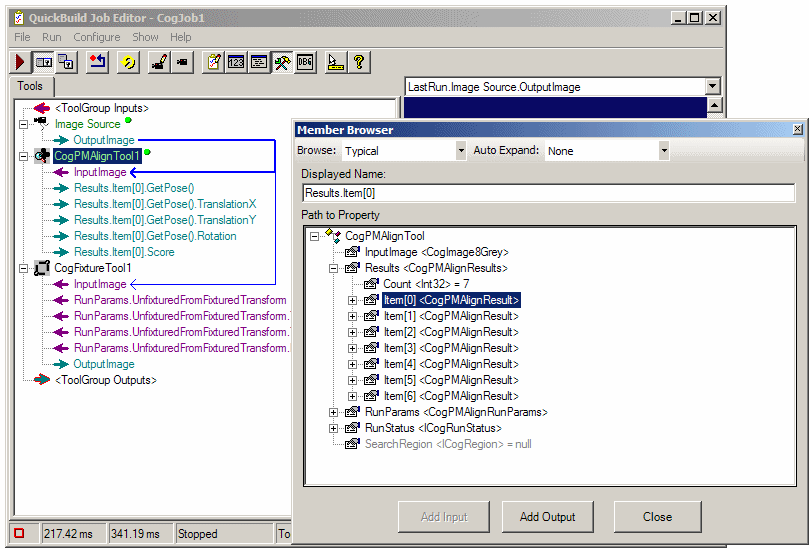
The Member Browser exposes the underlying structure of the tool which can be fairly complex. To reduce this complexity the browser provides three structure levels; Typical, Expanded and All which you can choose from the pull-down menu. Typical, the default, displays only the most often used elements. Expanded displays a somewhat longer list and All displays the entire structure.
The Auto Expand pull down menu gives you the option to automatically expand commonly used property collections. When you choose Common Members, the default, common members are expanded automatically when they are displayed. If you choose None, no property collections are expanded automatically. We use None in this example to minimize screen clutter.
You use the tree control in the window to find and select the method or property you want to expose as a terminal. If you click Add Input, the property is added as a tool input. If you click Add Output, the method or property is added as an output. You can type in a unique name for the property, or you can accept the default name (Displayed Name field).
You can also add inputs and outputs to a tool group itself. These terminals can be used when you include the tool group within another tool group.
Note that exposing an input or output property simply allows you to create links to or from it in the tool group edit control, and does not otherwise affect the operation of the tool. All properties of the tool and its sub-objects are accessible in VBScript and in compiled programs regardless of what properties are exposed for linking.
When enabled, the right side of a Tool Group edit control contains the local image display, which can display the OutputImage buffer for any image-acquisition tool within the tool group. When the tool group contains only one image-acquisition tool, the local image display always shows the last acquired image for that tool, as shown in the following figure:
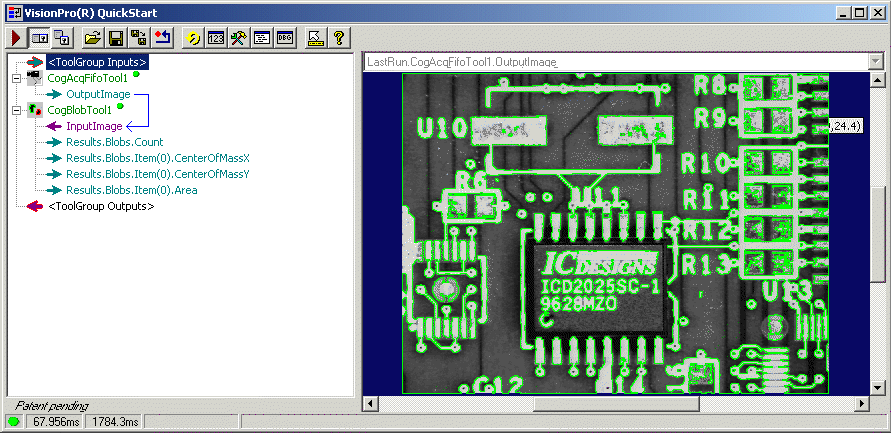
The local image display combines the OutputImage buffer for the image-acquisition tool and the tool graphics for any vision tool that analyzed that image. Any graphics that you enable in the edit control for a particular tool will also appear in the local image display. In applications that use more than a few vision tools, or use vision tools that offer many graphics, the local image display can appear cluttered after each inspection. To prevent the display from showing unwanted graphics, use the Graphics tab of the relevant edit controls and disable the various graphic options as necessary.
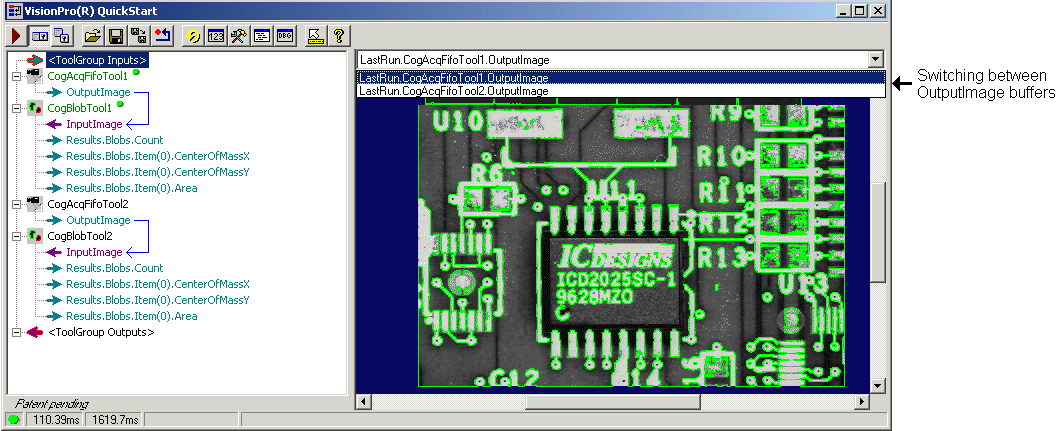
In a Tool Group edit control with multiple image-acquisition tools, the local image display contains an OutputImage buffer for each one. You can use the drop-down list above the local image display to switch between buffers, as shown in the following figure:
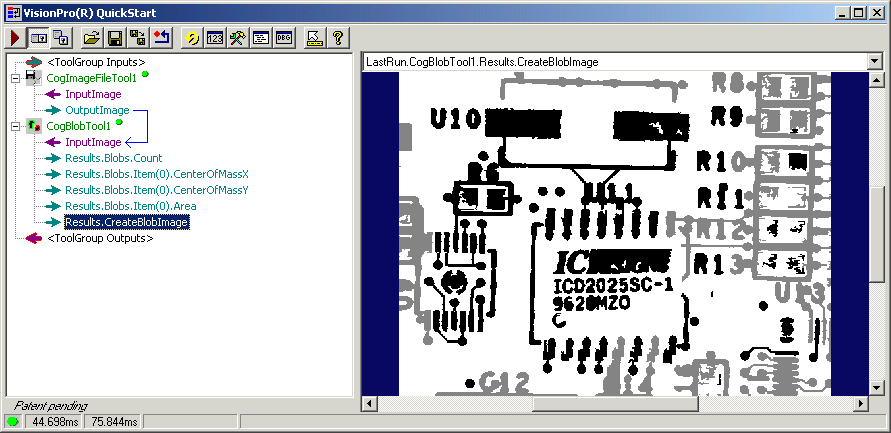
In addition, the local image display will contain a buffer for the image produced by any image-generating property terminal that you choose to expose. For example, in the following application the CreateBlobImage property of a Blob tool has been exposed, and its corresponding image has been selected in the local image display:
The OutputImage buffers update automatically each time the acquisition tools run, and you can adjust the relative sizes of the tree view and local image display by moving the splitter between them. You can also open one or more floating image display windows at any time by clicking the Floating Image Display button.