This topic contains the following sections.
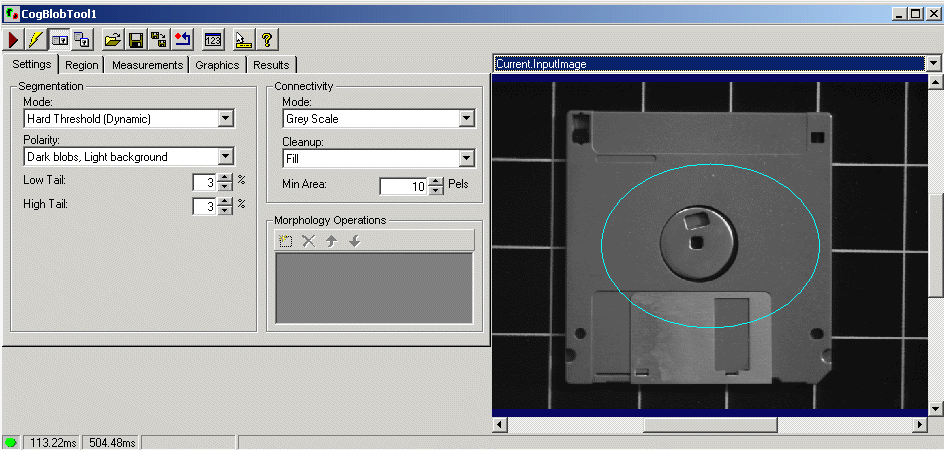
The Blob edit control provides a graphical user interface to the most commonly used features of the CogBlobTool and related Blob interfaces. The Blob tool allows you to search for blobs, which are any two-dimensional closed shapes in your input image. Using the Blob edit control, you can specify the segmentation, connectivity, and morphology parameters you want when the tool runs as well as the type of measurements that you want the tool to make. You can examine the results of the search on the edit control's Results tab; you can also view the search results overlaid on the search image.
The Blob edit control includes the following components:
- A row of control buttons at the top left.
- A tool display window that can display the Blob tool image buffers. Right click the tool display to bring up menu options that include zooming in or out of the image or showing a pixel or subpixel grid.
- A set of tabs organized by function. These functions include parameter settings to run the tool, the region within the input image to which the search is constrained, the measurements you want, and the search results. Pressing the Control + Tab keys scrolls through the set of tabs.
- A status bar at the bottom left of the control. A green circle indicates that the tool ran successfully; red means the tool ran unsuccessfully. The status bar also displays the time to run the tool and any error codes or messages. The first time that the status bar displays is the raw tool execution time. The second includes the time needed to update the edit control. Controls only update when they are visible.

The following table describes the functions of the buttons at the top left of the control.
| Button | Description |
 | Runs the Blob tool. You must first specify the segmentation, connectivity, and morphology parameters. You may constrain the blob search to a search region within the input image. |
 | Toggles electric mode. When selected, the tool runs automatically if certain parameters have changed. These parameters are indicated by electric bolt icons that appear when the tool is in electric mode. |
 | Opens the local tool display window, which can display all of the edit control's buffers. |
 | Opens one or more floating tool display windows. You can display any of the edit control's buffers. Unlike the local tool display, you can resize or move the position of the floating tool display window. |
 | Loads a VisionPro persistence (.vpp) file, which contains a set of saved properties for this vision tool object type. Loading a persistence file for another object type throws an error and the load is unsuccessful. For more information about VisionPro persistence features, see the topic Persistence in VisionPro. |
 | Saves the current properties of the underlying tool to a VisionPro persistence file. You have the option to save either the entire tool or the tool without its images or results. |
 | Saves the current properties of the underlying tool to a new VisionPro persistence file. |
 | Resets the underlying tool to a default state. This tool gives you a choice between resetting to the default-constructed state, which is appropriate when you are using it in a Visual Studio.NET application, and its template-initialized state, which is appropriate for QuickBuild applications. |
 | Opens a new, separate results window, allowing you to view run results without turning to the Results tab. |
 | Enables or disables the display of tooltips for individual items in this edit control. |
 | Opens the VisionPro online help. |
The Blob edit control has the following image buffers. One buffer exposes the underlying Blob tool's InputImage property. All buffers can be shown in both the local and floating tool display windows. Use the Graphics tab to select the blob analysis results that you can display in these buffers. Some of these buffers do not appear unless you select certain results to display. See the Graphics tab for more information.
- The Current.InputImage provides the input image to the Blob tool. This is the InputImage buffer.
- The LastRun.InputImage displays the image that the tool last analyzed.
- The Current.Histogram buffer displays a histogram of the current InputImage inside the region of interest, if any. It is generated by the blob tool when it creates its inspection records.
- The LastRun.Histogram buffer displays a histogram within the region of interest of the last image that the tool ran on.
- The LastRun.BlobImageUnfiltered buffer displays an image generated from the extracted blob data.
- The LastRun.BlobImage buffer displays an image generated from the extracted blob data, excluding blobs that were filtered out.
This section contains the following subsections.
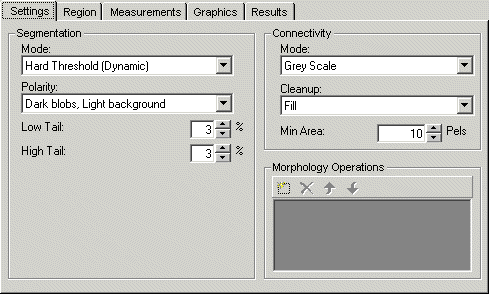
Use the Settings tab to define the Segmentation, Connectivity, and Morphology parameters. When the edit control is in electric mode, electric bolt icons indicate parameters whose changes cause the tool to run automatically.
Blob analysis provides numerous methods of segmenting an image into object pixels and background pixels. The set of segmentation parameters that are displayed depends on the segmentation mode that is selected. See CogBlobSegmentationParams for a description of the parameters. The selection of the segmentation modes is equivalent to the following set of ICogBlobSegmentationParams methods:
- SetSegmentationNone
- SetSegmentationMap
- SetSegmentationHardFixedThreshold
- SetSegmentationHardRelativeThreshold
- SetSegmentationHardDynamicThreshold
- SetSegmentationSoftFixedThreshold
- SetSegmentationSoftRelativeThreshold
- SetSegmentationSubtractionImage
Connectivity analysis is the attempt to assemble object pixels (which have been determined by the segmentation criteria on this tab) into connected groups of object pixels or blobs. The connectivity parameters are part of the CogBlob interface.
- ConnectivityMode determines the connectivity mode used to connect object pixels into blobs.
- ConnectivityCleanup determines the cleanup method used after performing connectivity analysis of the blobs.
- ConnectivityMinPixels is the minimum size, in pixels, of features that will not be cleaned up during connectivity cleanup.

Morphological operations are applied to images to accentuate or minimize particular types of features within the image. The function buttons allow you to add one or more morphology operations to a CogBlobMorphologyCollection.
Use the function buttons on this tab to manage the scoring functions. They are described in the following table.
| Button | Description | Function |
 | Add | Adds a new morphology operation. When you click this button, a menu appears with a list of available operations. Highlight the operation that you want and a new line appears in the list of functions. |
 | RemoveAt | Deletes the currently highlighted morphology operation in the list. |
 | Move | Moves the currently highlighted operation up in the list, and updates its index in the collection. |
 | Move | Moves the currently highlighted operation down the list, and updates its index in the collection. |
This section contains the following subsections.
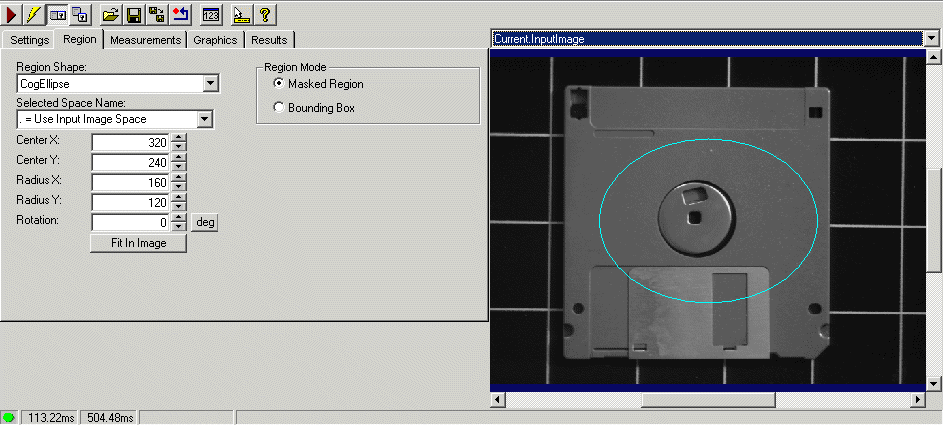
Use the Region tab to define the Region. This is the region on which the tool runs blob analysis. If no region is supplied, the tool performs blob analysis on the entire InputImage buffer.
Some of the parameters that specify the train region or train origin can be specified in either degrees (the default specification) or radians. The underlying tool keeps the values in radians but the edit control performs the conversion to degrees when appropriate.
| Feature | Description |
Region Shape | Select the shape of the input region. Selecting "None=Use entire image" means that the tool uses the entire input image. A Blob tool supports the following input region shapes: The set of region-defining parameters that appear depend on the region shape you use. For more information on using a polygon as an input region, see the Using Polygon Input Regions. |
Defines the bounding box for the region.
| |
| SelectedSpaceName | The coordinate space in which the region is interpreted. |
| Select Mode | Available when cogRectangle or cogRectangleAffine is the chosen Region Shape. Selects the set of parameters to use to define the rectangle. If cogRectangleAffine is chosen, note that the angle of rotation and skew can be specified in degrees or radians, although the underlying tool keeps the measurements in radians. |
| FitToImage | Centers the region of interest within the image. Adjust the shape's geometric properties so that its default size is based on the image and its SelectedSpaceName. |
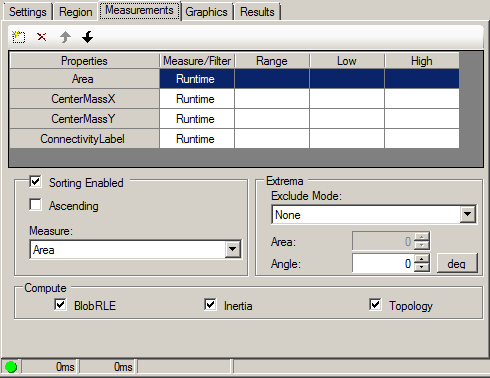
Use the Measurements tab to specify how measurements are made during blob analysis.
At the top of this tab is a table of measures that you can add. For a description of the possible measures, see Measure. This table is similar in operation to the Morphology Operations table on the Settings tab. This collection of measure modes and this equivalent to the CogBlobMeasureCollection interface.
For each measure mode you select, you have a set of properties to specify. See the CogBlobMeasure interface for more information.
- Mode indicates how measure will be used during blob analysis.
- FilterMode is available only if you select Filter. Specifies how the filter range is interpreted -- whether blobs are within range specified or outside of it.
- FilterRangeLow is available only if you select Filter. Specifies low end of filter range.
- FilterRangeHigh is available only if you select Filter. Specifies high end of filter range.
The sorting parameters allow you to sort the filtered collection of blobs, if you wish.
- SortEnabled enables the sorting of the filtered collection of blobs.
- SortAscending sorts the blobs in ascending order.
- SortMeasure is the blob measure that will be used for sorting the filtered collection of blobs.
Extrema parameters define how the tool determines what pixels at the extreme portions of a blob are not actually part of the blob.
- ExtremaExcludeMode defines the mode used to exclude part of a features area when computing a bounding box or median point of a blob.
- ExtremaExcludeArea is the amount of area to exclude when computing a bounding box or median point. Depending on the exclude mode selected, this parameter can also be equivalent to the ExtremaExcludeAreaPercent or ExtremaExcludeAreaPixels property.
- ExtremaAngle is the angle that you want the bounding box or median point of a blob to be based on. Although you can specify this value in either degrees or radians, the underlying tool stores this value in radians.
The computation parameters define which blob properties are computed and displayed as computation results. To improve the speed of the tool, you can disable the computation of specific blob results that you do not need. By default, all results are computed. To disable the computation of a specific blob result, uncheck the corresponding checkbox.
- ComputeBlobRLE enables saving run lengths of regions in the blob scene description. You must set this to true if additional blob measurements are required, such as region boundary, perimeter, or region image.
- ComputeInertia enables the computation of the inertia, principal inertia, angle, and elongation of the regions.
- ComputeTopology enables the computation of parent-child relationships between regions.
This section contains the following subsections.
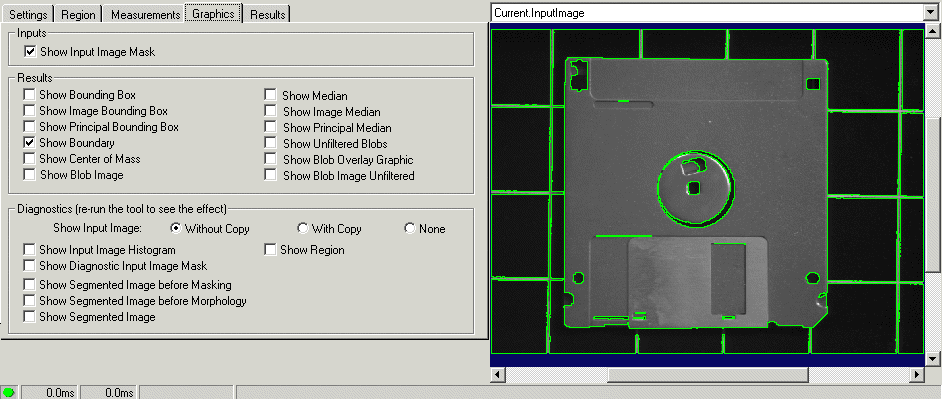
Use the Graphics tab to select what results to see from running the Blob tool. Some of the edit control image buffers appear only if certain types of results are selected. The selections on this tab are equivalent to the modes that can be set with the LastRunRecordEnable and LastRunRecordDiagEnable properties.
Check Show Input Image Mask to show a graphic representing the run-time mask, if you supplied one. The graphic is shown on the Current.InputImage display.
For more information about the possible results that you can select, see LastRunRecordEnable. The results appear in the LastRun.InputImage and, if you enable their creation, the LastRun.BlobImage and LastRun.BlobImageUnfiltered buffers.
- Show Bounding Box, Show Image Bounding Box, Show Principal Bounding Box -- displays the bounding boxes of each blob result in the LastRun buffers.
- Show Boundary -- outlines each blob result in the LastRun buffers.
- Show Center of Mass -- highlights the center of mass of each blob result in the LastRun buffers.
- Show Median, Show Image Median, Show Principal Median -- highlights the median of each blob result in the LastRun buffers.
- Show Unfiltered Blobs -- displays all unfiltered blobs and holes in the LastRun buffers.
- Show Blob Overlay Graphic -- displays translucent overlay graphics over blobs and holes in the image.
- Show Blob Image -- generates a synthetic image showing the blobs.
- Show Blob Image Unfiltered -- generates a synthetic image showing the blobs but ignoring the effect of any filters specified in the Measurements tab.
For more information about the diagnostics values you can select, see LastRunRecordDiagEnable.
- Show Input Image Histogram -- allows tool to create LastRun.Histogram buffer. If this is not set, then the LastRun.Histogram is not available.
- Show Segmented Image before Masking -- includes a viewable version of the segmented image, before morphology and masking, in the LastRun.InputImage. The segmented image graphics appear only in the LastRun.InputImage buffer. If none of the segmented image options is selected, then this buffer is not created. See also SaveSegmentedImageBeforeMasking.
- Show Segmented Image before Morphology -- includes a viewable version of the segmented image, before morphology, in the LastRun.InputImage. See also SaveSegmentedImageBeforeMorphology.
- Show SegmentedImage -- includes a viewable version of the segmented image in the LastRun.InputImage. See also SaveSegmentedImage.
- Show Region displays the region of interest in the LastRun.InputImage, if it is available.
- Show Diagnostic Search Image Mask displays the run-time mask, if one was specified.
The Show Input Image option buttons let you specify whether a reference to the input image or a deep copy of the input image is displayed for the LastRun.InputImage. You can also specify that no image be displayed.
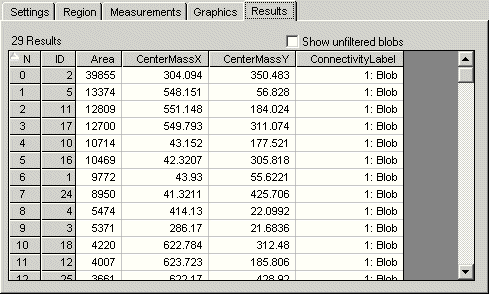
This tab lists the collection of CogBlobResult from the blob analysis.
- Count is the index of this blob result in the blob result collection.
- ID is a unique ID that identifies this blob result in the blob result collection.
- Area is the area of the blob specified in units of the input image's selected space at run-time.
- CenterOfMassX is the x-coordinate of the center of mass of the blob specified in units of the input image's selected space at run-time.
- CenterOfMassY is the y-coordinate of the center of mass of the blob specified in units of the input image's selected space at run-time.
- ConnectivityLabel essentially indicates which result is a blob and which is a hole. This definition is dependent on the polarity setting.
- GetBlobs determines whether you include unfiltered blobs in the list.