This topic contains the following sections.
The CogOCVMaxTool tool performs optical character verification (OCV), a process for verifying that one or more character strings in an image contain the expected characters at each position. Vision applications typically use OCV to verify lot codes, date codes, expiration dates, and other information printed on products or packaging. See the topic Using an OCVMax Tool for an example of adding and configuring an OCVMax tool for use in your vision application.
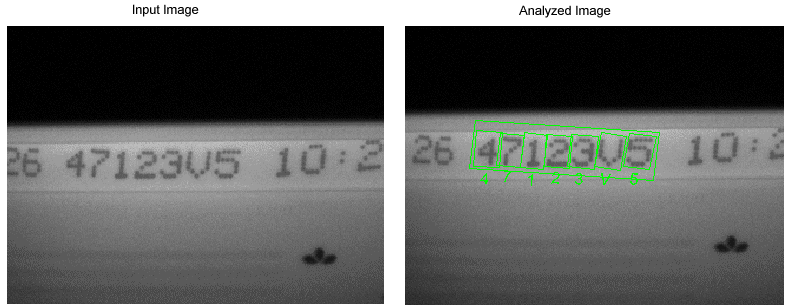
The following figure shows an example image where an OCVMax tool has been used to verify a string composed of a 7x7 dot-matrix font:
A configured OCVMax tool can tolerate the following types of image variations:
- Lighting
- Image quality
- Contrast
- Font stroke width
- Position, rotation, and scale for the overall string(s) of characters
- Character-to-character position, rotation, and scale
In general, using an OCVMax tool requires your vision application to complete the following tasks:
Acquire a training image containing the string(s) of characters you want to verify.
See the topic Acquisition in VisionPro for details on acquiring images.
Specify a font file for the characters that appear in those strings.
See the section Font Files for more information on font files.
Specify the string(s) based on the goal of the application.
See the section Paragraphs for more information.
Render an example of the string(s) using the font described by the font file.
See the section Font Rendering for more details on rendering a string.
Allow the tool to use Cognex PatMax technology to determine the best possible search parameters for reliably locating the string in successive run-time images.
See the section Degrees of Freedom for information on the ways a character string can change in appearance between the input image and a run-time image. See the section Training and Tuning for more information on OCVMax tuning.
- Try the configured OCVMax tool on successive test images to ensure it reliably verifies the characters in each string. As you test the tool you can modify several search parameters as necessary to compensate for image-to-image variations in the appearance of the strings.
Verify the OCVMax tool works to locate and verify the strings in your test images, and then reduce the range of various search parameters in an effort to improve the performance time for each image. Use the hints provided by the OCVMax tool to enable, disable, or reduce various search parameters until the tool performs successfully within the best possible time frame.
This section contains the following subsections.
To configure an OCVMax tool you need a font file that already defines the layout of each character in the font, also known as character keys. You can specify any font file for use with an OCVMax tool, which supports all Western-language TrueType ASCII and 16-bit Unicode character fonts (21-bit Unicode fonts are not supported). Other font types might work with the OCVMax tool, but you must experiment with acquired images and OCVMax tool parameters to determine how well they work.
Character strings applied by laser jet (also known as video jet) or thermal printer likely use a common font. VisionPro supplies a library of common fonts suitable for a variety of printing inspections. By default, the VisionPro installation utility places these fonts in the directory C:\Program Files\Cognex\VisionPro\Fonts. The OCVMax Application Guide, available by choosing Start->Programs->Cognex->VisionPro->VisionPro Documentation->OCVMax Application Guide, displays a proof sheet showing all the character keys in each font for comparison against your printed strings.
If your strings use character keys in a font not supplied with VisionPro, you must acquire the font file separately. In order to locate the correct font file for your vision application, Cognex makes the following suggestions:
Contact your print equipment vendor.
The vendor should be able to provide you with the name of the font the printing equipment uses, and perhaps even the font file itself.
If you know the name of the font, search the \WINDOWS\Fonts directory on your PC.
If your print equipment uses a TrueType font, you can preview all TrueType fonts by using the font dialog box of Microsoft Word.
Note: Microsoft Windows prevents users from directly opening font files in the \WINDOWS\Fonts directory. If you need to use a font from \WINDOWS\Fonts, first copy it to any other local directory.
Generate your own font file by using the Image Font Extractor, available by choosing Start->Programs->Cognex->VisionPro->Cognex Utilities->Image Font Extractor.
To generate your own font file you need an image containing examples of the characters you want to verify.
- Try the web site http://www.myfonts.com/WhatTheFont, which is online source for finding, trying and buying fonts. The web site boasts 41,680 fonts with search tools that allow you to find and buy the right font to match your printed strings.
An OCVMax tool can use the following font file types:
| Font Extension | Font Type |
| .ttc | TrueType collection font file (a font file that contains multiple TrueType fonts) |
| .ttf | TrueType font |
| .cst | Domino stroke font |
| .gcg | Imaje raster font |
.ffn | The OCVMax tool supports the following Markem fonts:
|
| .xcl | VideoJet raster font |
| .fnt | Zebra raster font (many other font files may also use this extension) |
| .bdf | Glyph Bitmap Distribution Format font |
| .ocf | Cognex image font file |
| .ocm | Cognex extended image font |
The OCVMax tool does not support the use of any 'combining' characters, such as Unicode combining diacritical characters. The OCVMax tool assumes that each character position is associated with a single character code or Unicode 'code point'. If you need to verify characters with diacritical marks, use a precomposed Unicode character code. You can use the .NET System.String.Normalize method with the System.String.NormalizationForm.FormC normalization form to preprocess strings that contain unicode combining characters.
If you use an .ocf file generated by the VisionPro OCV Font Editor, the 32-bit character key value for each character in the font file is defined as follows:
Note: The Character property for a character from an .ocf font will not be valid.
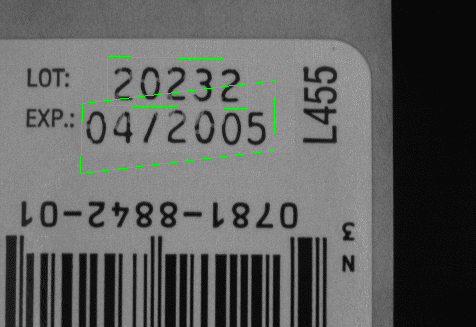
As you configure an OCVMax tool you must specify a paragraph, or set of character strings, you want the tool to verify. A paragraph can contain a single string or a set of strings. For example, the following figure shows an image of a single paragraph containing two strings:
In addition, a single OCVMax tool can contain multiple paragraphs. A single paragraph can only reference a single font, but multiple paragraphs in the same OCVMax tool can reference different fonts. You specify the number of paragraphs an OCVMax tool will contain and the number of character strings in each paragraph.
This section contains the following subsections.
For every individual position within a character string, an OCVMax tool uses a key set to specify the individual characters it expects to verify. A character string of 10 characters, for example, uses 10 key sets.
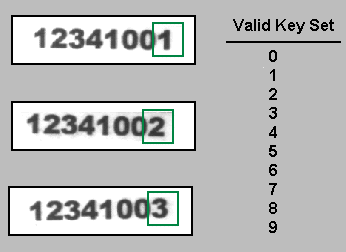
For character strings that remain constant, each key set contains a single character key. When you want to verify a character string where one or more character keys at a specific position can vary between run-time images, you must create a key set with wildcards, or multiple character keys. For example, the following figure shows three character strings that can all be verified with the same OCVMax tool, since the key set at the last position has been configured with all digit characters:
Be aware that specifying a mix of wildcard characters that contain both blank and non-blank characters is not recommended and can seriously impact the performance of an OCVMax tool.
An OCVMax tool supports a train-time key set as well as a run-time key set. Use a train-time key set to specify all the character keys possible at a certain position, and a run-time key set to specify the expected character key at that position in the next run-time image. For example, a vision application might verify a string of numbers where the values at one or more positions within the string increase incrementally. As you configure an OCVMax tool, you would specify a train-time key set with all the numerical character keys, 0 - 9, at those positions. As the application operates, you would use a run-time key set of the next character key you expect based on the last image analyzed by the OCVMax tool. Using the run-time key set generally improves the performance speed of the tool versus having the tool compare the current character with every character in the train-time key set.
The OCVMax tool is not intended to perform OCR (Optical Character Recognition). Specifying wildcards for every character in a string may result in poor performance.
The OCVMax tool uses Cognex PatMax technology to search for the character strings in each acquired image. After you specify the necessary key sets, you can graphically generate an example of each string and position them on a training image showing the actual strings you need to verify. Positioning these string graphics over the training image helps the PatMax algorithm by providing a logical starting position for each search, as well as provide good initial values for the size, rotation, and character spacing the PatMax algorithm needs to have in order to tune the OCVMax tool with good search parameters for reliably locating each character in successive run-time images.
Graphically rendering an example of each string you want to verify is not mandatory, but generally improves the performance speed and reliability of the OCVMax tool.
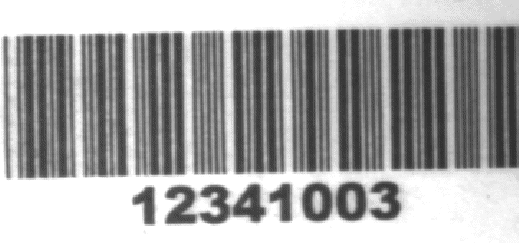
For example, the following figure shows an image containing a single string:
The next figure shows the same image after a user has rendered a string and used the OCVMax tool graphics to position the string over the corresponding characters in the training image:
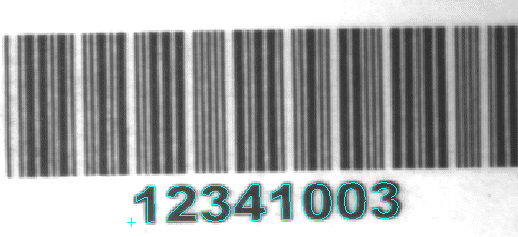
As you render and position a character string over the training image, you might notice the character keys in the image show slightly different characteristics than the character keys in the font you specified, even though you chose the correct font. For example, the printed strings in your images might use a dot-matrix font where the dots are not symmetrical in shape, or are slightly larger in scale than specified by the font.
You can compensate for these types of character key differences with the following advanced font parameters:
Additional Character Spacing
You can specify additional spacing, in pixels, between character keys in both the horizontal and vertical direction.
Additional Line Spacing
The tool allows you to specify additional spacing, in pixels, between lines of character keys when you specify a multi-line string.
Character Features
Primarily for dot-matrix fonts, you can specify the difference in scale between dots in the image and the dots specified by the font you use, or increase the stroke width in non dot-matrix fonts.
You can set these parameters as you position the strings you render over a training image. Be aware, however, that if you enable the tuning feature of an OCVMax tool, the tool itself can set good starting values for these advanced parameters, although you can always choose to change their values later to improve reliability or execution speed.
The appearance of characters can change in a variety of ways from one image to the next. Each of these types of transformation is called a degree of freedom, and can be characterized by a single numeric value, such as the amount of rotation a character undergoes from one image to the next.
| Degree of Freedom | Example |
| X Shift | 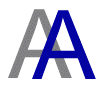 |
| Y Shift | 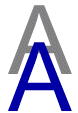 |
| Angle |  |
| Uniform Scale | 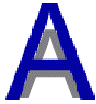 |
| Scale X |  |
| Scale Y |  |
| Shear |  |
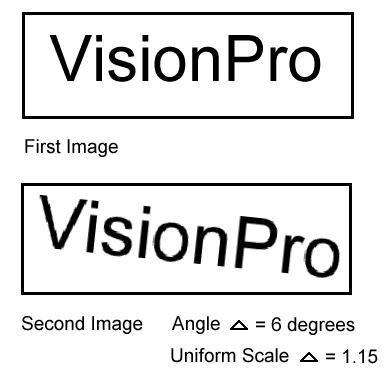
Usually, changes in degrees of freedom affect the entire character string, not individual character keys. For example, the following figure shows an entire character string that has undergone both a change in Angle and Uniform Scale:
Depending on your print equipment or surface material, however, your character string can manifest a particular degree of freedom on a character-to-character basis. For example, the following figure shows a character string where each subsequent character key in the string suffers a decrease in uniform scale:

For character strings such as this, the OCVMax tool must know about the change in uniform scale on a character-to-character basis.
As you configure an OCVMax tool you must acquire a training image of the character string(s) you want to verify, and then create examples of each string using character keys from a matching font file. Using this training image and rendered character strings, an OCVMax tool can use its tuning feature to automatically detect which degrees of freedom you should enable for initial testing against the images you acquire later.
The tuning feature uses Cognex PatMax technology to test a wide range of values for each degree of freedom to determine the best match between the character string you want to verify and the underlying example image. See the section Training and Tuning for more information on OCVMax tuning.
Once the tuning process completes, the OCVMax tool will have a set of parameters that should provide a good basis for the final set of parameters you will use when you deploy your application. As you test the OCVMax tool on different sample images, the OCVMax tool can make additional recommendations for modifying the range for various degrees of freedom, as well as hints for other search parameters. Be aware, however, that the OCVMax tool will not make recommendations for any degrees of freedom you manually disable.
Although you can disable the tuning feature of an OCVMax tool and manually set which degrees of freedom you want to the tool to consider, this can necessitate a great deal of time in determining which settings provide the best results. Cognex recommends you use the tuning feature of an OCVMax tool to generate the best set of parameters as you move toward testing the tool on various sample images.
In general, the number of degrees of freedom you enable increases the amount of time the OCVMax tool requires to sufficiently analyze an image and perform verification. Disabling additional degrees of freedom should improve performance time, at the risk of failing to verify particular character keys because of the degrees of freedom they might exhibit.
Be aware that simply enabling a degree of freedom does not improve the ability of an OCVMax tool to reliably verify a character key in successive run-time images. As the OCVMax tool attempts to verify a particular character key in a string, the degrees of freedom currently enabled determine the overall strength of the match. For example, the same character key can be perceived to be a better match with the Uniform Scale degree of freedom disabled rather than enabled.
This is especially true when a particular degree of freedom is enabled but the found character key exhibits a transformation outside the current range. For any enabled degree of freedom, the set range must encompass the variety of transformations a character key can undergo in order to prevent that degree of freedom from having a negative impact on the ability of the OCVMax tool to verify that character key.
An OCVMax tool must be trained in order to reliably locate the characters in the strings you want to verify. VisionPro uses Cognex PatMax technology to train the OCVMax tool based upon an actual image of the string(s). Before you can configure an OCVMax tool you must acquire an image of a character string showing the characteristics you expect the tool to encounter when you deploy your vision application to the production environment.
As you train an OCVMax tool you select the amount of noise, or false image data that the training image contains. Image noise can come from a variety of sources, including irregular lighting and camera optics. Well-lit images with good contrast typically have low noise values. In practice, higher quality images produce better and faster results.
In addition to training, you can allow the OCVMax tool to tune certain parameters automatically by examining the features of the character string in the acquired image. Tuning an OCVMax tool allows it to use Cognex PatMax technology to experiment with a variety of parameters and determine the best settings based on the degrees of freedom the characters in your strings are likely to experience.
The amount of time an OCVMax tool requires for tuning will vary depending on the number of characters and the type of font you use. Some character strings can require a significant amount of time to tune an OCVMax tool for successful use. For this reason, the graphical interface for the OCVMax tool provides a mechanism for indicating how far along any single tuning operation has proceeded, and how much more processing time is required for the tuning operation to complete.
Tuning is optional. Although you can disable automatic tuning as you train an OCVMax tool, it can be difficult for you to determine the best settings for various image and character-to-character parameters that allow the underlying PatMax technology to locate the strings in successive images.
The tuning operation is not always successful. In some cases, the OCVMax tool can report a failed attempt at tuning. In general, tuning fails for one of two reasons:
- The string you rendered to train the OCVMax tool does not match the actual string that appears on the training image.
- The tool graphics for the string are not close enough for Cognex PatMax technology to locate the actual string in the training image.
Finally, an OCVMax tool should be able to reliably locate and verify the characters in valid character strings once the tuning operating has completed. Be aware, however, that the time required to perform a verification can be excessive. By manually adjusting various search parameters after the tuning operating has assigned good starting values, you can typically reduce the amount of time required by the OCVMax tool to locate and verify the character strings in the images you acquire.
This section contains the following subsections.
An OCVMax tool generates a variety of scores and compares them against assorted thresholds in an effort to verify each character in your character strings.
For every character key it examines, an OCVMax tool generates a matching score to indicate how well the actual character key in the image matches the expected character key for this position, taking any key sets into consideration. Matching scores range from 0.0 to 1.0, with 1.0 the score for a perfect match.
The tool compares this matching score against an accept threshold, and gives the character key a preliminary passing result if the matching score exceeds the accept threshold. By default, the OCVMax tool uses an accept threshold of 0.50, but you can raise or lower the value as necessary for your vision application.
The accept threshold allows you to vary the sensitivity of the OCVMax tool to character and image variation. As you increase the accept threshold, the OCVMax tool will require a better match between the expected character key and the actual character key in the run-time image.
Raise the accept threshold when your vision application acquires good images of the character strings you want to verify, with character keys of consistently good print-quality, and that exhibit little change in various degrees of freedom. A high accept threshold can improve the execution speed of the OCVMax tool. If you set the threshold too high, however, the OCVMax tool will reject most or all valid character keys in the image.
Lower the accept threshold when your production environment cannot ensure a constant appearance for each character key or when character keys can undergo a change in one or more degrees of freedom. If, as you are developing your application, the OCVMax tool fails to verify correct character keys, try lowering the accept threshold.
An OCVMax tool uses two accept thresholds. The first is an accept threshold for each character key, and the second is an accept threshold for the entire string. In general, the two thresholds use the same value. If you enable the tuning feature, an OCVMax tool can generate a good value for each accept threshold automatically. You can further modify the accept thresholds to improve performance or improve reliability.
When you train an OCVMax tool, the tool creates a set of confusion scores for every character key you enable in the font you use. Confusion scores represent the amount of similarity between each pair of character keys, and are generated by comparing character keys at the same position, angle, and scale. An OCVMax tool stores the confusion scores in a confusion matrix, as shown in the following example:
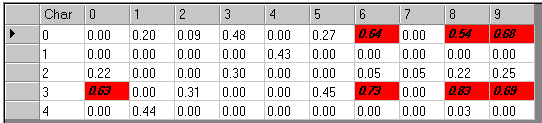
The character keys across the top of the confusion matrix represent all the enabled character keys in the current font, while the character keys down the left-hand column represent all the character keys in the string you want to verify, in numerical order. For example, this confusion matrix could represent the string “322104” in a font where only numbers are enabled. If you configure an OCVMax tool to verify multiple paragraphs, each paragraph generates its own set of confusion scores.
To read the confusion score between any two character keys, start in the left-hand column. For the previous confusion matrix, comparing the character key “3” to the character key “5” reveals a confusion score of 0.45, while comparing the “3” to the “8” reveals a confusion score of 0.83. The table may not always contain symmetric values when comparing the value at (i, j) with the value at (j, i). For example, the confusion score comparing "0" to "3" is not the same as comparing "3" to "0".
Scores that appear in red represent confusion scores that exceed the current confusion threshold, and indicate pairs of character keys where the potential for confusion can be high. As the OCVMax tool attempts to verify each character key, the tool performs some extra processing to rule out potentially confusing character keys. Using the previous confusion matrix as an example, an OCVMax tool attempting to verify a character key in the string against the character key "0" will generate a matching score for the character key "0" as well as the character keys "6", "8", and "9". The matching score for "0" must exceed the matching score for the other potentially confusing character keys, and it must exceed these scores by a margin set by a new threshold, the confidence threshold. Typically, the confidence threshold is set to a low value, such as 0.1.
If the matching score a character key receives does not exceed all other potentially confusing scores by the margin set by the confidence threshold, the OCVMax tool does not verify the character key and instead reports the character key is Confused.
As you decrease the confusion threshold, the OCVMax tool generates matching scores for more potentially confusing character keys and compares them to the matching score of each character key it attempts to verify. This yields better verification results, but it requires more time for the tool to execute and it can increase the chance that character keys will be erroneously rejected due to confusion. As you increase the confusion threshold, the tool generates fewer matching scores for potentially confusing character keys, resulting in faster execution times but increasing the chance that the tool will verify a character key incorrectly.
The confidence threshold can also be adjusted from its default low value. Increase the confidence threshold if you become concerned that the OCVMax tool verifies character keys incorrectly, for example verifying that a character key is a “3” when it appears as an “8” in your acquired image.
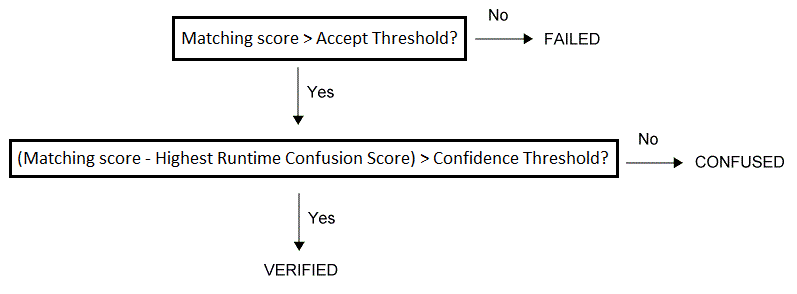
To verify a single character key in any character string, an OCVMax tool performs the following steps:
- The tool generates a matching score comparing the expected character key to the character key being verified. See the section Matching Scores and Accept Thresholds for more information. The matching score must exceed an accept threshold in order to continue verification. If the matching score falls below the accept threshold, the character key fails verification immediately.
- Using the confusion matrix, the OCVMax tool compares the matching score against the matching scores generated for all potentially confusing character keys. See the topic Confusion Scores And Confusion Thresholds for more information. If there are no confusion scores higher than the confusion threshold, the character key passes verification immediately.
- The tool subtracts the highest potentially confusing score from the matching score, and compares that resulting value against the confidence threshold. If the value is less than the confidence threshold, the tool reports the character key being identified is currently confused with another character key.
The verification process can be described graphically with the following image:
As you configure an OCVMax tool you can set a run timeout value, which determines the amount of time, in milliseconds, the OCVMax tool is allowed to return the best result for the verified character keys in your string(s).
The OCVMax tool considers the run timeout value in any attempt to locate and verify each character key in the string. Most strings will fail verification if the run timeout value is too small. If you allow the OCVMax tool to tune itself with good values for various search parameters, the tool will generate a good starting value for the run timeout.
In addition, although a string can pass verification with a particular run timeout value, enabling a larger run timeout value can generate more accurate search scores for each character key in the string. For some images, more accurate search scores can mean the difference between a verified character string and one that fails verification. In general, you should use as large a run timeout value as you can allow for each inspection of your vision application.
In some cases an OCVMax tool can return a successful result while exceeding the set run timeout value. If your vision application requires that the OCVMax tool complete its analysis within a specific time allotment, set the run timeout value to a few milliseconds less to accommodate for this type of situation.
For each image you acquire, the OCVMax tool must locate the character string (or strings) you want to verify. The OCVMax tool supports three possible search modes:
Position + Shift Uncertainty
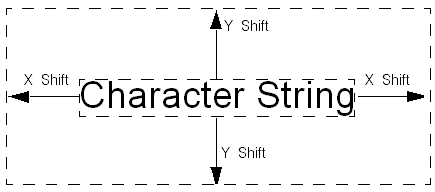
The OCVMax tool can be configured to start a search for each character string based upon where the string was found in the training image, and extending outwards along the x-axis and y-axis by a set of amount of pixels. The OCVMax tool uses the parameters X Shift and Y Shift to define the borders of the search area, as shown in the following figure:
Of the three search modes, this mode offers the fastest possible search algorithm. Cognex recommends using Position + Shift Uncertainty whenever possible.
The tuning feature of the OCVMax tool automatically uses Position + Shift Uncertainty. Once tuning is complete and you are testing the current set of OCVMax tool parameters on sample images, you can choose to switch to different search mode as appropriate for your application.
Region
You can configure the OCVMax tool to search for the character strings in a specific region of each image. If you choose this mode the OCVMax tool offers you a region graphic that you can position, size, and rotate around the area of the training image where the character string can appear.
Whole Image
You can configure the OCVMax tool to search each entire image for the strings you want to verify. The tool uses Cognex PatMax technology to perform the search.
Of the three search modes, searching the whole image requires the most amount of time. Cognex recommends you use this option only when the position of the position of the character strings can vary across the entire image.
In addition, using a Fixture tool can greatly reduce the amount of X Shift and Y Shift you need to specify when you use the Position + Shift Uncertainty search mode, or reduce the size of the region you need to specify when you use the Region search mode. Be aware that using a Fixture tool has no impact on the search if you use the Whole Image search mode.
This section contains the following subsections.
The OCVMax tool uses a variety of search parameters to locate the character strings in the images you acquire. The tool uses image search parameters to locate and identify each character string, and character search parameters to locate individual characters within the string.
By enabling the tuning feature, an OCVMax tool can generate good starting values for these search parameters. You can enable, disable, and alter these values as necessary to improve the ability of the tool to locate and verify good character strings, or to reduce the time necessary for the tool to function successfully. See the section OCVMax Optimization for optimization suggestions.
An OCVMax tool uses the following image search parameters to locate the character strings you want to verify:
| Parameter | Description |
| Search Mode | The OCVMax tool allows you to choose one of three different possible search modes for locating each character string. See the section Search Modes for more information on the various search modes. |
| Accept Threshold | The tool allows you to set an accept threshold to gauge the similarity between the character string and various features in the image that could resemble the string. See the section Matching Scores and Accept Thresholds for more information. |
| Degrees of Freedom | The tool allows you to set various values for the degrees of freedom the character string can undergo between successive images. See the section Degrees of Freedom for more information on degrees of freedom. |
An OCVMax tool uses the following character keys search parameters to distinguish between individual character keys in the string:
| Parameter | Description |
| Accept Threshold | Just as the OCVMax tool uses an accept threshold for the entire string, it uses a separate accept threshold for individual character keys within the string. See the section Matching Scores and Accept Thresholds for more information. |
| Degrees of Freedom | A character string can undergo a change in various degrees of freedom on a character-to-character basis. This is particularly true of character strings printed on a curved surface, where successive character keys can appear to have changed in their rotation and shear in comparison to one another. See the section Degrees of Freedom for more information on degrees of freedom. |
| Confusion Values | Confusion values indicate which character keys are similar in appearance to other character keys in the same font. By setting a confusion threshold for these values, you can determine how closely the OCVMax tool will examine character keys that have a similar appearance. See the section Confusion Scores And Confusion Thresholds for more information. |
This section contains the following subsections.
By default, an OCVMax tool allows the character strings in the images you acquire to exhibit a wide range in various degrees of freedom from one image to the next. In addition, using Standard Mode allows your strings to be verified in an array of lighting conditions, as well as allowing the tool to be trained despite the level of image noise in the background.
An OCVMax tool also supports Clean Print Mode, which you can use to verify character strings but only if your acquired images show a great deal of consistency with respect to several characteristics. Specifically, all your acquired images must have all the following qualities to be candidates for Clean Print Mode:
- Little to no rotation
- Uniform scale
- Little or no image noise
For example, the following series of images are valid candidates for Clean Print Mode:
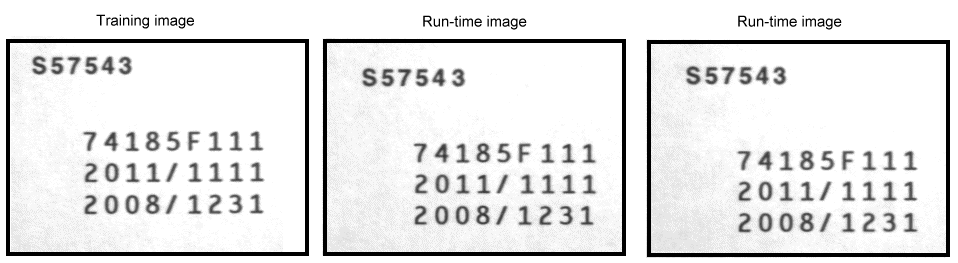
A new OCVMax tool is configured for Standard mode by default. If you switch to Clean Print Mode, the OCVMax tool restricts the Angle and Uniform Scale degrees of freedom to an allowable range, overwriting any settings you might currently have. In addition, the tool disables other degrees of freedom from consideration, such as shear and non-uniform scale.
In addition, be aware of the following usage notes regarding Clean Print Mode:
You should attempt to limit the enabled character set in the selected font to as few characters as possible.
An OCVMax tool might fail to train a character string that uses a large character set.
Candidate strings for Clean Print Mode require a higher level of contrast than images that can be analyzed in Standard Mode.
Normally, character strings require a contrast of 30 grey levels between characters and background. In Clean Print Mode, character strings should have a minimum contrast between 60 and 100 grey levels.
- An OCVMax tool typically yields better results when 5 to 8 pixels of white space exists below the string.
You do not normally need to perform tuning when you use Clean Print Mode.
Tuning an OCVMax tool with Clean Print Mode enabled can require a significant amount of time.
The character string(s) you want to verify cannot rotate more than 10 degrees in either direction as compared to the corresponding string(s) in the training image. For example, the following figure shows a character string that exhibits a rotation from image to image that prevents it from being a candidate for Clean Print Mode:
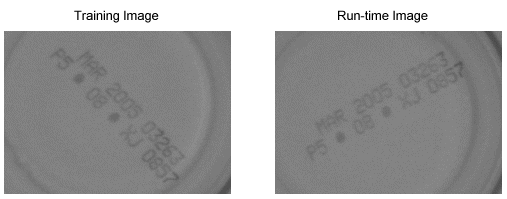
This rotational limit applies to each character string as a whole as well as to individual characters within the same string, where no character can appear with an angle of rotation more than 10 degrees from any other character. This limit often prevents character strings printed along a curved surface from qualifying for Clean Print Mode, as shown in the following example:
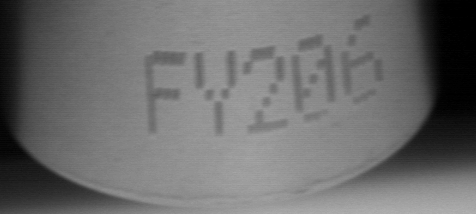
The character strings(s) you want to verify must retain a uniform scale within 0.9 to 1.1 of the training image. For example, the run-time image in the following figure shows a change in scale too large for Clean Print Mode to handle:
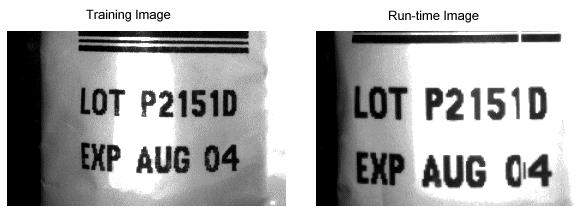
The background cannot contain a high degree of image noise, as can be seen in the following figure:
Cognex can make the following suggestions regarding the OCVMax tool:
Use a Fixture tool and the search mode Position + Shift Uncertainty
By using a Fixture tool your vision application can automatically compensate for the location of the symbols and paragraphs in successive run-time images.
The search mode Position + Shift Uncertainty starts a search for each paragraph based upon where the paragraph was found in the training image.
If your images do not contain a suitable candidate for a Fixture tool and the position of the character strings can vary significantly between images, specify a larger value for X Shift and Y Shift than the default values returned by the tuning feature. If the OCVMax tool still cannot reliably locate the paragraph, switch to a different search mode.
Enable and use character search parameters when the character keys in your paragraphs appear on a rotated surface.
Characters that appear on a rotated surface often exhibit changes in angle, position, and shear when compared to one another.
Choose an appropriate level of image noise when you train your OCVMax tool.
If you render and train a paragraph on a training image with a low noise level, the OCVMax tool will expect your run-time images to exhibit a similar amount of noise. If the run-time images contain a high degree of irrelevant image data, the OCVMax tool can likely generate low matching scores which decreases the chance the tool will correctly verify a character string even when the string contains the correct characters.
Enable the shear degree of freedom, in both image search parameters as well as character search parameters, as recommended by the OCVMax tool when you test the tool against the sample images your vision application is likely to acquire.
By default, the OCVMax tool tuning feature does not enable a factor for shear as it determines good starting values for various degrees of freedom, as enabling can shear usually increases the time required by the tool to analyze an image.
As you configure the font an OCVMax tool will use you enable which characters in the font the tool will consider. Use separate OCVMax tools for constant paragraphs where the potential for confusion between mutually exclusive characters can be high.
For example, if one paragraph contains the letter “O” and another contains the letter “Q”, use separate OCVMax tools and enable one letter while excluding the other from consideration.
The tuning feature can require a significant amount of time depending on the type and number of paragraphs you want to verify.
In general, an OCVMax tool will complete the tuning process faster with separate OCVMax tools of one paragraph than a single OCVMax tool with multiple paragraphs.
The OCVMax tool supports the OCVMax edit control, which supports a subset of the features supported by the OCVMax tool API. Specifically, the edit control does not support the following features:
Multiple paragraphs
An OCVMax edit control can contain only one paragraph.
Multi-line paragraphs
The paragraph you specify in an OCVMax edit control can contain only a single character string.
Graphics choices
The OCVMax edit control supports a fixed set of graphics to display results.
Tuning run parameters
You must use the OCVMax tool API to set tuning run parameters.
VisionPro supports the OCV tool, which like the OCVMax tool can be used to verify that one or more characters in an image match the expected characters at each position. Being aware of the differences between the tools can help you in choosing the right tool for your vision application:
Image-based training
For every character your vision application must verify, the OCV tool requires you to generate a font model sampled from one or more acquired images. The OCVMax tool uses an existing font file to define the model for each character, but the font file can be generated from an image or produced synthetically. If you have the font file for the characters in the strings you want to verify, configuring an OCVMax tool is generally quicker than configuring an OCV tool. The OCV tool can support non-Western fonts, however, since it is exclusively image based.
Search reliability
The OCVMax tool uses Cognex PatMax technology to search for each character string, allowing greater reliability in locating each string as its position varies in successive images.
Distortion
The OCVMax tool can handle far more image-to-image character distortion than the OCV tool.