This topic contains the following sections.
The OCRMax tool edit control provides a graphical user interface to the CogOCRMaxTool tool, which you use to read a single string of characters in an 8-bit greyscale image, a 16-bit greyscale image, or a range image. The following figure shows an OCRMax tool edit control after classifying a string of characters:
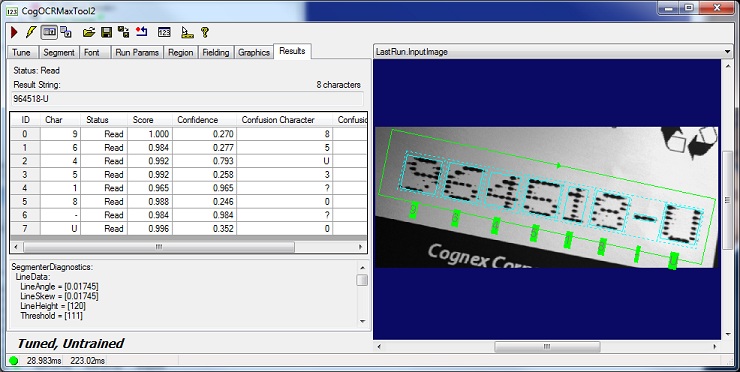
The edit control offers the following features:
- A row of control buttons at the top left provide access to the most common operations.
- A set of function tabs allow you to build an OCRMax font, set segmentation parameters, and optionally specify all or some of the string you want to verify.
- An image display window displays acquired images and result graphics.
To include the edit control in your custom vision application, you must first add it to your Visual Studio .NET development environment. See the topic Adding Edit Controls to Visual Studio for more information.
Use the Tune tab to build an OCRMax font and use the auto-tuning capabilities supported by the tool to automatically determine the best segmentation parameters for identifying the characters in successive images. The following figure shows a sample Tune tab:
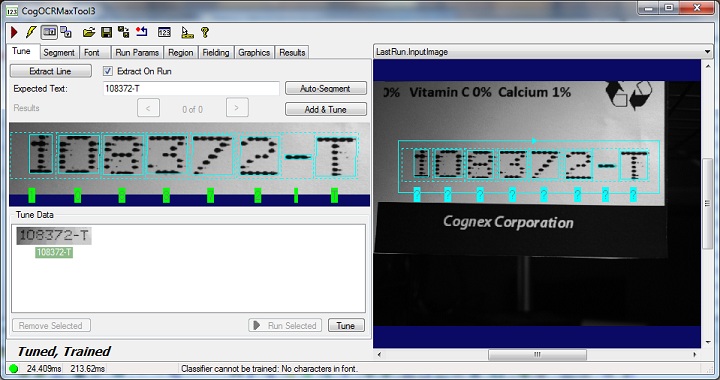
Using the Tune tab to build a font and auto-tune the segmentation parameters is optional. You can use the Font tab to build the font, but be aware the Font tab does not offer auto-tune support and you must use the Segment tab to set the segmentation parameters manually.
See the topic Using the OCRMax Tool for details on using the Tune tab, which supports the following controls:
| Control | Usage |
| Extract Line | Allow the OCRMax tool to examine the region of interest and attempt to segment the region into the correct character symbols using the current set of segmentation parameters. |
| Extract On Run | Allows the tool to perform a segmentation on the region of interest each time the tool runs. |
| Expected Text | Enter the character string as it appears contained with the region of interest for the current image. |
| Auto-Segment | Perform segmentation on the region of interest using the characters in Expected Text as a parameter. |
Add & Tune | Add the characters currently identified in the region of interest to the font for this OCRMax tool, and then set segmentation parameters based on the characteristics of the current image. Cognex recommends between 5 and 15 images be used to auto-tune the segmentation parameters. |
Tune Data | Displays all of the tune records currently used for auto-tuning of the segmentation parameters. See the section Working with Tune Data for more information. |
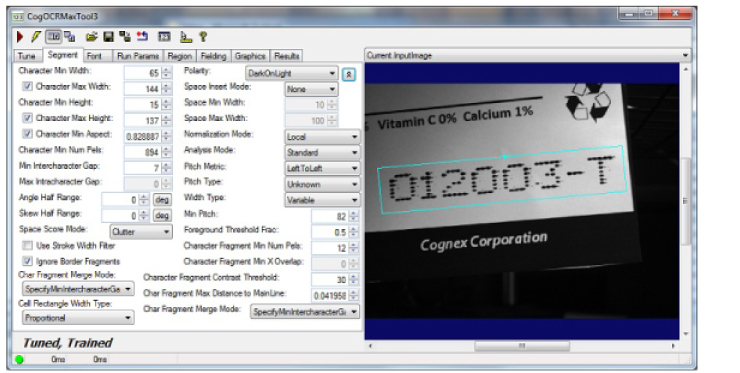
Use the Segment tab to manually choose the best parameters that separate the characters from the background as well as separate the characters from each other. Cognex recommends using the auto-tuning capabilities supported in the Tune tab and allow the tool to determine those segmentation settings automatically. Refer to the topic Choosing Segmentation Parameters for details on which parameters to modify for the images your vision application acquires.
The following figure shows an example Segment tab:
| Parameter | Description |
| CharacterMinWidth | The minimum width of a character's mark rectangle, in pixels, that a character must have in order to be reported |
| CharacterMaxWidth | The maximum allowable width of a character's mark rectangle, in pixels. A character wider than this value will be split into pieces that are not too wide |
| Polarity | The polarity of the characters in the input image. If the polarity is Unknown, the polarity will be automatically determined |
| CharacterMinHeight | The minimum height of a character's mark rectangle, in pixels, that a character must have in order to be reported |
| CharacterMaxHeight | The maximum allowable height of a character's mark rectangle, in pixels. This value is used in two ways. First, this value is used when finding the line as a whole, e.g. to reject vertically adjacent noise and/or other lines of vertically adjacent characters. Second, an individual character whose height exceeds this value will be trimmed to meet this height. |
| SpaceInsertMode | The insert mode, which specifies how to handle insertion of space characters into gaps between other characters |
| SpaceMinWidth | The minimum width of a space character, in pixels |
| SpaceMaxWidth | The maximum width of a space character, in pixels. |
| CharacterMinAspect | The minimum allowable aspect of a character, where the aspect is defined as the height of the entire line of characters divided by the width of the character's mark rectangle. A character whose aspect is smaller than this value (i.e. whose width is too large) will be split into pieces that are not too wide. |
| NormalizationMode | The method used to normalize the input image. Choosing the right value can reduce the execution time of the tool. |
| CharacterMinNumPels | The minimum number of foreground (i.e. text) pixels that a character must have in order to be reported |
| AnalysisMode | Whether to perform minimal analysis or standard analysis. Minimal analysis performs straightforward segmentation according to the parameters set in this tab, while standard analysis performs an analysis of the line as a whole, including e.g. character spacing, to determine the optimal segmentation. |
| MinIntercharacterGap | The minimum gap size, in pixels, that can occur between two characters. If the gap between two fragments is smaller than this, then they must be considered to be part of the same character, unless the combined character would be too wide (as specified by CharacterMaxWidth and/or CharacterMinAspect). The gap is measured from the right edge of the mark rectangle of one character to the left edge of the mark rectangle of the next character. |
| MaxIntracharacterGap | The maximum gap size, in pixels, that can occur within a single character, even for damaged characters. An intracharacter gap might occur, for example, between successive columns of dots in dot matrix print, or between two pieces of a solid character that was damaged by a scratch. Any gap larger than this value will always be interpreted as a break between two separate characters, whereas gaps less than or equal to this value may be interpreted either as a break between two separate characters or as a gap within a single character. |
| PitchMetric | The metric used to specify the spacing of characters. Note that pitch is the distance between (approximately) corresponding points on adjacent characters and not the distance from the end of one character to the beginning of the next character (which is called the "intercharacter gap"). Also note that specifying the pitch metric does not necessarily imply that the measured pitch values are expected to be constant. |
| PitchType | How individual pitch values are expected to vary; the pitch values are measured as specified by the pitch metric. |
| WidthType | How the widths of characters in the font expected to vary. Note that the character width is the width of the mark rectangle (e.g. the bounding box of the ink), not the cell rectangle (which would typically include padding around the mark rectangle). |
| MinPitch | The minimum pitch, in pixels, that can occur between two characters, where the pitch is computed as specified by the pitch metric. If the pitch between two fragments is smaller than this, then they must be considered to be part of the same character, unless the combined character would be too wide (as specified by CharacterMaxWidth and/or CharacterMinAspect). |
| AngleHalfRange | Half of the angle search range in radians. |
| SkewHalfRange | Half of the skew search range in radians. |
| SpaceScoreMode | The score mode, which specifies how to handle scoring of space characters. |
| ForegroundThresholdFrac | A modifier in the range [0, 1] that is used to compute the binarization threshold, in the normalized image, that binarizes between foreground and background. |
| UseStrokeWidthFilter | Whether to remove from the normalized image everything that does not appear to have the same stroke width as the rest of the image. This can be useful if, for example, characters appear to be connected to each other by thin noise streaks. However, using the stroke width filter might incorrectly remove real characters if the stroke widths are inconsistent. |
| IgnoreBorderFragments | Whether to completely ignore any fragments that touch any border of the ROI. Ignoring such fragments can be useful for non-text features such as the edges of labels that might be included within the ROI. |
| CharacterMinNumPels | The minimum number of foreground (i.e. text) pixels that a character must have in order to be reported. |
| CharacterFragmentMinXOverlap | The minimum fraction by which two character fragments must overlap each other in the x direction in order for the two fragments to be considered part of the same character. |
| CharacterFragmentContrastThreshold | The minimum amount of contrast (in normalized image grey levels) that a fragment must have, relative to the binarization threshold, in order to be considered for possible inclusion in a character. |
| CharacterFragmentMaxDistanceToMainLine | Get/set a modifier in the range [0, 1] this is the maximum distance a fragment can have outside the main line of characters as percentage of estimated line height. |
| CharacterFragmentMergeMode | Get/set the mode used to determine whether to merge two fragments into one character during the Group stage. |
| CellRectangleWidthType | Determines how the tool computes the width of the cell rectangle surrounding a character. |
Use the Font tab to build an OCR font. The OCRMax tool is an image-based font tool, and requires you to build an OCR font from sample images. The following figure shows a sample Font tab:
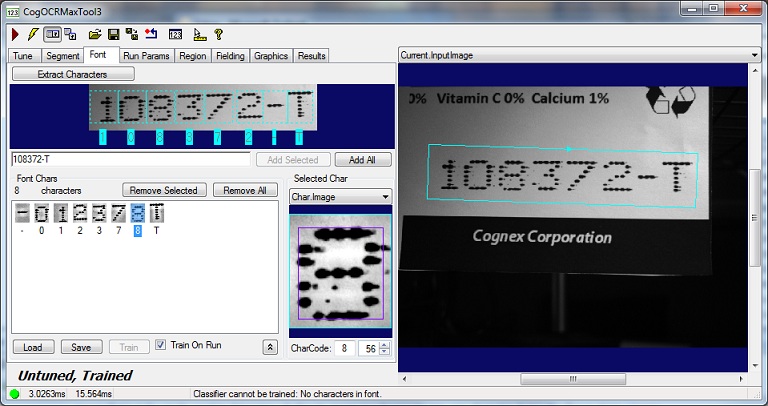
The characters in your sample image must be properly segmented before you can add characters to your OCR font. Use the Tune tab to determine the right segmentation parameters. As shown the previous figure, these characters have been properly segmented and are available to be added to an OCR font.
Perform the following steps to add characters in a segmented image to your OCR font:
- Click Extract Characters.
- Enter the name for each character in the text line underneath the extracted characters.
Click Add Selected or Add All to add characters to your OCR font.
The tool allows you to have multiple instances of any character. Multiple instances allows the tool to compensate in cases where you train it to locate a character that can appear damaged in known instances, but having multiple instances of the same character can add execution time to the tool.
Use the Load and Save buttons to load an existing OCR font file or save the current file, respectively.
Enable Train on Run to have the tool train the OCR font file with each execution of the tool, or disable this option and use Train to train the OCR font with the current set of character instances.
Use the Run Params tab to set run parameters . The following figure shows a sample Run Params tab:
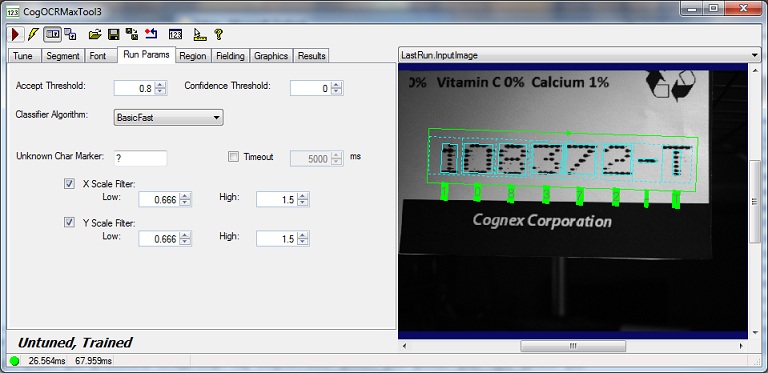
| Parameter | Description |
An accept threshold See the topic The OCRMax Tool for a description of when to raise or lower the accept threshold. | |
A confidence threshold See the topic The OCRMax Tool for a description of when to raise or lower the confidence threshold. | |
| CogOCRMaxClassifierAlgorithmConstants | The algorithm used for classification. The Basic option is available for existing applications. The BasicFast option is the default and appropriate for most applications. |
| UnknownCharacterMarker | A string which will be used to identify the unknown character code in result strings generated by this tool. |
| Timeout | Gets or sets the timeout value used by this tool in milliseconds. |
Whether to use the x-scale filter. The Low value for x-scale filter range for skipping candidate classes/instances whose rectified training image's x-size (i.e. width) is beyond the range specified here. The High value for x-scale filter range for skipping candidate classes/instances whose rectified training image's y-size (i.e. width) is beyond the range specified here. | |
Whether to use the y-scale filter. The Low value for y-scale filter range for skipping candidate classes/instances whose rectified training image's y-size (i.e. height) is beyond the range specified here. The High value for y-scale filter range for skipping candidate classes/instances whose rectified training image's y-size (i.e. height) is beyond the range specified here. |
Use the Region tab to refine the type and size of the region of interest for the character string. The following figure shows the default Region tab:
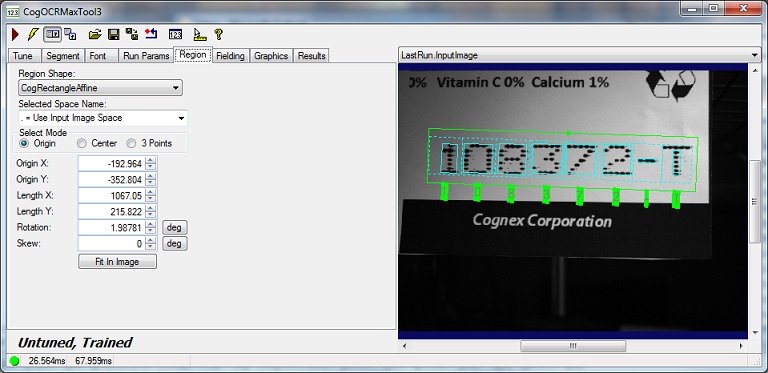
| Parameter | Description |
| Region | Gets or sets the optional region which determines where the tool should look for text. |
Use the other parameters to set the selected space of the input image at run-time and to specify a precise size for the region. All relevant character results are specified in units of the selected space.
Use the Fielding tab to use the optional fielding capabilities of the tool, as described in the section OCRMax Tool. The following figure shows a sample Fielding tab:
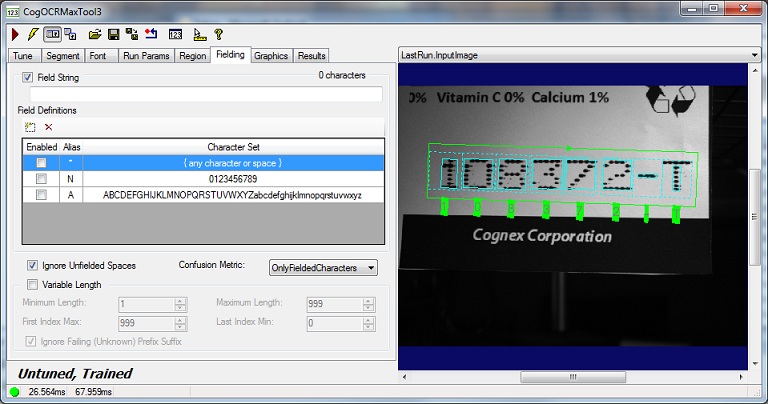
See the topic The OCRMax tool for a full description of fielding, and the topic Using the OCRMax Tool for an example of its use.
| Parameter | Description |
| FieldString | Get or set the string that specifies what characters are expected. This string may optionally contain characters that correspond to fielding definition aliases. |
| FieldingDefinitions | Get or set the fielding definition collection for this OCRMax tool. A number of predefined aliases exist for you to enable or you can define your own definitions. |
| IgnoreUnfieldedSpaces | Get or set whether to ignore/skip spaces in the input string where the corresponding fielding settings for those character settings do not allow spaces. Default is true. |
Set how the fielding process will determine confusion. Choose from:
| |
Sets whether the fielding operation runs in variable-length mode. If not set, the tool runs in fixed-length mode. Fixed-length mode requires that the classifier result match the field string in its entirety while variable-length allows matching a partial sub-set of the field string. Specify the following parameters for variable-length string: |
Use the Graphics tab select which tool graphics the tool will display in the LastRun.InputImage buffer. The following figure shows the default Graphics tab:
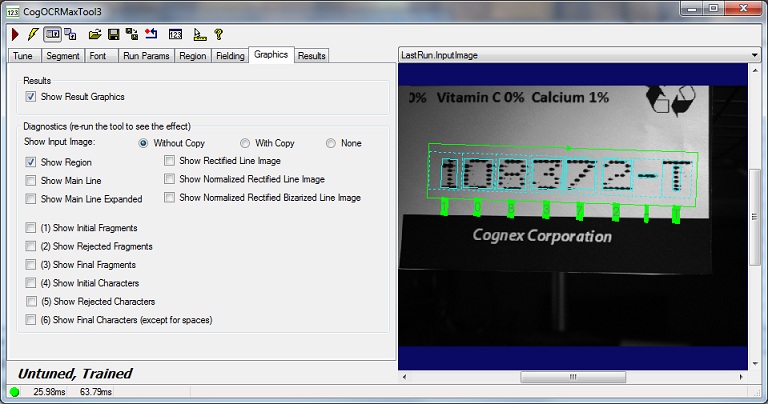
| Parameter | Description |
| Show Results Graphics | Display the mark rectangle and label for each classified character in the LastRun.InputImage. |
| Show Input Image | Determine whether or not the input image is recorded as part of the diagnostic record, and whether the image is copied to the record or saved in the record as a reference. |
| Show Region | Dispay the region of interest in the LastRun.InputImage. |
| Show Rectified Line Image | Show the area of the image within the region of interest with any rotation and skew removed, along with mark rectangles and character names for each classified character. |
| MainLine | Show the affine rectangle initially detected by the segmentation process and assumed to contain most of the character pixels. |
| Show Normalized Rectified Line Image | Show the area within the region of interest after image normalization, with any rotation and skew removed, and with mark rectangles and character names for each classified character. |
| MainLineExpanded | Show the affine rectangle initially detected by the segmentation process and enlarged to incorporate partically included fragments. |
| Show Normalized Rectified Binarized Line Image | Show a binarized area within the region of interest after image normalization, with any rotation and skew removed, and with mark rectangles and character names for each classified character. |
The Graphics tab also supports a set of graphic options that display the results of the segmentation process:
| Option | Description |
| InitialFragments | Show the initial set of fragments before any fragments have been rejected or split/merged into other fragments. |
| RejectedFragments | Show the fragments that were immediatly rejected because they did not meet one or more of the restrictions set in the segmenter parameters. |
| FinalFragments | Show character fragments after inital fragment processing is complete; the final character fragments are then grouped into characters. |
| InitialCharacters | Show the initial characters which are the result of grouping or splitting the final fragments into characters. |
| RejectedCharacters | Show any characters that were rejected after being initially formed |
| FinalCharacters | Show the final character groupings. |
Use the Results tab to view the results generated by the segmentation and classification operations. The following figure shows a sample Results tab:
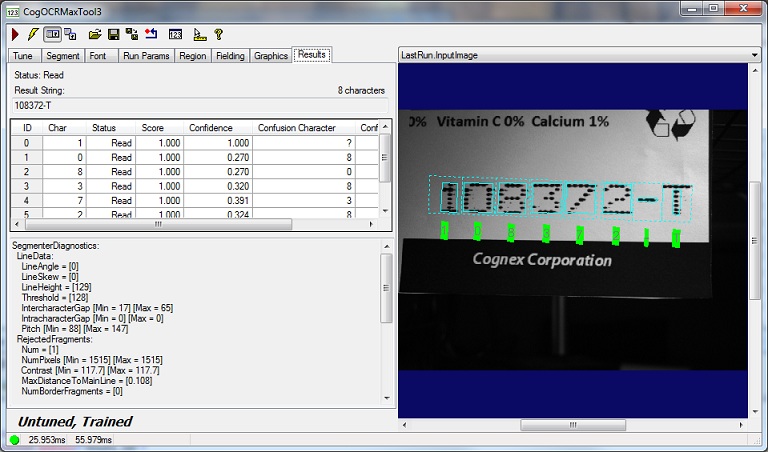
| Parameter | Description |
| Status | The result status: Read, Confused, or Failed. This is the lowest grade among all position results in this line result. |
The Results tab contains a grid of the following results for each of the characters in the string: | In addition, the Results tab displays a set of segmentation diagnostics that you can use to modify various segmentation parameters if the auto-tuning capabilities supported by the tool do not provide a sufficient read rate for your images. |