Viewing Calibration Scans
As you work through the application, you will need to acquire both vertical and horizontal scans of your calibration target. See the topic Scanning a Calibration Target for more information on how the target must be presented to your 3D sensors for the different types of scans.
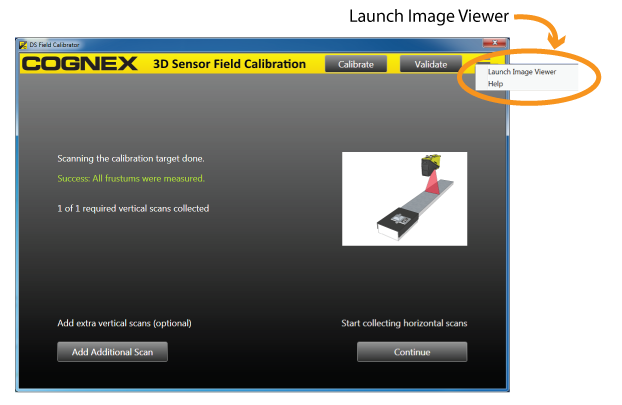
The application allows you to view images of the scans you acquire by selecting the icon highlighted in the following figure and choosing Launch Image Viewer:
The application presents a diagnostic display that you can use to the view a particular scan for any particular sensor, as shown:
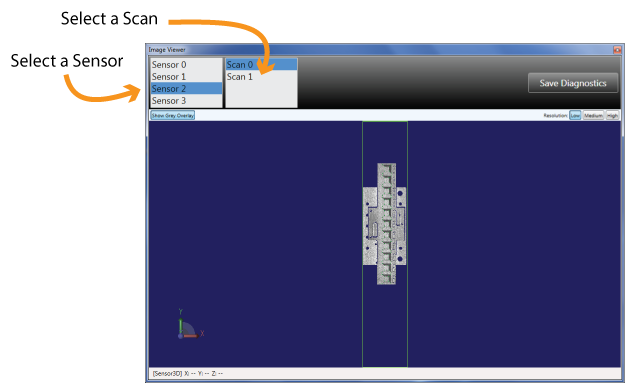
Use your keyboard and mouse to rotate, pan and zoom:
- Rotate: left-click and move
- Pan: SHIFT+left click and move
- Zoom: CTRL+left click move
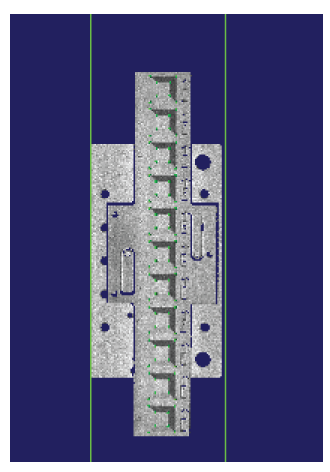
The diagnostics display can be useful for viewing successful scans where all the features of the frustums were detected, as shown:
Likewise, you can use the display to view scans were some (or all) features were not detected, as shown:
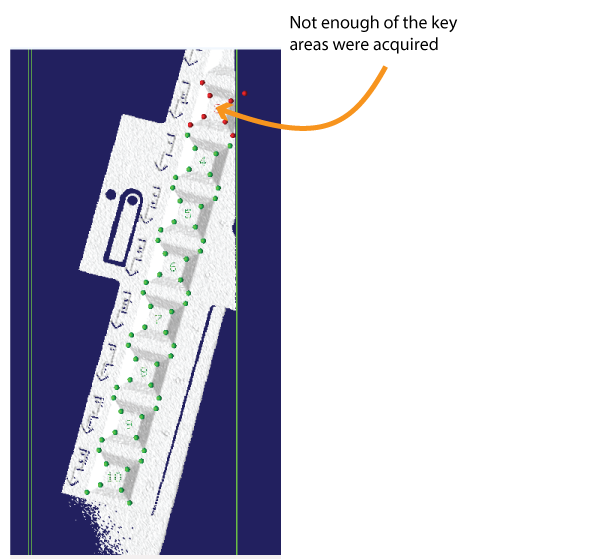
Viewing unsuccessful scans can aid in the way you reposition the calibration target for a rescan, as necessary. Cognex recommends you capture all diagnostic data before you attempt the next scan. See the topic Troubleshooting for more on recording diagnostic data.
All scans are removed if you exit the application and start again.