This topic contains the following sections.
The Composite Color Match tool provides a graphical user interface to the CogCompositeColorMatchTool, which you use to examine the color content of an area in an image and generate a set of match scores between the examined area and a table of reference entries, where each entry consists of a combination of color combined with a sample of each possible image the vision application might encounter. Unlike the Color Match tool, which calculates an average for the color pixels within a region, you can use a Composite Color Match tool to distinguish between patterns of color or textures of color. The following figure shows the Composite Color Match tool edit control:
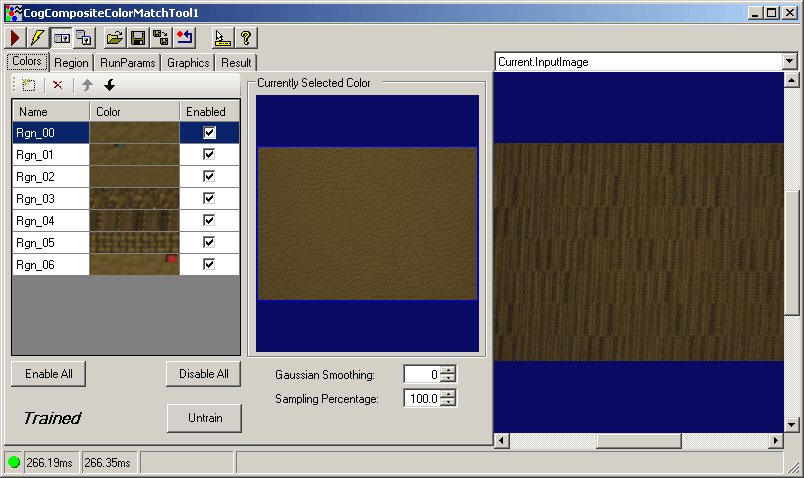
The edit control allows you to perform the following actions:
- Build a reference table of composite color entries in the Red, Green, and Blue color space.
- Define the shape, size and location of the region the tool will use to examine the color content in each acquired image.
- Allow the tool to adjust for differences in lighting from image to image.
- Determine how the results the tool generates will be sorted.
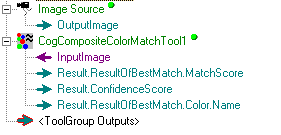
If you add a CogCompositeColorMatchTool to a QuickBuild Job, it appears with an input terminal for the InputImage and output terminals for the best match score, the name of the color that generated the best match score, and the current confidence score, as shown in the following figure:
See the topic Adding Edit Controls to Visual Studio for details on how to add a Composite Color Match edit control to your Visual Studio.NET development environment if you are creating a vision application using the VisionPro application programming interface (API). The QuickBuild development environment supports the Color Match edit control automatically.

The following table describes the function of each button:
| Button | Description | Function |
 | Run | Generate a comparison score between the current region of interest and each composite color in the reference table. |
 | Electric mode | Toggle electric mode, where the Composite Color Match tool executes automatically when particular configuration parameters change. In electric mode, a lightning bolt appears next to every electric property. |
 | Local image display | Open or close the local image display window. A Composite Color Match tool supports the following image buffers:
|
 | Floating image display | Open one or more floating image windows, which support the same image buffers as the local image display window. |
 | Open | Open a VisionPro persistence (.vpp) file that contains a set of saved properties for this vision tool object type. VisionPro reports an error if you try to open a .vpp file for another object type. |
 | Save | Save the current properties of the Composite Color Match tool to a VisionPro persistence (.vpp) file. The edit control allows you to choose between saving the Composite Color Match tool with or without its image buffers and tool results. |
 | Save As | Save the current properties of the vision tool to a new VisionPro persistence (.vpp) file. |
 | Reset | Reset the vision tool to its default state. The tool gives you a choice between resetting to the default-constructed state, which is appropriate when you are using it in a Visual Studio.NET application, or its template-initialized state, which is appropriate for QuickBuild applications. |
 | Show ToolTips | Enable or disable the display of tooltips for individual items in the edit control. |
 | Help | Open this VisionPro online help file. |
Use the Colors tab to generate the table of reference entries with the composite colors the Composite Color Match tool will compare against the region of interest in each run-time image. The following figure shows the Colors tab with a set of reference entries and a current image:

The Colors tab displays a grid of the CompositeColorCollection currently defined for the Composite Color Match tool. Use the function buttons shown in the following figure to add, delete and reorder the items in the reference table:

The following table describes what each button does:
| Button | Description |
 | Add a new reference entry by selecting a region of the Current.InputImage. The Colors tab displays a region graphic over the Current.InputImage as well as the ability to control the properties of the region, as shown in the following figure: 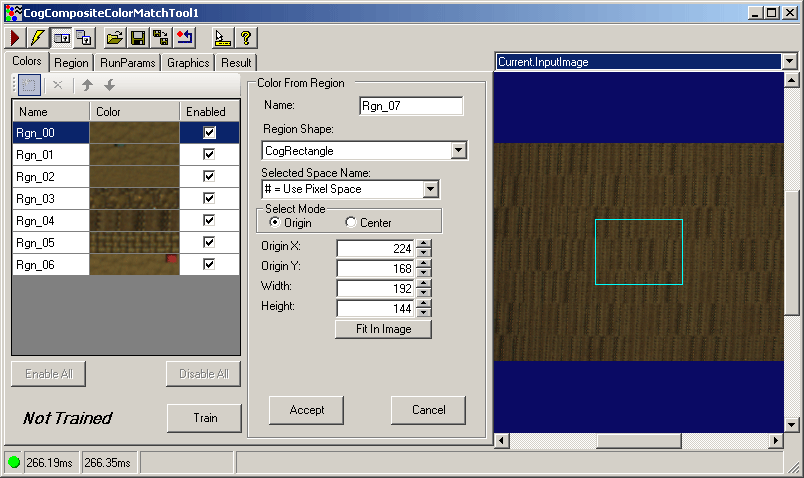 Define the region to add to your reference table and click Accept. |
 | Remove the selected composite color from the reference table. |
 | IndexOf the selected composite color up one position in the reference table, although the order of the reference colors does not affect the operation of the Composite Color Match tool. |
 | IndexOf the selected composite color down one position in the reference table, although the order of the reference colors does not affect the operation of the Composite Color Match tool. |
The Colors tab includes an area for modifying the composite colors in the reference table:
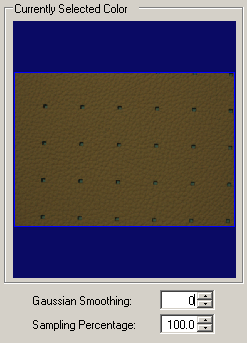
The following table describes these controls:
| Control | Description |
| Region | The region component of this color composite entry, containing the Image component. |
The amount of Gaussian smoothing factor you want to apply to the image component of the composite color. Gaussian smoothing removes some detail and image noise from a composite color. You can enter a value between 0 and 24 to indicate the square size of the filter the smoothing operation will use. Smoothing each image sample can reduce image noise introduced by various sources and can make the comparison more reliable in vision applications where image noise is a factor. Be aware, however, that there is a trade-off between the amount of smoothing you can perform and the accuracy of any comparison. | |
A sampling percentage will allow the Composite Color Match tool to use a sample of each original image you use to generate the comparison score, which can improve the execution speed of the tool at the cost of some accuracy. | The amount of sampling percentage you want to apply to the image component of the composite color. |
Use the Region tab to specify the type of region you want to use to examine the run-time image. By default, the region of interest is configured to encompass the entire input image, but you can configure it to examine only a portion of each acquired image. For example, the following figure shows the Region tab configured to use a rectangular region of interest:
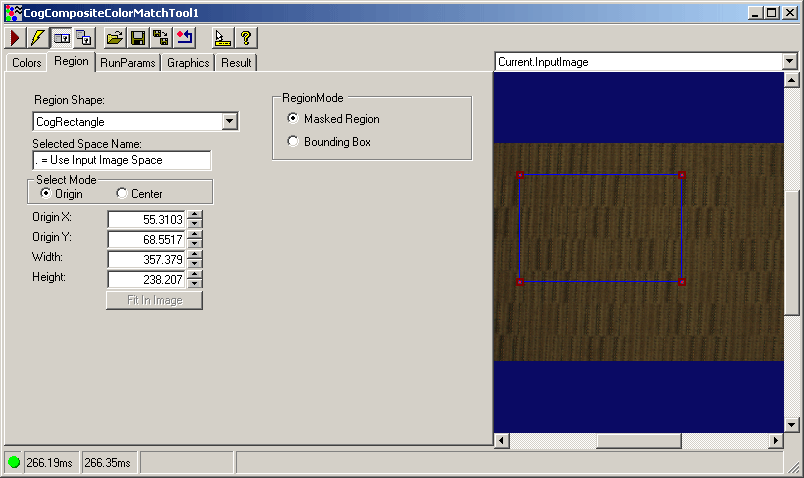
Use the following controls to determine the region of interest:
| Feature | Description |
Select the shape of the input region. Selecting "None=Use entire image" means that the tool uses the entire input image. A Composite Color Match tool supports the following input region shapes:
The set of region-defining parameters that appear depend on the region shape you use. | |
Defines how the tool interprets the region you specify.
| |
| SelectedSpaceName | The coordinate space in which the copy region is interpreted. For more information, see Coordinate Space Names. |
| Select Mode | Available when Region Shape is CogRectangle or CogRectangleAffine. Selects the set of parameters that define the rectangle. If cogRectangleAffine is chosen, note that the angles of rotation and skew can be specified in degrees or radians, although the underlying tool keeps the measurements in radians. |
| FitToImage | Centers the copy region within Current.InputImage. |
Use the RunParams tab to determine whether the Composite Color Match performs a normalization on each acquired image and how the tool sorts the results. The following figure shows the RunParams tab:

Use the following controls to establish run parameters:
| Control | Description |
| NormalizeIntensityEnabled | Enable intensity normalization for each acquired image, which can be helpful when the lighting varies from one image acquisition to the next. |
| SortResultSetByScores | By default, the Composite Color Match tool sorts results by the scores between the region of interest and the table of reference entries, but you can switch this to By Index in order to have the tool display results according to the order of the entries in the reference table. |
The Graphics tab allows you configure the diagnostic record and control whether the LastRun.InputImage shows the region of interest. The following figure shows the default Graphics tab:
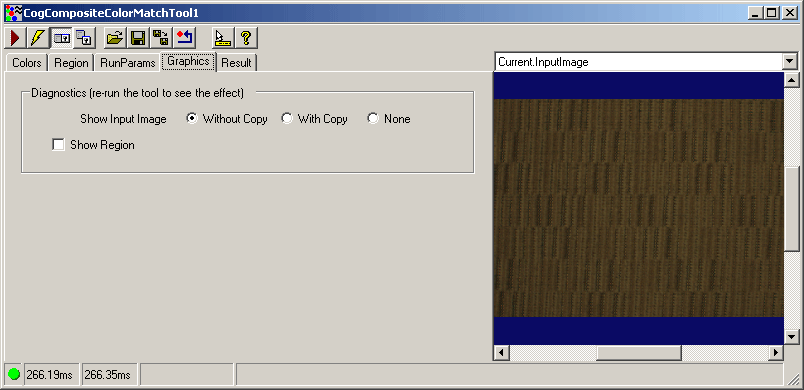
For Show Input Image, determine whether or not the input image is recorded as part of the diagnostic record, and whether the image is copied to the record or saved in the record as a reference.
Check Show Region to enable a graphic on the LastRun.InputImage corresponding to the region on interest.
The Results tab displays the results from the last run of the tool. The following figure shows an example Results tab:
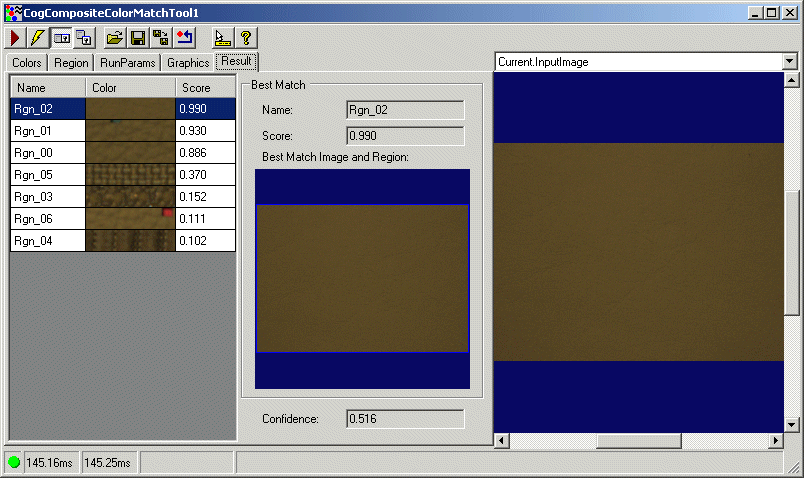
The edit control for the Composite Color Match tool generates the following results:
| Result | Description |
| ResultOfBestMatch | The Color and MatchScore of the composite color that produced the best match between the region of interest and the reference table. |
| CogCompositeColorMatchResult | The image corresponding to the best match between the region of interest and the reference table. |