This topic contains the following sections.
The Color Match tool compares a region of color in a run-time image against a table of reference colors, and generates a set of scores to indicate how closely the area of the run-time image matches each known color. The higher the comparison score, the greater the similarity. The tool returns the color from the reference table that represents the highest match with the color observed in the run-time image.
For example, the following figure shows a series of images that need to be distinguished by color:

Using the Color Match tool, a QuickBuild application can distinguish one from another:

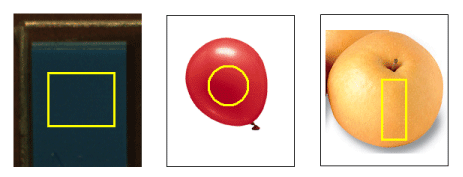
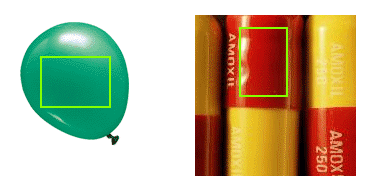
Use the Color Match tool to differentiate between regions of singular color. The tool generates an average value from the colored pixels contained by the region of interest in each run-time image, and generates more reliable results when the region contains a uniform area of color, as shown in the following examples:
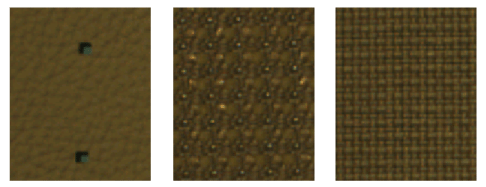
If you need to identify objects based on patterns of different color, such as textures, use a Composite Color Match tool. The following images represent regions better suited to the Composite Color Match Match tool rather than the simpler Color Match tool:
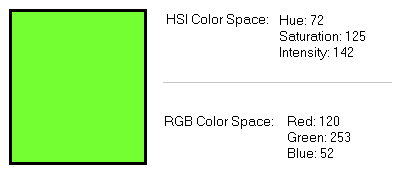
A Color Match tool can accept images in both the Red, Green, Blue (RGB) or the Hue, Saturation, Intensity (HSI) color space, each of which uses three planar values to define any one color. See the topic Color Images for more description on color spaces. For example, the following image shows the separate planar values that define a specific color in each color space:
A Color Match tool compares a region of a run-time image against a table of reference colors and determines which reference color generates the best match. When you add a Color Match tool to your QuickBuild application, you must define the set of reference colors using either a single acquired image or a series of separate images. Most applications will require you to acquire a series of likely images and generate a single entry for the color reference table from each one. Creating a new entry for the color reference table involves the following steps:
- Capture a typical image containing the color you want to add to the reference table.
Specify whether you want to use a single pixel from the image or add the color using a defined region.
Use a single pixel when your images contain a consistent color value, such as in the following examples:
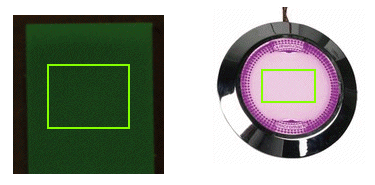
Use a defined region when you want the tool to generate an average color value from all the pixels the region contains, such as in the following examples:
- Define the point or region that contains the color you want to add to the reference table.
- Give the new reference color a name.
- Define the color space, either RGB or HSI, for the new color.
- Add the new color to the reference table and generate the next reference color, as necessary.
See the topic Color Match tool edit control for more information on how to generate the color reference table.
Once you have a complete reference table, you can test acquired images to ensure that the tool returns the correct match for each color.
A Color Match tool generates a match score based on the color distance between the color of the run-time image and the reference color. The tool uses the following formula to generate the color distance:

The formula applies evenly to images of either color space, where the i component represents values for Red, Green or Blue in the RGB color space or the values for Hue, Saturation and Intensity in the HSI color space. If necessary, you can alter the weight given to any single component before the tool calculates the color distance. This can be useful in situations where two reference colors are very similar and the tool does not always distinguish between them correctly in run-time images. For example, the following example shows how the Color Match tool incorrectly identifies the color 'Grape' as 'Black Cherry':

By altering the amount of Intensity the tool considers in calculating the color distance, the tool can identify the color correctly:

Note: When generating a color distance for the Hue color plane in HSI space, the Color Match tool takes into account the fact that Hue values wrap from 255 back to 0. See the topic Color Acquisition for a description of the Hue color plane.
In any application that uses a Color Match, performance can be improved by emphasizing on the more distinguishable components of the object under inspection.
You can control how a Color Match tool sorts the results it generates. Each time the tool executes, it creates a results table of all reference colors along with the match score that each color generated. You can control how the Color Match tool orders the colors in the results table, choosing to either keep the default behavior of listing the colors in descending order of their match scores, or to have the tool generate a results table but maintaining the order of colors as they appear in the reference table. In addition to this results table, the Color Match tool also returns the following result information:
By itself, the result information a Color Match tool returns cannot affect the Pass/Fail status of a vision application. Any result information your application generates needs to be passed to a Data Analysis or Results Analysis tool to determine how the application should proceed with the result of the color match.