The QuickBuild environment makes it easier to create a vision application by providing you with a framework that lets you manipulate the vision tools interactively. The Application Wizard gives you a simple way to provide a user interface to the application so you can deploy it as an executable application. In many cases, however, you may want to give your vision application a custom user interface.
As you saw in Choosing an Application Development Pathway there are two ways to create a vision application with a custom user interface. One way is to use the VisionPro programming interface directly for all of your application. Another way is to load a QuickBuild application into a Visual Basic or C# program. The advantage of this approach is that you get the benefits of the interactive QuickBuild environment and the custom user interface of a hand-built application.
The next four sections guide you in creating a QuickBuild-based application. The QuickBuild application you'll be using is in %VPRO_ROOT%\Samples\Programming\QuickBuild\advancedAppOne.vpp. Before going ahead, try running the application in QuickBuild to see what it looks like.
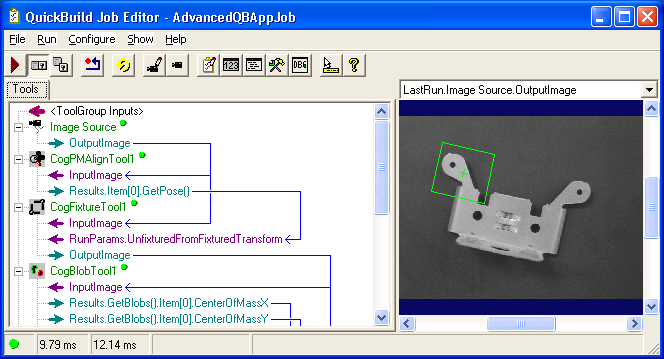
The QuickBuild application uses PatMax to find one of the "ears" of the bracket, the CogFixture tool to set up a coordinate space for the image, the Blob tool to find the two central holes, and the CogDistancePointToPointTool to measure the distance between the holes. Finally, the Results Analysis Tool determines the inspection passes or fails by testing whether the distance between the two holes falls in an acceptable range.
The guide is divided into four steps: