This topic contains the following sections.
In this step you'll be enhancing the user interface to run the application continuously, displaying results from the application, and displaying images from the application. The important things to notice in this step are:
- Getting results from the application with UserResult
- Getting information from records
- Avoiding deadlocks with Application.DoEvents
The next user interface element you'll add is a Run Continuous button. When you click this button, it will stay depressed, and the application will run until you click the button again. To get this behavior, this example uses a check box and changes its appearance to a button.
Make sure the Form1.vb [Design] tab is active. From the Common Controls section of the Visual Studio Toolbox drag a CheckBox control to your form. Change its text to Run Continuous. Change its name to RunContCheckBox. Finally, change its appearance to Button.
The user interface should look something like this:
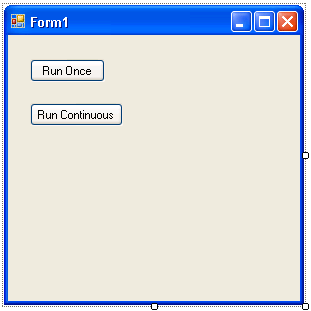
Double-click the new Run Continuous button to create its Check_Changed handler, and add the following code:
Private Sub RunContCheckBox_CheckedChanged(ByVal sender As System.Object, ByVal e As System.EventArgs) Handles RunContCheckBox.CheckedChangedIf (RunContCheckBox.Checked) Then Try RunOnceButton.Enabled = False myJobManager.RunContinuous() Catch ex As Exception MessageBox.Show(ex.Message) End Try Else Try RunContCheckBox.Enabled = False myJobManager.Stop() Catch ex As Exception MessageBox.Show(ex.Message) End Try End If End Sub
The RunContinuous method runs all of the jobs in the myJobManager which contains your saved QuickBuild application repeatedly until Stop stops them. The CheckedChanged handler takes care of disabling the Run Once button when the jobs start and of disabling the Run Continuous button while waiting for the jobs to stop.
Add the following line of code to the Stopped handler to reenable the Run Continuous button when all the jobs have stopped.
Private Sub myJobManager_Stopped(ByVal sender As Object, ByVal e As CogJobManagerActionEventArgs)

    If InvokeRequired Then
        Dim myDel As New myJobManagerDelegate(AddressOf myJobManager_Stopped)
        Dim eventArgs() As Object = {sender, e}

        Invoke(myDel, eventArgs)
        Return
    End If

    RunOnceButton.Enabled = True
    RunContCheckBox.Enabled = True
End SubAnd add the following line of code to the Run Once button's Click handler to disable the Run Continuous button while the job is running once.
Private Sub RunOnceButton_Click(ByVal sender As System.Object, ByVal e As System.EventArgs) Handles RunOnceButton.Click
    Try
        RunOnceButton.Enabled = False
        RunContCheckBox.Enabled = False
        myJobManager.Run()
    Catch ex As Exception
        MessageBox.Show(ex.Message)
    End Try
End SubIf you run your program at this point, you'll see the buttons become enabled and disabled at the appropriate times. You can also click the window's close box to exit the application even while it is running.
The user interface you've added so far starts and stops the saved QuickBuild application, but it does not display any results. In this part of the example, you'll be extracting data from the job and displaying it in a text box.
The following figure shows how results from each job that the job manager contains get posted to various queues. The queue you'll be working with here is the Posted Items list. In the VisionPro API, this queue is called the User Queue.
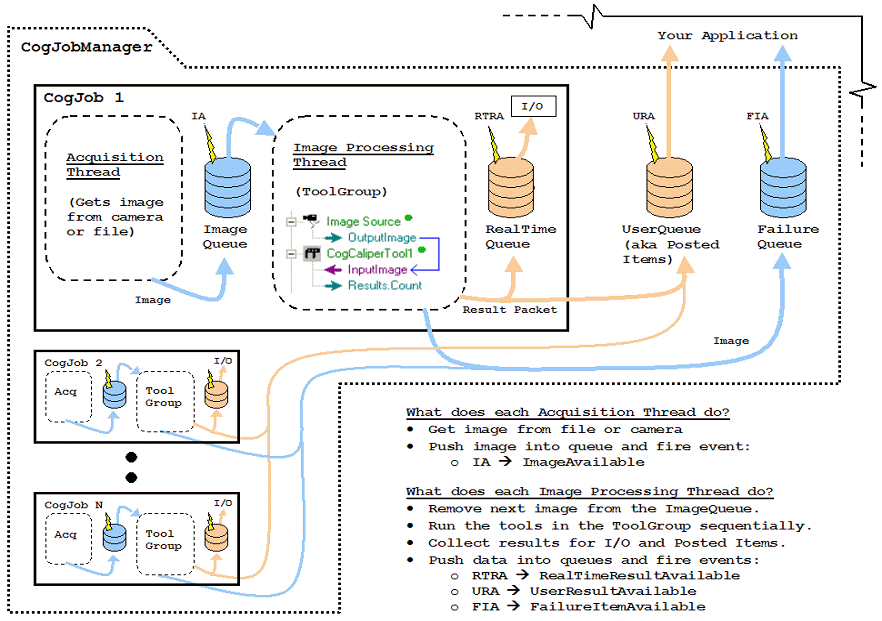
As the diagram illustrates, when there is a new result available in the User Queue, the job manager fires a UserResultAvailable event. That's where you'll extract the data from the job and display it in the form.
Make sure the Form1.vb [Design] tab is active. From the Common Controls section of the Visual Studio Toolbox drag a TextBox to your form. Change its name to RunStatusTextBox. This is where you'll display the run status of your application.
At the end of the Form1 class, add the following UserResultAvailable event handler. Note that since it modifies a user interface item (the text box), you need to use the Invoke idiom you learned earlier.
Private Sub myJobManager_UserResultAvailable(ByVal sender As Object, ByVal e As CogJobManagerActionEventArgs)
    If InvokeRequired Then
        ' Create a pointer to this function
        Dim myDel As New myJobManagerDelegate(AddressOf myJobManager_UserResultAvailable)
        ' Call this same function on the correct thread
        Dim eventArgs() As Object = {sender, e}
        Invoke(myDel, eventArgs)
        Return
    End If
    Dim topRecord As Cognex.VisionPro.ICogRecord = myJobManager.UserResult
    RunStatusTextBox.Text = _
       topRecord.SubRecords("UserResultTag").Content & ": " _
     & topRecord.SubRecords("JobName").Content & " --> " _
     & topRecord.SubRecords("RunStatus").Content.ToString
End SubThe UserResult method removes and returns the oldest result record from the job manager's User Queue. This record contains a subrecord for each of the items in the Posted Items list. (See Configuring the Posted Items List.) It also contains these additional subrecords:
- UserResultTag The serial number of this run of the job
- JobName The name of the job that returned the result
- RunStatus The RunStatus of the job
Later on in this example, you'll be displaying all of these values in a single string.
Before you can run your program, you need to register the UserResultsAvailable handler in the form's Load handler and unregister it in its FormClosing handler. The Load handler should now look like this:
Private Sub Form1_Load(ByVal sender As System.Object, ByVal e As System.EventArgs) Handles MyBase.Load

    myJobManager = CType(CogSerializer.LoadObjectFromFile("C:\Program Files\Cognex\VisionPro\Samples\Programming\QuickBuild\advancedAppOne.vpp"), CogJobManager)
    myJob = myJobManager.Job(0)
    myIndependentJob = myJob.OwnedIndependent

    myJobManager.UserQueueFlush()
    myJobManager.FailureQueueFlush()
    myJob.ImageQueueFlush()
    myIndependentJob.RealTimeQueueFlush()

    AddHandler myJobManager.Stopped, AddressOf myJobManager_Stopped
    AddHandler myJobManager.UserResultAvailable, AddressOf myJobManager_UserResultAvailable
End SubThe FormClosing handler looks like this:
Private Sub Form1_FormClosing(ByVal sender As Object, ByVal e As System.Windows.Forms.FormClosingEventArgs) Handles Me.FormClosing
    RemoveHandler myJobManager.Stopped, AddressOf myJobManager_Stopped
    RemoveHandler myJobManager.UserResultAvailable, AddressOf myJobManager_UserResultAvailable
   Application.DoEvents()
    myJobManager.Shutdown()
End SubIn addition to removing the UserResultAvailable handler, the FormClosing method also calls Application.DoEvents() to clear the Windows message queue. It prevents a deadlock that can occur if a new user result becomes available after the form's close box has been clicked but before the UserResultAvailable handler is unregistered.
When you run the application, you'll see the results in the text box. In the next step, you'll add a display to your application.