This topic contains the following sections.
In this last step you'll be finishing the QuickBuild-based application by adding a VisionPro control to display images. The important things to notice in this step are:
- Using a display control to display result records
- Accesing the appropriate record to display
- Connecting a display status bar to a display
VisionPro provides four kinds of display controls that you can use to display images and graphics.
| Display Control | Descrption |
| CogToolDisplay | This is the display control you see in QuickBuild and in the vision tools. You can connect a VisionPro tool to the display control, and extracts the records directly from the tool. It uses a dropdown list to choose the image records to display. |
| CogRecordsDisplay | This control is similar to the CogToolDisplay control. It lets the user choose an image record from a dropdown list and displays any graphical subrecords of the image. Unlike CogToolDisplay this control does not know anything about VisionPro tools; you must provide the records to be displayed. |
| CogRecordDisplay | This control displays a single image record and its graphical subrecords. It does not have a dropdown list box, and it does not allow the user to choose an image. |
| CogDisplay | This is the lowest level display control used as a base by all the other display controls. This control displays a single image and a collection of graphics which must be provided directly to the control. |
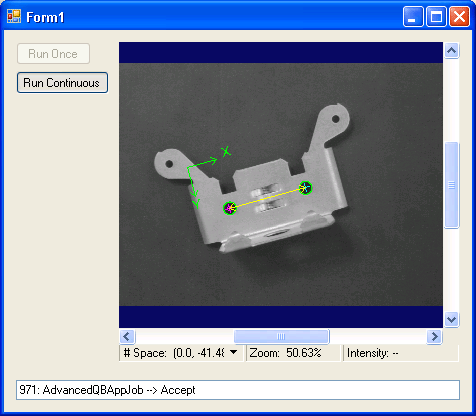
For this example, you'll use the CogRecordDisplay control to display the LastRun.CogFixtureTool1.OutputImage record which contains the image of the bracket and a graphic showing the distance between the holes.
Add references to the following assemblies:
- Cognex.VisionPro.Controls
- Cognex.VisionPro.Display.Controls
Make sure the Form1.vb [Design] tab is active. From the VisionPro Display Controls section of the Visual Studio Toolbox drag a CogRecordDisplay control to your form.
Note: If you do not see the CogRecordDisplay in the toolbox, right-click in the Toolbox and choose Choose Items. In the Choose Toolbox Items dialog that appears, scroll down until you find CogRecordDisplay and make sure the check box is checked.
Drag a CogDisplayStatusBar just below the CogRecordDisplay. Your form should look something like this: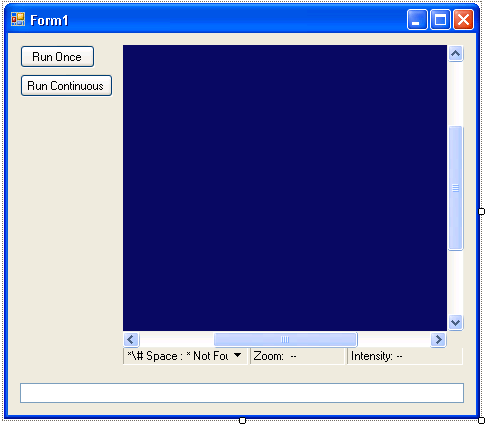
At the end of the FormClosing method add the following code to dispose of the controls when the application closes:
Private Sub Form1_FormClosing(ByVal sender As Object, ByVal e As System.Windows.Forms.FormClosingEventArgs) Handles Me.FormClosing
    RemoveHandler myJobManager.Stopped, AddressOf myJobManager_Stopped
    RemoveHandler myJobManager.UserResultAvailable, AddressOf myJobManager_UserResultAvailable
    Application.DoEvents()
    myJobManager.Shutdown()
    CogDisplayStatusBar1.Dispose()
   CogRecordDisplay1.Dispose()
End SubAnd at the end of the Load method add the following code to link the display status bar with the display.
Private Sub Form1_Load(ByVal sender As System.Object, ByVal e As System.EventArgs) Handles MyBase.Load
    myJobManager = CType(CogSerializer.LoadObjectFromFile("C:\Program Files\Cognex\VisionPro\Samples\Programming\QuickBuild\advancedAppOne.vpp"), CogJobManager)
    myJob = myJobManager.Job(0)
    myIndependentJob = myJob.OwnedIndependent

    myJobManager.UserQueueFlush()
    myJobManager.FailureQueueFlush()
    myJob.ImageQueueFlush()
    myIndependentJob.RealTimeQueueFlush()

    AddHandler myJobManager.Stopped, AddressOf myJobManager_Stopped
    AddHandler myJobManager.UserResultAvailable, AddressOf myJobManager_UserResultAvailable
    CogDisplayStatusBar1.Display = CogRecordDisplay1
End SubThe code to get the record to display in the CogRecordDisplay control goes at the end of the UserResultAvailable handler:
Private Sub myJobManager_UserResultAvailable(ByVal sender As Object, ByVal e As CogJobManagerActionEventArgs)
    If InvokeRequired Then
        Dim myDel As New myJobManagerDelegate(AddressOf myJobManager_UserResultAvailable)
        Dim eventArgs() As Object = {sender, e}
        Invoke(myDel, eventArgs)
        Return
    End If

    Dim topRecord As Cognex.VisionPro.ICogRecord =  myJobManager.UserResult

    RunStatusTextBox.Text = _
       topRecord.SubRecords("UserResultTag").Content & ": " _
     & topRecord.SubRecords("JobName").Content & " --> " _
     & topRecord.SubRecords("RunStatus").Content.ToString

    Dim tmpRecord As Cognex.VisionPro.ICogRecord
    tmpRecord = topRecord.SubRecords("ShowLastRunRecordForUserQueue")
    tmpRecord = tmpRecord.SubRecords("LastRun")
    tmpRecord = tmpRecord.SubRecords("CogFixtureTool1.OutputImage")
    CogRecordDisplay1.Record = tmpRecord
    CogRecordDisplay1.Fit(True)
End SubThe successive calls to SubRecords follow the subrecord path to get the output image of the QuickBuild application's Fixture tool. The Record property specifies the record to the display. The Fit method scales the image and its graphics to fit in the display control.
If you run the program now, you'll see each image displayed in the CogRecordDisplay control.