This topic contains the following sections.
The Data Analysis tool lets you define a range of tolerance limits and apply them to specific numeric values produced by other VisionPro tools. The Data Analysis tool also calculates a set of statistics for each incoming value as well as for a finite number of recent input values.
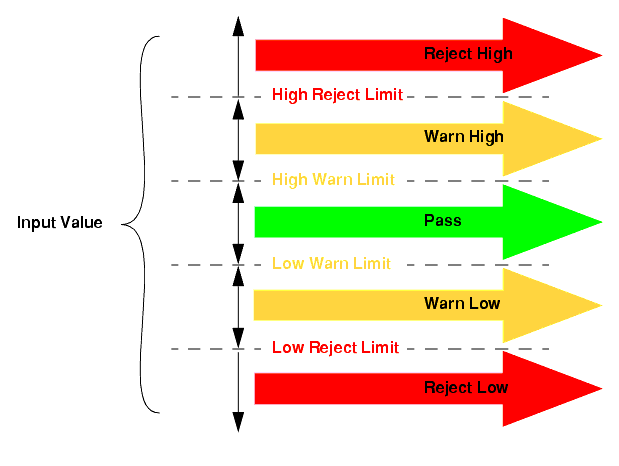
The Data Analysis tool uses a data channel to compare the result of any vision tool against a set of tolerance ranges. For each channel you add to a Data Analysis tool, you can specify four different tolerance values: A low and high reject limit and a low and high warn limit. For every tested value, the tool can produce one of five possible tolerance results, as shown in the following figure:
Figure 1. Tolerance values
You do not have to enable a tolerance range for all categories. For example, you can test a value only against a High Reject limit. In addition, you can enable or disable each of the tolerance ranges at any time.
If you attempt to run the tool twice in succession without providing a new input value for a channel, the tool generates a result status of invalid. An invalid status means that the input value on that data analysis channel has already been evaluated once.
As you configure a Data Analysis tool, you can specify that the tool produce a Reject status if any of the individual channels have invalid input values, or you can specify that the tool ignore invalid values and calculate the aggregate status using only channels with valid values.
If you specify multiple data analysis channels, you can have the tool calculate the aggregate status for the tool, based on the status of individual channels. The aggregate status can have one of three possible values, as shown in the following figure:
Figure 2. Computing the aggregate tolerance value

The Data Analysis tool generates the following statistical measures for the data values processed by each data analysis channel:
- The number of processed values
- The mean (average) of the processed values
- The minimum and maximum value among the processed values
- The standard deviation of the processed values
The Data Analysis tool can generate two sets of statistics. Each time the tool runs, the tool generates and updates a set of running statistics, such as the number of processed values, the minimum and maximum value so far, and so on. These statistics are available as properties of the data analysis channel object. You can reset these statistics at any time.
In addition to running statistics, the tool can calculate statistics for a set of buffered results, which are the results based on the last n samples, based on a buffer size that you specify. At any time, you can enable or disabled buffered statistics. You can also compute the statistics for a specific range of values within the buffer.
For example, if you specify a buffer size of 100, you can always compute statistics for the most recently processed 100 input values, or for the 50 most recent values, or for values 50 through 100. In addition, you can obtain any input values from within the buffer at any time.
The default buffer size is 10.
QuickBuild supports a Results Analysis tool that lets you define a set of criteria that will allow the last run of the tool group to be judged as Pass, Warn, or Reject. Using Results Analysis, you can combine the results from one, several, or all your vision tools and generate an intermediate result that can be used to judge whether the application generates a Warn or Reject status. The Results Analysis tool supports a large set of operations that can be performed on results, including arithmetic (addition, subtraction, multiplication, division), numerical comparison (less than, less than or equal, equal, greater than, and so on), string comparison (case sensitive equal, case insensitive equal), logic (AND, OR, XOR, NOT), vector-to-scalar or reducing logic (ANDALL and ORALL), and math (ABS, SQRT).
If your application can determine the quality of an inspection based on only a single numeric value, such as the number of results found with a Blob tool or the print quality of a decoded symbol, then choose a Data Analysis tool instead of the Results Analysis tool. The Data Analysis tool, however, cannot perform any mathematical operations on results, nor can it evaluate strings or boolean values. For these types of operations you need to use a Results Analysis tool.
See the topic How To Use Results Analysis for more information on how to use the Results Analysis window of a tool group.