This topic contains the following sections.
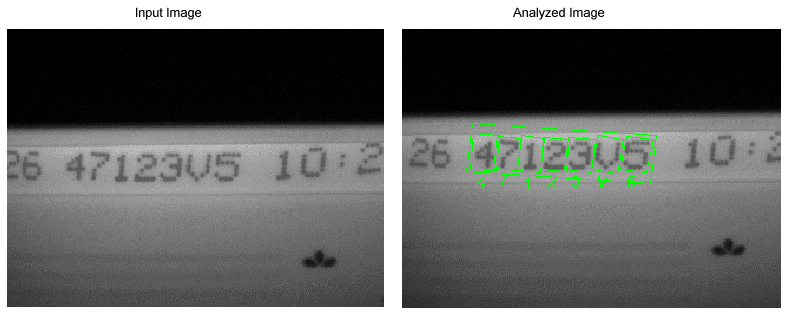
The CogOCVMaxTool tool performs optical character verification (OCV), a process for verifying that one or more character strings in an image contain the expected characters at each position. Vision applications typically use OCV to verify lot codes, date codes, expiration dates, and other information printed on products or packaging. For example, the following figure shows an example image where an OCVMax tool has been used to verify a string composed of a 7 x 7 dot-matrix font:
The OCVMax tool edit control allows you to determine which image search parameters and character search parameters work best for your vision application. The edit control, however, does not support all the functionality of the OCVMax API. Specifically, the edit control does not support multiple paragraphs, multi-line paragraphs, and many of the tuning run parameters. See the topic OCVMax Tool for more information on the limits of the edit control.
The following procedure creates a QuickBuild application that uses an OCVMax tool to verify the characters in an IDB file:
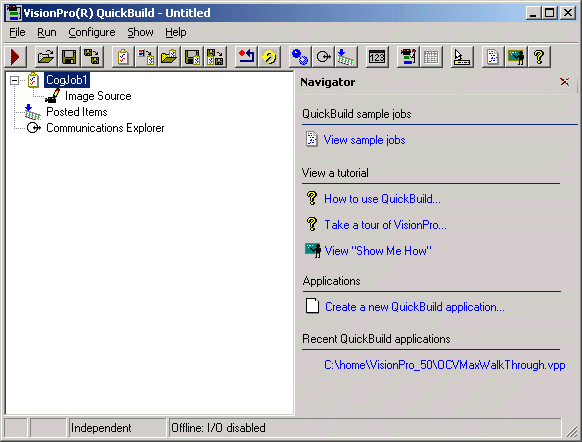
Launch QuickBuild, which by default contains one Job:
- (Optional) Close the Navigator pane.
Double-click on the Image Source for CogJob1 and configure it to use the images in the file Cognex\VisionPro\Images\TestDataBase.idb.
See the section Acquiring From an Image Database for details on acquiring from an image database.
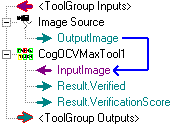
Add a CogOCVMax tool to the Job and give it the OutputImage from the Image Source, as shown in the following figure:
- Run the Job once to give the OCVMax tool an input image.
Open the OCVMax tool, which appears as shown in the following figure:
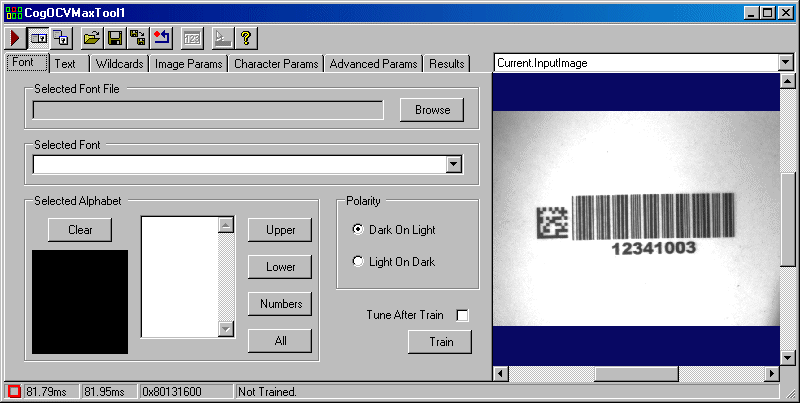
The strings in this image-database file use the font Arial Bold, which can normally be found in the /WINDOWS/Fonts directory of most PCs.
Note: The OCVMax edit control is unable to select font files from the /WINDOWS/Fonts directory. If you need to select a font from this directory, you must first copy the font file to another directory so the edit control can select it.
Click Browse and select the font file for Arial Bold in whatever directory you copied it from the /WINDOWS/Fonts directory.
Once selected, the Font tab appears as shown in the following figure:
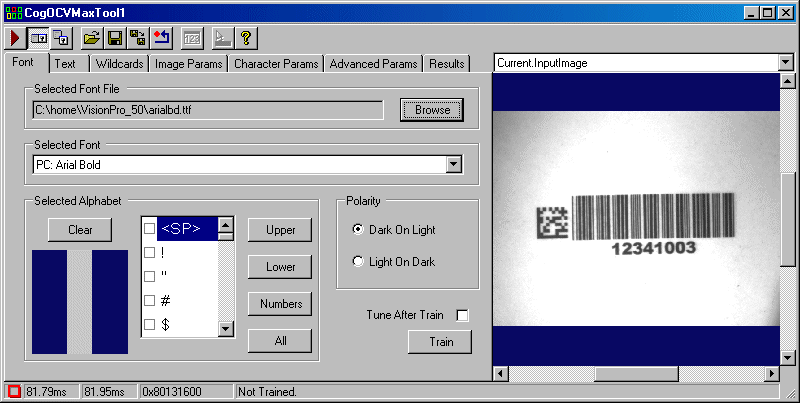
Before you can specify the paragraph you want the tool to verify, you must select which character keys in the font are valid for the character string. The edit control does not enable any character keys automatically.
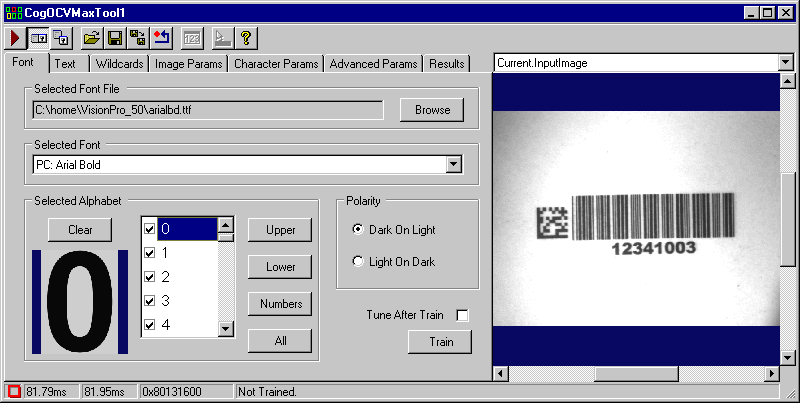
Under the Selected Alphabet section of the tab, click Numbers.
This automatically selects all number characters in the font. Once selected, you can scroll down to any character representing a digit and it will appear as selected, as shown in the following figure:
- Select the Text tab.
Enter a string of numbers to match the string that currently appears in the Current.InputImage window, as shown in the following figure:
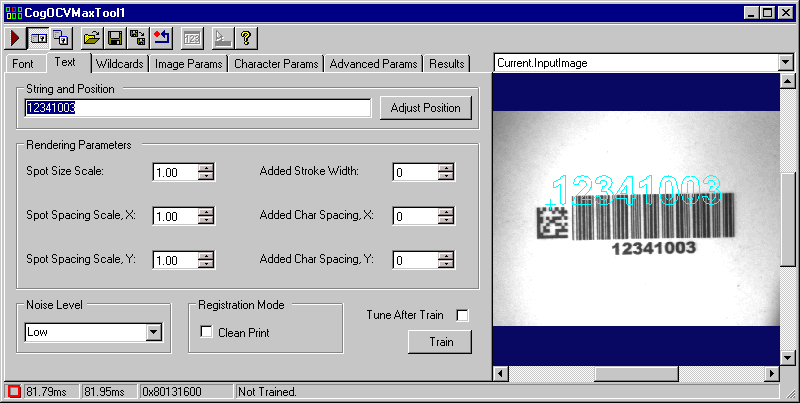
The OCVMax edit control generates a graphic representing the string you enter, and places the graphic over the input image.
Click Adjust Position and then click on the graphic representing the character string.
The graphic displays handles that allow you to resize, reposition, and rotate the graphic, as shown in the following figure:
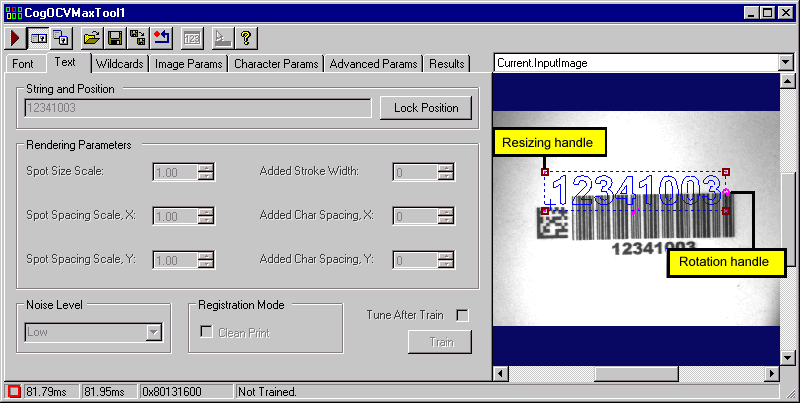
Use the graphic handles to position the graphic over the character string in the input image, fitting the graphic as close to the string as possible.
You might need to zoom in on the image in an effort to match the graphics to the string. The following figure shows a string graphic that closely fits the underlying string:
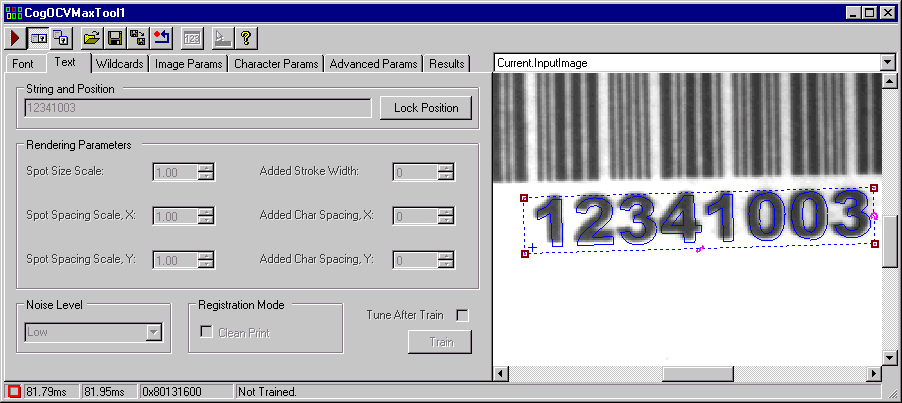
Click Lock Position when you are satisfied that the graphic matches the character string.
You could use the Rendering Parameters to add additional spacing and scale to the graphic representing the string, but the string in this underlying image does not require any additional parameters.
Check the Tune After Train checkbox and then click Train to train this OCVMax tool with the character string you want to verify. The tuning feature uses Cognex PatMax technology to test a wide range of values for each degree of freedom to determine the best match between the character string you want to verify and the underlying example image.
The tuning operation can take a while to complete. Once complete, the label on the Train button will toggle to Untrain.
Run the OCVMax tool and switch the image window to the LastRun.InputImage to see if the tool verifies the character string using the current set of search parameters.
The tool should be able to verify each character in the string, which uses green graphics for each verified character as shown in the following figure:
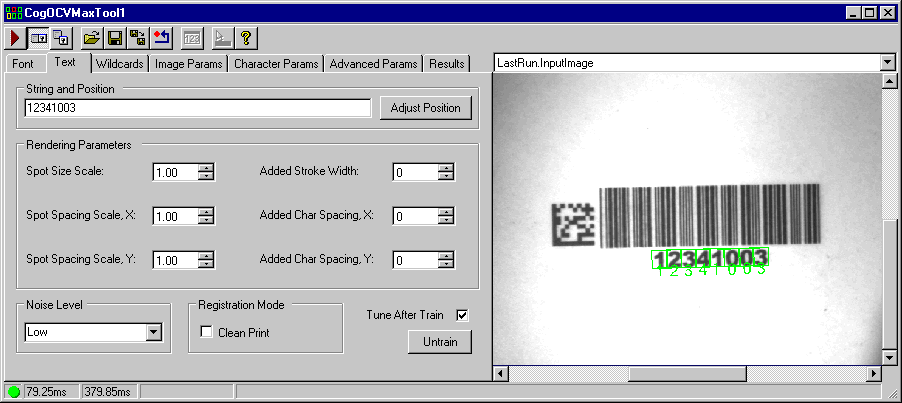
An OCVMax tool can report a successful execution regardless of whether all the characters in the string are verified. In the preceding figure, the tool reports all characters are verified.
Run the Job repeatedly. For images where the last number in the string changes, the tool reports the character is not verified, as shown in the following figure:
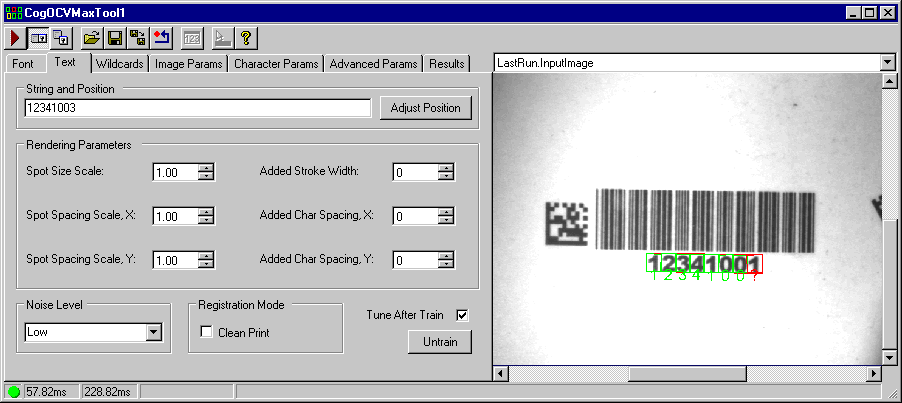
Switch to the Wildcards tab, which lets you specify what character positions support multiple valid characters:
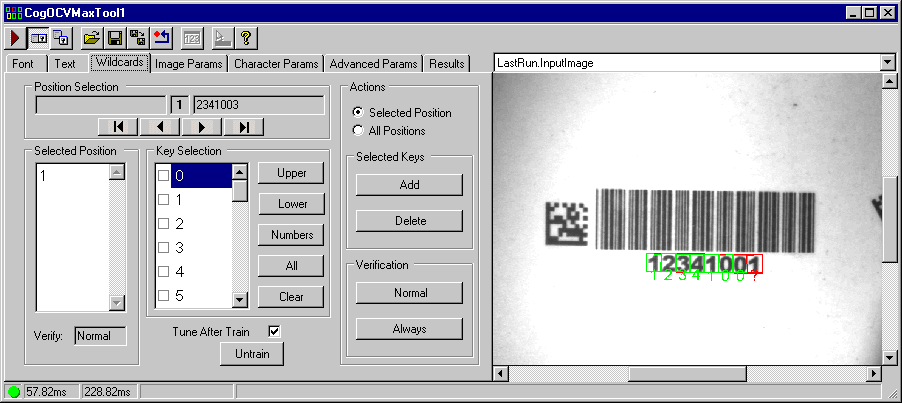
For this application, the last character in the string can be any digit and the string is still valid. The OCVMax tool must be configured to verify any number in that last position.
Use the buttons in the Position Selection area to select the last character position in the string, as shown:
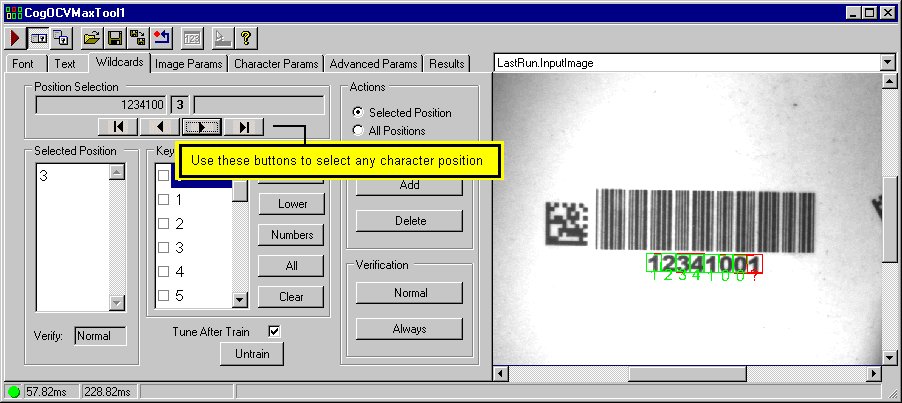
The value "3" under Selected Position indicates that only the digit "3" is a valid character at this position.
Click Numbers in the Key Selection area of the tab to select all the numbers and then click Add.
This allows the OCVMax tool to verify any digit at this character position, as indicated:
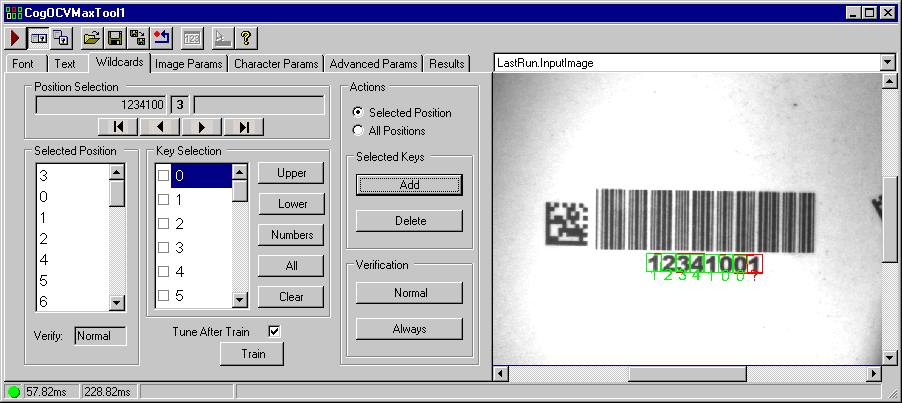
With the Selected Position option active, the character keys you enable are only valid for the current position in the string. If you select All Positions, then any character keys you select become valid at any position in the string.
You can delete character keys later by selecting them under Key Selection and choosing Delete.
Configuring additional characters as being valid automatically untrains the tool.
- Click Train to train the OCVMax tool with its new parameters.
Run the tool again to see that it correctly verifies all the digits in the character string:
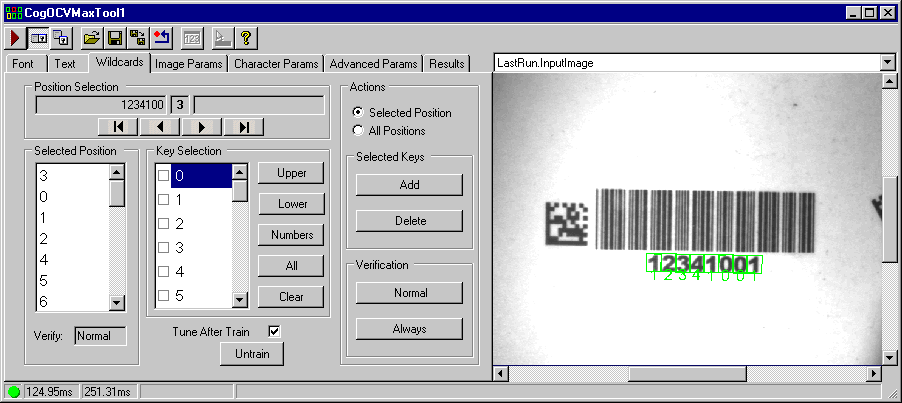
The OCVMax tool supports two verification types:
- Normal: The OCVMax tool will determine that each character is either Verified, Confused, or Failed. This is the default verification type for the tool.
- Always: The OCVMax tool will always return a Verified result for each character in the string, but will determine which character in the font most closely matches the character in the image.
- Run the Job repeatedly to see that the OCVMax tool verifies all the characters in each image.
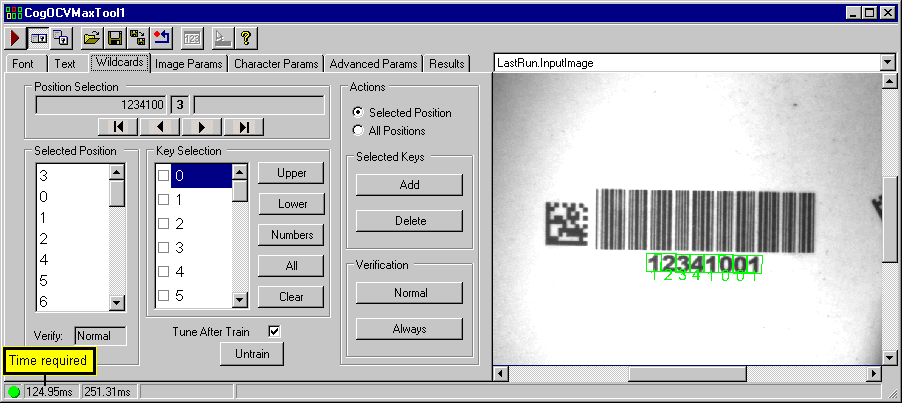
Note the time required for the tool to execute. In the following example, the OCVMax analyzed the image in 124.95 milliseconds:
- To reduce the amount of time required by the tool to execute, start by switching to the Image Params tab.
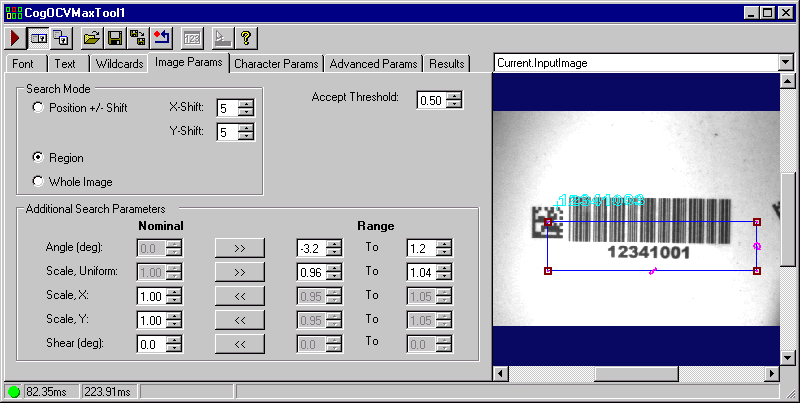
Switch the image window to the Current.InputImage and change the search mode to Region.
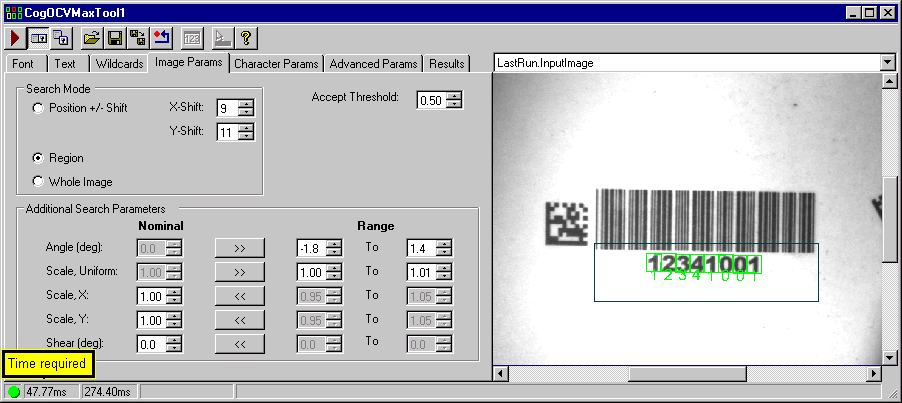
By default, the tool uses Whole Image mode to locate the character string. Since the strings appear in consistent location from image to image, switching to Region mode can improve the performance time of the tool.
Click on the region graphic in the Current.InputImage and specify a general area under the barcode symol, as shown:
Switch back to the LastRun.InputImage and run the OCVMax tool again.
The time required for the tool to execute should drop dramatically. For example, the following figure shows how the same OCVMax tool used in the preceding figure now analyzes the image and verifies the character string in 47.77 milliseconds: