This topic contains the following sections.
The Image Average tool edit control provides a graphical user interface to the CogImageAverageTool tool, which you use to accumulate a number of acquired images of the same scene and generate an average image. Generating an average image can be helpful for reducing image noise or for generating a reliable image where lighting can be erratic. In addition to the average image, the tool can also calculate a standard deviation image, where lighter pixels indicate a higher degree of variation between images. The following figure shows the Image Average tool edit control:
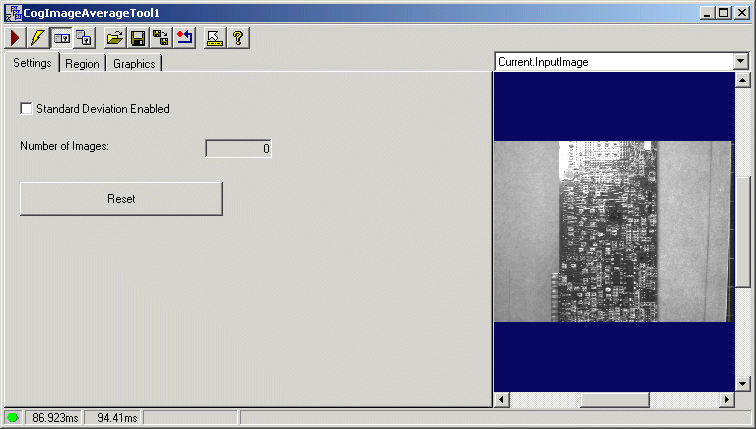
The edit control offers the following features:
- A row of control buttons at the top left provide access to the most common operations.
- A set of function tabs allow you to choose whether to generate a standard deviation image, choose an input region, and determine what graphics the tool will use.
- An image display window displays acquired images and the output images the Image Average tool generates.
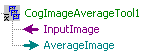
You can experiment with the edit control by using QuickBuild to create a CogImageAverage tool. A new CogImageAverage tool appears with the input terminals for the input image and the average image, as shown in the following figure:

The following table describes the function of each button:
| Button | Description | Function |
 | Run | Add the latest input image and generate the average image, and the standard deviation image if requested. |
 | Electric mode | Toggle electric mode, where the Image Average tool executes automatically when particular configuration parameters change. In electric mode, a lightning bolt appears next to every electric property. |
 | Local image display | Open or close the local image display window. A Image Average tool supports the following image buffers:
|
 | Floating image display | Open a floating image window, which supports the same image buffers as the local image display window. |
 | Open | Open a VisionPro persistence (.vpp) file that contains a set of saved properties for this vision tool object type. VisionPro reports an error if you try to open a .vpp file for another object type. |
 | Save | Save the current properties of the vision tool to a VisionPro persistence (.vpp) file. The edit control allows you to choose between saving the vision tool with or without its image buffers and tool results. |
 | Save As | Save the current properties of the vision tool to a new VisionPro persistence (.vpp) file. |
 | Reset | Reset the vision tool to its default state. The tool gives you a choice between resetting to the default-constructed state, which is appropriate when you are using it in a Visual Studio.NET application, and its template-initialized state, which is appropriate for QuickBuild applications. |
 | Show ToolTips | Enable or disable the display of tooltips for individual items in the edit control. |
 | Help | Open this VisionPro online help file. |
Use the Settings tab to determine whether the output image contains pixels from the input image or a constant grey value, and how the tool handles pixels outside the input region but within the borders of the region bounding box. The following figure shows the default Settings tab:
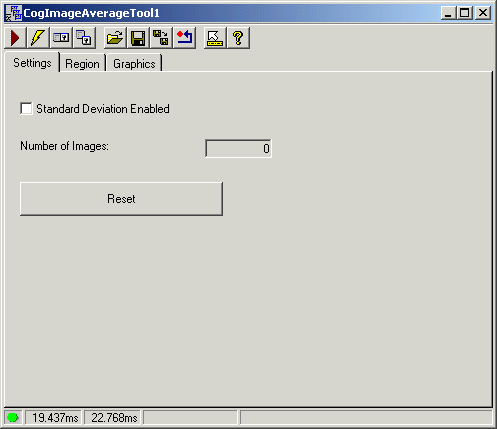
Use the Settings tab to configure the tool to generate a standard deviation image, view the number of images used to create the current average image, and reset the average image to a blank image.
The Settings tab offers the following controls:
| Control | Description |
| StandardDeviationEnabled | Determine whether or not the tool calculates the standard deviation image in addition to the average image. Changing the value of this property will clear the current average image. |
| NumImages | View the current number of images that have been used to calculate the average image. |
| Reset | Clear the current average image and standard deviation image, if requested. |
Use the Region tab to select the shape of the input region. The following figure shows the Region tab:
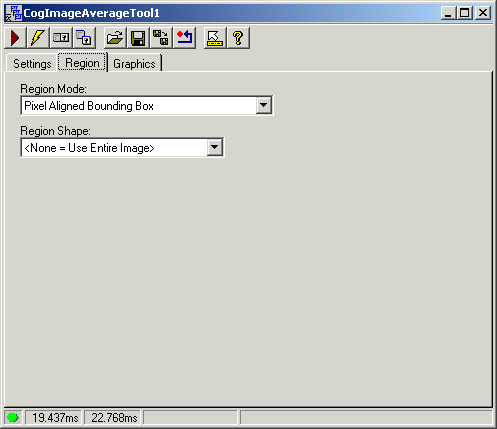
Use the following options to configure the input region:
| Control | Description |
Defines how the tool interprets the training region you specify. Choose either of the following options:
| |
Region Shape | Select the shape of the input region. Selecting "None=Use entire image" means that the tool uses the entire input image. An Image Average tool supports the following input region shapes: The set of region-defining parameters that appear depend on the region shape you use. For more information on using a polygon as an input region, see the topic Using Polygon Input Regions. |
| SelectedSpaceName | The coordinate space in which the copy region is interpreted. For more information, see Coordinate Space Names. |
| Select Mode | Available when Region Shape is cogRectangle or cogRectangleAffine. Selects the set of parameters that define the rectangle. If CogRectangleAffine is chosen, note that the angles of rotation and skew can be specified in degrees or radians, although the underlying tool keeps the measurements in radians. |
| FitToImage | Centers the region within Current.InputImage. |
Use the Graphics tab to specify the graphics that the tool generates and displays. The following figure shows the Graphics tab:
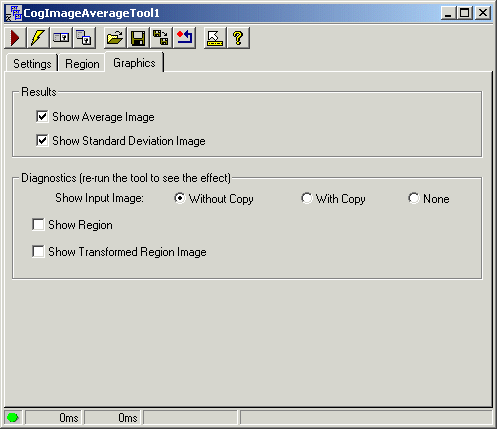

Enable either of the following options:
| Option | Description |
| Show Average Image | You can choose not to generate an image record for the LastRun.AverageImage. |
| Show Standard Deviation Image | You can choose not to generate an image record for the LastRun.StandardDeviationImage. |
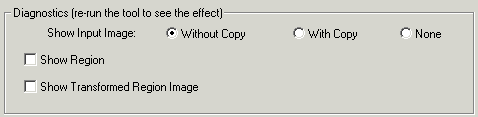
Enable any of the following options:
| Option | Description |
| Show Input Image | Determine whether or not the input image is recorded as part of the diagnostic record, and whether the image is copied to the record or saved in the record as a reference. |
| Show Region | Enable a graphic representing the input region for the LastRun.InputImage. |
| Show Transformed Region Image | Display the affine transformed image, but only if you have specified Affine Transform for the Region Mode and you have supplied a CogRectangleAffine for the input region. |