This topic contains the following sections.
The Data Analysis edit control provides a graphical user interface to the CogDataAnalysis tool, which allows you to set tolerance ranges and perform statistical analysis on the results of other vision tools. The edit control allows you to set the various test ranges, view the tolerance results for individual values or aggregate values, and view a statistical analysis of previous test results. The following figure shows a Data Analysis edit control:
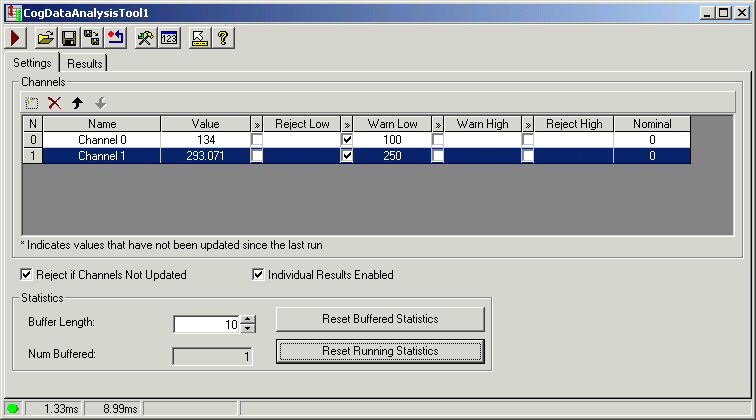
The edit control offers the following features:
- A row of control buttons at the top left
- A tab to set tolerance ranges
- A tab to view the status of tolerance tests and the statistics compiled from recent tests
You can experiment with the edit control by using QuickBuild to create a CogDataAnalysis tool. A new CogDataAnalysis tool appears with one data channel ready to accept a single result value, as shown in the following figure:

To include the edit control in your custom vision application, you must first add it to your Visual Studio.NET development environment. See the topic Adding Edit Controls to Visual Studio for more information.
See the topic How To Link Data Properties to a Data Analysis Tool for details on how to link the data property of a vision tool to a data channel.

The following table describes the function of each button:
| Button | Description | Function |
 | Run | Apply the current set of tolerance ranges to all input values. |
 | Open | Open a VisionPro persistence (.vpp) file that contains a set of saved properties for this vision tool object type. VisionPro reports an error if you try to open a .vpp file for another object type. |
 | Save | Save the current properties of the vision tool to a VisionPro persistence (.vpp) file. |
 | Save As | Save the current properties of the vision tool to a new VisionPro persistence (.vpp) file. |
 | Reset | Reset the vision tool to its default state. This tool gives you a choice between resetting to the default-constructed state, which is appropriate when you are using it in a Visual Studio.NET application, and its template-initialized state, which is appropriate for QuickBuild applications. |
 | Show Floating Channels | Open a floating channels configuration window, which gives you the same access to channel configuration available from the Settings tab. Any changes you make on this grid will be reflected in the grid on the Settings tab. |
 | Show Floating Results | Open a separate results window with the same contents as seen in the Results tab. |
 | Show ToolTips | Enable or disables the display of tooltips for individual items in the edit control. |
 | Help | Open this VisionPro online help file. |
This section contains the following subsections.
Use the Settings tab to determine the number of data channels the Data Analysis tool will use, set the tolerance ranges for each channel, and control buffered statistics. The following figure shows the Settings tab:
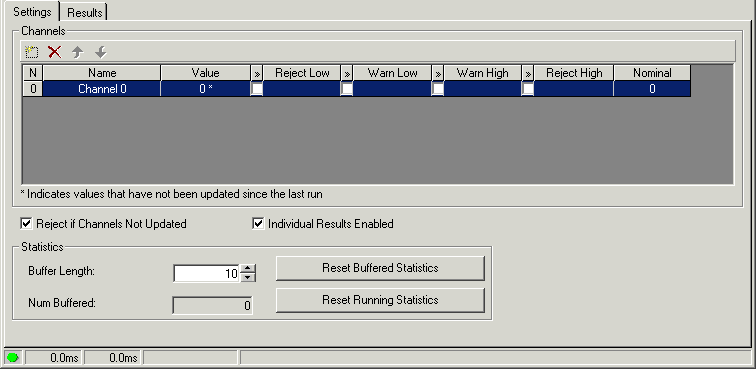
By default, the Settings tab has one data channel, but you can add more channels and test the data properties of multiple vision tools simultaneously.
This section contains the following subsections.
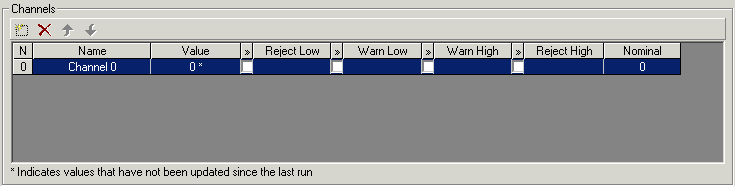
Use the Channels area of the Settings tab to determine the number of data channels this Data Analysis edit control will use, verify that each channel receives the current input value, and set a range of tolerance values for each input value. See the topic Link Data Properties to a Data Analysis Tool for details on how to link the data property of a vision tool to a data channel.
Use the following function buttons to manage the data channels:

| Button | Description |
 | AddNew a new channel to the end of the list. |
 | Remove the currently highlighted channel from the list. |
 | Move the currently highlighted channel up in the list, and update the index of the function within the collection. |
 | Move the currently highlighted channel down in the list, and update the index of the function within the collection. |
Configure each data channel with the following information:
| Field | Description |
| Item | Numerical index for the channel. |
| Name | Provide a unique text string to identify the input value to be tested. |
| CurrentValue | This field shows the current input value generated and supplied by another vision tool. If the value has not been updated since the last time the Data Analysis tool executed, or if the tool has not yet executed, then the value appears with an asterisk. |
| RejectLowLimit | Enter a tolerance value that the input value must not fall below or else the channel generates a Reject Low result. |
| WarnLowLimit | Enter a tolerance value that the input value must not fall below or else the channel generates a Warn Low result. |
| WarnHighLimit | Enter a tolerance value that the input value must not exceed or else the channel generates a Warn High result. |
| RejectHighLimit | Enter a tolerance value that the input value must not exceed or else the channel generates a Reject High result. |
| NominalValue | This is the ideal value as compared to the actual input value tested by this channel. This field is for reference only and has no effect on the operation of the channel. |
Entering Tolerance Values
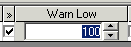
To enter a tolerance value for a data channel, first select the checkbox underneath the desired tolerance check. Then enter a tolerance value directly or use the spin control to select the desired value. For example, the following figure shows the tolerance check for Warn Low enabled with a value of 100:
Status Bar
In addition to the status bar symbols used for all tools (green circle for pass, and red rectangle for fail), the Data Analysis tool uses the following unique symbols:
| Icon | Description |
 | The tool ran successfully, but at least one value was between the warning tolerance and the reject tolerance. |
 | The tool ran successfully, but at least one value was at or above the reject tolerance. |
Rejecting Old Data and Viewing Individual Results
The Data Analysis tool only checks tolerances and computes statistics on input values that have been set since the last time the tool was run. If you attempt to run the tool twice in succession without providing a new input value for a given channel (setting the CurrentValue property for the channel), the statistics for that channel will remain unchanged and its status will indicate that the value was invalid. If the Reject if Channels Not Updated checkbox is checked, an invalid value for any channel causes the Data Analysis tool to produce a status of Reject. If this checkbox is unchecked, channels with invalid values will have no effect on the aggregate tolerance status of the tool.
The Individual Results Enabled checkbox determines whether the tool generates an individual result object for each data channel. When enabled, the results collection for the tool will contain a result object for each channel and the edit control generates a column in the Results tab indicating that result. Clear the checkbox to prevent the tool from generating individual results for each channel, which allows to the tool to execute faster.

Use the Statistics area of the Settings tab for configuring statistical analysis settings for both running statistics and buffered statistics. Running statistics factor in the last valid input value to update a set of statistical calculations. Buffered statistics are statistical values produced for a finite number of recent input values.
The Statistics area supports the following features:
| Feature | Description |
| ChannelBufferLength | You can modify the number of input values that that the tool will save in the buffer. |
| NumBufferedValues | This field indicates the number of input values currently buffered to produce the buffered statistics. |
| ResetBufferedValues | Discards all buffered statistics. |
| ResetRunningStatistics | Reset all running statistics to zero. |
This section contains the following subsections.
Use the Results tab to view all the results from the tool. The following figure shows the Results tab:
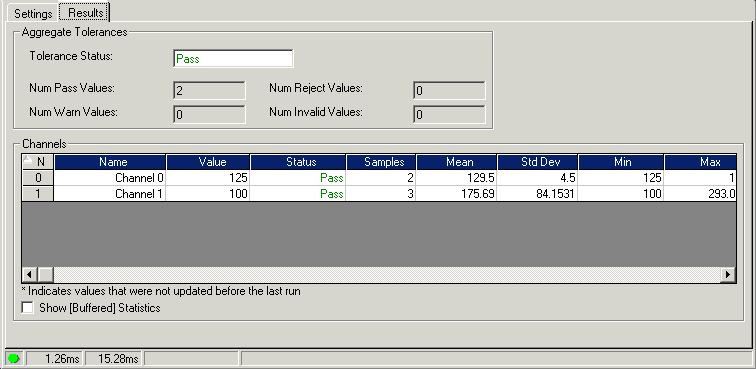

Use the Aggregate Tolerances area of the Results tab to view the tolerance status of the most recent test. The individual test fields indicate the number of data channels that fall into each category when the tool was last run.
The Aggregate Tolerances area supports the following indicators:
| Feature | Description |
| AggregateToleranceStatus | View the tolerance status of the most recent test. |
| NumPassValues | View the count of the number of tests where the input value passed all tolerance ranges. |
| NumRejectValues | View the count of the number of tests where the input value exceeded the reject tolerance ranges. |
| NumWarnValues | View the count of the number of tests where the input value exceeded the warn tolerance ranges. |
| NumInvalidValues | View the count of the number of tests where the channels did not receive new input values before the Data Analysis tool ran. |
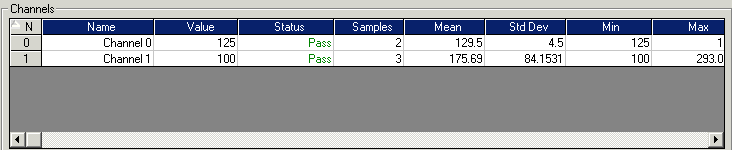
Use the Channels grid of the Results tab to view running and buffered statistics. The Channels grid supports the following fields:
| Field | Description |
| Item | Numerical index for the channel. |
This text string identifies the input value. If you change the value of this field in the Settings tab, the Name field remains the same until the next time the tool runs. In addition, because the Name value is used to locate the channel that corresponds to any particular result, the statistics of a renamed channel will be unavailable until the tool is run again. Be aware that "[ ]" characters are reserved and cannot be used in naming the channel. | |
| CurrentValue | The Data Analysis tool tested this value against all tolerance ranges. |
| CogDataAnalysisToleranceStatusConstants | This field only appears if the Individual Results Enabled checkbox is enabled on the Settings tab, and displays the tolerance status just for this channel only. If the channel is deleted after running the tool, the status result will remain on the Results tab but its statistics will not. |
| RunningNumSamples | The tool records the total number of input values tested against the set tolerance ranges. This value does not increment if the tool runs on the same input value twice. Clicking Reset Running Statistics on the Settings tab resets this field to zero. All other running statistics fields are blanked out. |
| RunningMean | The tool calculates the average of all the input values for each channel. |
| RunningStandardDeviation | The tool calculates the standard deviation, or spread of values, for all input values to each channel. |
| RunningMinValue | The tool records the minimum value received as an input value. |
| RunningMaxValue | The tool records the maximum value received as an input value. |
If the Show [Buffered] Statistics checkbox at the bottom of the Results tab is enabled, the Channels grid also contains the following fields:
| Field | Description |
| GetBufferedNumSamples | The tool records the total number of buffered input values it tests against the set tolerance ranges. Clicking Reset Buffered Statistics on the Settings tab resets this field, and all other buffered statistics fields, to zero. |
| GetBufferedMean | The tool calculates the average of the buffered input values. |
| GetBufferedStandardDeviation | The tool calculates the standard deviation, or spread of values, for the buffered input values. |
| GetBufferedMinValue | The tool tracks the minimum of the buffered input values. |
| GetBufferedMaxValue | The tool records the maximum of the buffered input values. |