This topic contains the following sections.
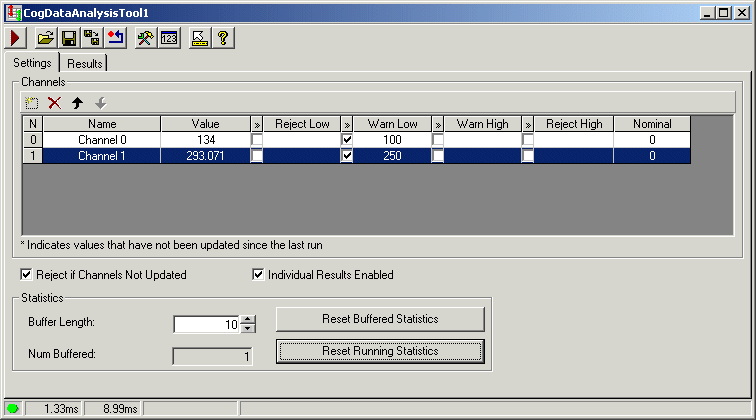
The Data Analysis edit control provides a graphical user interface to the CogDataAnalysis tool, which allows you to set tolerance ranges and perform statistical analysis on the results of other vision tools. The edit control allows you to set the various test ranges, view the tolerance results for individual values or aggregate values, and view a statistical analysis of previous test results. The following figure shows a Data Analysis edit control:
To use a Data Analysis edit control, create a CogDataAnalysis tool in your QuickBuild application. A new CogDataAnalysis tool appears with the CurrentValue property for Channel 0 ready to accept a single result value, as shown in the following figure:

For more information on the Data Analysis edit control, see the topic Data Analysis Edit Control.
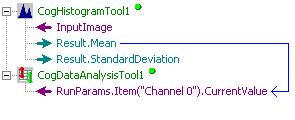
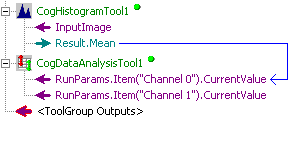
To link the data property of a vision tool to the data channel of a Data Analysis edit control, use the tree view of the Tool Group edit control to select the source property and drag the cursor to the CurrentValue property of the CogDataAnalysis tool. Once you release the cursor, the tree view displays the link as a blue line leading from the data property to the data channel. For example, the following figure shows the Mean property of a CogHistogram tool linked to data Channel 0 of a Data Analysis tool:
In addition, the data channel in the Data Analysis edit control now reflects the value of the Mean property, as shown in the following figure:
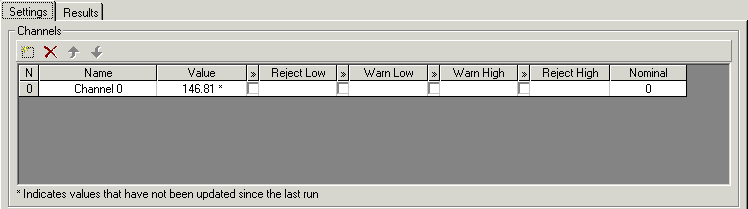
Each time the CogHistogram tool executes the application passes the new value of the Mean property to the data channel for testing.
By default, a new CogDataAnalysis tool has one data channel to test the results of a single data property. In some vision applications you might need to add more data channels to test multiple data properties simultaneously.
To add an additional data channel to a Data Analysis edit control, perform the following steps:
- Use the Add button to add a new channel to the edit control.

Return to the tree view window of the Tool Group edit control, right click on the CogDataAnalysis tool, and select Add Terminals. The Member Browser dialog box appears as shown in the following figure.
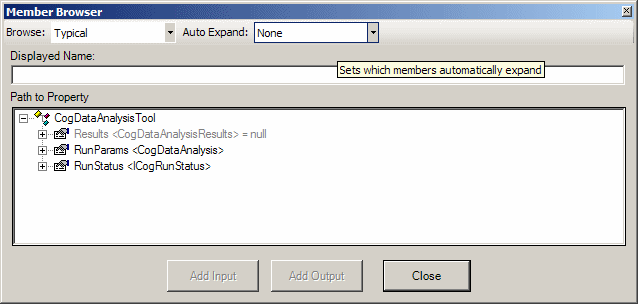
The Member Browser exposes the underlying structure of the tool, which can be fairly complex. To reduce this complexity the browser provides three structure levels; Typical, Expanded and All which you can choose from the pull down menu. Typical, the default, displays only the most often used elements. Expanded displays a somewhat longer list and All displays the entire structure.
The Auto Expand pull down menu gives you the option to automatically expand commonly used property collections. When you choose Common Members, the default, common members are expanded automatically when they are displayed. If you choose None, no property collections are expanded automatically. We will use None in this example to minimize the screen clutter.
- Expand the RunParams collection and then expand the Item("Channel 1") property.
- Select the CurrentValue terminal and click Add Input at the bottom of the Member Browser dialog box.
Click Close in the Member Browser dialog box. The Tool Group edit control now contains a second CurrentValue property for the CogDataAnalysis tool, as shown in the following figure:
- Select any data property from any other vision tool and link it to the CurrentValue of this second data channel.
The default name for a new channel in a Data Analysis tool is Channel X, where X starts at zero and increments by one for each channel you add to the tool.
You might want to change the name for any given channel so that it indicates the value being tested, especially when you test multiple values with the same Data Analysis tool. For example, you might be using three channels and want to name them "Caliper Count", "Position X", and "Position Y", respectively.
To rename a data channel, perform the following steps:
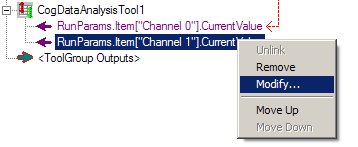
Right click on the CurrentValue for the input parameter that corresponds to this channel, and select Modify, as shown in the following figure:
The Modify Input dialog box appears, as shown in the following figure:
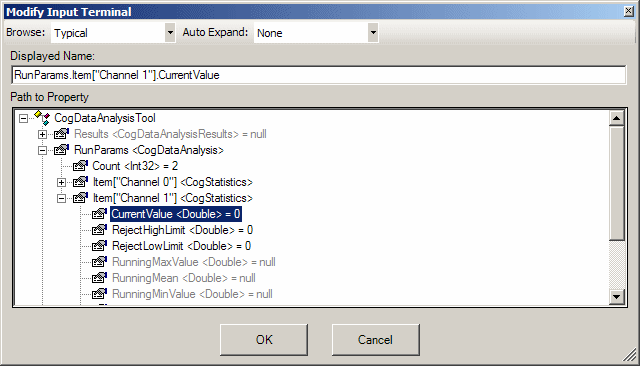
Here again only the Typical elements of the channel are displayed by default.
- In the Displayed Name box, replace the channel name with the name you provided in the name field of the Data Analysis edit control.
- Click OK to close the Modify Input dialog box.