DetectBlobs
The DetectBlobs function performs a form of blob analysis known as "connectivity analysis" on a Region of Interest (ROI). During "connectivity analysis", the pixels within the ROI are divided into two categories, Blob or Background. During this process, the pixels are examined to determine whether or not they are connected to their neighboring pixels. For a more in-depth description, see Blob.
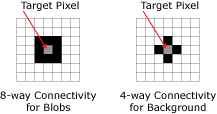
Once the image is processed, it is now segmented into Blob and Background pixel values. The Blobs found in the ROI are identified based upon physical characteristics and assigned values, such as the location in the image (row and column coordinates), area, perimeter, spread, and elongation. The data from the extracted blobs is stored and reported in a Blobs data structure.
This function is the first step in blob analysis, and both FindBlobs and SortBlobs ultimately use Cell References to the data structure of the DetectBlobs function, either directly or through Auditing.
 Inputs
| Parameter | Description | ||||||||||||||
|
Image |
This parameter must reference
a spreadsheet cell that contains an Image data structure. By
default, this parameter references cell |
||||||||||||||
|
Fixture |
Defines the Region of Interest (ROI) relative to a Fixture input or the output of the image coordinate system for the Vision Tools function. Setting the ROI relative to a Fixture ensures that if the Fixture is rotated or translated, the ROI is rotated or translated in relation to the Fixture. Note: 2D projections use real world units but fixturing with 2D tools requires input in pixel values. When using a 2D projection from a 3D point cloud as a Fixture, convert the real world units to pixel values using the TransWorldToPixel function.
The default setting is (0,0,0), the top leftmost corner of the image.
|
||||||||||||||
|
Region |
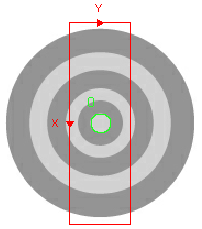
Also known as the Region of Interest (ROI), specifies the region of the image that undergoes analysis. Double-click on the Region parameter to create an Interactive Graphics Mode that you can transform and rotate. Select this parameter and press the Maximize Region button on the Job Edit toolbar of the property sheet to automatically stretch the region to cover the entire image.
|
||||||||||||||
|
Note: The Fixture and Region parameters must be defined
within the bounds of the image. Otherwise, the function returns #ERR.
|
|||||||||||||||
|
External Region |
This parameter uses Cell References to an Annulus, Circle, Region, EditAnnulus, EditCircle, EditCompositeRegion, EditPolygon, and EditRegion. When this parameter is used, the function ignores the Region and Fixture settings and inspects the image area specified by referenced region. If an EditCompositeRegion control is referenced, the inspection area can be a mix of shapes. Each shape in the composite region can be assigned as added to or subtracted from (masking) the inspection area. Note: If this parameter has been set as a reference to an external region, to use the internal Region of the function, this parameter must be manually set to zero by entering the value 0 in place of the cell reference. Otherwise, the function continues to reference the external region.
|
||||||||||||||
|
Number to Sort |
Specifies the number of blobs to sort.
Note: If the value of the Number to Sort parameter is greater than zero, DetectBlobs will automatically insert a result table containing a maximum of 10 entries that correspond to the first 10 blobs in the Blobs data structure. If you wish to display more entries, you can expand the table by copying the last row and pasting additional rows at the end; make sure to increment the index number of any newly-pasted row so that the proper blob is indexed.
|
||||||||||||||
|
Threshold |
Specifies the greyscale value that is used to separate blobs from the background. This value can be determined by utilizing the automatic setting (the default setting) of the DetectBlobs function, manually configured through trial and error, or set as Cell References to calculated results of the Histogram function.
|
||||||||||||||
|
Fill Holes |
Specifies one of two methods for processing statistics accumulated in holes.
|
||||||||||||||
|
Boundary Blobs |
Specifies one of two ways for managing blobs that intersect the ROI boundary.
|
||||||||||||||
|
Color: Blob |
Specifies the blob's color.
Note:
When Color: Blob and Color: Background are set to the same color, blobs are not reported. For example, when Color: Blob is set to black and Color: Background is also set to black, blobs are not reported.
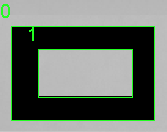
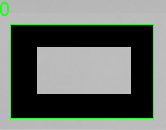
However, even if Color: Blob and Color: Background are set to the same color, blobs are reported when they are contained by an area of the opposite color (see the examples). If any part of the blob is not contained by the opposite color, the blob is not reported.
|
||||||||||||||
|
Color: Background |
Specifies the background color in the acquired image. 8-way connectivity analysis is performed on the foreground, and 4-way connectivity is performed on the background.
|
||||||||||||||
|
Area Limit: Min |
Specifies a minimum area restriction, in number of pixels, for all returned blobs (default = 100). Only blobs whose area is greater than the Area Limit: Min value are returned. The parameter range is:
For example, when connected to the In-Sight D902 vision system, the parameter range is 0 to 2,304,000 (1920x1200). |
||||||||||||||
|
Area Limit: Max |
Specifies a maximum area restriction, in number of pixels, for all returned blobs (default = 100000). Only blobs whose area is less than the Area Limit: Max are returned. The parameter range is:
For example, when connected to the In-Sight D902 vision system, the parameter range is 0 to 2,304,000 (1920x1200). |
||||||||||||||
|
Show |
Specifies the display mode for DetectBlobs graphical overlays on top of the image.
|
||||||||||||||
 Outputs
|
Returns |
A Blobs data structure containing the blobs extracted from the image, or #ERR if any of the input parameters are invalid. |
|||||||||||||||||||||||||||||||||
|
Results |
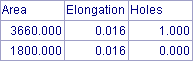
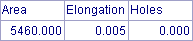
When DetectBlobs is initially inserted into a cell, a result table is created in the spreadsheet using the following Blobs Vision Data Access functions Note:
|
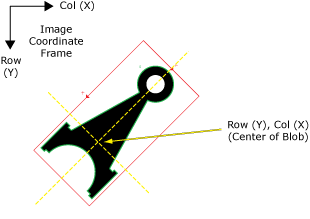
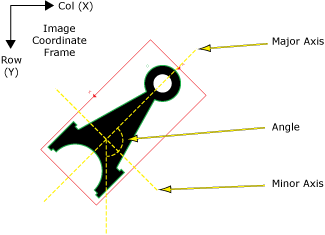
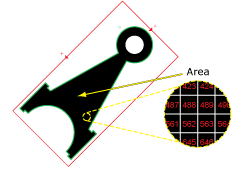
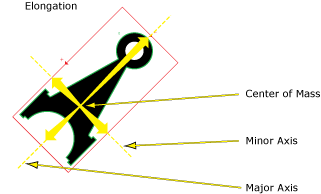
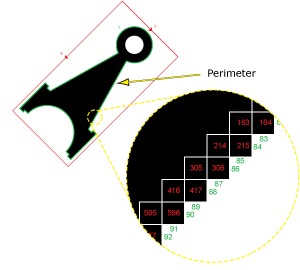
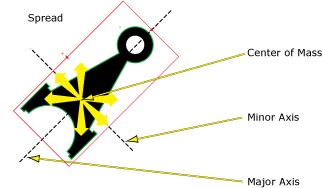
See the Blobs Vision Data Access functions for details on the result table.
DetectBlobs Example
The DetectBlobs function is used to identify and locate blobs of connected pixels, which can be comprised of various shapes and sizes. This example illustrates how the information returned in the DetectBlobs data structure result table relates to the found blobs, and how that information can be used to later sort and filter the blobs based upon their characteristics.
For this example, the following image helps illustrate the meaning of the values that are returned in the result table of the DetectBlobs function:
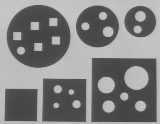
A DetectBlobs function is inserted into a blank cell in the spreadsheet. Based upon the shapes, the parameters of the DetectBlobs property sheet are configured as follows:
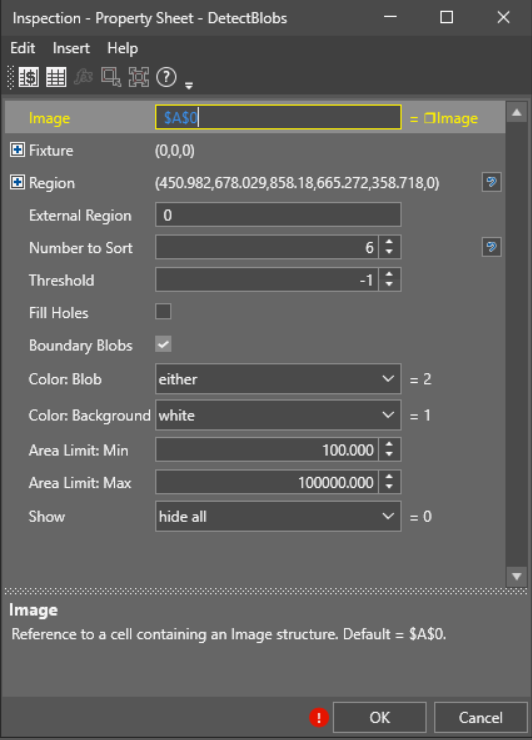
- Image: The default setting was used for this example, but this parameter can reference any Image data structure, such as an Image data structure produced by a Filter function, which processes the image to remove excess image noise before inspecting it for blobs.
- Fixture: The default setting was used because the image is stationary and is not rotated or moved. However, when using the DetectBlobs function on images that undergo movement, it is advisable to assign the image region to a Fixture.
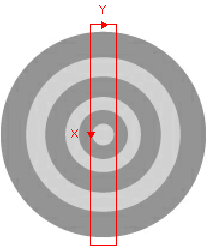
- Region: The image region was maximized to include all of the shapes in the analysis. By clicking on the Region parameter and then pressing the Maximize Region button on the property sheet's toolbar, the region will automatically be stretched to cover the entire image.
- Number to Sort: The Number to Sort was set to six. This parameter could have also been set to 0, and the tool would have automatically extracted all blobs that meet the color and size settings specified in the Color Blob/Color Background and Area Limit: Min/Area Limit: Max parameters.
- Threshold: The default setting was used, which automatically calculates the greyscale Threshold value. In this image, the greyscale value differences are very pronounced and it is very clear which pixels are the dark pixels and which are the light. In applications where there is a more subtle gradation and the automatic threshold setting does not separate the values very well, using Histogram functions, such as the HistHead or HistTail functions, to determine the greyscale intensities in different regions of the image can be very helpful.
- Fill Holes: The default setting was used, enabling the contribution of the holes found in the blobs, thus decreasing the overall area of those blob shapes with holes in them. Had the Fill Holes checkbox been checked, holes within blobs are reported and the area within the holes would have been added, thus increasing the area of the blobs with holes.
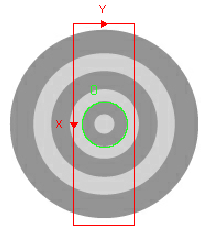
- Boundary Blobs: The default setting was used, which includes any blobs that intersect the image region's boundary. With this setting, if the image had been moved to the left, and the biggest circle and the smallest square shape intersected the left-most boundary of the image region, the parts of those shapes that still fell within the region's boundary would be extracted as blobs. If the checkbox had been unchecked, though, those blobs would not have been processed.
- Area Limit: Min/Max: The default settings were used. These settings filter through the blobs in the region during the extraction phase, evaluating the blobs based upon the minimum and maximum area limit settings to determine whether or not the area of the blob allows it to be classified as a blob.
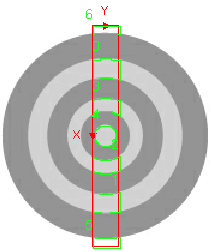
- Show: The default setting was used, which only allows the result graphics to be displayed when the cell containing the Blobs data structure is selected, as in the example below.
After configuring the DetectBlobs property sheet, a Blobs data structure and result data table are produced.
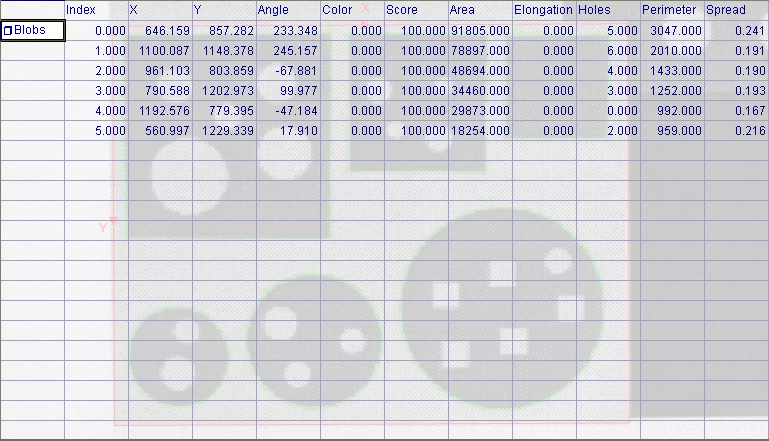
The values returned in the result table can be used to filter and sort the blobs, using the FindBlobs and SortBlobs functions. For example, a FindBlobs function could be inserted into the spreadsheet and reference the DetectBlobs function. The FindBlobs function would then be used to filter the blobs based upon their Spread. Then a SortBlobs function could be inserted into the spreadsheet and it could reference the recently created FindBlobs function to sort the list of blobs based upon their X, Y position.