AcquireImage
The AcquireImage function specifies the parameters for capturing a digital image and transferring it to the processing memory of the In-Sight vision system.
The In-Sight vision systems capture all images using asynchronous reset and progressive scan. The greyscale vision systems produce 8-bit images, while the color vision systems (indicated with a C suffix) produce 24-bit images. The image acquisition process begins within approximately 250 microseconds for all vision systems, and proceeds as follows:
- The image sensor integrates light for the duration of time specified by the Exposure parameter.
- The image accumulated in the image sensor is transferred, row-by-row, into a serial shift register.
-
For every row transfer, the sensor clocks the shift register, pixel-by-pixel, out of the image sensor through the following path:
Video amplifier -> Gain and Offset -> Analog-to-digital converter -> Vision processor memory
The memory buffer containing the acquired image is represented in the Spreadsheet as an Image data structure. The Image data structure returned by AcquireImage is in turn referenced by other In-Sight Spreadsheet functions that process image regions. Any function that directly or indirectly depends on the acquired image data is forced to update when a new image is acquired. This relationship between the input image and other functions in the Spreadsheet is what drives the execution of vision tasks on the In-Sight vision systems.
When a Spreadsheet is initially created, an AcquireImage function is automatically added and located in cell A0. Most Vision Tool functions, as well as many other functions, take advantage of this by specifying an absolute reference to cell A0 as their default image source.
If you want to change the parameters for AcquireImage, click the Acquisition panel next to the Spreadsheet.
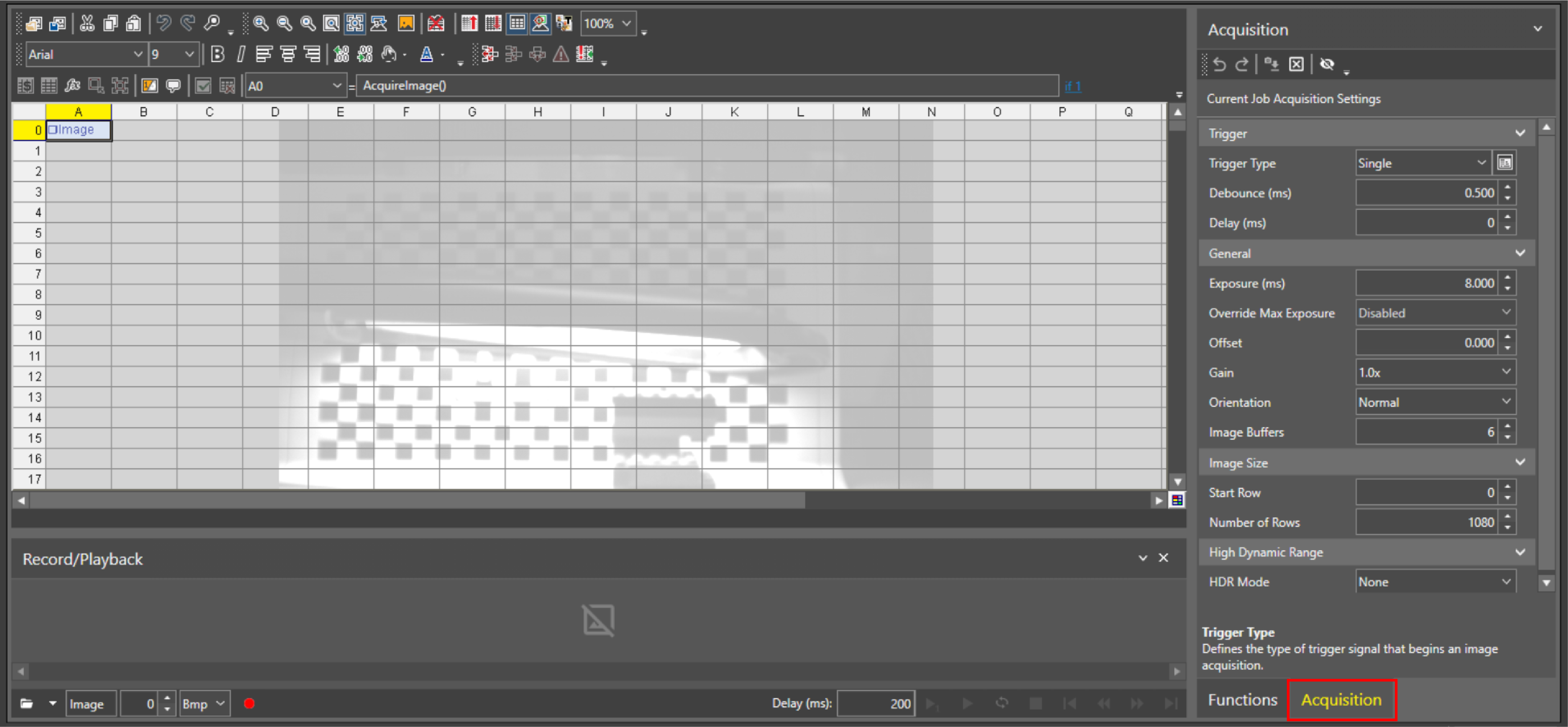
- As the AcquireImage function does not contain any arguments, the configured acquisition settings are not retained when exporting the cells as a cell template. To export the acquisition settings, add ApplyAcquisitionSettings to the spreadsheet, enable the parameters that you desire to retain, set the settings to the desired values, and then export ApplyAcquisitionSettings as a cell template. When the cell template that contains ApplyAcquisitionSettings is imported, the acquisition settings are applied to the AcquireImage function once the ApplyAcquisitionSettings cell is executed.
- Functions that require an Image parameter must reference a Spreadsheet cell that contains a valid Image data structure. The default Image parameter reference in all property sheets is cell A0, which contains the Image data structure returned by an AcquireImage function. However, Image data structures returned by the Image functions are also valid references for Image parameter values in property sheets.
ApplyAcquisitionSettings
When you drag and drop a parameter from the Acquisition panel to the Spreadsheet, an ApplyAcquisitionSettings function is added to the Spreadsheet, which allows you to edit acquisition parameter values at run time without opening the Acquisition panel. On the Acquisition panel, the dragged-and-dropped parameter displays a blue exclamation icon. This icon indicates that the ApplyAcquisitionSettings function is overwriting the parameter, and when you hover over the icon, the cell location of the ApplyAcquisitionSettings function is displayed as a tip.
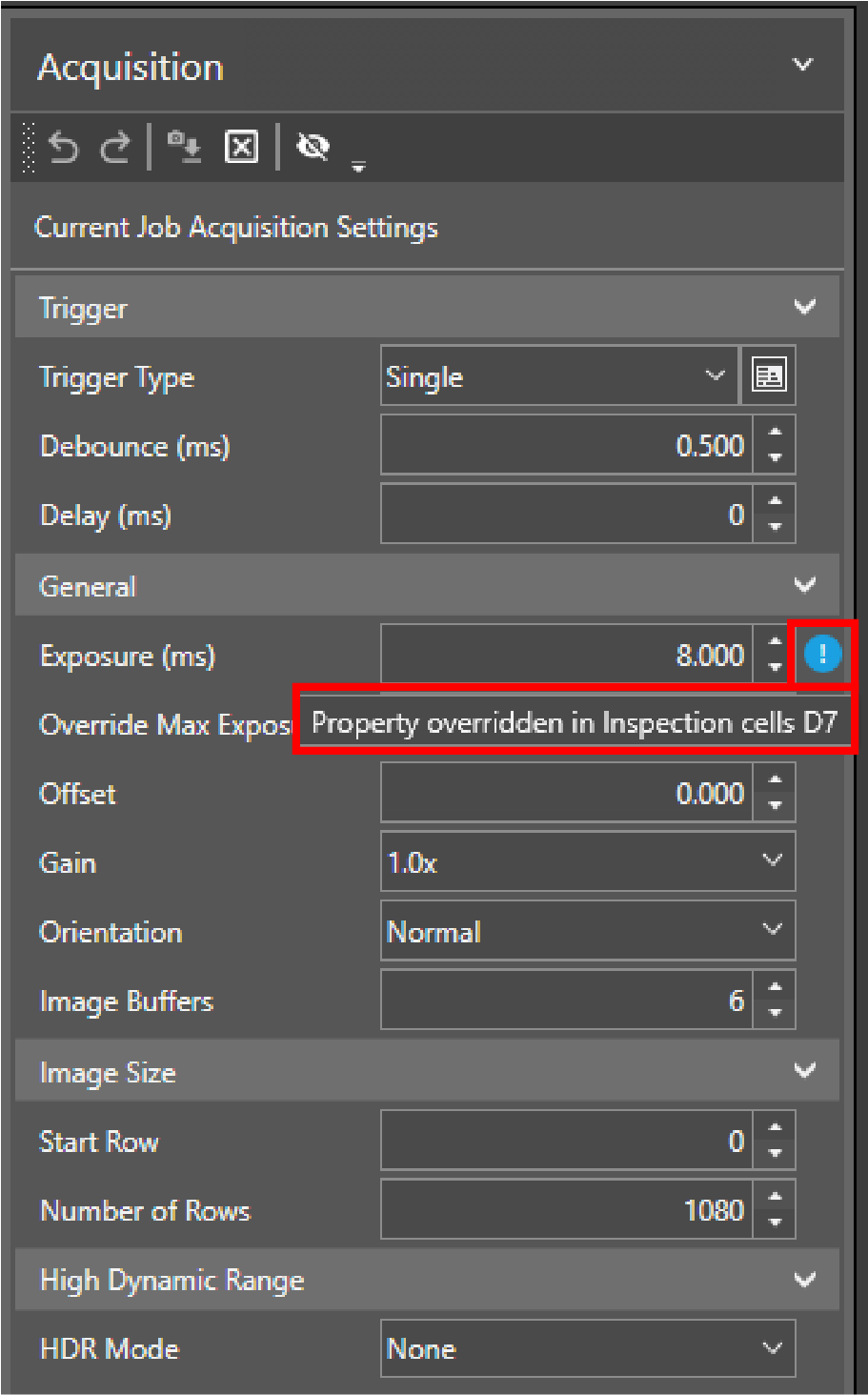
- The AcquireImage property sheet also displays a blue exclamation icon when an associated parameter is dragged-and-dropped from the ApplyAcquisitionSettings property sheet. For more information, see ApplyAcquisitionSettings.
- If a parameter is referenced by multiple ApplyAcquisitionSettings functions, the icon indicates the cell locations of ApplyAcquisitionSettings function (up to five locations).
-
If you uncheck a parameter on the ApplyAcquisitionSettings property sheet, the blue exclamation icon of the associated parameter no longer displays in the AcquireImage property sheet.