Calculate Cumulative Blob Count Using a Script
Previously, you acquired, cropped and then processed your image with VisionPro tools to detect blobs (defects) on the Jell-O box labels. In this procedure, you will use C# to add a counter that tallies all blobs as you run your application repeatedly, and until you choose to reset the counter.
Before beginning this module, ensure that the following conditions are met:
- You have verified that your Task window looks similar to the example shown in the last step of the Process Image for Defects with CogBlobTool topic.
- You have acquired an image and run your application at least a few times. If an Select an Image Source and Acquire Your Image, select the Task window and click the
 button several times to accumulate data.
Code Execution and Script Blocks
The Single Camera Project Type on which the Getting Started tutorial project is based on contains predefined C# code that is included in a Script Block named CalculateResult. This block contains the following C# code:
// TODO Calculate result, normally use an output from the InspectImage block.
return $TotalInspections % 2 == 0;
This code returns a boolean value of true when TotalInspections is divisible by 2. In other words, true is returned for every second execution.
Note that the CalculateResult block also has an output pin on its right side, called Result.
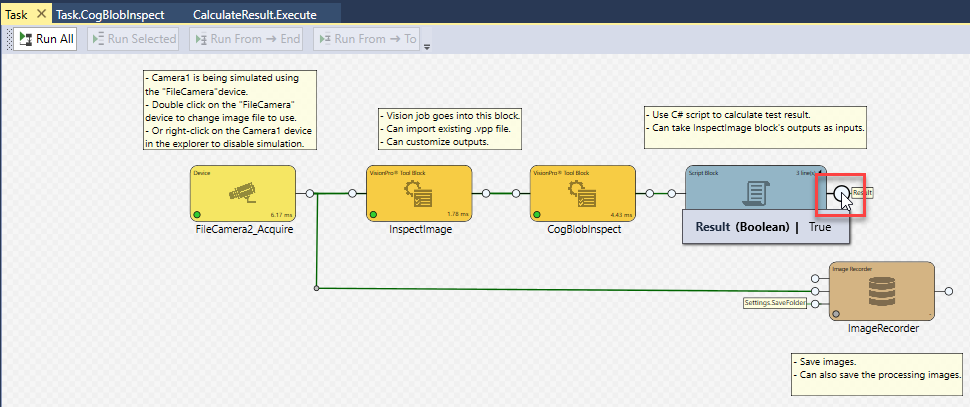
This Result output pin links to the boolean output (either True or False) produced by the CalculateResult block. Since Cognex Designer tasks are executed from left to right, this output pin symbolizes an output from the CalculateResult block.
Creating and Validating a New Script Block: CalculateCumulativeBlobs
Perform the following procedure to create a script block similar to CalculateResult. This script block will calculate the cumulative defects (blobs) detected by the application as it runs multiple times.
- First, create a link so that you can pass the number of counted blobs to the new script block you will create later. The procedure is using tags to create this link.
Right-click on the output pin of the CogBlobInspect block (1), and click Assign to New Tag (2).
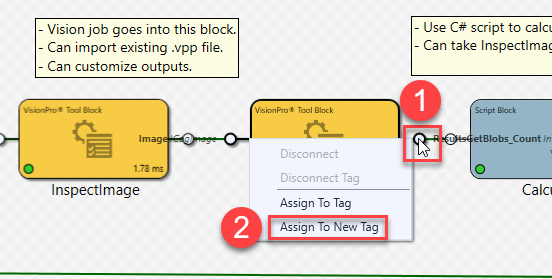
- The Create New Tag dialog appears. Enter a name for the new tag that describes the value it represents. In this example, enter the tag name Blobs_Counted, then click Accept.
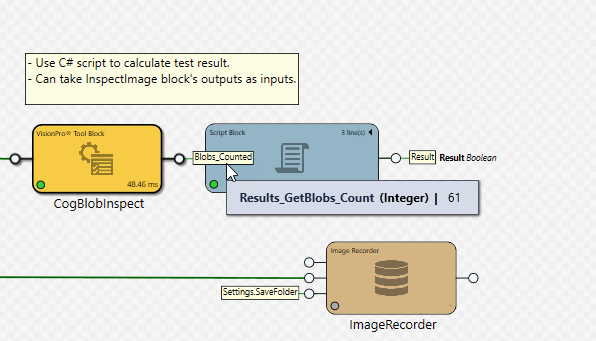
Hover your mouse over the output pin, and observe that the variable value (Results_GetBlobs_Count) is now associated with the tag name Blobs_Counted, shown in the box next to the output pin. Note how the link is assigned to a type 32-bit Integer. As also shown, the current integer value of Blobs_Counted is 61. Since the application you are running is selecting and processing images at random, your results will vary when you perform this tutorial. In other words, Results_GetBlobs_Count may contain another value.
-
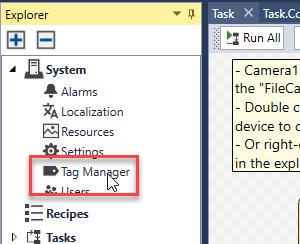
In the Explorer pane, double-click System > Tag Manager to open the Tag Manager.
- Using the Tag Manager, add a tag that will represent the cumulative defect (blob) count value as your application runs multiple times. Do this as follows:
-
Double-click in the first empty Name cell in the Tag Manager table. A red exclamation sign appears on the left side of the cell, prompting your input.
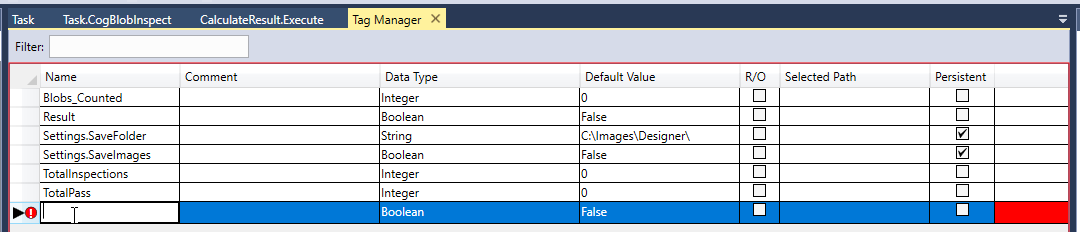
- Type Blob_Count_Cumulative in the empty Name cell. This tag will represent the cumulative blob count to your Cognex Designer application.
-
In the Data Type column of the same row, double-click Boolean. Using the drop-down box, assign Integer as the Data Type.
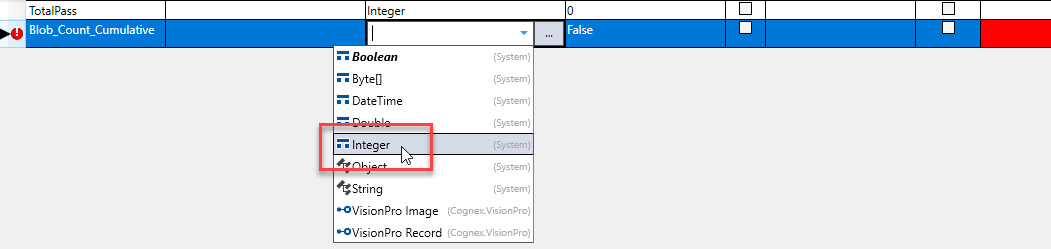
- Ensure that 0 is the Default Value of Blob_Count_Cumulative, to initialize the cumulative blob count.
-
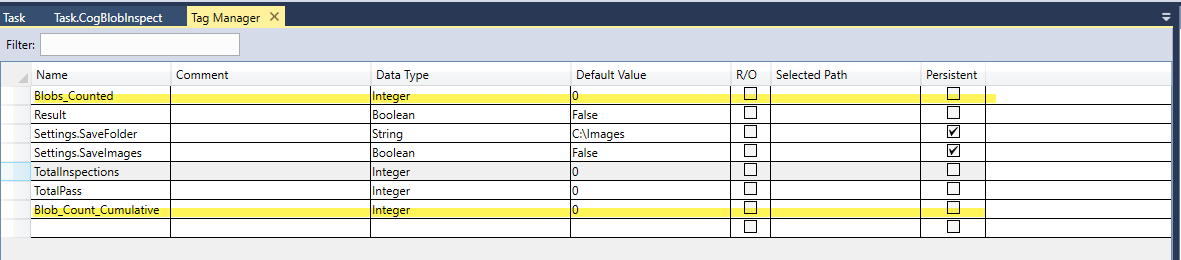
Click anywhere in the Tag Manager grid to complete adding the tag. The Tag Manager list should now look similar to the following, with the tags you've recently added to the project highlighted in yellow (Blobs_Counted added with the Assign to New Tag option in the Task Editor, while Blobs_Count_Cumulative added now through the Tag Manager).
- Click the Task tab to return to the Task window.
- Create a new Script Block that will calculate the cumulative number of defects that your application finds as it runs multiple times. This number will be represented by the tag Blob_Count_Cumulative that you already defined in the Tag Manager. Perform the following procedure to do that.
-
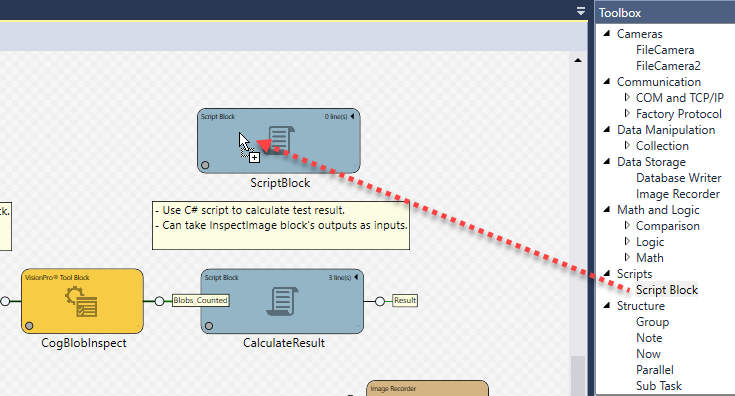
In the Toolbox pane, select Scripts > Script Block (1), and then drag-and-drop it into the Task Editor window (2). Place it directly above the existing script block, CalculateResult.
-
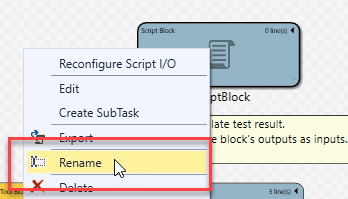
Rename the new Script Block to describe its function. To do so, right-click on the new Script Block, and select Rename from the context menu. Rename the block to CalculateCumulativeBlobs in the textbox that appears, and press Enter.
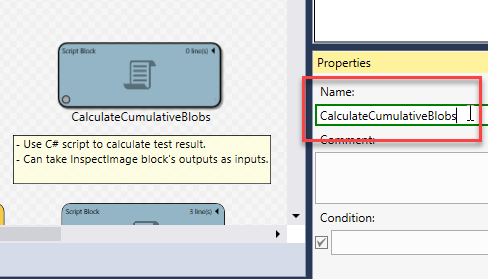
Alternatively, just left-click on the Script Block, and then change its name through the Name field in its Properties window on the bottom right part of the GUI.
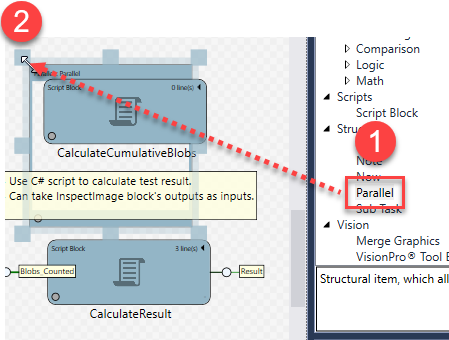
- Add a Parallel structure block into the task to ensure that the two script blocks (CalculateCumulativeBlobs and CalculateResult) are executed simultaneously:
In the Toolbox pane, select Structure > Parallel (1), and then drag-and-drop it into the Task Editor window to the top left corner of the CalculateCumulativeBlobs block (2).
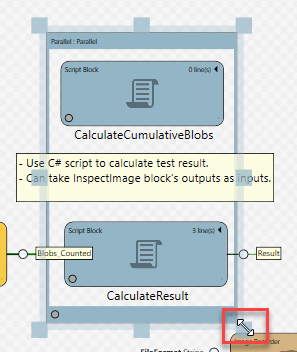
Adjust the size and position of the Parallel block with its rectangular handles so that it contains both Script Blocks.
-
Make sure that the Task in the Task Editor looks similar to the below example.
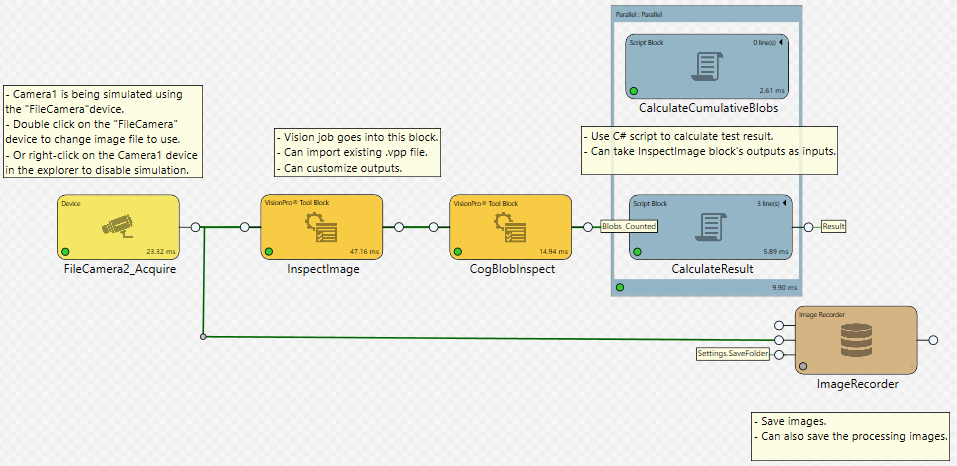
- Add C# code to the CalculateCumulativeBlobs script to tally the number of defects (blobs) your application finds as it runs multiple times. Do this as described below:
- Double-click the CalculateCumulativeBlobs script block, or right-click on it, and select Edit from the context menu. The Script Definition Editor opens.
-
Click the
 (Add Argument) button in the Script Definition Editor (1). A new argument row then appears in the dialog (2).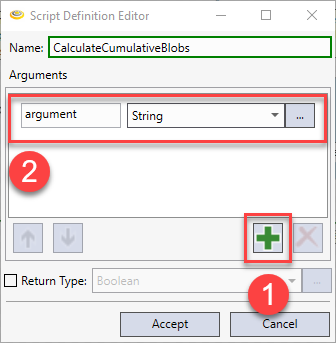
-
When defining script arguments, consider the inputs and outputs of the CalculateCumulativeBlobs script:
- Since the purpose of this script block is only to maintain a running tally of blobs for later use, the script requires no output to be passed to another task block for processing. Instead, you can reference that value from your application using the tag Blob_Count_Cumulative. Therefore, the return type for the CalculateCumulativeBlobs script block signature is void.
-
On the other hand, you are passing an integer value (Results_GetBlobs_Count) to the CalculateCumulativeBlobs script block. Therefore, you must define Results_GetBlobs_Count as an input in the script's method signature as shown below:
public void Execute(int CogBlobInspect_Results_GetBlobs_Count)
-
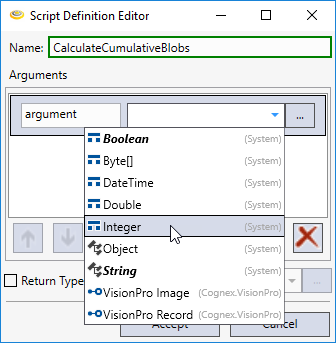
Based on the above, configure the arguments in the Script Definition Editor. First, click the argument type drop-down menu in the argument row, and change String to Integer.
-
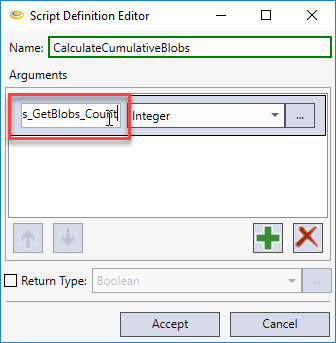
Click the argument textbox of the argument row, and change the argument string to the following: CogBlobInspect_Results_GetBlobs_Count. Note that in this name, you prepend the name of the block (CogBlobInspect) that generates Results_GetBlobs_Count to the argument name giving the complete argument string CogBlobInspect_Results_GetBlobs_Count.
-
As there is no void option for the return type, leave the Return Type option unchecked.
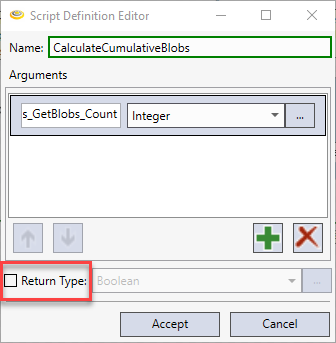
- Click Accept.
- Once you clicked Accept, The Script Editor opens in a tab titled CalculateCumulativeBlobs.Execute. Note that the method signature you created with the Script Definition Editor is in the script's heading:public void Execute(int CogBlobInspect_Results_GetBlobs_Count) In this script, paste a single line of code:
$Blob_count_cumulative += CogBlobInspect_Results_GetBlobs_Count;
This code adds the input CogBlobInspect_Results_GetBlobs_Count to $Blob_count_cumulative, which you tagged earlier, with the C# operator +=.
Note that, as with all C# statements, the line of code terminates with a semi-colon (;).
- Validate your C# code to ensure you have no errors. Click the green check mark (
 ). If any errors exist, correct them. Otherwise, exit the script by closing the CalculateCumlativeBlobs.Execute window.
 -
Once you clicked Accept, The Script Editor opens in a tab titled CalculateCumulativeBlobs.Execute. Note that the method signature you created with the Script Definition Editor is in the script's heading: public void Execute(int CogBlobInspect_Results_GetBlobs_Count).
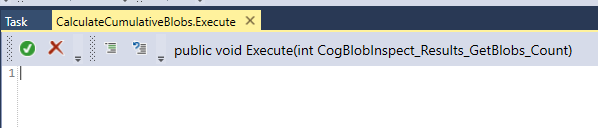
Paste the following line of code into the script:
$Blob_count_cumulative += CogBlobInspect_Results_GetBlobs_Count;
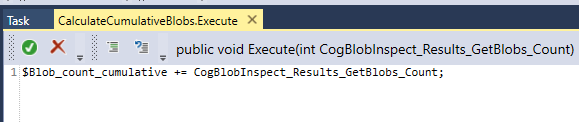
This code adds the input CogBlobInspect_Results_GetBlobs_Count to $Blob_count_cumulative, which you tagged earlier, with the C# operator +=.
- At this point of the tutorial, your Task should look like as seen below. Note the input pin protruding from your new CalculateCumulativeBlobs script block. Hover your mouse over the connector, indicating the input integer (CogBlobInspect_Results_GetBlobs_Count) that you defined above.
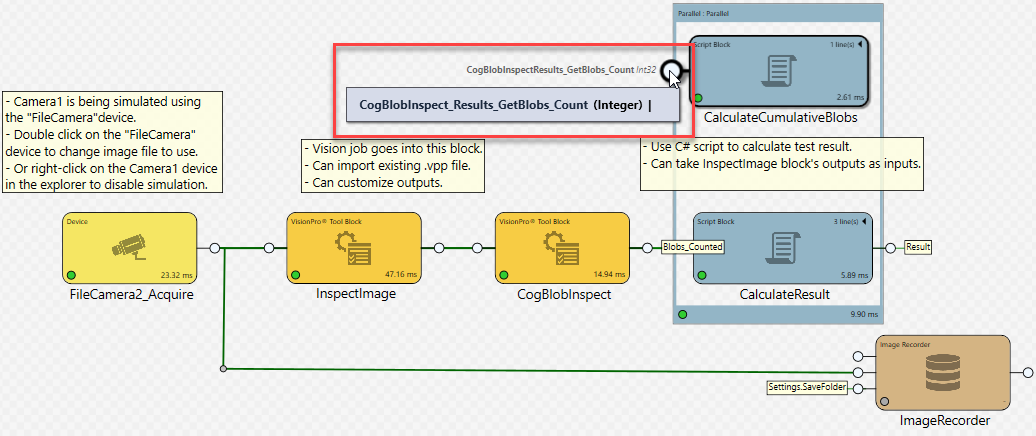
In the next part of the Getting Started tutorial, you will modify your predefined HMI to display the Total Blobs Counted (from Blob_Count_Cumulative). You will also run the application from start to finish.