VisionPro Display
The VisionPro Display inserts a CogDisplay on the Page, and is used to display images output by a Camera Device or Image File Device, or an image output by a VisionPro Tool Block.
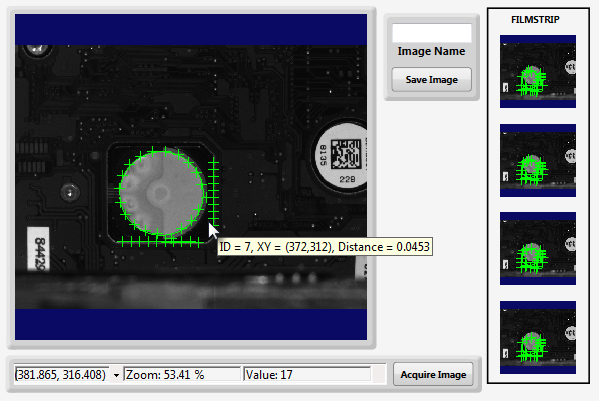
To configure a VisionPro Display, after adding it to the Page, using the Expression Builder, set the Subject property to the desired Device or tool. For example, if configuring the display for a Camera Device, the Subject property would be bound to $Devices.<DeviceName>.Image; if configuring for a Tool Block, it would be bound to $Tasks.Task.Task.ToolBlock.LastRun.<ToolName>.InputImage.
-
In the figure above, the main VisionPro Display has been configured with a VisionPro Display Status Bar and a Button to display information about the image being displayed and to acquire new images.
Note: For more information about configuring the VisionPro Display to display acquired images, see the Display an Acquired Image topic.In addition, a TextBox and another Button have been added to save the images, and a filmstrip was built to display the previously captured images.
Note: For more information about saving images and creating a filmstrip, see the Saving Images and Creating a Filmstrip topics. - In addition to the configurable properties, the VisionPro Display also has three script points to use as events, On Mouse Down, On Mouse Move and On Mouse Up.
-
The following exposed methods are also helpful when using the VisionPro Display:
Fit(bool): Uses the current ScalingMethod to find the largest zoom value that allows the entire image to be visible in the display. If true, the image is scaled and panned so that all graphics are visible too. This parameter is ignored if there are no graphics or if the graphics all lie within the bounds of the image.
Note: This method persists until a new image is loaded.Save(bool fitImage, string filename): Takes a screen capture of what is currently being displayed and saves it to a file. The image format is determined by the extension of the filename provided. If fitImage = True, the returned bitmap contains the full unscaled image, with graphics annotations clipped at the image boundaries. If fitImage = False, the returned bitmap contains exactly what is visible in the display. The image is scaled and panned as it currently appears in the display, and graphics annotations are clipped at the display boundaries.
Note: When using the Save method, the path name and filename are required. For more information about saving images, see the Saving Images topic.