This topic contains the following sections.
This How To presents a simple example of how you can use the Polar Unwrap tool and the OCV Tool to verify text wrapped to a circle.
There are some applications where you need to verify text that is wrapped to a circle, such as some medicine bottle caps, clock faces, and, in this example, a magnifying lens. In addition, with some parts where you do not know if and how much the part is rotated, you need to assume that the text can start anywhere on the circle.
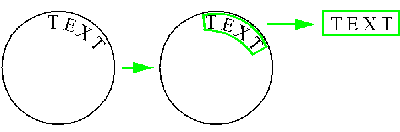
For example, the following figure shows a part with curved text (left), the region of text to be unwrapped (center), and the unwrapped text (right), which can then be passed to the OCV tool for character verification.
Using QuickBuild, you can unwrap and verify text that is wrapped to a circle as follows:
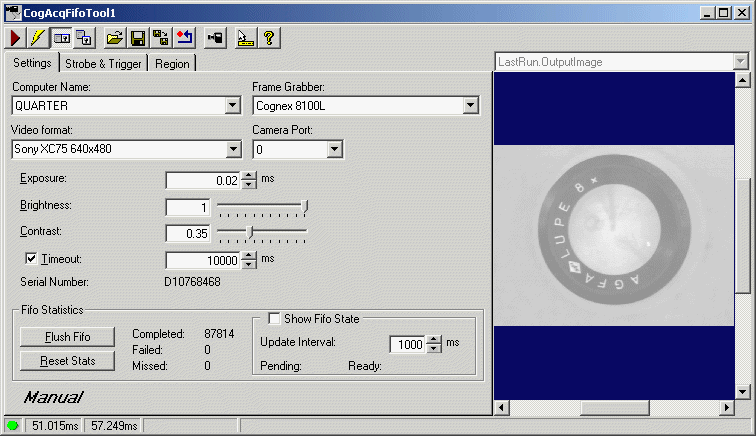
- Configure the Job's Image Source to acquire an image from a camera or from an image database.
As with most vision
applications, the part of interest should fill the field of
view as much as practical.
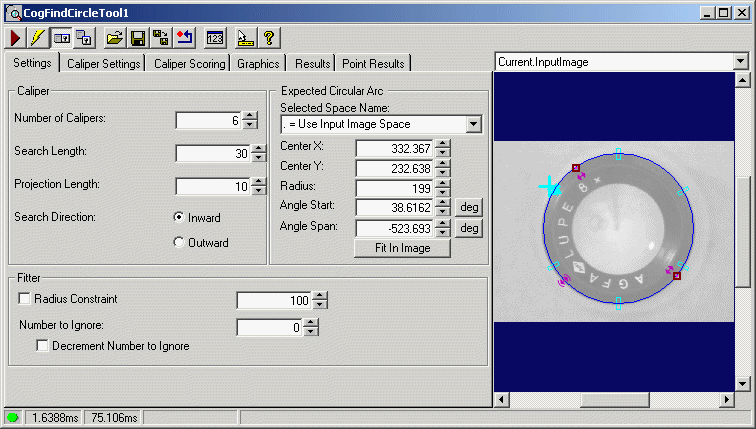
- Find the center of the part by creating a Find Circle
tool, and configuring it to find the outer circle of the
part.
- Create a Polar Unwrap tool, and use
Add Terminals
to expose the X and Y Region Center inputs. Connect the X and Y
outputs from the Find Circle tool to the X and Y inputs you
just exposed.
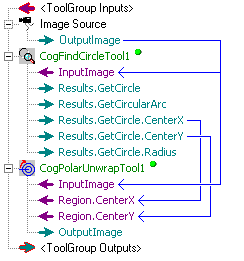
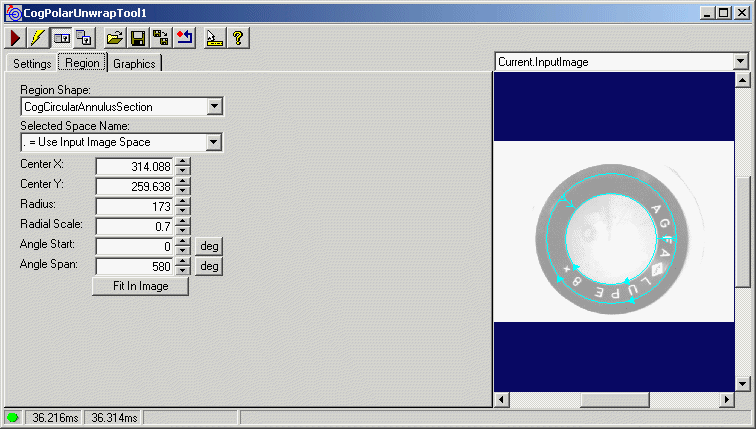
- In the Region tab of the Polar Unwrap tool, graphically position the
region so that it encloses the text on the part. Change the
Angle Span to 580 so an unbroken string will appear in the
destination image. See
Polar Unwrap Theory
for more information about configuring the region and setting Angle Span over 360
degrees.
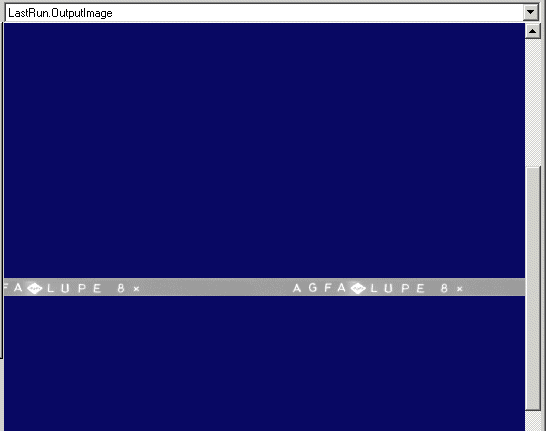
Run the Polar Unwrap tool. The resulting unwrapped image will contain at least one unbroken instance of the string.
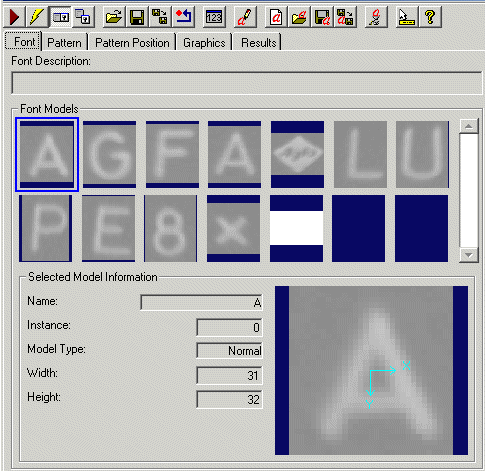
- Create an OCV tool, train the font, and set up the
search region as described in
Using the OCV Tool.
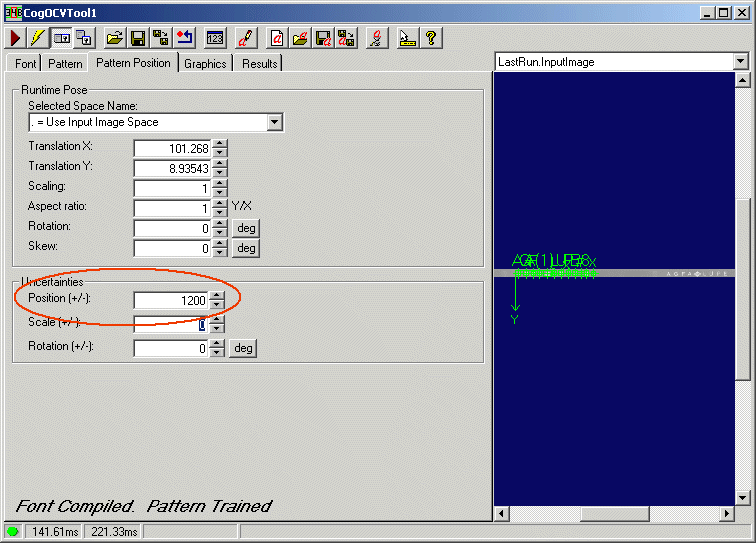
- Set the Pattern Position Uncertainty to a large value, so
that the tool will search the entire image for the string. Run the
entire tool group, and rotate the part. The OCV tool will
continue to verify the string at any rotation.
Note that the last step might result in long verification times. A faster approach might be to locate the diamond feature in the unwrapped image, create a fixture based on that feature, and search for the string in the fixtured image.
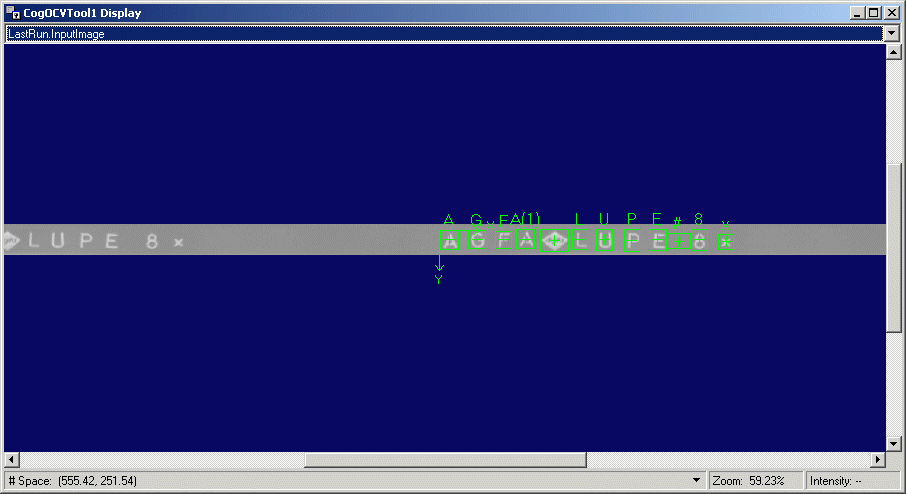
The following figure shows a floating display window; the partial string on the left was skipped, and the intact string on the right was verified.