This topic contains the following sections.
The Polar Unwrap tool edit control provides a graphical user interface to the CogPolarUnwrapTool tool, which you use to transform the portion of an image contained within a defined region into a rectangular image. The tool produces an output image containing the transformed portion of the input region. The edit control allows you to specify a sampling mode, scaling factors, and the type of region shape to use. The following figure shows the Polar Unwrap tool edit control:
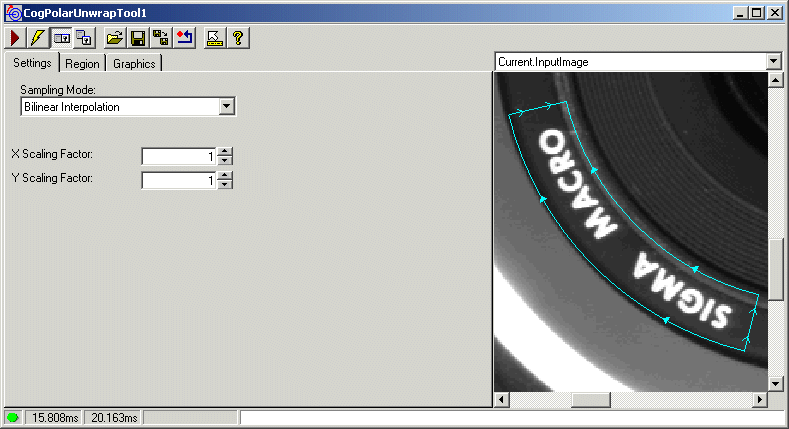
The edit control offers the following features:
- A row of control buttons at the top left provide access to the most common operations.
- A set of function tabs allow you to choose the sampling mode, the scaling factors, and the region shape.
- An image display window displays acquired images and the output image the Polar Unwrap tool generates.
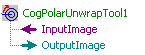
You can experiment with the edit control by using QuickBuild to create a CogPolarUnwrap tool. A new CogPolarUnwrap tool appears with the input terminals for the input image and output image, as shown in the following figure:

The following table describes the function of each button:
| Button | Description | Function |
 | Run | Generate an output image of the defined region transformed into a rectangular image. |
 | Electric mode | Toggle electric mode, where the Polar Unwrap tool executes automatically when particular configuration parameters change. In electric mode, a lightning bolt appears next to every electric property. |
 | Local image display | Open or close the local image display window. A Polar Unwrap tool supports the following image buffers:
|
 | Floating image display | Open a floating image window, which supports the same image buffers as the local image display window. |
 | Open | Open a VisionPro persistence (.vpp) file that contains a set of saved properties for this vision tool object type. VisionPro reports an error if you try to open a .vpp file for another object type. |
 | Save | Save the current properties of the vision tool to a VisionPro persistence (.vpp) file. The edit control allows you to choose between saving the vision tool with or without its image buffers and tool results. |
 | Save As | Save the current properties of the vision tool to a new VisionPro persistence (.vpp) file. |
 | Reset | Reset the vision tool to its default state. |
 | Show ToolTips | Enable or disable the display of tooltips for individual items in the edit control. |
 | Help | Open this VisionPro online help file. |
Use the Settings tab to select a sampling mode and the scaling factor you want to use. The following figure shows the default Settings tab:
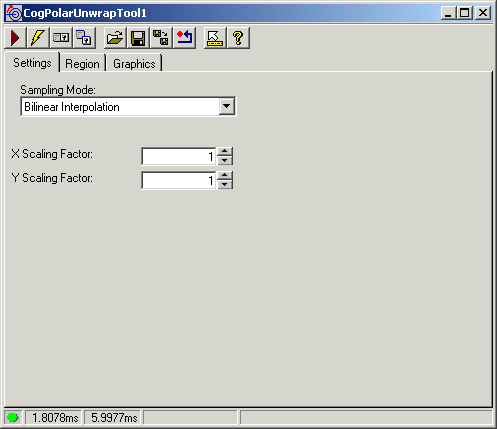
Use the following options to configure the tool:
| Parameter | Description |
| SamplingMode | Specifies the sampling mode you want to use during the unwrap operation. |
| ScalingX | Specifies the scaling factor for the x-axis in the output image, which corresponds to the angular span direction. |
| ScalingY | Specifies the scaling factor for the y-axis in the output image, which corresponds to the radial direction. |
Use the Region tab to select the shape of the input region. The following figure shows the default Region tab:
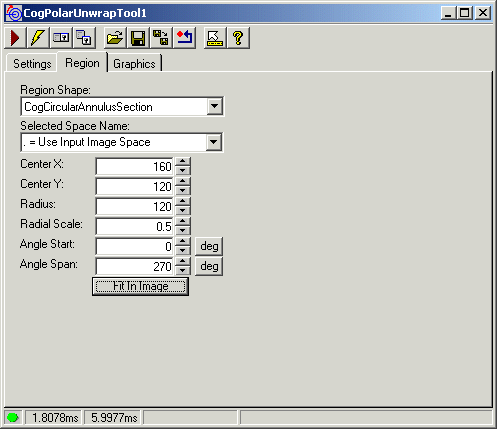
Use the following options to configure the input region:
| Parameter | Description |
Choose either CogCircularAnnulusSection or CogEllipticalAnnulusSection. For CogCircularAnnulusSection, configure the following parameters: For CogEllipticalAnnulusSection, configure the following parameters: | |
| SelectedSpaceName | The coordinate space in which the training region is interpreted. For information, see Coordinate Space Names. |
| FitToImage | Centers the region within the image, adjusting its geometric properties so that its default size is based on the image and its SelectedSpaceName. |
Use the Graphics tab to specify the graphics that the tool generates and displays. The following figure shows the Graphics tab:
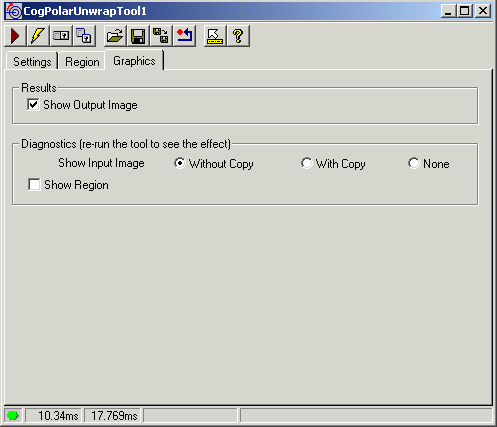
Use the following options on the Graphics tab:
| Option | Description |
| Show Output Image | You can choose not to generate an image record for the output image. |
| Show Input Image | Determines whether or not the input image is recorded as part of the diagnostic record, and whether the image is copied to the record or saved in the record as a reference |
| Show Region | Show the CogCircularAnnulusSection or CogEllipticalAnnulusSection shape in the LastRun.InputImage buffer. |