This topic contains the following sections.
Use the PatMax RedLine tool to perform pattern location. The PatMax RedLine tool is similar to the PatMax tool and the SearchMax tool in many ways, however, it is a different tool (CogPMRedLineTool). For most vision applications, the PatMax RedLine tool performs faster and with similar accuracy and robustness. The PatMax RedLine tool is typically much faster than the PatMax tool when both angle and scale degrees of freedom (DOFs) are open during the pattern search. The greater the search ranges are, the greater the speed advantage of the PatMax RedLine tool will be relative to the PatMax tool. Cognex recommends you use the PatMax RedLine tool for new vision applications. Cognex continues to support the PatMax tool for existing applications.
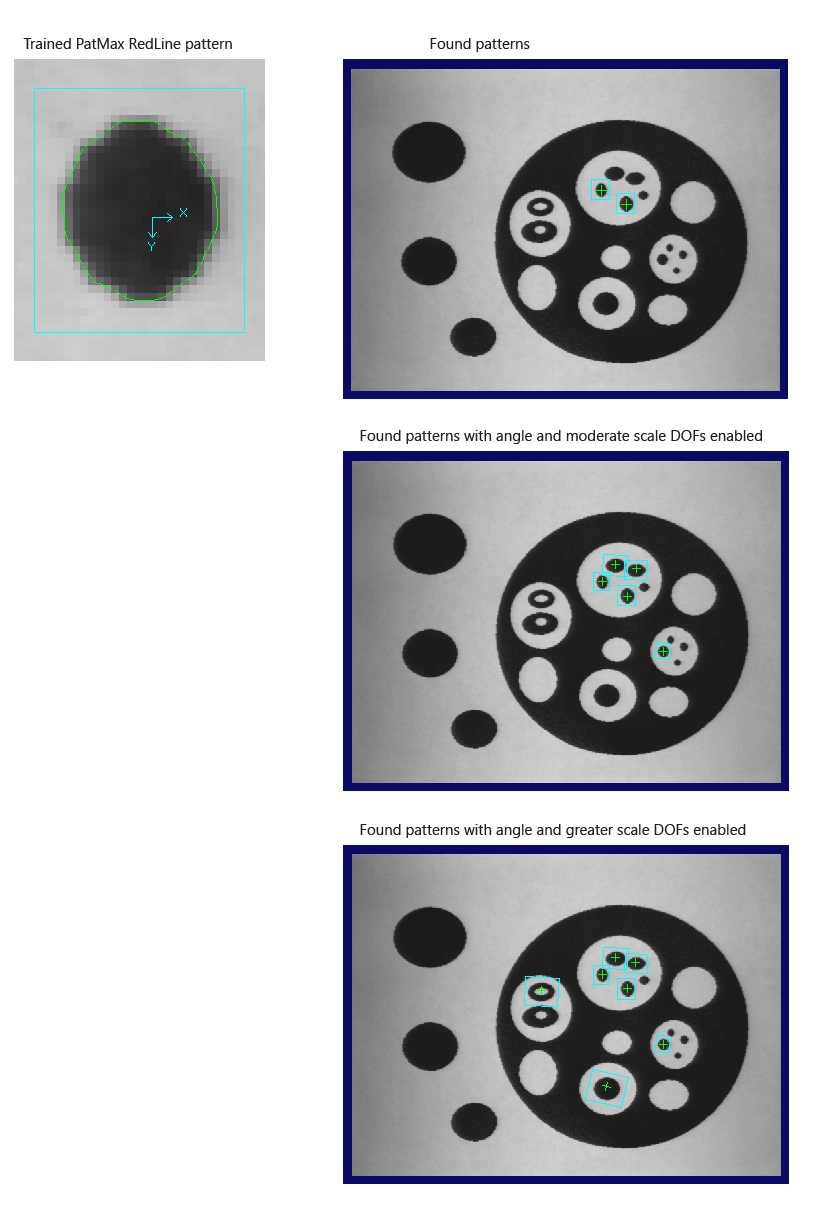
The following figure shows a trained PatMax RedLine pattern and its location using the PatMax RedLine tool.
The PatMax RedLine tool supports 8-bit greyscale input images only (unlike the PatMax tool, which also supports other formats).
Note: The PatMax RedLine tool is optimized for 64-bit operating systems only. Therefore, expect speed improvement compared to the PatMax tool only on such operating systems (and not on 32-bit operating systems).
For general information on patterns and pattern matching, see the PatMax Software topic. This topic discusses the PatMax RedLine tool using some of the definitions of the PatMax Software topic.
Like other pattern-location technologies, the PatMax RedLine tool trains a pattern, then locates one or more instances of that pattern in one or more run-time images. The PatMax RedLine tool (like the PatMax tool) differs from other pattern-location technologies in that it is not based on pixel grid representations that cannot be efficiently and accurately rotated or scaled. Instead, the PatMax RedLine tool (like the PatMax tool) uses a feature-based representation that can be transformed quickly and accurately for pattern matching.
The PatMax RedLine tool (using concepts similar to PatMax concepts)
- is a multi-resolution search algorithm with coarse and fine granularity limits,
- trains pattern features that are based on changes in brightness,
- searches for patterns over a range of angles and scales you specify,
- scores results based on coverage and, optionally, clutter,
- evaluates results using an accept threshold and a contrast threshold.
A pattern instance found in the run-time image is returned as a "result". The PatMax RedLine tool returns the following properties for each result:
Accepted - whether the result meets all of the acceptance conditions. Acceptance conditions are numerous including the following:
- Result Score be greater than or equal to AcceptThreshold
- The pose of the result is appropriate based on your criteria: the rotation angle and scale be within the ranges you define.
- Result ContrastFraction be greater than or equal to ContrastFractionThreshold.
See the Pattern Acceptance and Reporting section for detailed information.
- The pose of the result: X-Y position, rotation angle, and scale (GetPose in the API) of the found pattern instance
- Score - the score of the result. The score is a value between zero and one. Higher values indicate a closer match between the trained pattern and the pattern in the search image. The computed score is affected by the coverage value of the result and optionally by its clutter value. The score increases as the coverage value goes up. If ScoreUsingClutter is set to true, then the score will decrease as the clutter value goes up.
- ContrastFraction - the contrast fraction of the result. The contrast fraction is a number between zero and one. It is computed by dividing the average contrast of the matching image features by the average contrast of the trained pattern features. If this ratio exceeds one it is reported as exactly one.
- Coverage - the coverage value of the result. The coverage value is the fraction (from zero to one) of features in the trained pattern that are found in the result. For example, if you trained a pattern that was a complete circle, but only found half a circle at run time, your result would have a coverage value of approximately 0.5.
Clutter - the clutter value of this result.
A clutter measurement is computed, and reported in each result, only if ScoreUsingClutter is set to true. Otherwise, each result reports a clutter value of -1.
The clutter value is a ratio. It is computed by dividing the number of clutter features at the found location by the number of features in the trained pattern. This ratio can be larger than one. Clutter features are extra features that appear in the run-time image at locations which should be empty. The corresponding area of the train image is called "empty" when: it lies within the train region, it contains no features, and it is not masked as "Don't Care".
- ID - a unique ID used to identify the result.
Results are returned in a collection, sorted in order of decreasing score.
The PatMax RedLine tool produces results that are only qualitatively similar to the results of the PatMax tool (in the same way that PatMax results are qualitatively similar to SearchMax results). The PatMax RedLine, PatMax, and SearchMax tools all return a high-scoring result if a section of the run-time image closely matches the trained pattern. But there is no guarantee that all three tools return a score of, for example, 0.87. The scores would be different even if all three tools were trained from the same region of one image, and then run on a common run-time image. The PatMax RedLine tool only produces similar results to the extent that all three tools are within their advertised accuracy of the correct pose.
A result is Accepted if all of the acceptance conditions are met.
There are several parameters that affect how the PatMax RedLine tool reports results.
The ReturnAllResults Run-time Parameter Is False
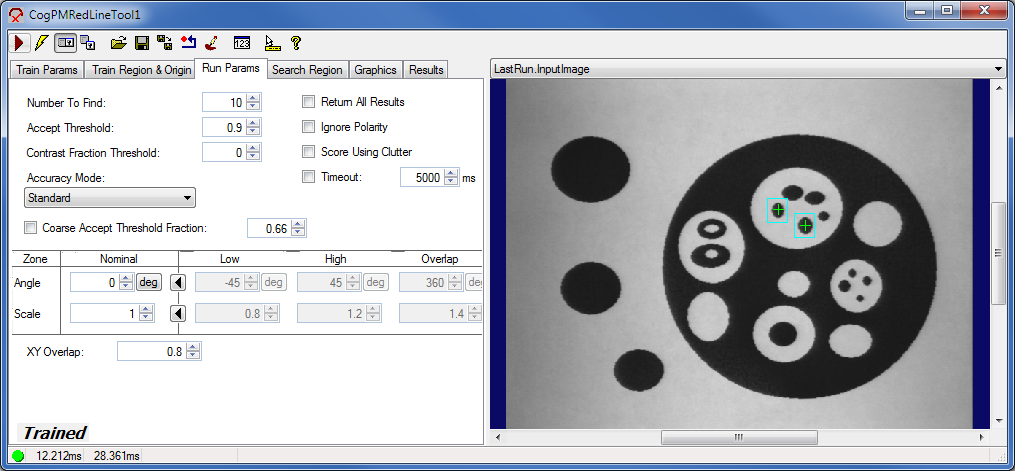
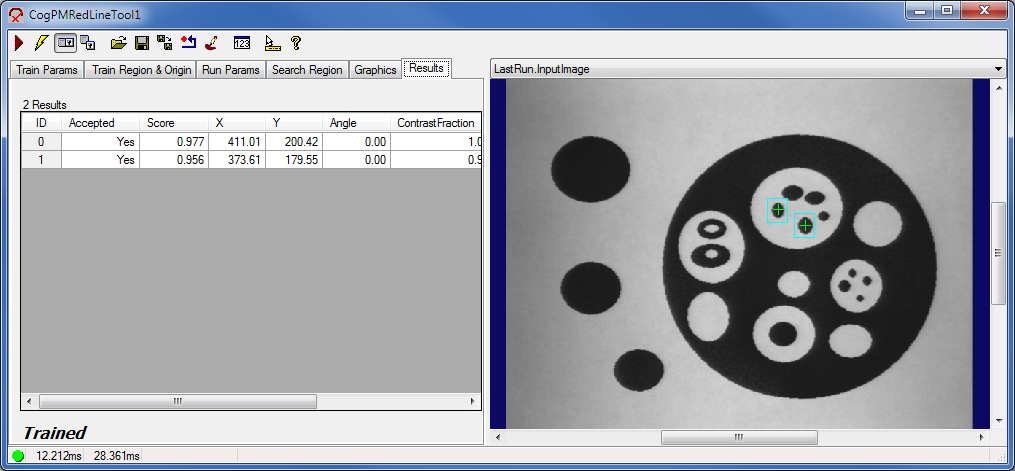
If the ReturnAllResults run-time parameter is false, every returned result will have its Accepted property set to true, and a result will be returned only if all of the following conditions are met:
- The result's Score is greater than or equal to AcceptThreshold.
- The result's ContrastFraction is greater than or equal to ContrastFractionThreshold.
The result's angle (as reported by the Rotation property of the CogTransform2DLinear returned by GetPose in the API) was either:
The result's scale (as reported by the Scaling property of the CogTransform2DLinear returned by GetPose in the API) was either:
- The result's Score makes it one of the top-scoring results. Only the NumberToFind top-scoring results (that meet all of the other conditions) will be returned.
The following example demonstrates this case:
The ReturnAllResults Run-time Parameter Is True
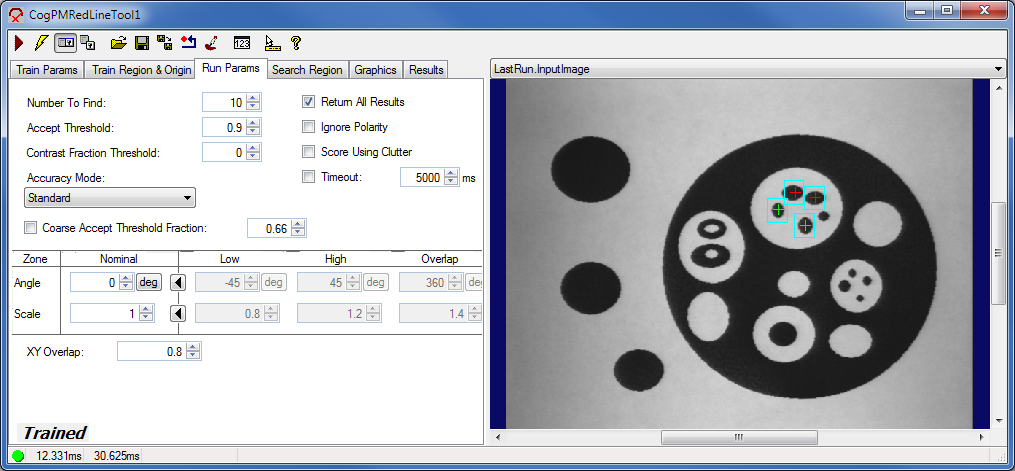
If the ReturnAllResults run-time parameter is true, additional pattern instances may be reported as results. You can use the value of Accepted to determine why the additional result was excluded initially.
- If Accepted is true, the additional result was excluded solely because the NumberToFind was set too low. This could happen, for example, if your input image contains five instances of the pattern but you set NumberToFind to only find three. In this case, you might get two additional results that meet all of the acceptance conditions listed above, but were excluded from the results solely because they were not among the three highest-scoring instances.
If Accepted is false, the additional result was excluded because it has one or more of the following:
- A Score less than AcceptThreshold.
- A ContrastFraction less than ContrastFractionThreshold.
- An angle that is outside of the angle range you specified using Low and High angles if you enabled the angle DOF.
- A scale that is outside of the scale range you specified using Low and High scales if you enabled the scale DOF.
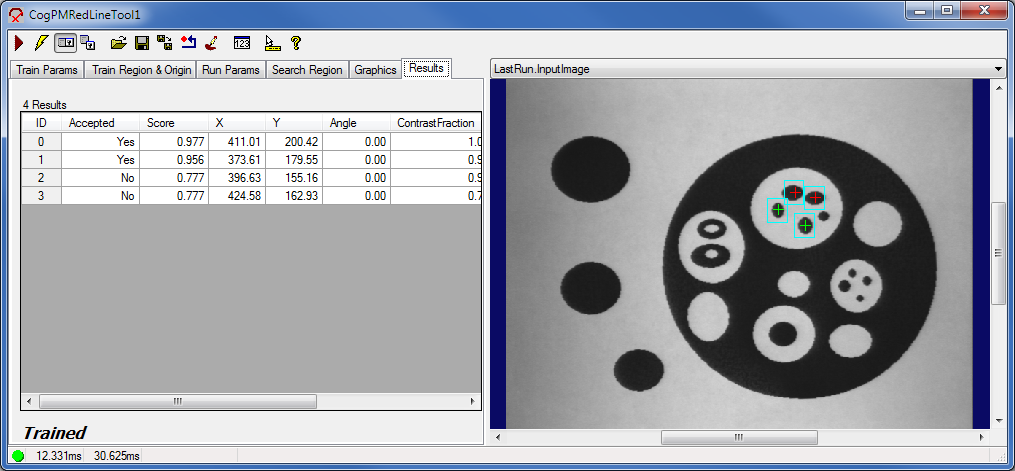
The following example demonstrates this case:
 Note Note |
|---|
As a result of these, it may happen that while disabling a DOF a found pattern instance gets reported satisfying the acceptance conditions (including a great enough Score), and the same pattern disappears from the list of reported results when enabling that DOF. Example: a pattern of scale 0.77, Accept Threshold = 0.5
This is an intended behavior and means that you get the results only that you asked for: that is, when scale DOF is enabled, no results are returned with scales outside the scale range you specified. If you want to find a pattern at scale 0.77, make sure that 0.77 is inside the scale range you set. To enable reporting additional results similar to what you asked for (the mentioned pattern with Scale = 0.77 in this example), select ReturnAllResults. This will give you a similar behavior to the PatMax tool. |
The PatMax RedLine tool has the following specialties compared to the PatMax tool:
- Loading a trained PatMax RedLine pattern from an archive will generally be faster than loading a similar one in the PatMax tool.
- By default, the PatMax RedLine tool does not return any results outside of the specified DOF ranges (unlike the PatMax tool), nor with scores below the specified accept threshold. If a DOF range is not open for a particular DOF, the tool will only return candidates at the specified nominal value for that DOF.
- If you want to make the PatMax RedLine tool behave more like the PatMax tool, you can enable the ReturnAllResults property. This Boolean allows the PatMax RedLine tool to report results that are slightly outside of the specified DOF ranges, or slightly below the accept threshold. This makes the PatMax RedLine tool more similar to the PatMax tool, but not identical. There are no guarantees that the PatMax RedLine tool will find the same extra results that the PatMax tool does, or even that the PatMax RedLine tool will find any extra results at all.
The PatMax tool uses an absolute "Edge Threshold" to determine what image features are strong enough to be trained. This is replaced by the FeatureThreshold in the PatMax RedLine tool. The FeatureThreshold is a dimensionless number between zero and one. Raising the threshold trains fewer features: the strongest existing features are retained and the weakest existing image features are discarded. Lowering the threshold trains more features: all of the existing features are retained and the next-strongest image features are included.
Only adjust this parameter after you have looked at your trained pattern and confirmed that you need more (or fewer) image features. Large values (0.7 or higher) may produce too few features for accurate pattern finding. Large values may also eliminate so many features that it is impossible to even train a pattern.
- The PatMax RedLine tool only computes a clutter value if you explicitly ask for your result scores to be lowered by the presence of clutter. Otherwise, clutter is reported as -1.
- The algorithm the PatMax RedLine tool uses to reduce the score when clutter is present is different from the one the PatMax tool uses.
- The graphics shown by the PatMax RedLine tool do not indicate what parts of the pattern match well with the run-time image. In the PatMax tool, the graphics are colored green, yellow, and red to indicate the sections of the pattern that match well, fairly well, and poorly to the run-time features.
- The PatMax RedLine and PatMax tools both allow you to exclude low-contrast results. In the PatMax tool, the contrast threshold is an absolute threshold on the observed grey-level difference. In the PatMax RedLine tool, you specify a threshold on the contrast fraction. The contrast fraction is the ratio of the observed run-time contrast to the contrast of the trained pattern, a number that is defined to be between zero and one. Unlike the related concept in the PatMax tool, the contrast fraction threshold does not need to be set at all unless there will be run-time matches that are of lower-than-trained contrast that need to be rejected in your application. Otherwise, contrast variation is dealt with automatically and this parameter should remain at 0.
- The PatMax RedLine tool always returns a score based on the fine refinement stage of processing, in all accuracy modes. It does not return a measure of fit error.
- The PatMax RedLine tool may give slightly different answers for the same image if the value of IgnorePolarity changes.
- In the PatMax tool, a result is marked as accepted if its score equals or exceeds the accept threshold. In the PatMax RedLine tool, the rules are more complex. See the Pattern Acceptance and Reporting section for detailed information.
- The PatMax RedLine tool has an accuracy mode that gives you some level of control over the trade-off between speed and accuracy. The exact trade-off amounts are highly dependent upon the content of the images being processed. Changing this mode from its default value is only helpful in certain situations.
- Using the PatMax RedLine tool, you can choose to auto-compute the coarse and fine granularity values independently. Using the PatMax tool, you cannot: you must auto-compute both granularities at the same time.
- The PatMax RedLine tool does not support independent X-scale and Y-scale DOF ranges. It only has a single uniform scale DOF range. This is unlike the PatMax tool, which supports all three.
The following limitations apply to the PatMax RedLine tool.
The PatMax RedLine tool:
- Does not support training from or running against synthetic models, only images.
- Does not support multi-instance training (as does the PatMax AutoTune feature - composite training).
- Does not support multi-pattern running (as does the Multi-Model PatMax tool).
- Does not support running at a fixed position (Refine Start Pose mode of the PatMax tool).
- Does not support non-affine poses (as do the PatFlex and Perspective PatMax algorithms).
- Does not support the outside region mode.
- Does not support the high sensitivity mode.
- Does not support elasticity control.
This section describes how to train the PatMax RedLine tool from an image, and how to use the trained tool to find likenesses of the pattern in run-time images. The description uses the same example as used previously in this topic.
Like the PatMax tool, the PatMax RedLine tool's robustness and accuracy, as well as speed, are a factor of the training and run-time parameters used. The PatMax RedLine tool has many parameters that are identical in name and meaning to those of the PatMax tool. However, there may be behavioral differences between the PatMax RedLine tool and the PatMax tool using the same parameter settings (concerning common parameters between the two tools).
Train a CogPMRedLineTool on its Train Params tab either by:
Grabbing a training image, setting the training parameters, and clicking Train.
Use the Current.TrainImage record to adjust the train region using your mouse, which you can more precisely adjust on the Train Region & Origin tab. (You can click Train on the The Train Region & Origin tab as well.)
- Loading an existing pattern by clicking Load Pattern.
You can save a trained pattern by clicking Save Pattern.
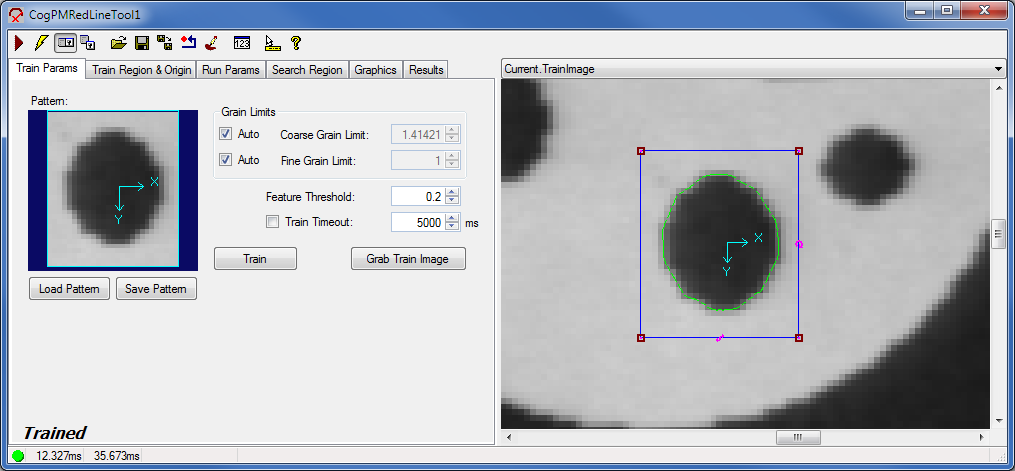
Training Parameters
The default training parameters will work well with most vision applications.
The following PatMax RedLine training parameters have the same definitions as those for the PatMax tool:
- GrainLimitCoarse - In general, the larger the coarse granularity limit, the faster alignments will run. Use caution in manually changing the coarse granularity limit because changing this value can drastically affect the PatMax RedLine tool’s ability to locate patterns at all.
Using the PatMax RedLine tool, you can choose to auto-compute the coarse and fine granularity values independently (unlike in the PatMax tool).
- TrainRegion - Select a training region that contains a good representation of what you are trying to find at run time.
- Train Origin - A six degree of freedom origin for the pattern. This linear transform maps points from "Pattern Space" (that is, the coordinate space defined by this pattern Origin) to the selected space of the train image. For example, mapping the point (0, 0) through the transform returns the position of the pattern origin in the selected space of the train image.
For the definition and detailed usage of these common training parameters, see the PatMax Software topic.
The following training parameters are specific to the PatMax RedLine tool:
FeatureThreshold - used to determine what image features are strong enough to be trained. It is a dimensionless number between zero and one. Raising this threshold trains fewer features. Lowering it trains more features.
Only adjust this parameter after you have looked at your trained pattern and confirmed that you need more (or fewer) image features. Large values (0.7 or higher) may produce too few features for accurate pattern finding. Large values may also eliminate so many features that it is impossible to even train a pattern.
- TrainTimeout - timeout for training.
The only properties that do not untrain the pattern when changed are:
Adjust the CogPMRedLineTool run-time parameters on the Run Params tab, adjust the search region on the Search Region tab, and run the tool.
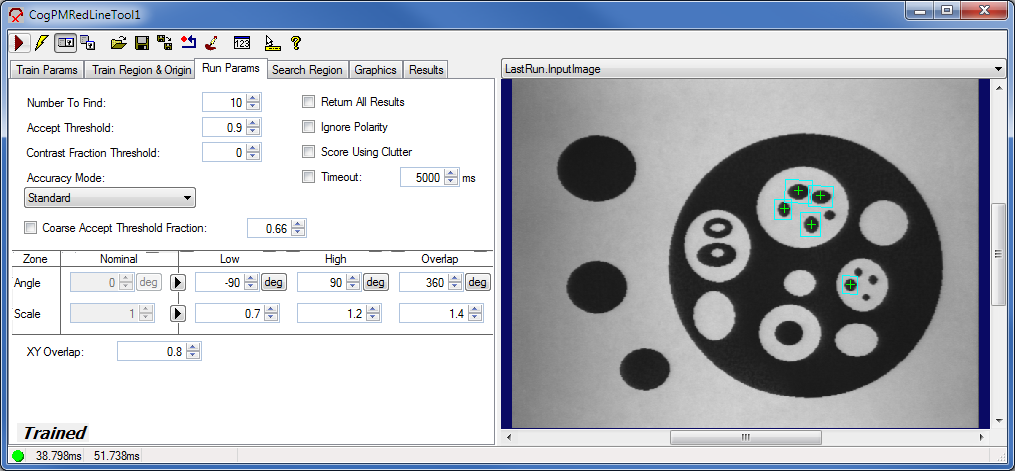
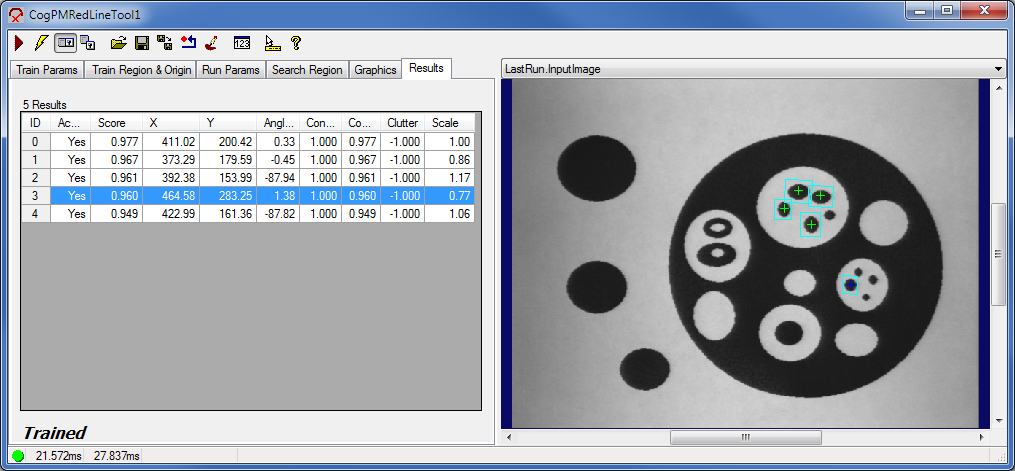
The following figures illustrate the run-time parameter adjustments to achieve the results shown in the introduction of this topic.
Step 1.
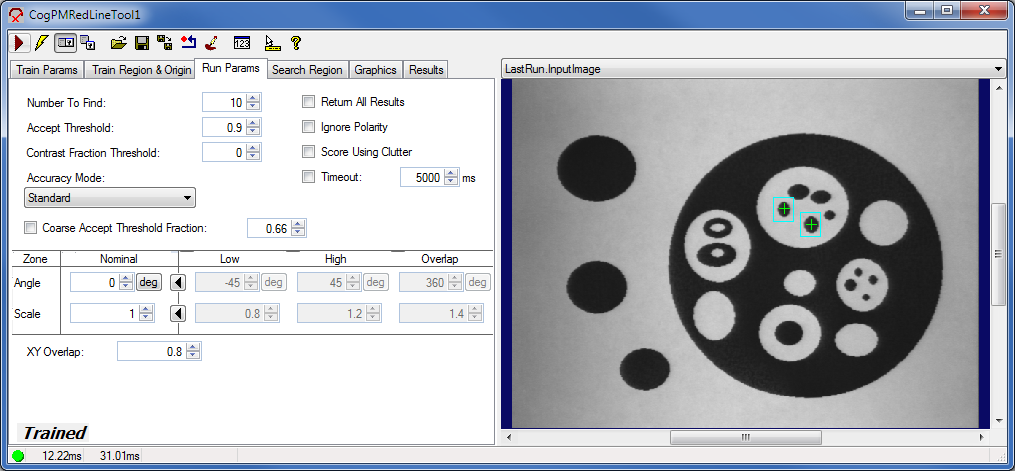
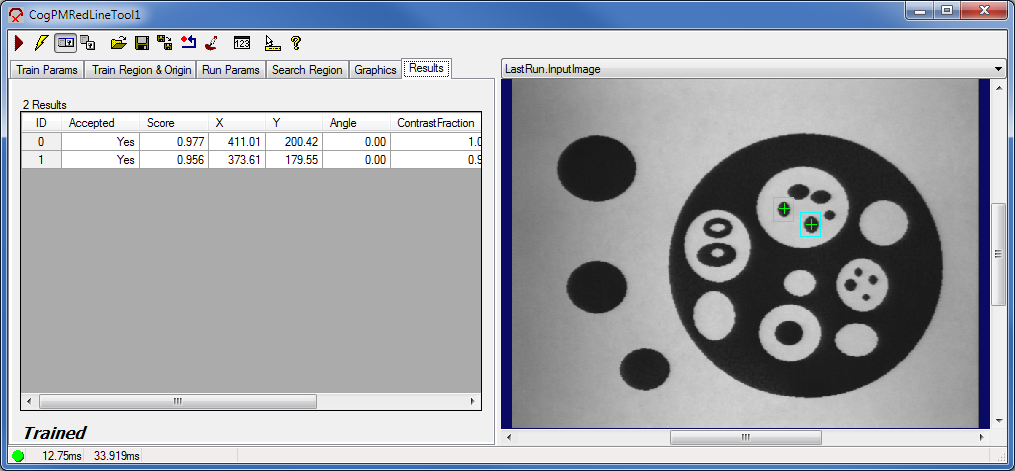
Step 2. - angle and moderate scale DOFs enabled
Step 3. - angle and greater scale DOFs enabled
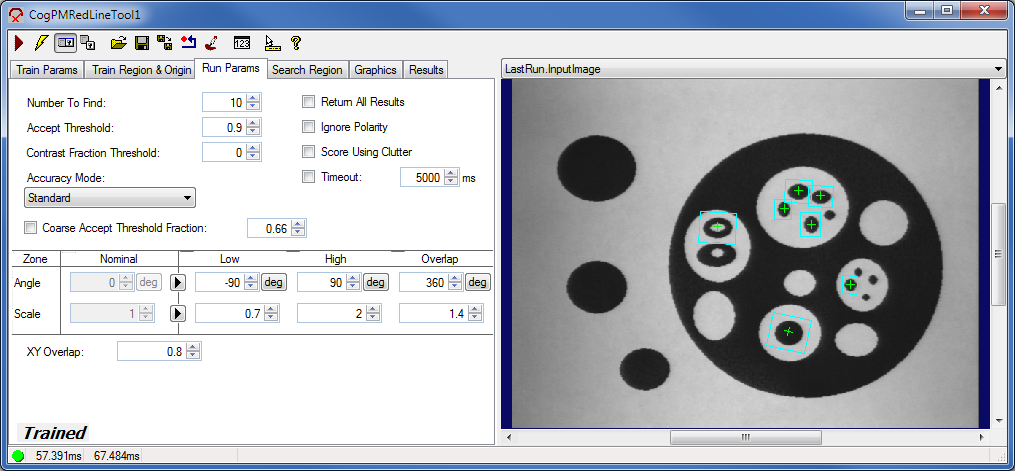
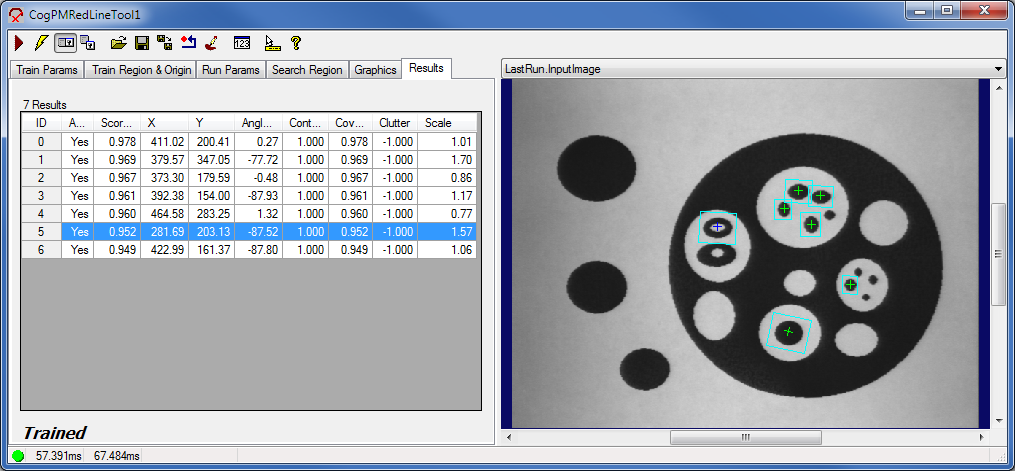
Run-time Parameters
The following PatMax RedLine run-time parameters have the same definitions as those for the PatMax tool:
- AcceptThreshold - the acceptance threshold for the score of a result. Only instances of the pattern that receive scores greater than or equal to this threshold are accepted. Valid range is from zero to one. You should supply an acceptance threshold that is lower than the lowest score you ever expect to receive from a true instance of your pattern. For detailed information on pattern acceptance, see the Pattern Acceptance and Reporting section.
- XYOverlap - the area overlap threshold. Two result candidates are said to overlap in area if the fraction of their area that overlaps is greater than the given XYOverlap threshold. The valid range of the threshold is from zero to one. The PatMax RedLine tool discards the weaker pattern instance when two pattern instances overlap for all degrees of freedom (DOF) as well as area. See the Overlap property of the angle DOF zone, and the Overlap property of the scale DOF zone for more information.
For the definition and detailed usage of these common training parameters, see the PatMax Software topic.
The following run-time parameters are specific to the PatMax RedLine tool or their definitions slightly differ from those in the PatMax tool:
- NumberToFind - the number of results to search for. If the ReturnAllResults run-time parameter is false, the number of results returned by the PatMax RedLine tool is always less than or equal to the value you specify (unlike the PatMax tool, which may return more results than specified by its ApproximateNumberToFind run-time parameter). If ReturnAllResults is true, you may get additional results.
- ContrastFractionThreshold - the threshold for the contrast fraction of a result. Only instances of the pattern that have a contrast fraction greater than or equal to this threshold are accepted. The contrast fraction is a number between zero and one. It is computed by dividing the average contrast of the matching image features by the average contrast of the trained pattern features. If this ratio exceeds one it is reported as exactly one. (Unlike the PatMax tool, where the absolute contrast of the run-time image is measured and not the contrast relative to the trained pattern features.) ContrastFractionThreshold does not need to be set at all unless there will be run-time matches that are of lower-than-trained contrast that need to be rejected in your application. Otherwise, contrast variation is dealt with automatically and this parameter should remain at 0.
- AccuracyMode - the desired level of accuracy for result poses. The PatMax RedLine tool may run faster if your application can tolerate lower accuracy. The accuracy of a result pose (including its position, rotation, and scale) is highly dependent upon the quality of the trained pattern and the contents of the run-time image. For most applications, the Standard accuracy mode gives a good trade-off between accuracy and speed. If you desire more accuracy and are willing to sacrifice some speed, you can use the Accurate mode. If you desire more speed and are willing to sacrifice some accuracy, you can use the Fast mode. Fast mode is especially useful if you are searching for multiple pattern instances and only want to know how many were found.
- CoarseAcceptThresholdFraction - the fraction of the accept threshold that should be used to evaluate candidate scores during the coarse phase of PatMax RedLine run time. The PatMax RedLine tool first finds candidate patterns at coarse granularity. High-scoring coarse results are then refined at fine granularity. A coarse result is considered high-scoring if its score exceeds an internally-computed coarse accept threshold. By default, the PatMax RedLine tool determines the coarse accept threshold automatically. In exceptional cases you may need to override the automatic computation. You can override the automatic computation by enabling and setting setting the CoarseAcceptThresholdFraction run-time parameter. The coarse accept threshold will then be computed by multiplying together the coarse accept threshold fraction, specified by this value, and the AcceptThreshold.
- ReturnAllResults - whether the PatMax RedLine tool should return only the results that you asked for or it should also return results that are similar to the ones you asked for. If the PatMax RedLine tool fails to return all of the results that you expect, it may be useful to set this property to true. This allows the PatMax RedLine tool to return additional results that are similar to the ones you asked for. Additional results will not always be present, but if they are present you can inspect them to see if the PatMax RedLine tool is finding your desired result and then excluding it from the final set of results because it fails to meet one of the acceptance conditions. You can then adjust the relevant acceptance condition so that the desired result is returned.
- IgnorePolarity - whether to ignore the polarity of edge features when searching for patterns. If true, the polarity of the pattern features is ignored. If false, only patterns whose polarity matches the trained pattern will be found. The polarity of a feature indicates whether the edge describes a light-to-dark transition in the image or a dark-to-light transition. You should ignore polarity if instances of your pattern may have edge features whose polarity is the opposite of the trained ones. In this case your pattern should receive approximately the same score regardless of whether some, all, or none of the features have opposite polarity. For the PatMax tool, this is a train-time parameter. Unlike the PatMax tool, the PatMax RedLine tool may give slightly different answers for the same image if the value of IgnorePolarity changes.
- ScoreUsingClutter - whether the PatMax RedLine tool should reduce the score of results that contain extraneous features at the found image location. Extraneous features are known as clutter. They appear in the run-time image at locations which should be empty. A pattern's score is reduced as the amount of clutter increases, but the score will never go negative. A clutter measurement is computed, and reported in each result, only if ScoreUsingClutter is set to true. Otherwise, each result reports a clutter value of -1. The clutter value is a ratio. It is computed by dividing the number of clutter features at the found location by the number of features in the trained pattern. This ratio can be larger than one. Clutter features are extra features that appear in the run-time image at locations which should be empty. The corresponding area of the train image is called "empty" when: it lies within the train region, it contains no features, and it is not masked as "Don't Care".
- Timeout - the maximum execution time (in milliseconds) allowed for a PatMax RedLine tool to run. This value only applies if TimeoutEnabled is set to true. If a timeout occurs, an exception will be thrown, which will appear in the run status of the tool.
Angle DOF zone parameters:
- Nominal - the nominal angle for the angle degree of freedom zone. The nominal angle is only used if the configuration is set to Nominal. In this case, the PatMax RedLine tool will only look for pattern instances at exactly the Nominal angle that you specify. You can specify any value for the nominal angle.
- Low - the low limit for the angle degree of freedom zone. The Low limit is only used if you enabled the angle DOF (using the Zone's Angle arrow). In this case, the PatMax RedLine tool will find pattern instances whose result angle lies between the Low and High limit values only. You can specify any value for the Low angle limit. Setting the Low limit to a value larger than the High limit also sets the High limit to the new value.
- High - the high limit for the angle degree of freedom zone. The High limit is only used if you enabled the angle DOF (using the Zone's Angle arrow). In this case, the PatMax RedLine tool will find pattern instances whose result angle lies between the Low and High limit values only. You can specify any value for the High angle limit. Setting the High limit to a value smaller than the Low limit also sets the Low limit to the new value.
- Overlap - the overlap threshold for the angle degree of freedom zone. Two result candidates are said to overlap in the angle degree of freedom if the absolute difference between their angles is less than or equal to the given Overlap threshold. The PatMax RedLine tool discards the weaker pattern instance when two pattern instances overlap for all degrees of freedom as well as area.
The PatMax RedLine tool will iteratively refine its angle estimate until it finds the angle value that best matches the run-time image features.
Using the nominal angle value is very different from specifying a tight range of angle values. In the Nominal case, the pattern is tried at exactly one angle, and scored at that angle. In the case where angle DOF is enabled, more than one angle is tried and the algorithm iterates to find the best angle. The initial range of angles is given by you (using Low and High), but the PatMax RedLine tool might discover that the best angle is outside of your initial range, leading to a result that is not accepted. For example, if you ask the PatMax RedLine tool to find a pattern instance at a nominal angle of 0.1 radians, it might find a run-time instance whose true angle is 0.101 radians. This happens when the pattern at the nominal angle is close enough to the run-time features to receive a high score. The reported angle will be exactly 0.1 radians. If, however, you ask the PatMax RedLine tool to find a pattern instance within a range of angles between 0.0999 radians and 0.1001 radians, that same run-time instance would not be reported with an angle of 0.101. By default, it will not be reported at all. The PatMax RedLine tool will iterate to the true angle (of 0.101) and then determine that it falls outside of your desired angle range. The run-time instance will be eliminated unless ReturnAllResults is set to true.
The result angle is measured from the selected space of the input image to the coordinate space of the pattern (as defined by the pattern origin). The tool always returns angle results in the range -180 degrees to +180 degrees.
Scale DOF zone parameters:
- Nominal - the nominal scale for the scale degree of freedom zone. The nominal scale is only used if the configuration is set to Nominal. In this case, will only look for pattern instances at exactly the Nominal scale that you specify.
- Low - the low limit for the scale degree of freedom zone. The Low limit is only used if you enabled the scale DOF (using the Zone's Scale arrow). In this case, the PatMax RedLine tool will find pattern instances whose result scale lies between the Low and High limit values only. Setting the Low limit to a value larger than the High limit also sets the High limit to the new value.
- High - the high limit for the scale degree of freedom zone. The High limit is only used if you enabled the scale DOF (using the Zone's Scale arrow). In this case, the PatMax RedLine tool will find pattern instances whose result scale lies between the Low and High limit values only. Setting the High limit to a value smaller than the Low limit also sets the Low limit to the new value.
- Overlap - the overlap threshold for the scale degree of freedom zone. Two result candidates are said to overlap in the scale degree of freedom if the ratio of their scales is less than or equal to the given Overlap threshold. To compute the ratio, the PatMax RedLine tool always divides the larger scale by the smaller one, yielding a value that is greater than or equal to one. For example, given a result with scale of 1.25 and a result with a scale of 2.5, the ratio would be 2.0. These two results would only overlap in the scale degree of freedom if the Overlap value was set to 2.0 or higher. The PatMax RedLine tool discards the weaker pattern instance when two pattern instances overlap for all degrees of freedom as well as area.
The PatMax RedLine tool will iteratively refine its scale estimate until it finds the scale value that best matches the runtime image features.
Using the nominal scale value is very different from specifying a tight range of scale values. In the Nominal case, the pattern is tried at exactly one scale, and scored at that scale. In the case where scale DOF is enabled, more than one scale is tried and the algorithm iterates to find the best scale. The initial range of scales is given by you (using Low and High), but the PatMax RedLine tool might discover that the best scale is outside of your initial range, leading to a result that is not accepted. For example, if you ask the PatMax RedLine tool to find a pattern instance at a nominal scale of 1.0, it might find a run-time instance whose true scale is 1.01. This happens when the pattern at the nominal scale is close enough to the run-time features to receive a high score. The reported scale will be exactly 1.0. If, however, you ask the PatMax RedLine tool to find a pattern instance within a range of scales between 0.999 and 1.001, that same run-time instance would not be reported with a scale of 1.0. By default, it will not be reported at all. The PatMax RedLine tool will iterate to the true scale (of 1.01) and then determine that it falls outside of your desired scale range. The run-time instance will be eliminated unless ReturnAllResults is set to true.