This topic contains the following sections.
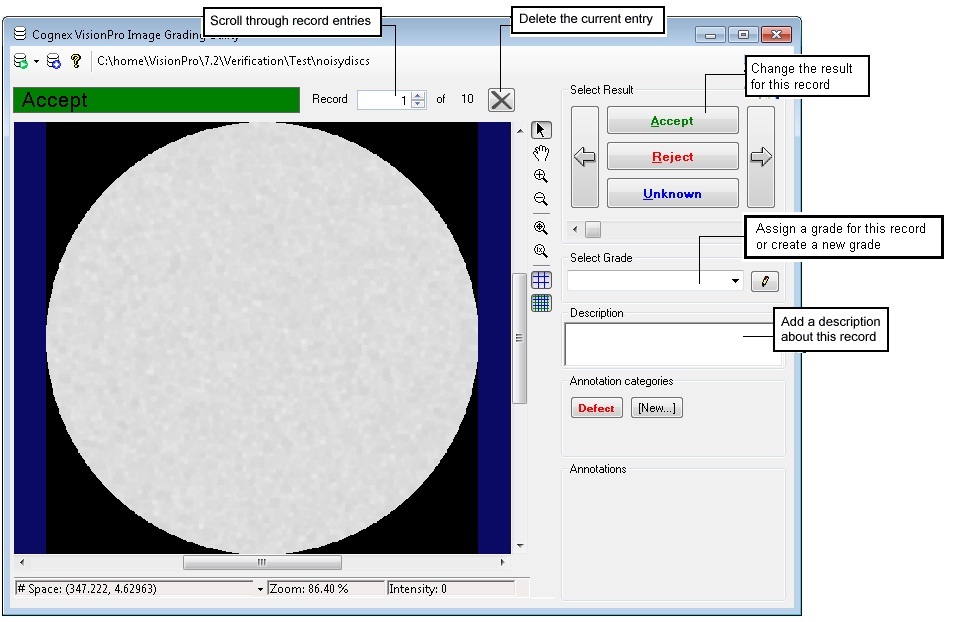
Use the Image Grading Utility to create a graded database of images that you plan to verify using the Inspection Designer tools. Using the Image Grading Utility you create a database where each record includes:
- The image of an object under inspection, with an optional description of the object or scene
- A Result of Accept, Reject or Unknown to describe what result the vision application should return after inspecting this image with VisionPro vision tools
- A Grade, represented by a character string you specify
- Graphics and descriptions that highlight specific features of the image for the purpose of identifying why the image receives whatever grade you assign to it
The database you create can be used with the Verification component of a CogToolBlock to verify that your vision application generates the expected results. The utility accepts saved images in a variety of formats and gives you the option of storing the image as part of the database record or linked to the original image stored elsewhere on your PC or network.
The VisionPro install utility installs the Image Grading Utility as a standalone application.
Launch the Image Grading Utility by choosing Start->Cognex->VisionPro->Utilities->Image Grading Utility. The utility launches as shown:
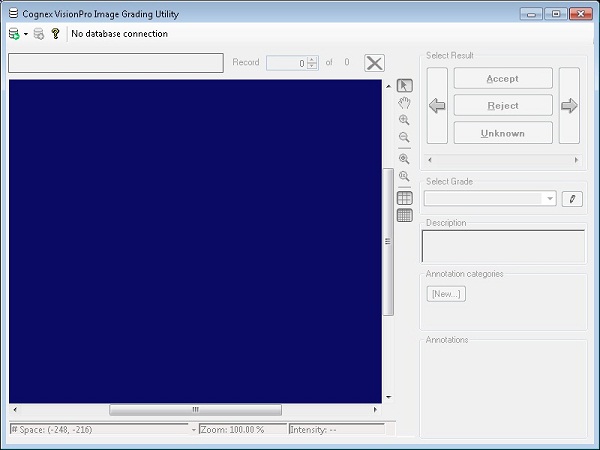
Before you can use the Image Grading Utility you must connect to a database. Click the Connect to database icon, highlighted in the following figure:
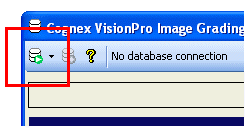
The utility offers three connection options:
- Connect: Select the directory storing the existing database, or use the Make New Folder option to create a new directory.
- Connect by name: Enter the name of the directory directly, using either a fully qualified path name or a UNC path.
- Disconnect: Close the connection to the directory.
Click the Import Images icon, highlighted in the following figure, to import images into a database:
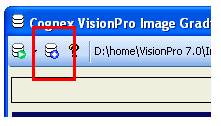
The Image Grading Utility allows you to import bitmap (.BMP), JPEG (.JPG), Tagged Image File (.TIF), and Portable Networks Graphic (.PNG) images. In addition, you can import entire image-database files in the .CDB or .IDB format.
When you import an image (or a set of images from an image-database file), the Image Grading Utility prompts you with the following import options:
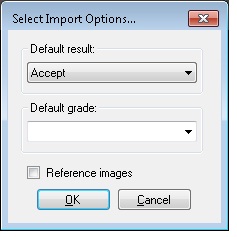
Choose a Default result for the imported image(s) you are adding to the database. If you are importing images from an image-database file, the Image Grading Utility applies a single result to all the images. You can alter the result for any particular image later.
Choose a Default grade from those already available in the database. A new database will have no default grades available, but you can type one in directly.
By default, the record for each database entry includes a copy of the image. Clicking Reference Images changes this default behavior so that the record for the database entry does not store a copy of the image but rather a pointer to the original image from the location where it was imported. If you choose to use image references, be aware that modifying properties of the original image (such as deleting the image, changing its filename, or changing its stored location) will corrupt the database entry, leaving the image for this record blank.
The following figure highlights other controls for working with database records:
Use the Annotation categories option of the Image Grading Utility to highlight one or more areas of a database entry and make note of a particular characteristic. Annotating an image can be useful when noting why a particular image should fail an inspection. The utility supports multiple annotation categories, with graphics displayed in distinct colors. For example, the following figure shows an image with an Unknown grade and an annotation to highlight an area of dirt:
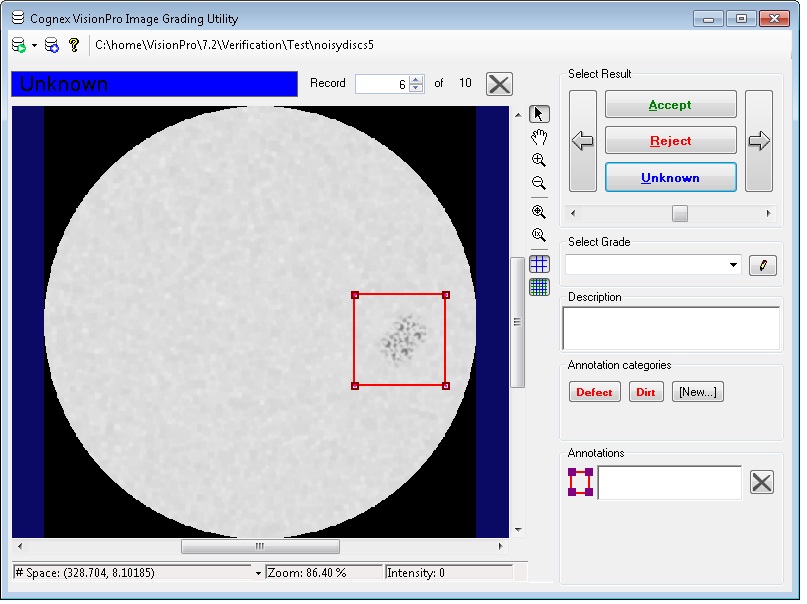
By default, the Image Grading Utility supports a single annotation category for Defect. Click [New..] to create a new annotation category. Any category you create is available to all the image records in the database.
To use annotations:
- (Optional) Use the [New...] option to create the annotation categories you require for your database.
- Select a database record containing an image you want to annotate.
- Click on the annotation category.
- Select, re-size and re-position the annotation graphic displayed over the image.
- (Optional) Add a description regarding this particular annotation.
- Add other annotations as necessary.
The database stores the annotations as part of the record.