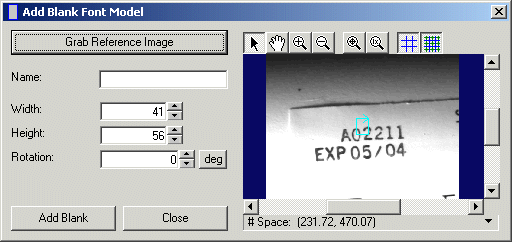
You use the Add Blank Font Model dialog box to create a blank font model and store it in the current font. The following figure shows the Add Blank Font Model dialog box:
You access the Add Blank Font Model dialog box by using the

The dialog box supports the following features:
Table 1.
| Feature | Description |
| Grab Reference Image | Copy the latest image from the OCV tool Current.InputImage buffer and display it in the image window. You use the Reference Image to select some portion of the image and use it to define a blank character. |
Name | You can give a blank font model a multi-character name, such as "Space" or "Empty". To include the name of the blank font model in the verification string, enclose its name in brackets ({ }), as shown in the following figure:  |
| Width and Height | Use these fields to specify an exact measurement for the width and height of a blank model font. For most blank model fonts you can use the region graphic in the image window. |
| Rotation | Use this field to specify an exact measurement of rotation. For most blank model fonts you can use the region graphic in the image window. Both the field and the region graphic are used only to assist you in visually choosing the correct width and height values. |
| Image Window | The image window of the dialog box shows the current Reference Image and a region graphic to specify the height, width, and rotation for the blank font model. The dialog box does not include any information to form a blank font model, so the graphic can enclose any portion of the image. The top of the image window contains a button bar if you need to change the magnification factor or pan within the image. |
| Add Blank | Use the Add Blank button to add this blank font model to the current font. |