This topic contains the following sections.
To remove the effect of any rotation and skew present in the dimensions of an affine rectangle within an input image, or specify an optional scaling factor to reduce or enlarge those features the rectangle contains, use an Affine Transform tool. See the topic How To Use an Affine Transform tool for more information.
The One-Image Image Processing tool can also be used to create an affine transformation from an input image, although it does not offer a scaling option. The following figure shows an affine rectangle within an input image and the output image the affine transformation generates:
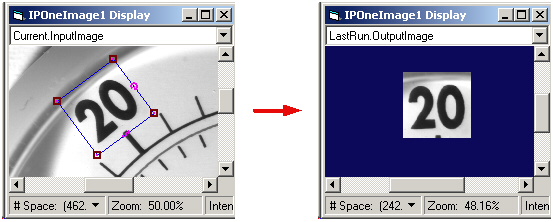
Use the following procedure to use an One-Image Image Processing tool to rotate a section of an input image:
- Using QuickBuild, create an image acquisition tool such as a CogAcqFifoTool or CogImageFileTool.
- Acquire an image containing the portion you want to rotate.
- Create a new CogIPOneImageTool and supply it with the image generated from a CogAcqFifo or CogImageFile tool
- Open the CogIPOneImageTool edit control.
Select the Region tab, select CogRectangleAffine for the Region Shape, and select the Affine Transform option for the Region Mode, as shown in the following figure:
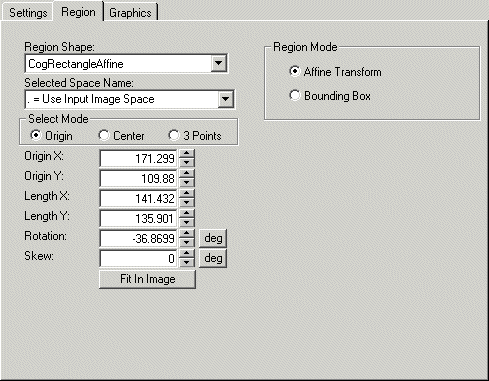
Display the Current.InputImage display buffer, adjust the input region, then run the tool. The LastRun.OutputImage buffer displays the affine-transformed image, as shown in the following figure:
The following C# statements are taken from a Visual Studio.NET application where one combination of button and CogDisplay capture an image and display an affine rectangle to specify the area of the image you want to rotate, while another combination of button and CogDisplay show the results of the One-Image Image Processing tool:
using Cognex.VisionPro;
using Cognex.VisionPro.ImageProcessing;

private int tNum;
private CogFrameGrabbers myFrameGrabbers;
private ICogFrameGrabber myFrameGrabber;
private ICogAcqFifo myAcqFifo;

private CogRectangleAffine coRect;
private Cognex.VisionPro.Display.CogDisplay cogDisplay2;
private System.Windows.Forms.Button button2;
private CogIPOneImageTool myOneImageTool;

private void InitializeFifo()
{
        const string VIDEO_FORMAT = "Sony XC75 640x480";
        myFrameGrabbers = new CogFrameGrabbers();

        myFrameGrabber = myFrameGrabbers[0];

        myAcqFifo = myFrameGrabber.CreateAcqFifo(VIDEO_FORMAT, Cognex.VisionPro.CogAcqFifoPixelFormatConstants.Format8Grey, 0, false);
}

private void InitializeIPOneImage()
{
        coRect = new CogRectangleAffine();
        coRect.Interactive = true;
        coRect.GraphicDOFEnable = CogRectangleAffineDOFConstants.All;
        cogDisplay1.InteractiveGraphics.Add(coRect, null, false);

        myOneImageTool = new CogIPOneImageTool();
        myOneImageTool.Region = coRect;
        myOneImageTool.RegionMode = CogRegionModeConstants.AffineTransform;
}

private void button1_Click(object sender, System.EventArgs e)
{
        cogDisplay1.Image = myAcqFifo.Acquire(out tNum);
}

private void button2_Click(object sender, System.EventArgs e)
{
        myOneImageTool.InputImage = cogDisplay1.Image;
        myOneImageTool.Run();
        cogDisplay2.Image = myOneImageTool.OutputImage;
}