This topic contains the following sections.
VisionPro jobs are designed to process images from a single image source, either a camera or an image file. Each time the job runs, the image source provides a single image, the job's tools process the image and provide a single overall result. For a number of common applications, such as inspecting a part from several different views, it makes sense to have a single job process multiple images from multiple image sources at the same time. These multiple images sources can each be associated with separate cameras, or they can share a single camera (typically using different hardware-based regions of interest). This topic shows how to support this type of application using VisionPro jobs.
Note: The functionality described in this topic was introduced with VisionPro version 6.0; it is not supported in earlier versions. Also, you should only use the techniques described in this topic if you need to process images from multiple cameras in a single job; for single-camera applications, use the job's image source to provide images.
This section contains the following subsections.
- Image Source Manages Queue Size and Overflow Options
- Trigger Enable and Disable
- Managing Hardware Triggers
Your application can use two or more embedded CogAcqFifo tools inside a VisionPro job instead of using the job's built-in image source to acquire images. The job's Image Source helps to manage important aspects of image acquisition. Be aware of the differences between the Image Source and an embedded CogAcqFifo tool.
When you disable the Image Source, you are responsible for managing the queue of acquired images and determining how to handle queue overflow. The queue options that you specify in the Job Properties and Job Manager Properties dialog boxes are ignored.
When you disable the Image Source, you are responsible for enabling and disabling triggers for each embedded CogAcqFifo tool, as described in the section Managing CogAcqFifo Triggering. Failing to carefully manage CogAcqFifo triggering can cause a variety of application problems, including application hangs and lost or incorrect images.
When you disable the Image Source, and you are using automatic triggering, you are responsible for managing hardware triggers, as described in the section Hardware Triggers.
To configure a multi-camera VisionPro job, follow these steps:
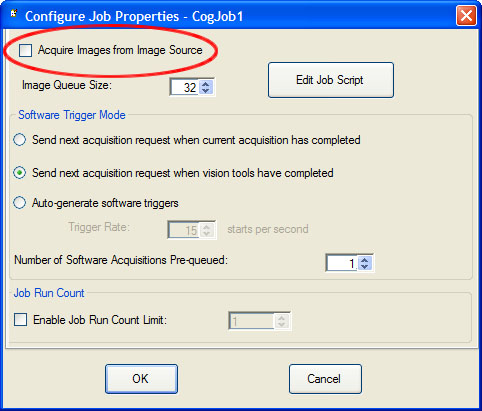
- In the Job Properties dialog box, disable the Image Source by
unchecking the Acquire Images from Image Source check box.
-
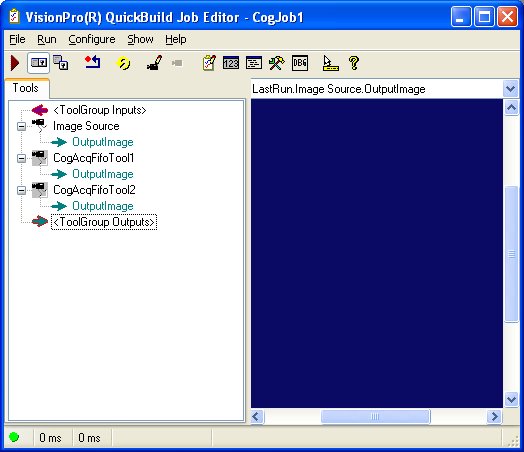
Open the Toolbox window and add a CogAcqFifo tool for each camera that your application is using.
-
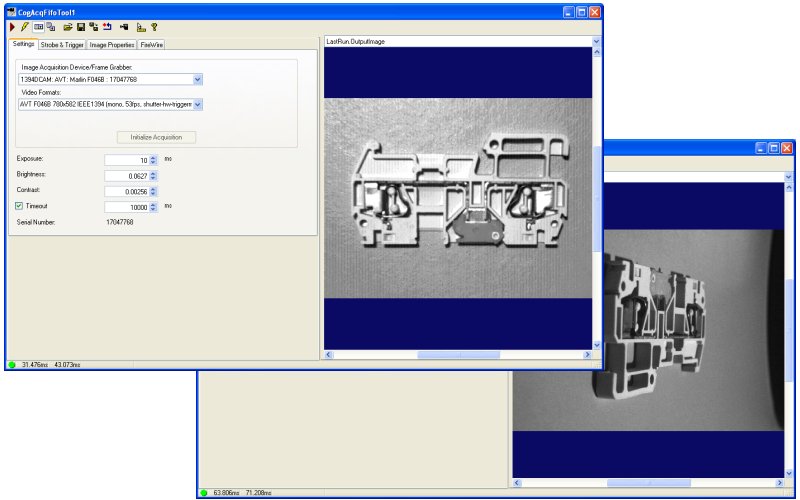
Open each CogAcqFifo tool in turn and select and configure the camera for that tool.
-
Create and configure the vision and image processing tools required for your application.
Typically, you will use separate tools for each camera, then combine tool results using a
Data Analysis or Results Analysis tool to compute an overall result for the job.
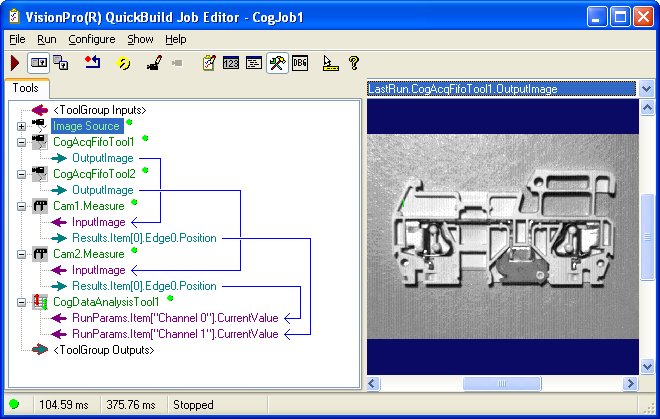
Note: Depending on the complexity of your application, it may be simpler to encapsulate each cameras' vision tools in a nested tool group.
This section contains the following subsections.
- Manual (Software) Triggering
- Automatic (Hardware) Triggering
- Free-Running Triggering and Semi-Automatic Triggering
Your application must understand and explicitly manage the trigger behavior associated with the embedded CogAcqFifo tools. When you use the Job's Image Source for single-camera acquisition, the Job manages the details associated with triggering. The specific requirements depend on which triggering model you are using.
Note: This information presumes that all the cameras used by the job are using the same trigger model.
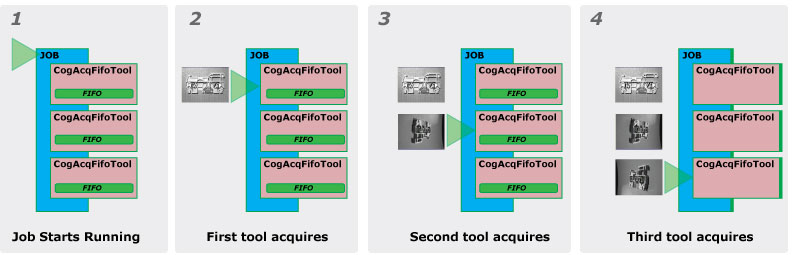
If the CogAcqFifo tools are configured for manual (software) triggering, then each CogAcqFifo tool acquires a single image from its camera when it is run. Since the CogAcqFifo tools are run sequentially, the images are acquired at different times, with the maximum interval between acquisitions determined by how long each acquisition takes.
If the CogAcqFifo tools are configured for automatic triggering, then each CogAcqFifo will acquire and queue an image whenever a hardware trigger is received by the camera. This image acquisition and queuing happens whether the job is running or not, as long as the CogAcqFifo's TriggerEnabled property is True.
You can use automatic triggering in cases where the job runs before or after the cameras are triggered. In both cases, the images will be acquired and queued simultaneously. The following figure shows how automatic triggering works in the case where the cameras are triggered before the job is run:
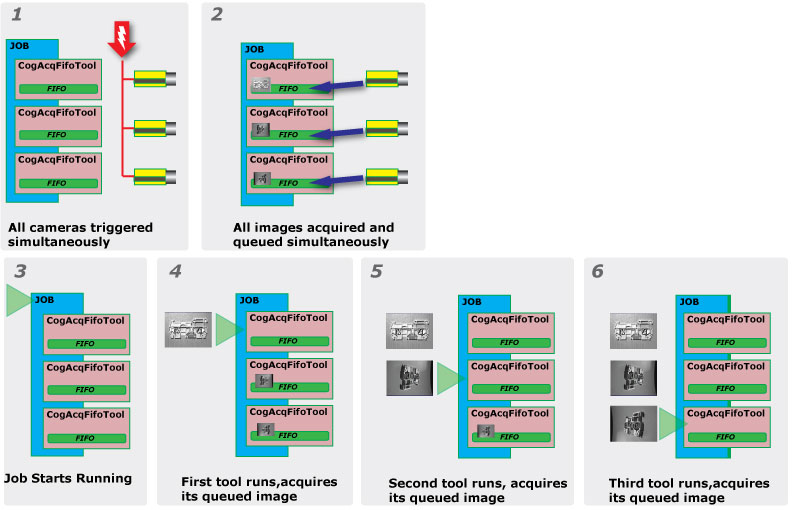
Although the CogAcqFifo tools run sequentially, the images are acquired and queued when the trigger is received. (It is not a requirement that the multiple cameras share a single trigger source; the cameras may be triggered independently.)
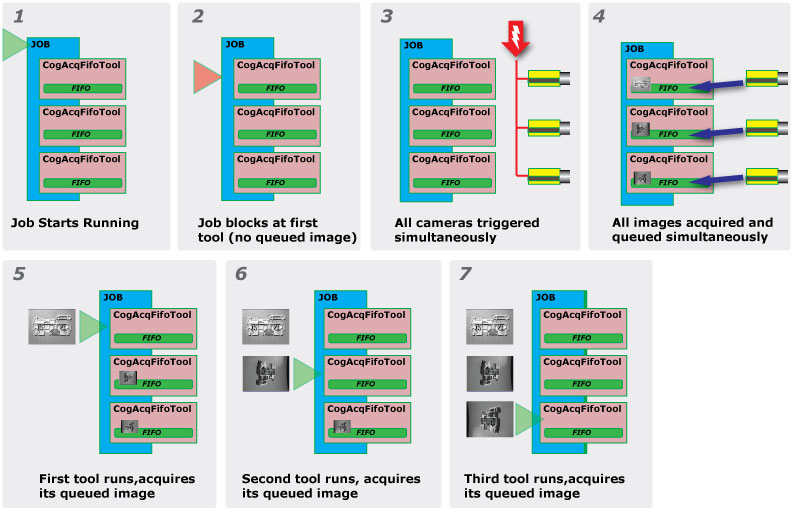
If the job runs before the trigger is received, then the job blocks (stops) at the first CogAcqFifo tool, since there is no image available in the queue. The job will block until the timeout specified for that tool is reached, or until an image becomes available. When the trigger is received, all three CogAcqFifo's cameras acquire and queue their images simultaneously. As soon as the image becomes available, the job unblocks, the three CogAcqFifo tools run in sequence, removing the three queued images, as shown in the following figure:
Note: When you embed a CogAcqFifo tool in a job as described in this section, the VisionPro Job Manager does not manage the acquisition properties of the CogAcqFifo tool for you. If you persist a job that contains a CogAcqFifo tool configured for automatic (hardware) triggering and its TriggerEnabled property is true, that tool will acquire images as soon as it is depersisted, if triggers are received. Also, if you run a job that contains a CogAcqFifo tool, the job will block waiting for that CogAcqFifo tool to complete its acquisition for as long as the timeout specified for that tool. If a tool configured for automatic (hardware) triggers specifies an unlimited timeout, the job will block until that tool receives a trigger.
In general, these trigger modes are not appropriate for multi-camera acquisition jobs and Cognex does not recommend their use.
If the CogAcqFifo tools are configured for free-running triggering, each CogAcqFifo tool's image queue will be filled with images as soon as triggers are enabled, and each time the job runs, an image will be obtained from each CogAcqFifo. There is no mechanism to synchronize the acquisition between the cameras, however, so the three images will not have been acquired simultaneously.
If the CogAcqFifo tools are configured for semi-automatic triggering, then each CogAcqFifo will ignore triggers until the tool is run, then it will acquire an image when the next trigger is received. Since the CogAcqFifo tools in a job are run sequentially, the images will be acquired sequentially, with at least as much inter-image latency as would be the case for manual (software) triggering.
This section contains the following subsections.
- Wrong or Out-of-Sequence Images Acquired
- Images are Acquired when Job is Not Running
- Job Hangs
- Using Run Continuous Blocks Access to CogAcqFifo Properties
This section describes some common issues that you may experience when using the techniques described in this section.
When the job runs, each CogAcqFifo tool will acquire the oldest image available in the acquisition FIFO associated with the tool. If the camera has received multiple triggers since the job was depersisted, multiple images will already be queued.
In most cases, you should flush the acquisition FIFOs associated with each CogAcqFifo tool before the job runs. This way, you can ensure that the FIFOs contain the images associated with the most recent hardware trigger. There are two ways to flush the FIFOs.
- Open the CogAcqFifo tool edit control, click on the Trigger and Strobe tab, and click Flush FIFO.
Flush the FIFOs programmatically using the Job Script. The code below shows how to set up an event handler that flushes all of the acquisition queues for a job's embedded CogAcqFifo tools when the script runs. (You access the Job Script editor by clicking Edit Job Script in the Configure Job Properties dialog box.)
Note: You must add a reference to Cognex.VisionPro.ToolGroup to the script.
#region "When the Script is Initialized"
  //Perform any initialization required by your script here.
  public override void Initialize(CogJob jobParam)
  {
    //DO NOT REMOVE - Call the base class implementation first - DO NOT REMOVE
    base.Initialize(jobParam);

    // Add event handler to job start event

    jobParam.Running += new CogJob.CogJobRunningEventHandler(FlushFIFOs);
  }
#endregion

#region Event Handlers

public void FlushFIFOs(Object o, CogJobActionEventArgs e)
{
  CogJob job = (CogJob) o;
  CogToolGroup tg = job.VisionTool as CogToolGroup;

  // Flush each tool's FIFO

  CogAcqFifoTool caft = tg.Tools["CogAcqFifoTool1"] as CogAcqFifoTool;
  caft.Operator.Flush();
  caft = tg.Tools["CogAcqFifoTool2"] as CogAcqFifoTool;
  caft.Operator.Flush();
  caft = tg.Tools["CogAcqFifoTool3"] as CogAcqFifoTool;
  caft.Operator.Flush();
  }

#endregion
As soon as you instantiate or depersist a job that contains a CogAcqFifo tool configured for automatic (hardware) triggering and its TriggerEnabled property is true, that tool will acquire images when triggers are received, even if the job is not running.
You can prevent this from happening by making sure that the TriggerEnabled property is set to false for all persisted jobs.
If you run a job with an embedded CogAcqFifo tool, and the CogAcqFifo tool's TriggerEnable property is false, the job will hang waiting for an image from that tool, regardless of the type of trigger. When triggers are disabled, the tool will block until its timeout is reached, or forever, if no timeout is specified.
You can prevent this from happening by enabling triggers for all embedded CogAcqFifo tools before the job runs. The simplest method for doing this is by setting the Job Script.
The code below shows how to set up a pair of event handlers that enable triggers for a job's embedded CogAcqFifo tools when the job runs, and disables triggers when the job completes. You access the Job Script editor by clicking Edit Job Script in the Configure Job Properties dialog box.)
Note: You must add a reference to Cognex.VisionPro.ToolGroup to the script.
#region "When the Script is Initialized"
  //Perform any initialization required by your script here.
  public override void Initialize(CogJob jobParam)
  {
    //DO NOT REMOVE - Call the base class implementation first - DO NOT REMOVE
    base.Initialize(jobParam);

    // Add event handler to job start event

    jobParam.Running += new CogJob.CogJobRunningEventHandler(EnableEmbeddedTriggers);

    // Add event handler to job complete event

    jobParam.Stopped += new CogJob.CogJobStoppedEventHandler(DisableEmbeddedTriggers);

  }
#endregion

#region Event Handlers

  public void EnableEmbeddedTriggers(Object o, CogJobActionEventArgs e)
  {
  CogJob job = (CogJob) o;
  CogToolGroup tg = job.VisionTool as CogToolGroup;

  // Enable triggers for each FIFO

  CogAcqFifoTool caft= tg.Tools["CogAcqFifoTool1"] as CogAcqFifoTool;
  caft.Operator.OwnedTriggerParams.TriggerEnabled = true;
  caft = tg.Tools["CogAcqFifoTool2"] as CogAcqFifoTool;
  caft.Operator.OwnedTriggerParams.TriggerEnabled = true;
  caft = tg.Tools["CogAcqFifoTool3"] as CogAcqFifoTool;
  caft.Operator.OwnedTriggerParams.TriggerEnabled = true;
  }

  public void DisableEmbeddedTriggers(Object o, CogJobActionEventArgs e)
  {
  CogJob job = (CogJob) o;
  CogToolGroup tg = job.VisionTool as CogToolGroup;

  // Disable triggers for each FIFO

  CogAcqFifoTool caft= tg.Tools["CogAcqFifoTool1"] as CogAcqFifoTool;
  caft.Operator.OwnedTriggerParams.TriggerEnabled = false;
  caft = tg.Tools["CogAcqFifoTool2"] as CogAcqFifoTool;
  caft.Operator.OwnedTriggerParams.TriggerEnabled = false;
  caft = tg.Tools["CogAcqFifoTool3"] as CogAcqFifoTool;
  caft.Operator.OwnedTriggerParams.TriggerEnabled = false;
  }

#endregionIf you click the Run Continuous button in the Job Manager or Job Editor, you will not be able to enable or disable triggers using the embedded CogAcqFifo tool controls, nor flush the acquisition FIFOs. You must exit Run Continuous mode before enabling or disabling triggers or flushing FIFOs.
Note: Disabling or enabling Run Continuous mode does not automatically enable or disable triggers for embedded CogAcqFifo tools; you must enable and disable triggers yourself, either using the control or by writing a script.