This topic contains the following sections.
The Composite Color Match tool examines the color content of an area in an image against a table of reference samples, and generates a set of scores to indicate how closely the area of the run-time image matches each known entry. The higher the comparison score, the greater the similarity. The tool returns the entry from the reference table that represents the highest match with the area observed in the run-time image.
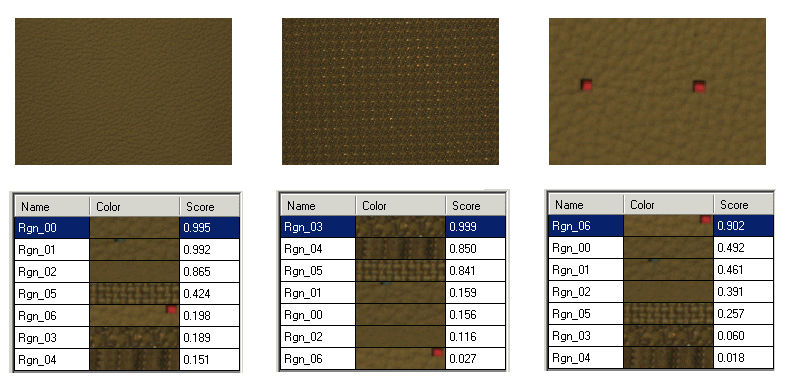
For example, the following figure shows a series of textured patterns that need to be identified:

Unlike the Color Match tool, which generates an average value for the color pixels within a region, the Composite Color Match tool examines the distribution of color pixels in the run-time image and then computes a similarity score between the run-time image and each composite color listed in the reference table. A Composite Color Match tool can identify a match between two regions independent of the spatial distribution of their color pixels.
Use a Composite Color Match tool to distinguish between patterns of color. The following figure shows how a Composite Color Match tool successfully identifies the patterns shown in the previous figure:
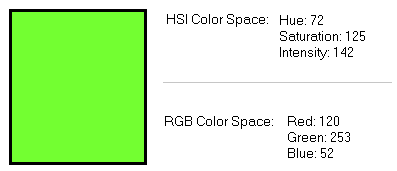
VisionPro can acquire images in both the Red, Green, Blue (RGB) or the Hue, Saturation, Intensity (HSI) color space, each of which uses three planar values to define any one color. For example, the following image shows the separate planar values that define a specific color in each color space:
Unlike the Color Match tool and the Color Segmenter tool, however, a Composite Color Match tool only works with images defined in the RGB color space.
A Composite Color Match tool compares a region of a run-time image against a table of composite colors and determines which composite color generates the best match. When you add a Composite Color Match tool to your application, you must define a set of composite colors using either a single acquired image or series of separate images. Most applications will require you to acquire a series of likely images and generate a single entry for the reference table from each one. Creating a new entry for the color reference table involves the following steps:
- Capture a typical image containing the composite color you want to add to the reference table.
- Define the region that contains the composite color you want to add to the reference table.
- Give the new composite color a name.
- Add the new composite color to the reference table and generate the next entry, as necessary.
Once you have a complete reference table, you can enable either of the following options that determine how the reference colors are processed. The original reference colors are not altered by enabling these options:
| Control | Description |
Gaussian Smoothing | Gaussian smoothing removes some detail and image noise from a composite color. You can enter a value between 0 and 24 to indicate the square size of the filter the smoothing operation will use. Smoothing each image sample can reduce image noise introduced by various sources and can make the comparison more reliable in vision applications where image noise is a factor. Be aware, however, that there is a trade-off between the amount of smoothing you can perform and the accuracy of any comparison. The default value of 0 indicates that no smoothing is done. |
Sampling Percentage | A sampling percentage will allow the Composite Color Match tool to use a sample of each original image you use to generate the comparison score, which can improve the execution speed of the tool at the cost of some accuracy. The default value of 100 indicates no sampling is done. |
With a completed reference table, you can test acquired images to ensure that the tool returns the correct match for each color.
Finally, you can control how a Composite Color Match tool sorts the results it generates. Each time the tool executes, it creates a results table from all reference table entries along with the match score that each one generated. You can control how the Composite Color Match tool orders the composite colors in the results table, choosing to either keep the default behavior of listing the composite colors in descending order of their match scores, or to have the tool generate a results table but maintaining the order of composite colors as they appear in the reference table.
A Composite Color Match tool generates a results table listing all the composite colors in the reference table along with a match score of how each compares to the region of the run-time image. In addition to this results table, the Composite Color Match tool also returns the following result information: