DataMan
The DataMan page of the Device Management app provides a list of standalone readers and reader groups, including reader data. You can edit the configuration, flash the LED, reboot, or access the DataMan WebHMI of individual readers. You can perform mass configuration or firmware updates for reader groups.
|
|
|||||||||||||
| Item | Description | ||||||||||||
|
Action ribbon |
Provides quick access to actions you can perform on the selected readers.
|
||||||||||||
| Search Field |
Allows for searching for a reader by any characteristic, such as name, model or firmware version. |
||||||||||||
|
Standalone reader list |
A table view of the settings of the standalone readers that are discovered on the network with options that can be enabled or disabled for the reader. | ||||||||||||
|
Grouped reader list |
Table views of the readers in a group sorted alphabetically by group name with options that can be enabled or disabled for the individual reader. | ||||||||||||
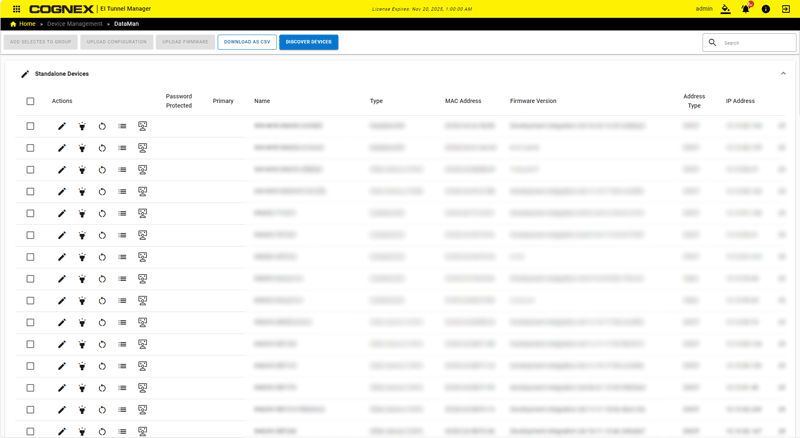
Columns of the Table View
The table view of the standalone or group readers displays information and allows setting changes to the individual readers.
| Column Title | Description | ||||||||||||||
|
Actions |
Click on the icons to perform actions on an individual reader.
|
||||||||||||||
| Password Protected | Indicates whether the reader is password protected. | ||||||||||||||
|
Primary |
A check mark signifies the primary reader. |
||||||||||||||
|
Name |
A customizable name of the reader. |
||||||||||||||
|
Type |
The model of the reader. |
||||||||||||||
| MAC Address | The MAC address of the reader. | ||||||||||||||
| Firmware Version |
The version of firmware installed on the reader. |
||||||||||||||
| Address Type | Indicates network address type (DHCP or static) for the reader. | ||||||||||||||
|
IP Address |
The IP address of the reader. |
||||||||||||||
| Subnet Mask | The subnet mask of the reader. | ||||||||||||||
| Gateway | The gateway of the reader. | ||||||||||||||
| Source Network Interface | The Ethernet port the reader uses for connection. | ||||||||||||||
|
State |
Displays the state of the reader, which can be:
|
||||||||||||||
| Task Status | Displays the status of the task, such as rebooting, applying network settings, and name changes. | ||||||||||||||
