DataMan WebHMI
The DataMan WebHMI provides a live view of reads, results and statistics, and allows you to pause the feed and scroll back to analyze or download individual result images. You can manually trigger or tune readers and adjust reader settings from the DataMan WebHMI.
You can access the DataMan WebHMI for a connected reader from the DataMan page by clicking the icon labeled Open DataMan WebHMI in the Actions column of the selected reader.
Home
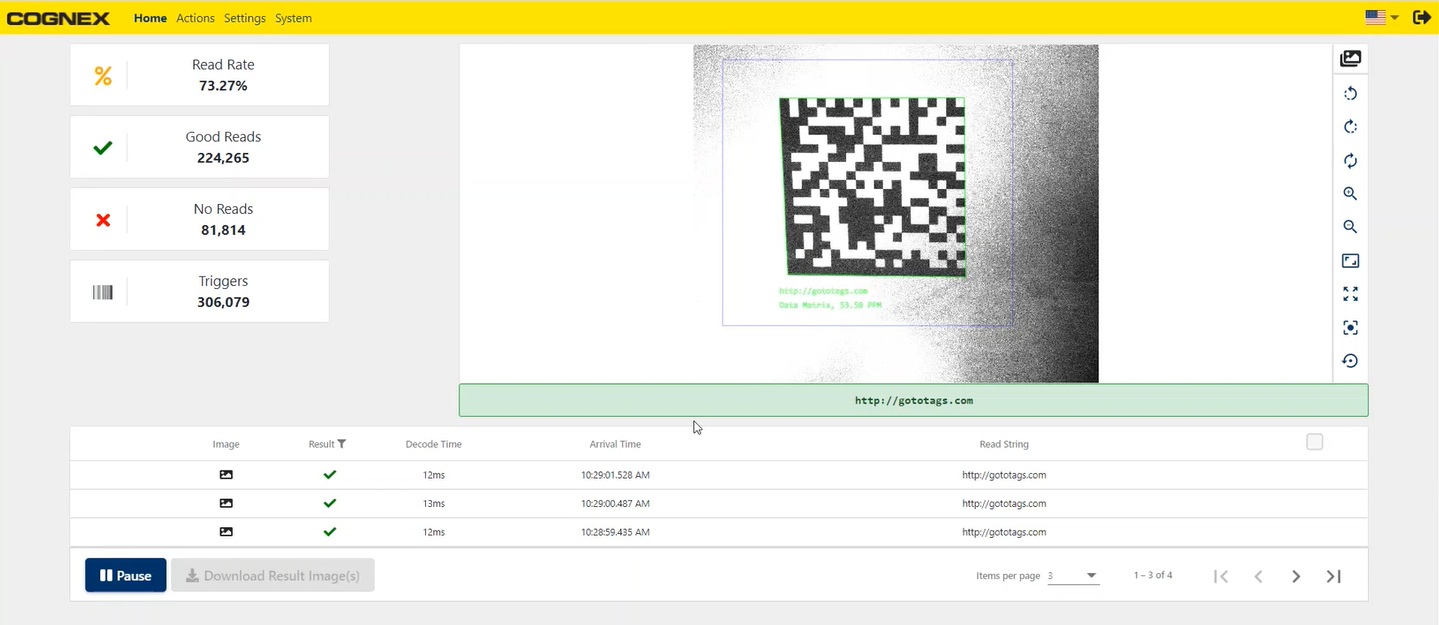
The DataMan WebHMI Home page displays a live feed of the reader with statistics and result logs.
On the left side, the DataMan WebHMI home page shows statistics for:
- Read Rate percentage
- Number of Good Reads
- Number of No Reads
- Number of Triggers
The display on the right side of the page provides a live feed of the reader view with additional controls on the right side of the display for changing orientation and zoom:
|
|
|
|---|---|
| Icon | Action |
|
|
Rotate Left 90° |
|
|
Rotate Right 90° |
|
|
Reset Rotation |
|
|
Zoom In |
|
|
Zoom Out |
|
|
Zoom To Original Size |
|
|
Reset Zoom |
|
|
Move Center |
|
|
Reset All Settings |



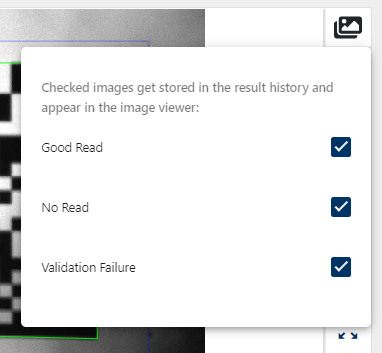
You can also filter the feed to display only Good Read, No Read, or Validation Failure results by clicking on the Images icon in the top right corner of the display.
The result logs of the last 50 captures are listed on the bottom of the page. You can browse the list using the navigation buttons in the bottom right corner of the pane.
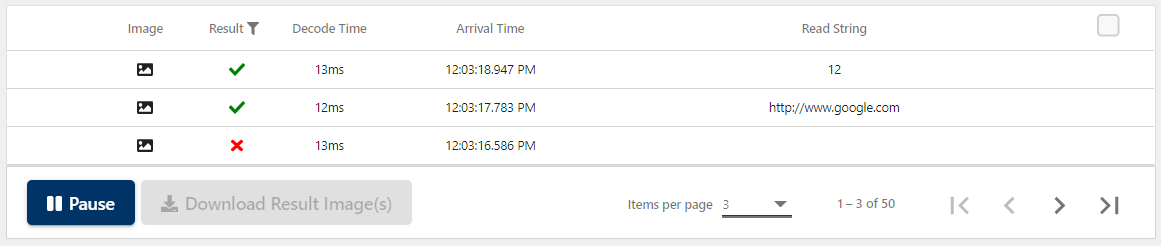
Click on the Pause button in the bottom left corner to pause the live feed. Pausing the feed allows you to select and download result images. Click on a log to put the result image on the display.
To download the image currently on the display, click on the Download Result Image(s) button without selecting any images from the result logs.
Check the checkboxes in the rightmost column of the result logs to select images for download, or check the checkbox in the table header to select all images. Click on Download Result Image(s) while multiple images are selected to download a ZIP file containing the selected result images.
Actions
The Actions page of the DataMan WebHMI allows you to manually trigger, start or stop, tune, or untrain the reader.
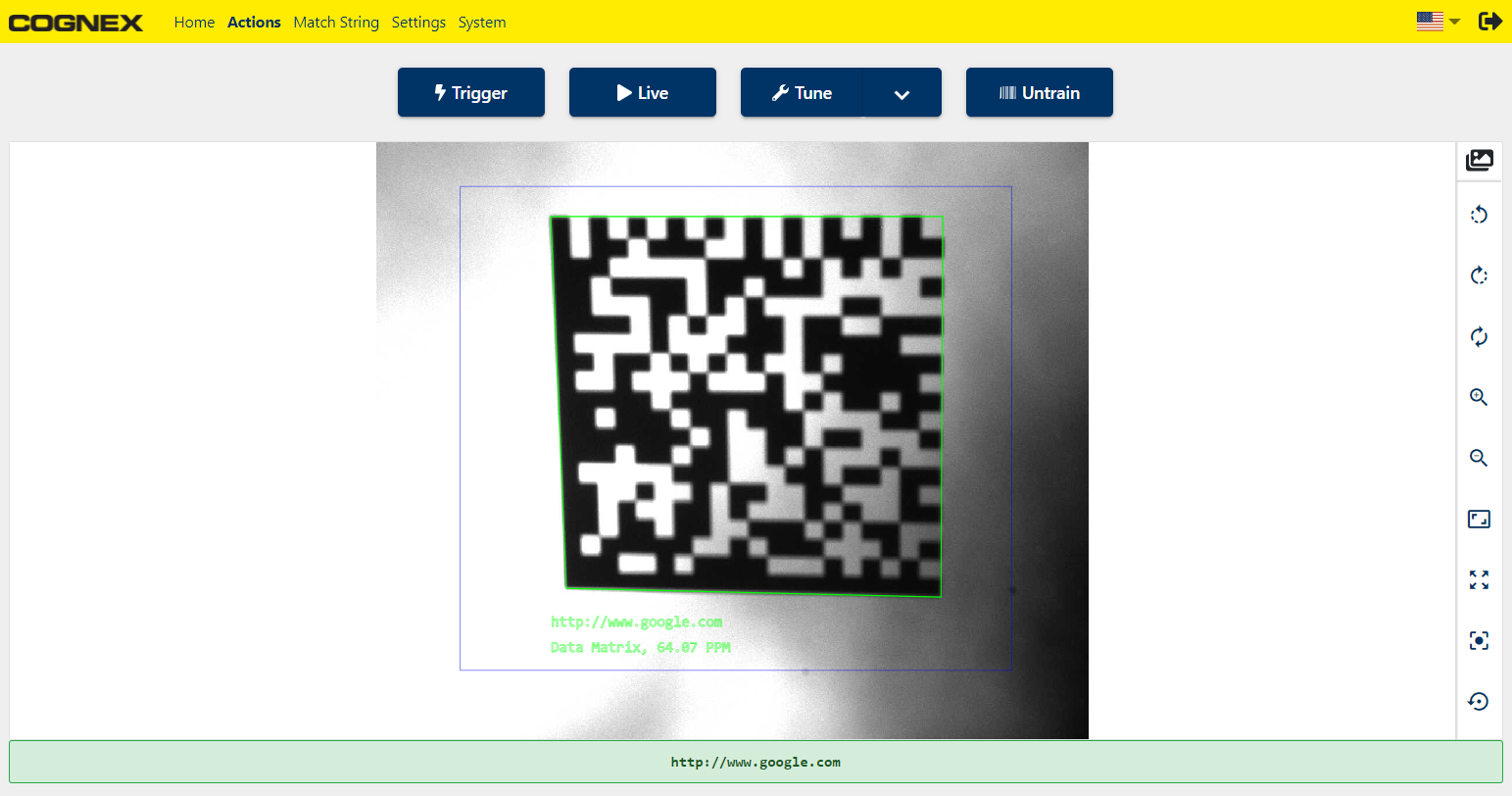
Click Trigger to trigger the reader manually.
Click Live to show the live feed of the reader.
Click Tune to initiate an automatic recalibration. Open the Tune dropdown to optimize brightness or focus individually.
Click Untrain to untrain the reader.
Settings
The Settings page of the DataMan WebHMI allows you to manually change the reader configuration, upload, download, or save the current configuration, or reset the reader to a previously saved configuration.
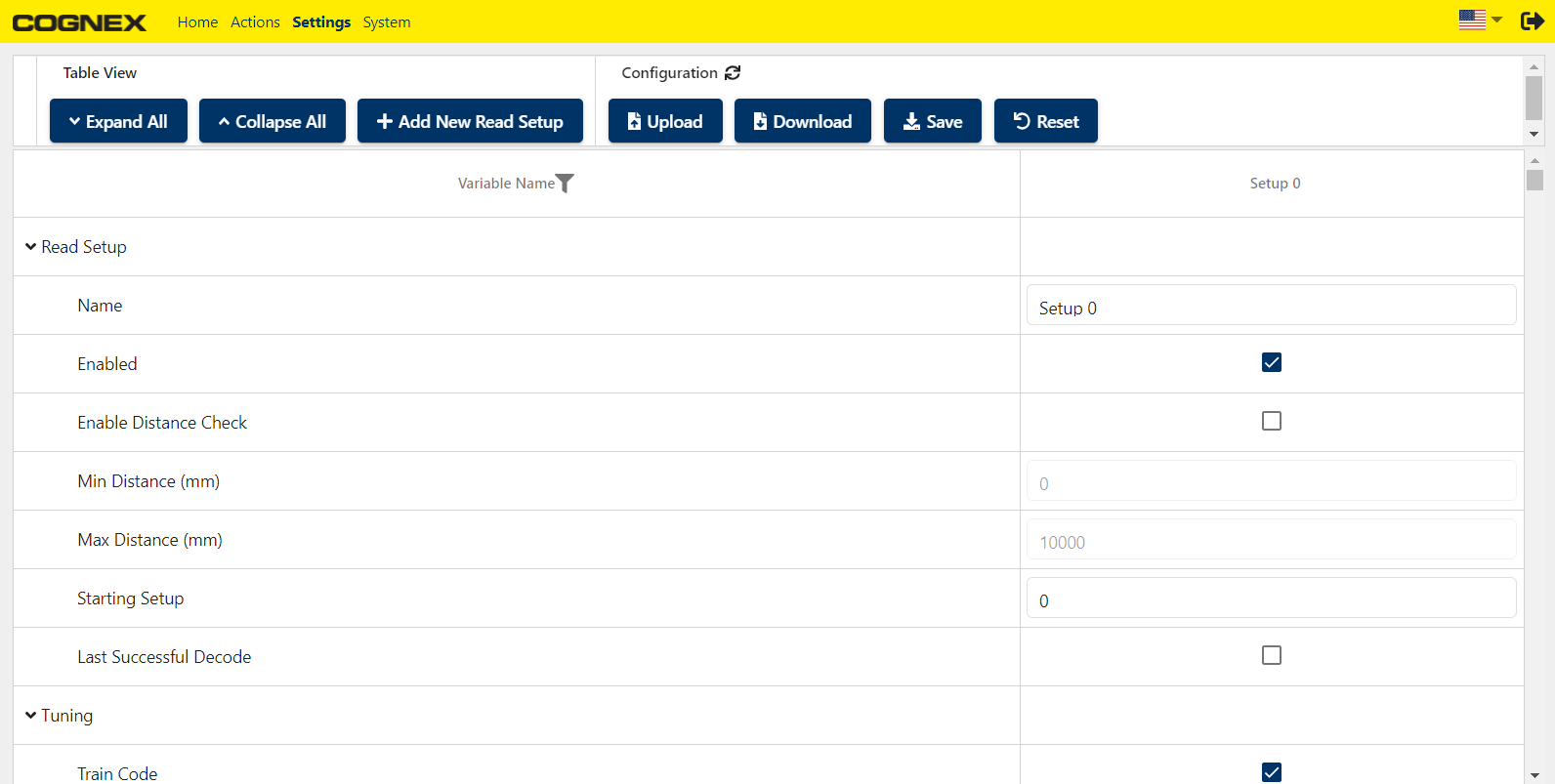
- Click Expand All or Collapse All at the top of the page to expand or collapse the setting categories in the settings table.
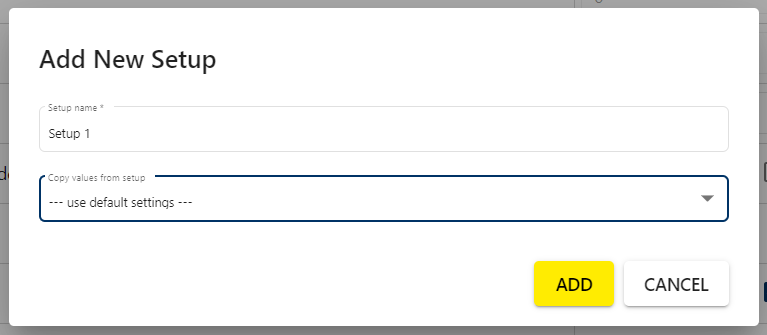
- Click Add New Read Setup to create a new setup using default settings or an existing setup as a template.
- Click Upload to upload a local configuration file to the reader.
- Click Download to save the reader configuration locally.
- Click Save to save the configuration on the reader flash memory.
- Click Reset to reset the reader configuration to default or a saved configuration.
The settings table provides you with detailed and in-depth configuration options for all reader functionality. Each setting corresponds to a control command for the reader. For a detailed description of the available settings for the reader you are configuring, see the corresponding control commands for the reader in the DataMan Control Commands Documentation.
System
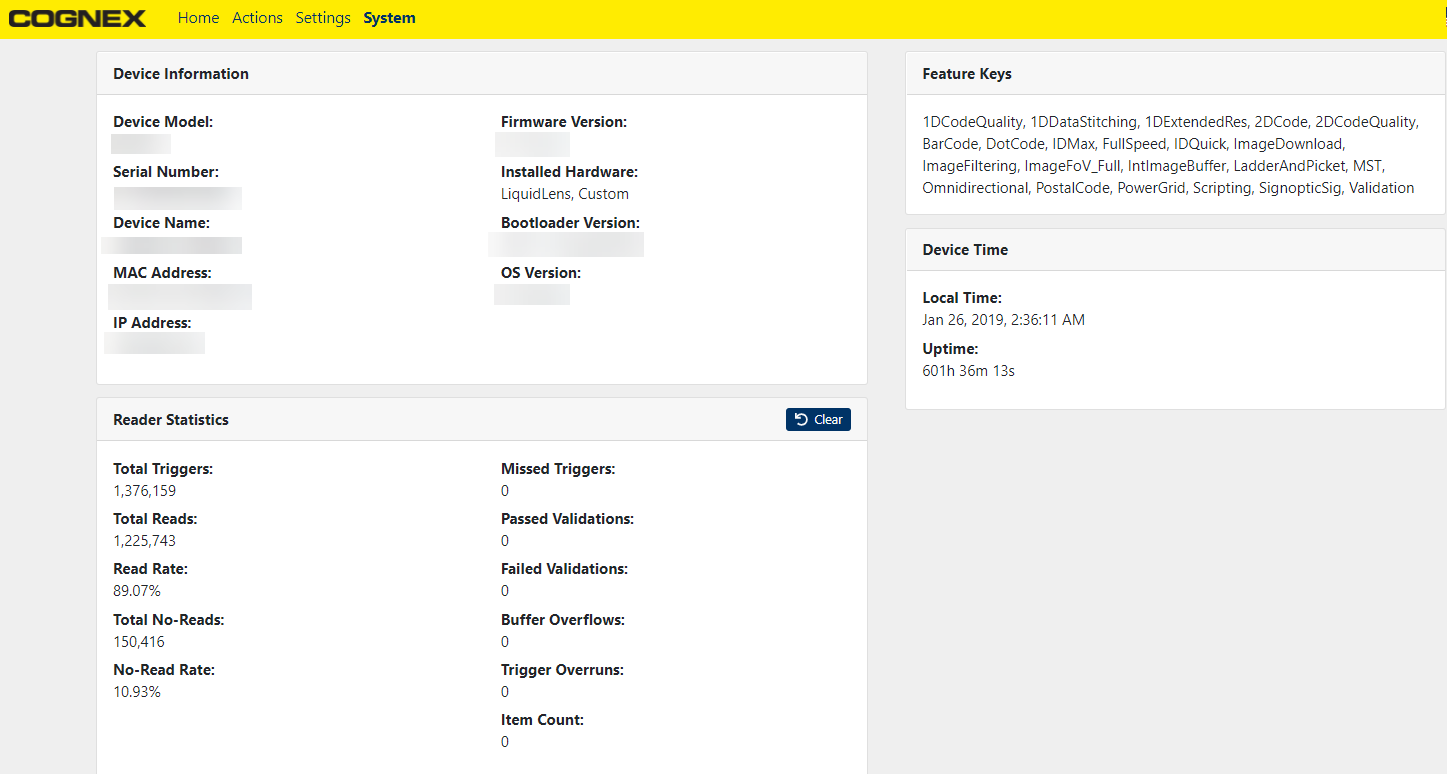
The System page of the DataMan WebHMI displays detailed reader information, reader statistics, feature keys, and reader time.