Configure Secure Connection
Note:
- This utility is available only for vision systems using the In-Sight ViDi adapter.
- When using an In-Sight ViDi PC device, this utility is available only if the device is in Production mode, and its Public Network Adapter settings are not set to 127.0.0.1 (localhost) in the In-Sight ViDi PC Manager. See the In-Sight ViDi PC Manager Settings topic for more information on these options.
The Configure Secure Connection utility allows you to set up an encrypted HTTPS connection to the WebHMI running on your In-Sight device.
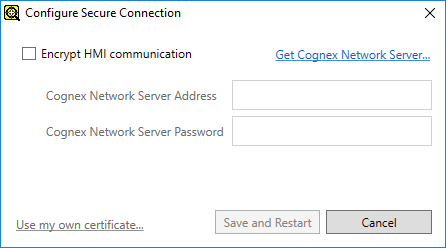
Setting up the HTTPS connection with the utility requires a valid Certificate Authority (CA) to generate the required trusted certificates. You can obtain these certificates by using either the Cognex Network Server (CNS) tool, or your own custom CA on your network.
Configuring a trusted HTTPS connection consists of three steps:
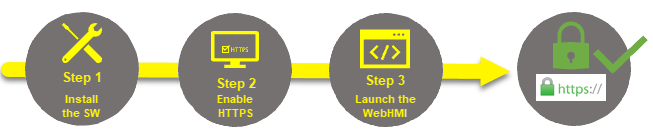
- Install the SW. This step is required if you want to generate certificates with CNS, but you do not have it installed on any device of your network. See the Install the Cognex Network Server Application topic for more information. If you already have your custom certificates that you wish to use, skip this step.
- Enable HTTPS. The secure connection is set up with the Configure Secure Connection utility of In-Sight Vision Suite. If you use CNS on the network, you can configure the HTTPS connection by specifying the CNS server that will provide the trusted certificates, and then installing said certificates. If you use your own custom CA, this is done by specifying the public and private keys to use. See the Set Up the HTTPS Connection topic for more information.
- Launch the WebHMI. Once the secure connection to the WebHMI is configured, you can test it by running the currently loaded job on the In-Sight device. See the Launch the WebHMI in HTTPS Mode topic for more information.
Note: The configured HTTPS secure connection to the WebHMI works only if the In-Sight device is Online. It does not work if it is Offline.