Adding the In-Sight Vision System to the Hardware Configuration
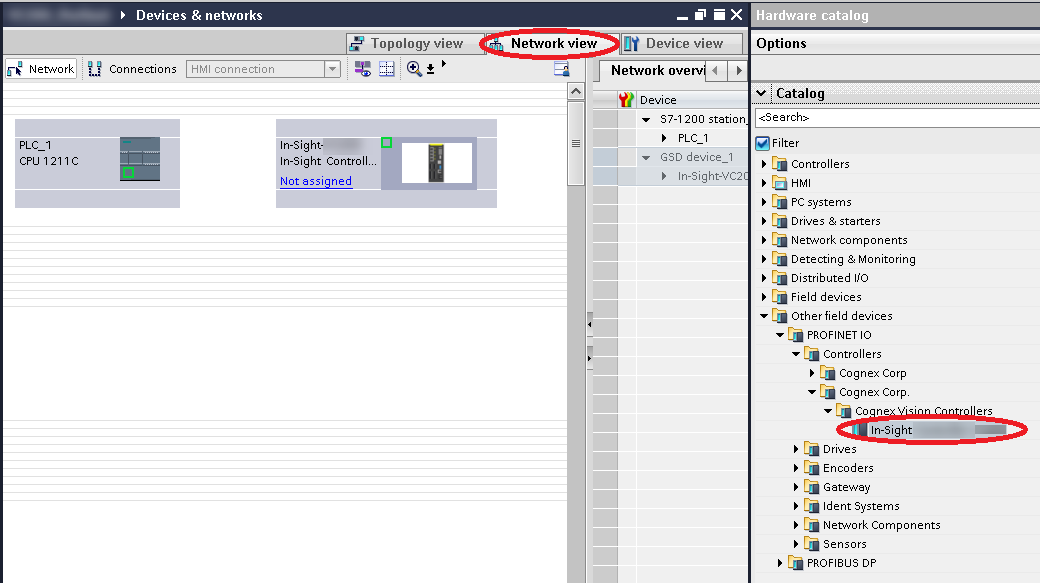
Double-click on Devices & networks on the left pane of TIA Portal, and select the Network view tab on the top of the screen. If you have performed the procedure of the Importing the GSD File into the Catalog topic, then the In-Sight vision system should appear in the Catalog on the right side of the window in the following location:
Other field devices => PROFINET IO => Controllers => Cognex Corp. => Cognex Vision Controllers => In-Sight Vision System
Once the vision system is found in the above location, perform the following steps to add it to the HW Config:
-
Drag and drop vision system next to the PLC in the Network View.
-
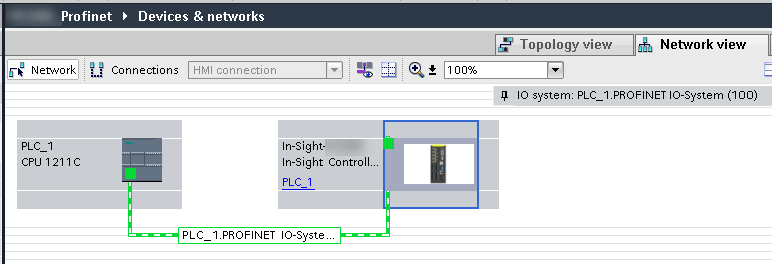
Establish a connection between the PLC and the vision system by connecting the small green boxes in the PLC and vision system symbols while holding down the left mouse button.
-
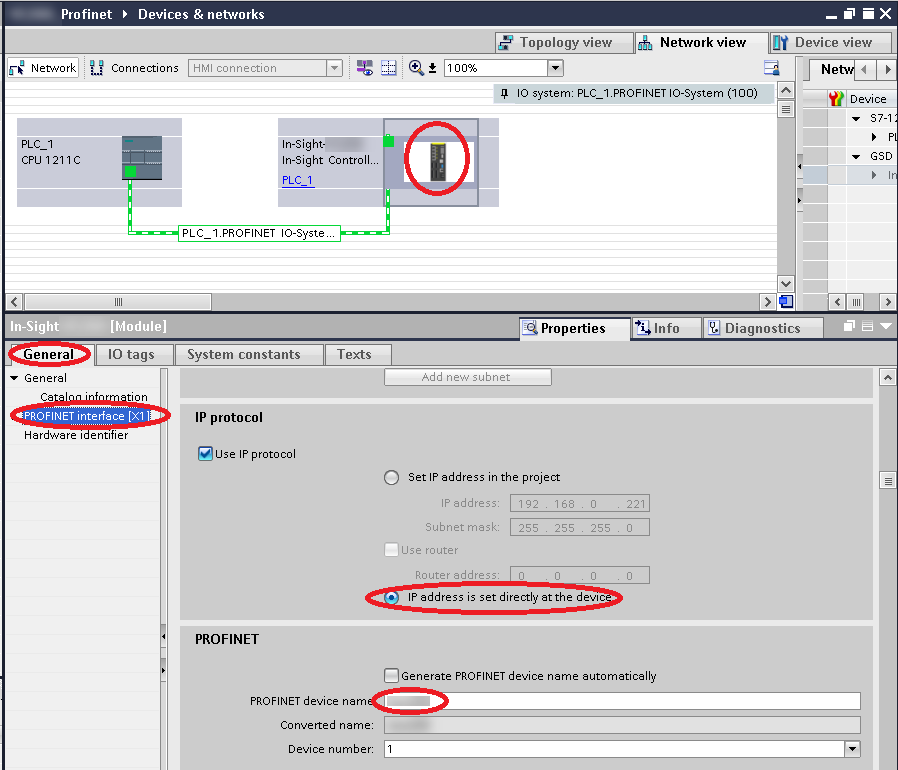
Click on the vision system symbol, then select General on the bottom and click on PROFINET interface [X1]. Tick IP address is set directly at the device option and uncheck the box in front of Generate PROFINET device name automatically. Type the same name for the PROFINET device name that was configured for Station Name in In-Sight Vision Suite in the Setting up the In-Sight Vision System topic.
Note:If the IP address set directly at the device option is checked (as shown below), the system keeps the IP address of the vision system. If it is unchecked, its IP address is changed to a value provided by the CPU.