ApplyAcquisitionSettings
The ApplyAcquisitionSettings function allows you to modify a set of previously selected point cloud acquisition settings through the spreadsheet without the need of opening the 3D-L4000 Series Acquisition Wizard.
The function supports the following parameters:
- Sensor settings: Exposure (ms), Minimum and Maximum Detection Zones (mm), Sensitivity.
- Point Cloud settings: Requested Y Resolution (mm), Generate 2D Grey Image.
The ApplyAcquisitionSettings function works as a setter for the supported acquisition parameters, and is useful if:
- You want to modify the acquisition settings from the spreadsheet quickly and easily during runtime.
- You want to update a setting based on external communications (FFP) or the output of a vision tool, without opening the acquisition wizard.
You can use this function if the 3D-L4000 is Online or if the 3D-L4000 is in Paused mode.
For more information of Paused mode, see Pause While Online for more information.
How To Use ApplyAcquisitionSettings
-
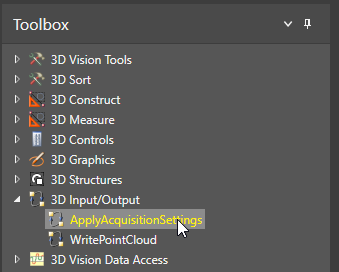
Drag-and-drop the ApplyAcquisitionSettings function to the selected spreadsheet cell from the 3D Input/Output node of the Toolbox.
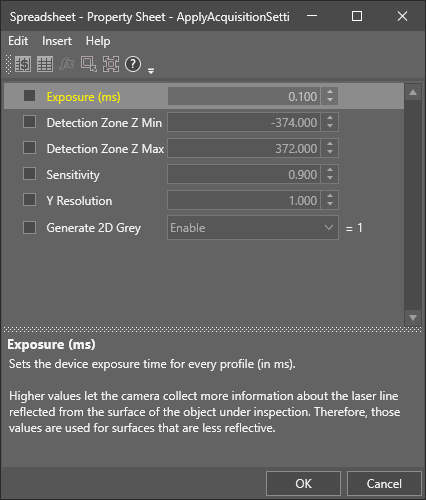
Alternatively, type ApplyAcquisitionSettings( into the selected cell. The function Property Sheet then opens.
-
Check the checkbox the parameter you want to add, then drag-and-drop it to a spreadsheet cell. Once done, the following elements are created on the spreadsheet:
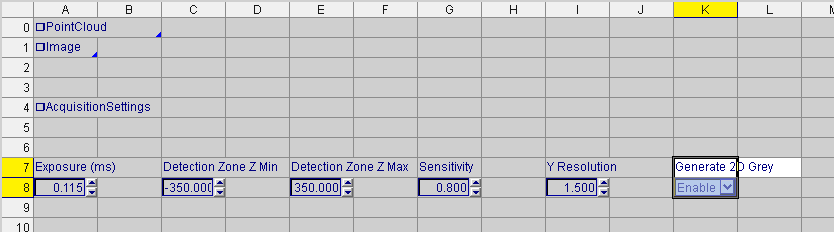
- An ❒AcquisitionSettings data structure, acting as the setter for the selected parameter.
- A label for the selected parameter for easy identification.
- An edit control element to modify the value of the parameter from the spreadsheet.
For example, checking and then drag-and-dropping all supported parameters from the Property Sheet onto the spreadsheet results in the following structures:
 Note: It is highly recommended to drag-and-drop only one parameter from the ApplyAcquisitionSettings property sheet at a time, and click OK once the drag-and-drop is done to close the Property Sheet and create the ❒AcquisitionSettings data structure for the parameter. If you drag multiple parameters from the property sheet one after the other without closing the Property Sheet, you are creating multiple copies of the same ApplyAcquisitionSettings function getter in the spreadsheet, and it may not be obvious later which parameters are set for the individual ApplyAcquisitionSettings data structures.
 - Repeat step 2 until all desired parameters are added to the spreadsheet.
- Click OK to close the property sheet.
- Modify the values in the edit controls, as needed. The new values then will be applied at the next image acquisition.
- If you have more than one ApplyAcquisitionSettings functions in the spreadsheet, only the last updated value will be used at the image acquisition.
- The parameter's label and edit control are populated only when you drag-and-drop the parameter from the ApplyAcquisitionSettings property sheet to the spreadsheet. If you insert the ApplyAcquisitionSettings function using other methods (such as typing ApplyAcquisitionSettings in a cell, and then not checking and drag-and-dropping any parameters listed in the Property Sheet), only the ❒AcquisitionSettings data structure is created.
- If you uncheck a parameter on the ApplyAcquisitionSettings property sheet, the associated edit control on the spreadsheet no longer overwrites the value of the parameter in the acquisition wizard.
- As the InputPointCloud function does not contain any arguments, the configured acquisition settings are not retained when exporting the cells as a cell template. To export the acquisition settings, add ApplyAcquisitionSettings to the spreadsheet, enable the parameters that you desire to retain, set the settings to the desired values, and then export ApplyAcquisitionSettings as a cell template. When the cell template that contains ApplyAcquisitionSettings is imported, the acquisition settings will be applied to the InputPointCloud function once the ApplyAcquisitionSettings cell is executed.
ApplyAcquisitionSettings Outputs
When a supported parameter is dragged and dropped from the property sheet to the spreadsheet, the following elements are returned.
|
Returns |
|