Navigation
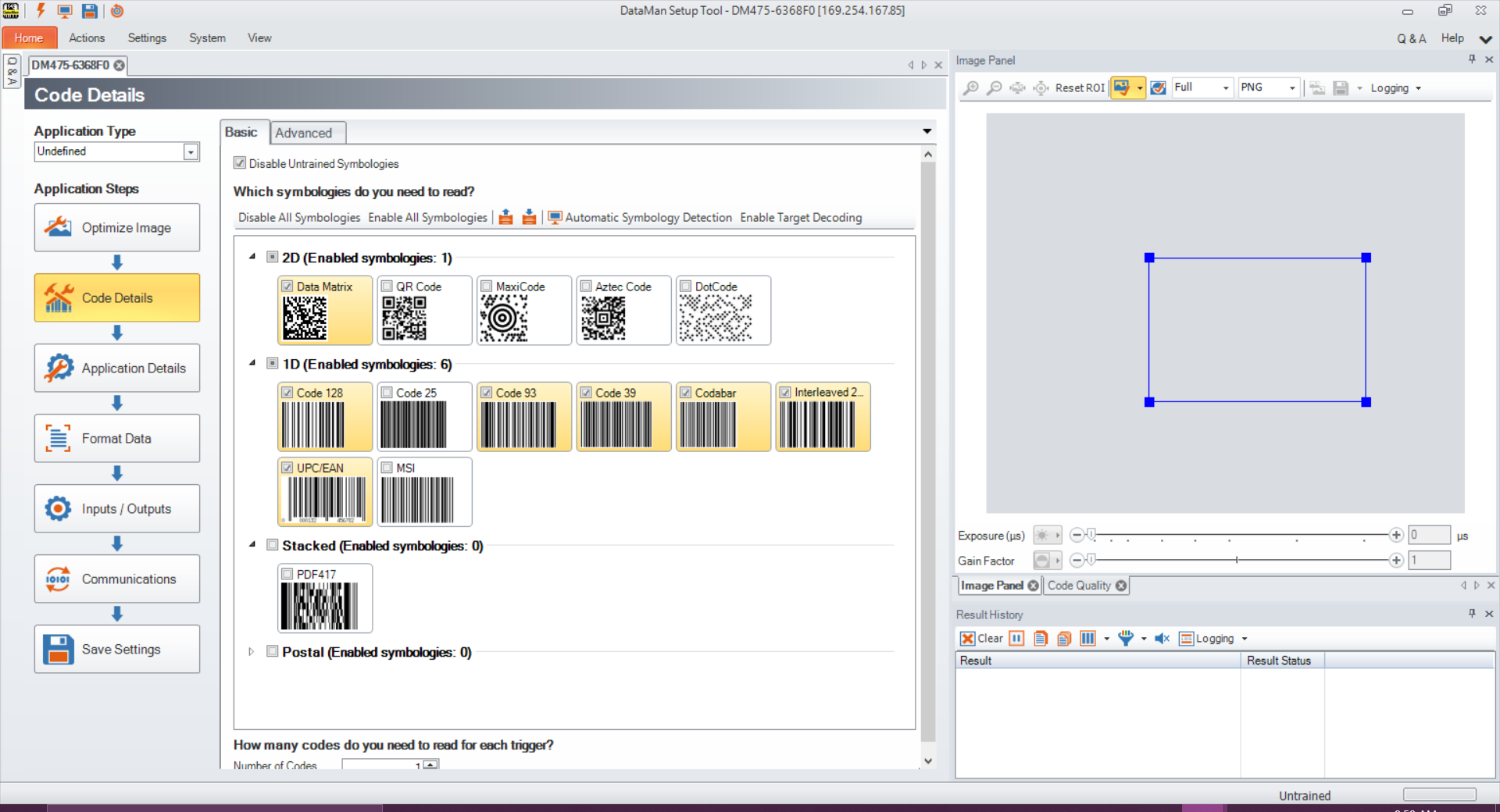
The Navigation menu allows you to access certain options in the Setup Tool window to configure exporting results either through Setup Tool or FTP. The Navigation menu also provides a shortcut to enable or disable symbologies and to set up the verifier to verify multiple symbols in one verification. Click the View button to re-direct Setup Tool to the settings of each reporting option.
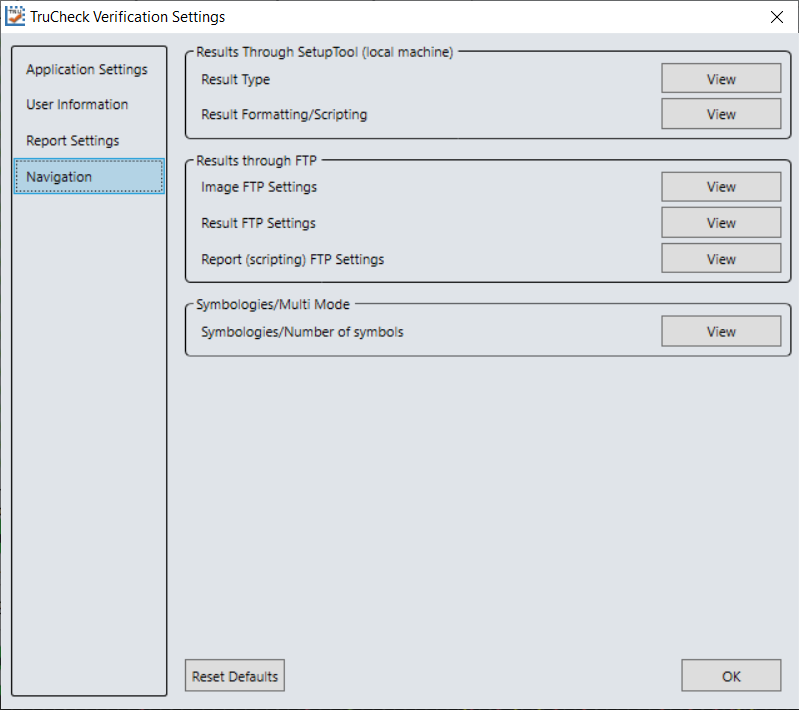
Results through Setup Tool (local machine)
In the Results through Setup Tool (local machine) section, two options are available to navigate to the windows in Setup Tool to set up a scripting menu for exporting verification results either as an HTML or CSV report:
- Result Type
- Result Formatting/Scripting
For more information on the scripting options available for verification, see Scripting. For more information on broad scripting options available in Setup Tool, refer to the Scripting section of the DataMan Communications & Programming Guide.
Result Type
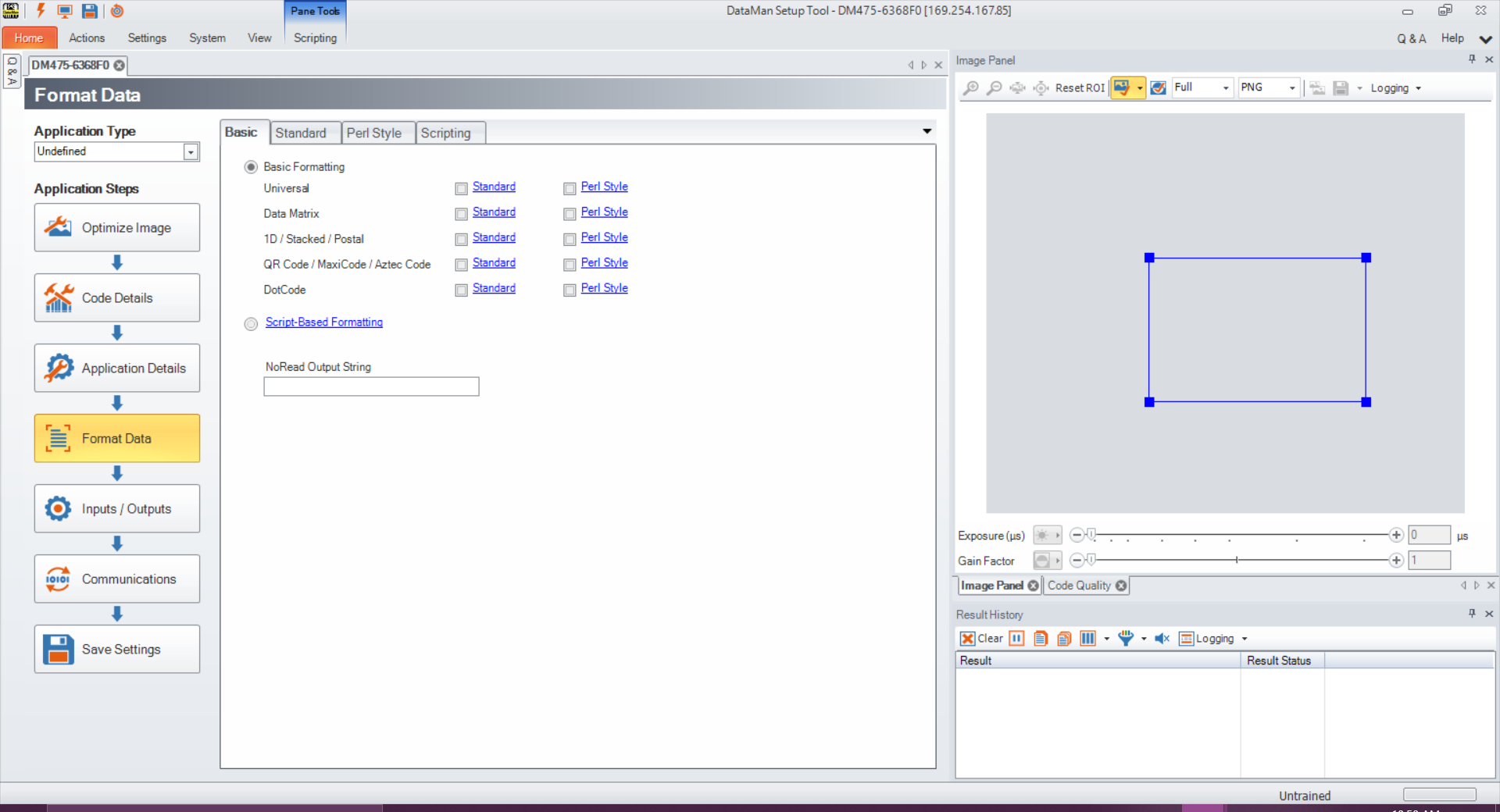
Click Result Type to open the Basic tab in the Format Data application step in Setup Tool. Select Script-Based Formatting to enable scripting for export of verification data to CSV or to custom, script-defined format.
Result Formatting/Scripting
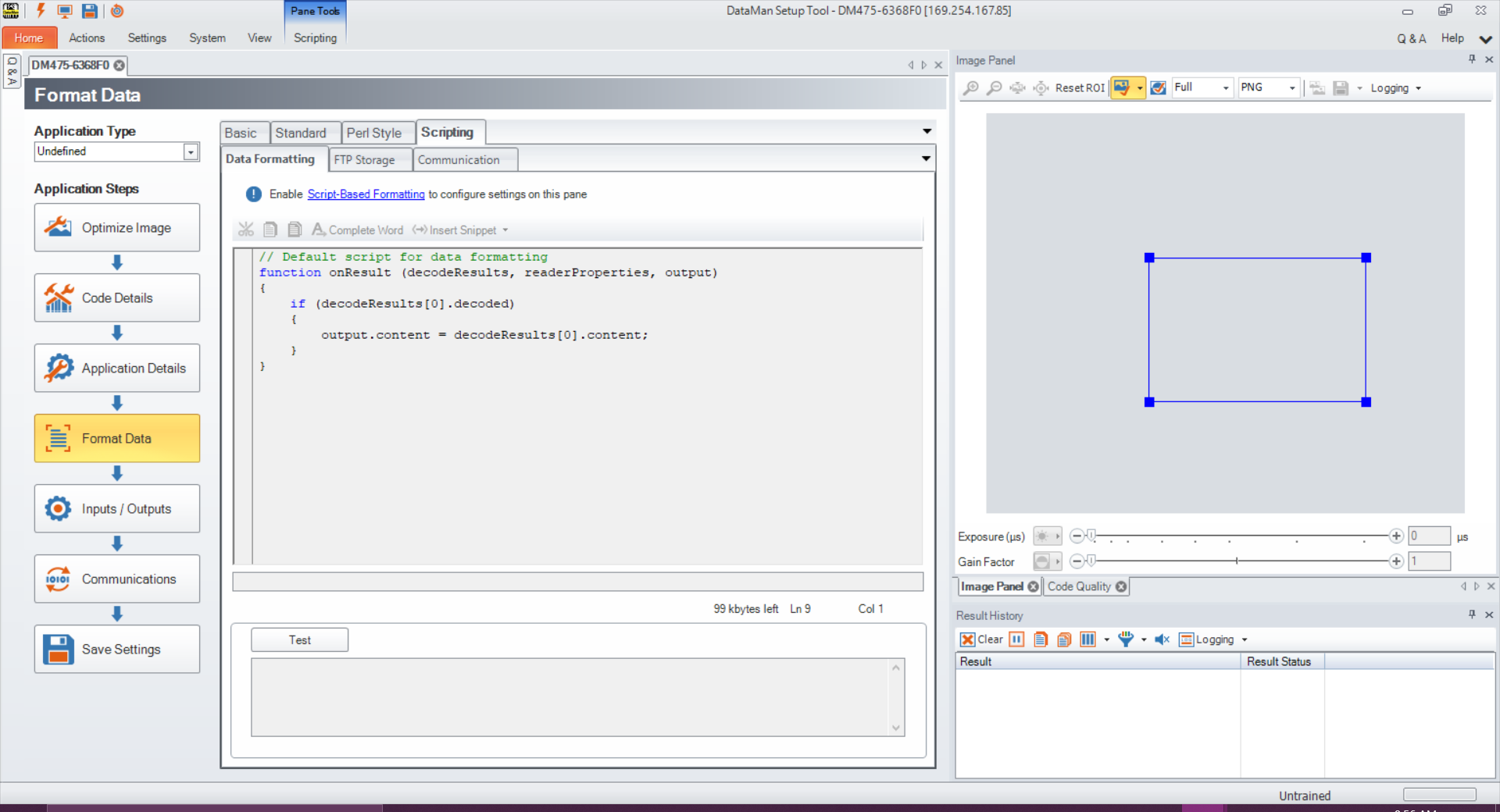
Click Result Formatting/Scripting to open the Scripting tab in the Format Data application step in Setup Tool. Create a script for outputting results or load a pre-written snippet in this window.
Results through FTP
In the Results Through FTP section, three options are available to navigate to windows in the Setup Tool that connect to an FTP server for exporting verification:
- Image FTP Settings
- Result FTP Settings
- Report (scripting) FTP Settings
For more information, see Setting Up FTP Transfer.
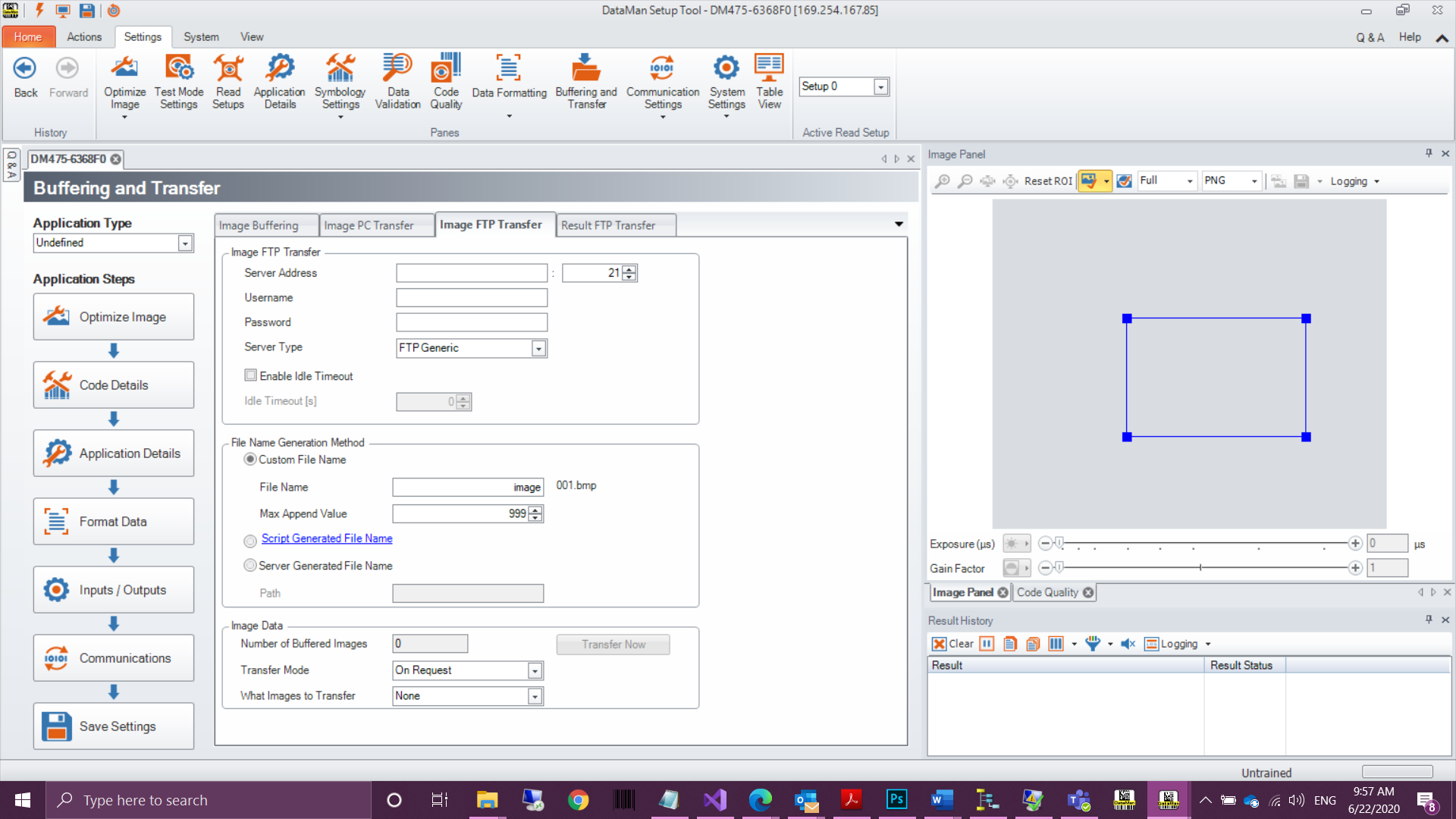
Image FTP Settings
Click Image FTP Settings to open the Image Transfer tab in the Format Data application step in Setup Tool. Enter information in this window to set up image export via FTP transfer.
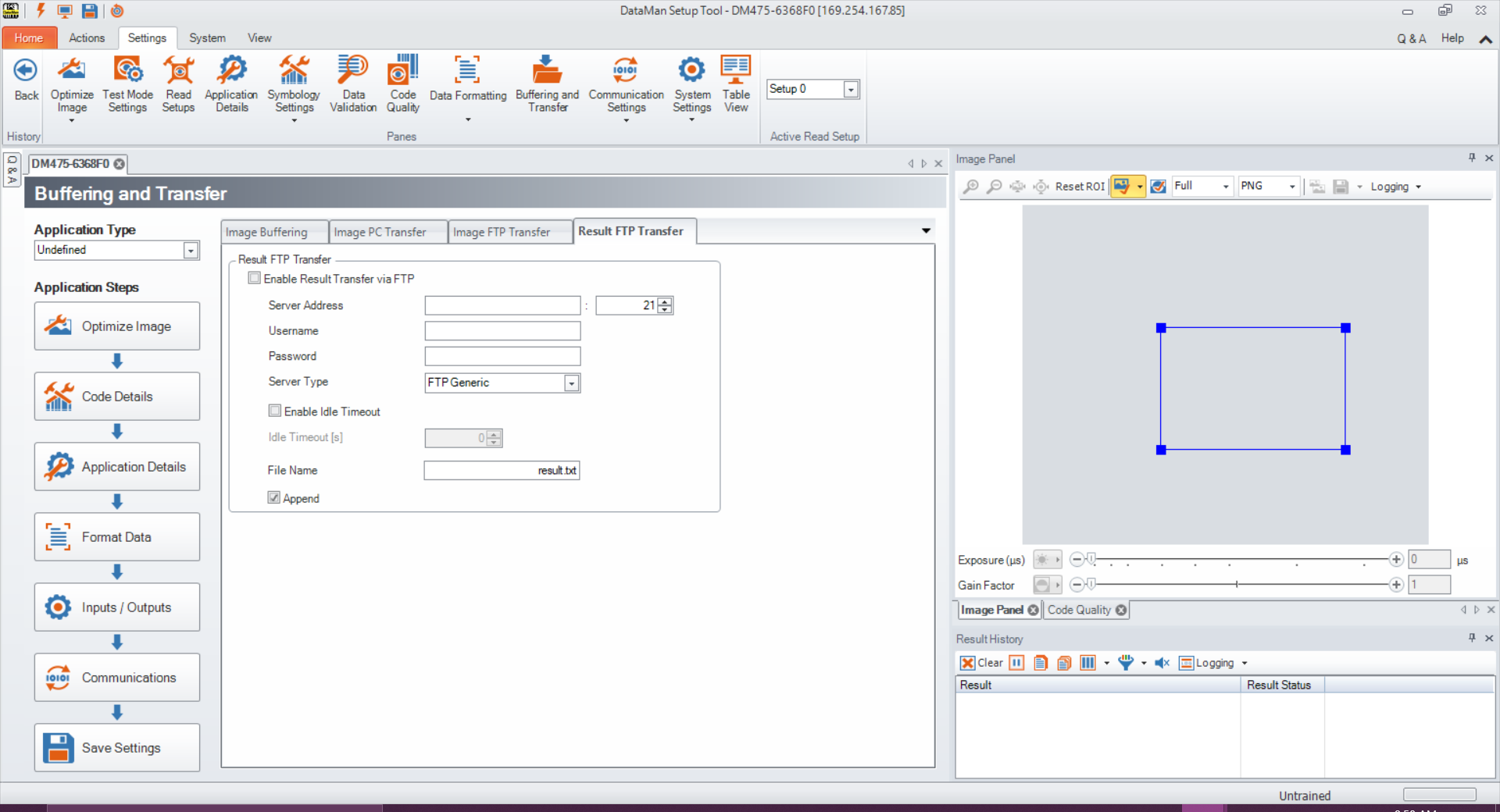
Result FTP Settings
Click Result FTP Settings to open the Result FTP Transfer tab in the Format Data pane in Setup Tool. Enter information in this window to export verification results via FTP transfer.
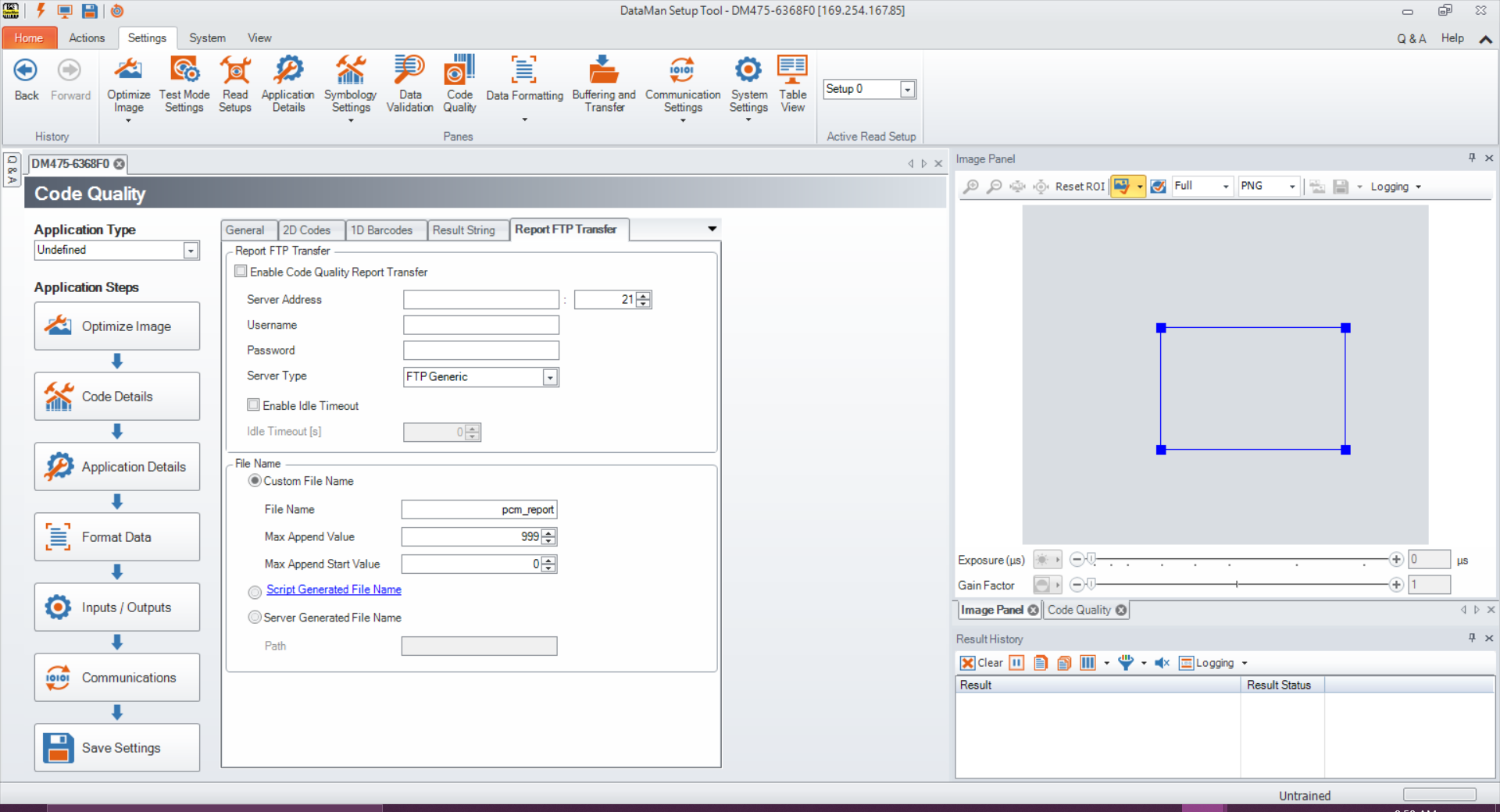
Report (scripting) FTP Settings
Click Report FTP Settings to open the Report FTP Transfer tab in the Code Quality application step in Setup Tool. Enter information in this window to export verification results via FTP Transfer.
Symbologies/Multi Mode
Navigate to panes and pages in Setup Tool that enable and disable symbology types and set up the verification of multiple symbols. For more information, see Verifications of Multiple Symbols.
Symbologies/Number of Symbols
Select Symbologies/Number of Symbols to open the Basic tab in the Code Details application step in Setup Tool. Enable or disable any symbology types and enable multiple verification in this window.