Setting Up FTP Transfer
To configure the Dataman 475V to export verification results by FTP, change settings in Setup Tool to communicate with an external FTP server. Setup Tool can export information about:
- The image used for verification
- The result information provided from the Result History pane in Setup Tool
- The verification results provided in the Code Quality report.
To begin setting up an FTP server, configure an FTP server to communicate with Setup Tool. To set up the necessary information in the Setup Tool window, choose from three panes available for FTP transfer depending on what you would like to transfer:
- Image FTP Transfer
- Result FTP Transfer
- Report (scripting) FTP Transfer
The TruCheck window provides shortcuts to the three Setup Tool panes under Settings, in the Results through FTP section of the Navigation menu. For more information, see Navigation.
You can also click Settings in Setup Tool in the ribbon menu and open Buffering and Transfer to access the FTP settings.
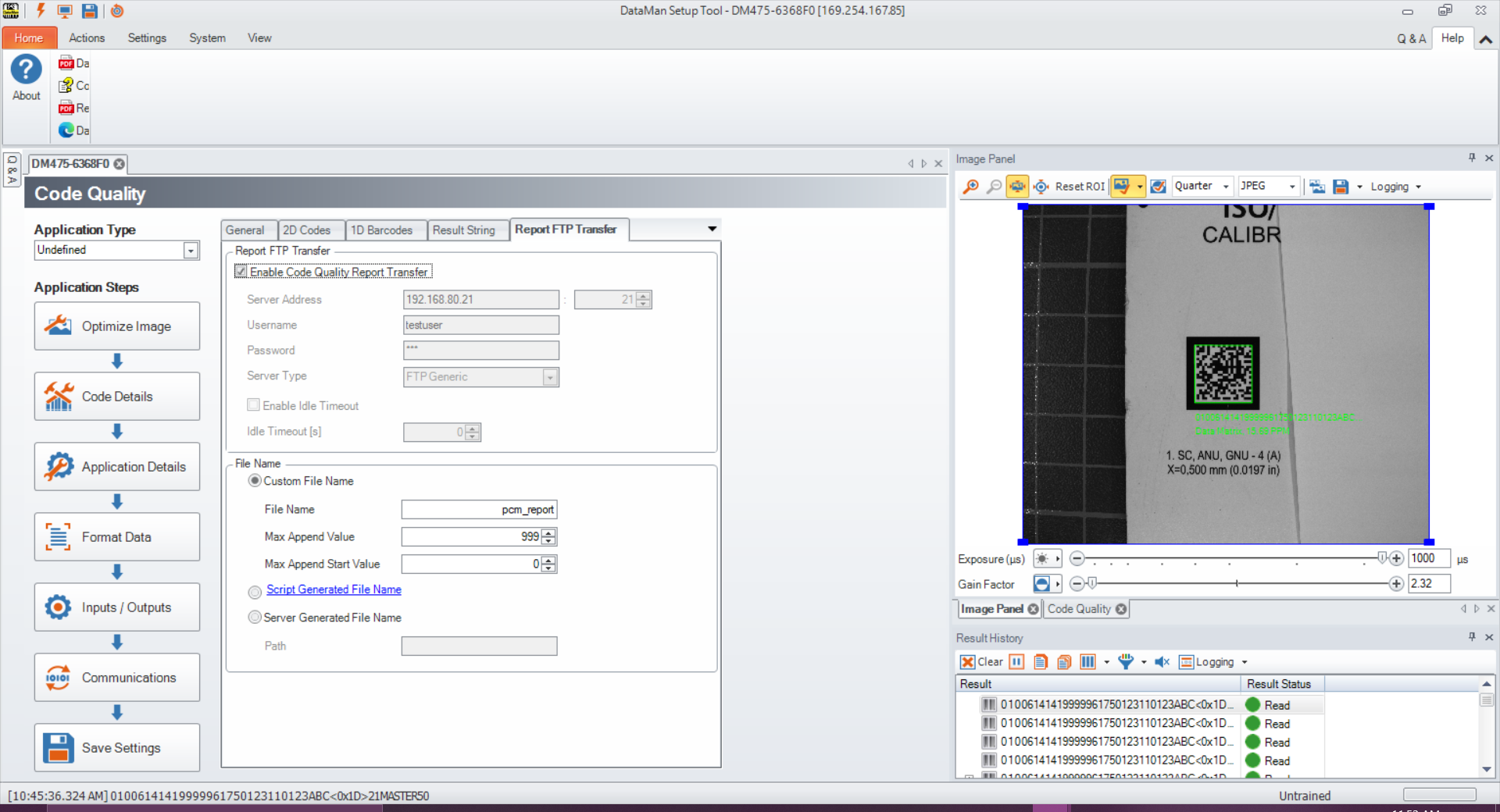
Image FTP Transfer
To set up image transfer via FTP, fill in the Server Address, the Username, and the Password (if applicable) fields based on the setup of your FTP server settings.
Result FTP Transfer
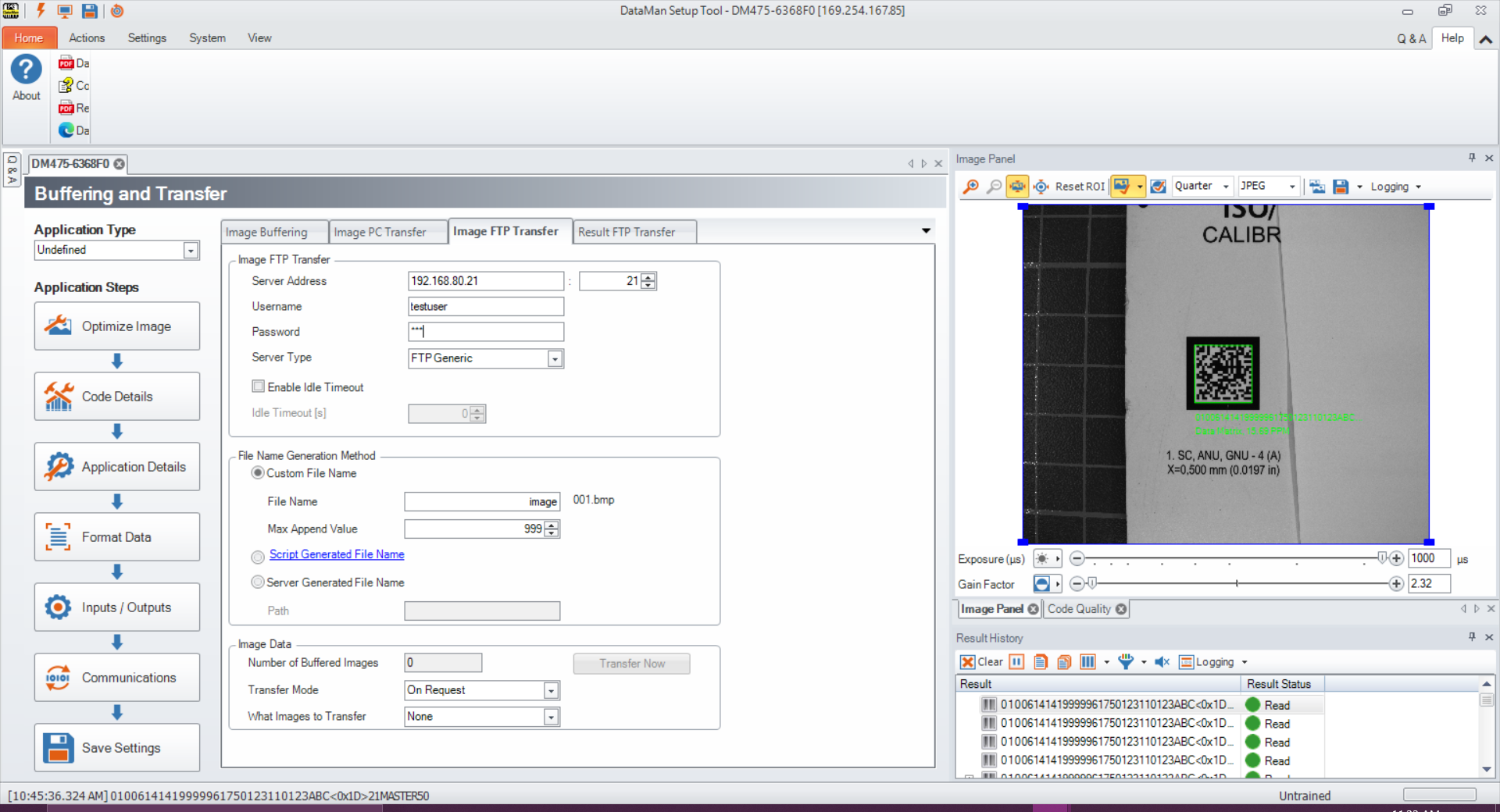
To set up result transfer via FTP, fill in the Server Address, the Username, and the Password (if applicable) fields based on the setup of your FTP server settings. Selecting this option exports the results available in the Result History pane of Setup Tool for exporting to an FTP server. After all required fields are filled in, select the box next to Enable Result Transfer via FTP. Use these settings when exporting verification results using scripting. In case of using one of the included CSV script snippets, include the .csv file extension at the end of the File Name field, for example VerificationResults.csv.
Report FTP Transfer
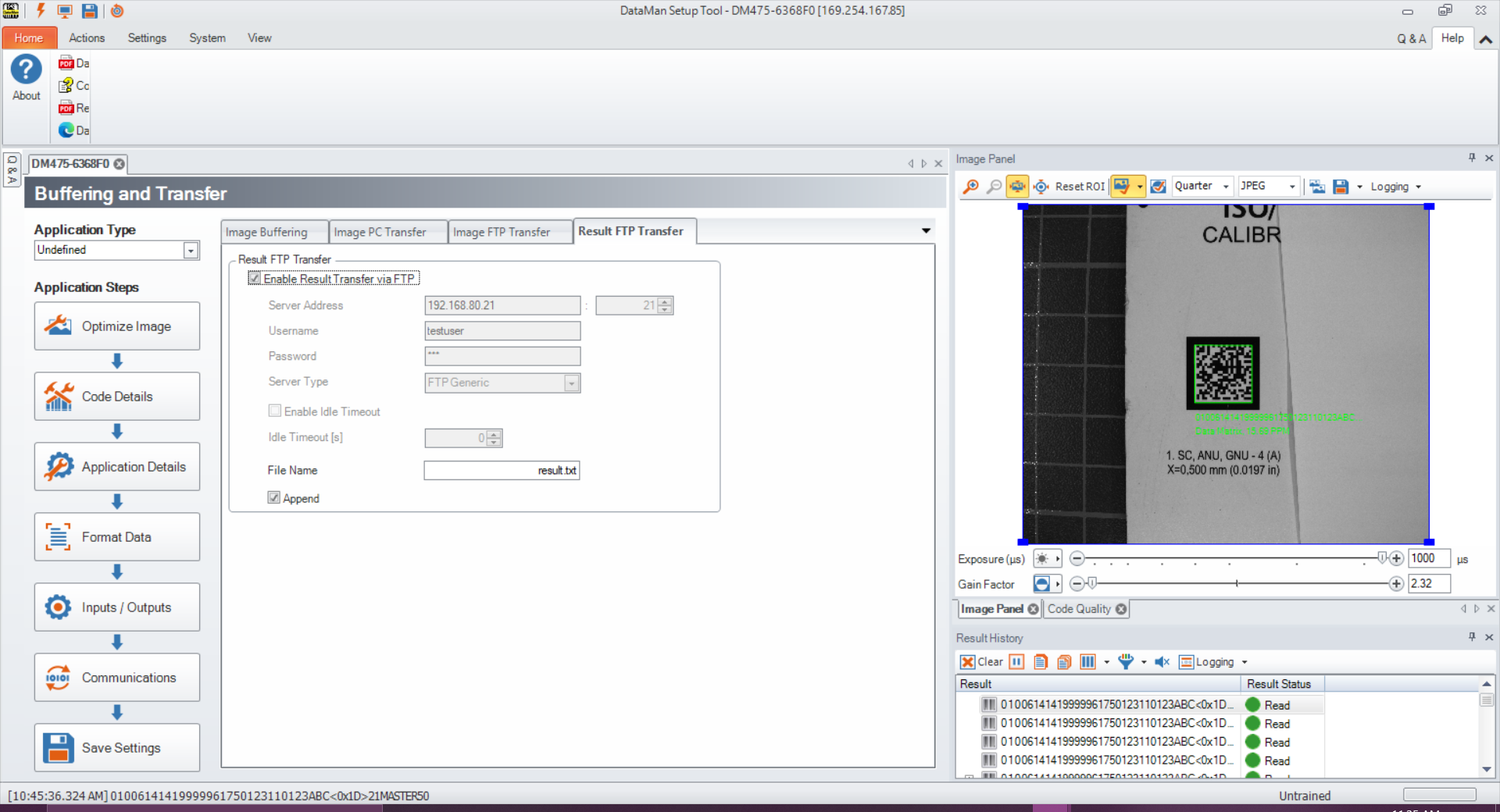
To set up report transfer via FTP, fill in the Server Address , the Username, and the Password (if applicable) fields based on the setup of your FTP server settings. Selecting this option exports the Code Quality report information to an FTP server. After all required fields are filled in, select the box next to Enable Code Quality Report Transfer.