Verifications of Multiple Symbols
To enable multiple barcode verification feature, complete the steps below in DataMan Setup Tool before initiating verification in the TruCheck window.
- Open DataMan Setup Tool.
-
To connect to the DM475 Verifier double click on the icon in the automatically generated list on the Start up page.
Note: Refer to DataMan Setup Tool Reference manuals if you have trouble connecting. - Select Code Details from the Application Steps in Setup Tool.
- Under the Basic tab, change the Number of Codes field to a value greater than 1 to see the expanded list of options available.
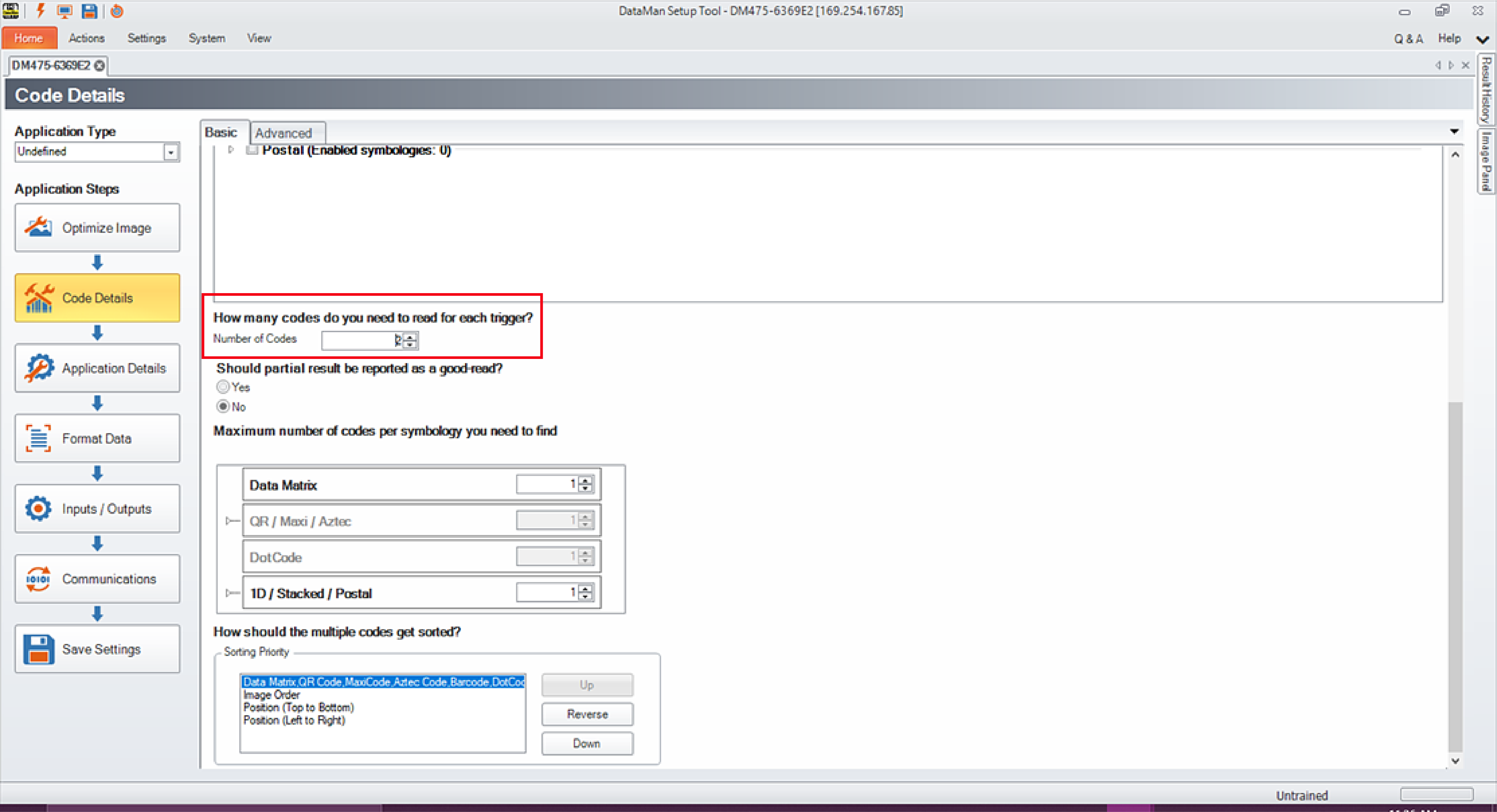
- Select the Number of Codes to be verified during a single trigger.
-
For Should partial result be reported as a good-read? select No.
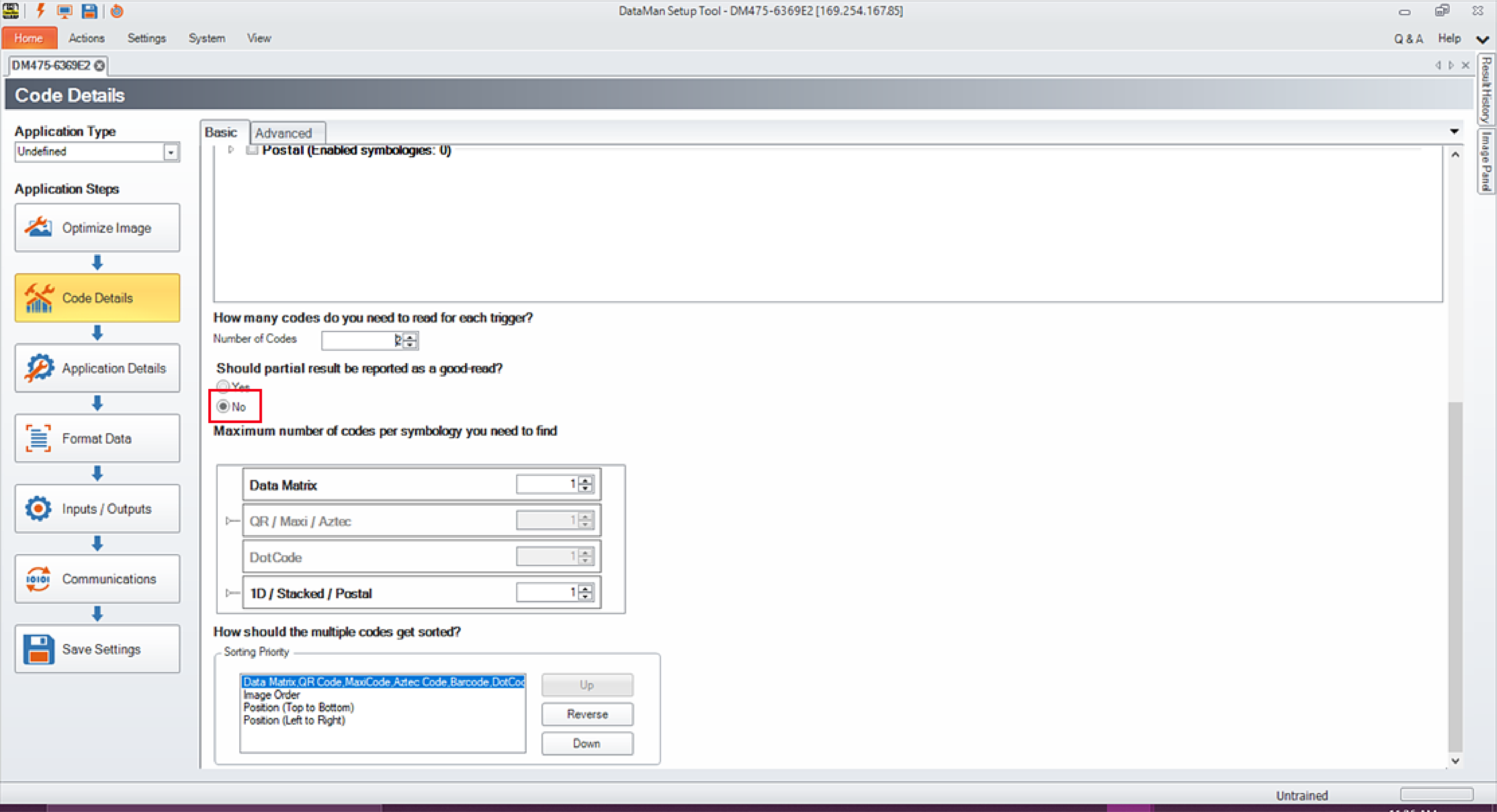
- Select the quantity of each symbology type to be verified in a single trigger under Maximum number of codes per symbology you need to find.
- Select the appropriate Sorting Priority.
- Open the TruCheck window and initiate a verification.
For multiple verifications, select either a single region to identify all symbols for verification, or the entire field of view.
See the individual results in the tabs with the help of the arrows at the top of the TruCheck verification window, following the successful verification of multiple symbols. If all verifications pass, the box is green. If any verification fails, the box is red.
Saved Code Quality reports include an appended report containing individual result for each verified barcode.