OCVMax Tool Overview
Use an OCVMax tool to verify that characters printed on labels or displayed on a panel are readable.
The figure below shows an example image where an OCVMax tool has been used to verify a string composed of a 5x7 dot-matrix font.
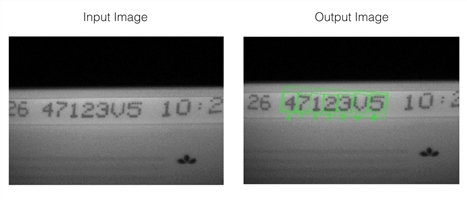
Using the OCVMax tool to verify a string composed of a 5x7 dot-matrix font
A configured OCVMax tool can tolerate the following types of image variations:
- Lighting
- Image quality
- Contrast
- Font stroke width
- Position, rotation, and scale for the overall string(s) of characters
- Character-to-character position, rotation, and scale
In general, using an OCVMax tool requires your vision application to complete the following tasks:
- Acquire a training image containing the string(s) of characters you want to verify.
- Specify a font file for the characters that appear in those strings.
- Specify the string(s) based on the goal of the application.
- Render an example of the string(s) using the font described by the font file.
- Allow the tool to use PatMax technology to determine the best possible search parameters for reliably locating the string in successive run-time images.
- Try the configured OCVMax tool on successive test images to ensure it reliably verifies the characters in each string. As you test the tool you can modify several search parameters as necessary to compensate for image-to-image variations in the appearance of the strings.
- Verify the OCVMax tool works to locate and verify the strings in your test images, and then reduce the range of various search parameters in an effort to improve the performance time for each image. Use the hints provided by the OCVMax tool to enable, disable, or reduce various search parameters until the tool performs successfully within the best possible time frame.
See the Acquiring Images chapters of the CVL User’s Guide for more information on acquiring images.
See the section Font Files for more information on font files.
See the section Paragraphs for more information.
See the section Font Rendering for more details on rendering a string.
See the section Degrees of Freedom for information on the ways a character string can change in appearance between the input image and a run-time image. See the section Training and Tuning for more information on OCVMax tuning.