Font Rendering
The OCVMax tool uses PatMax technology to search for the character strings in each acquired image. After you specify the necessary key sets, you can graphically generate (render) an example of each string you need to verify into an outline, which is a shape that can be used to produce a CVL graphics object. You can overlay the generated string graphics on a tuning image to visualize whether the font parameters and scale look correct for tuning.
You use the ccOCVMaxArrangement::render() function to render an arrangement into an image with a given position or to render an arrangement into a shape that can be used to create overlay graphics.
The position you specify provides the PatMax algorithm a logical starting position for each search. The performance and the ability of the PatMax algorithm to tune the OCVMax tool with good search parameters for reliably locating each character in successive run-time images depends on the following factors:
- How accurate the provided position of the string graphics is; that is, how accurately the the string graphics have been positioned over the string you will need to verify in the tuning image.
- How good the initial values are for the size, rotation, and character spacing of the string graphics.
Graphically rendering an example of each string you want to verify is not mandatory, but generally improves the performance speed and reliability of the OCVMax tool.
For example, the figure below shows an image containing a single string.
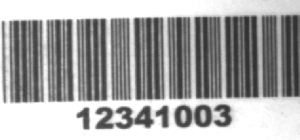
Image containing a single string
The figure below shows the same image after a user has rendered a string over the corresponding characters in the tuning image.
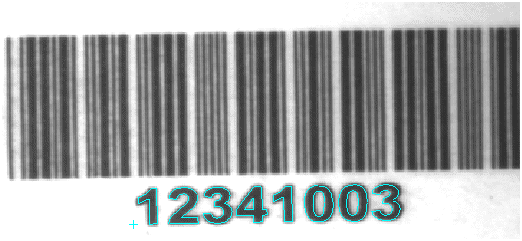
Rendered string positioned over the corresponding characters
As you render a character string over the tuning image, you might notice the character keys in the image show slightly different characteristics than the character keys in the font you specified, even though you chose the correct font. For example, the printed strings in your images might use a dot-matrix font where the dots are not symmetrical in shape, or are slightly larger in scale than specified by the font.
You can compensate for these types of character key differences with the following advanced font parameters:
- Additional Character Spacing
- Additional Line Spacing
- Character Features
You can specify additional spacing, in pixels, between character keys in both the horizontal and vertical direction.
The tool allows you to specify additional spacing, in pixels, between lines of character keys when you specify a multi-line string.
Primarily for dot-matrix fonts, you can specify the difference in scale between dots in the image and the dots specified by the font you use, or increase the stroke width in non dot-matrix fonts.
Be aware, however, that if you enable the tuning feature of an OCVMax tool, the tool itself can set good starting values for these advanced parameters, although you can always choose to change their values later to improve reliability or execution speed.