Use a Cognex 3D-L38 displacement sensor to generate 3D range images containing information about three-dimensional surfaces. See the following topics for general information on image acquisition with 3D displacement sensors:
- Getting Started with 3D displacement sensors
- General 3D Sensor Acquisition
- Working with 3D Range Images
See the following sections for more information regarding acquisition with a 3D-L38:
Refer to the VisionPro 3D-L38 Series Reference Guide, installed by default in %VPRO_ROOT%\Doc\en\Hardware Manuals, for details on mounting and connecting your 3D-L38 to your computer and external power through the supplied breakout cable.
The hardware manual also provides details on connecting your 3D sensor to a supported encoder and various I/O devices.
Before you can use your 3D-L38 sensor, you must configure it with a valid IP address on the same subnet as the Ethernet host adapter installed in your computer.
Launch the Cognex GigE Vision Configurator utility to display all network connections that correspond to the network adapters available to your computer and any GigE Vision devices connected to them, as shown in the following example:
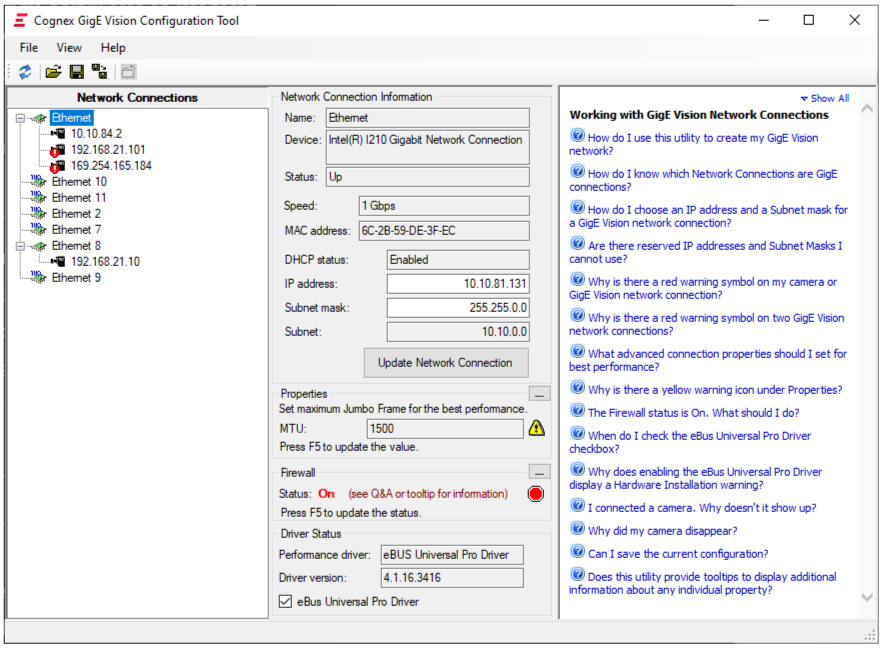
The panel on the right of the utility supports a set of Questions and Answers for user assistance.
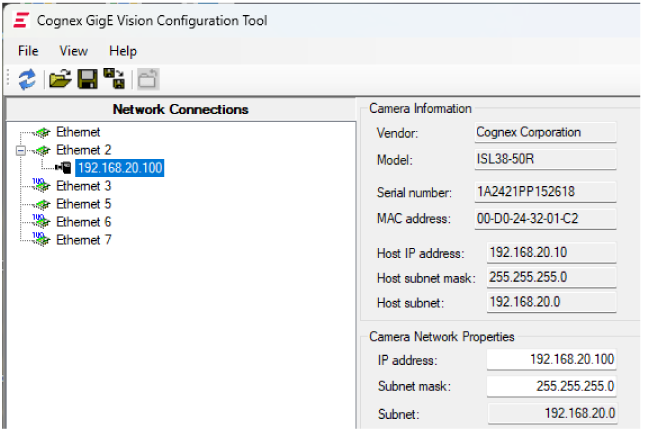
Use the GigE Vision Configurator to assign a valid IP address to your 3D-L38 relative to its host. The following figure shows a 3D-L38 with an IP address of "192.168.20.100" with a host IP address of "192.168.20.10" and subnet mask "255.255.255.0":
Perform the following steps to use QuickBuild and acquire images from a 3D-L38 sensor:
- Launch QuickBuild and open CogJob1.
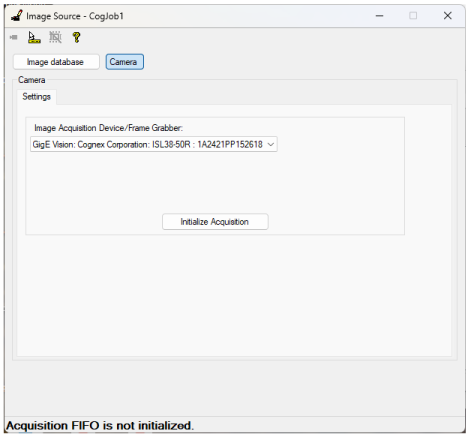
Choose Camera and select the desired 3D-L38 sensor from the list of acquisition sources:
Click Initialize Acquisition to enable all the tabs in the Image Source:
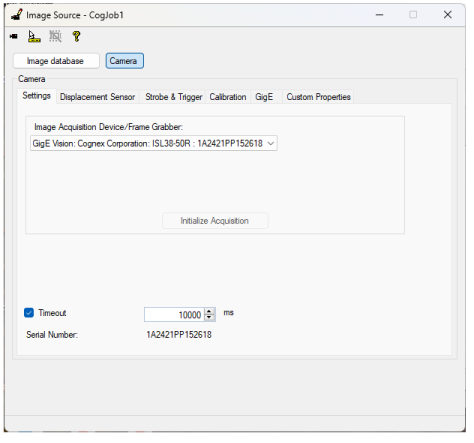
Refer to the topic General 3D Sensor Acquisition for guidance on using the tabs in the Image Source to configure your 3D-L38 sensor, and specifically the following tabs:
- Displacement Sensor
- Strobe & Trigger
- GigE
- Displacement Sensor Acquisition Wizard
Use QuickBuild to acquire images with your 3D-L38 and pass them to various 3D vision tools to model your desired vision application, as shown in the following example:
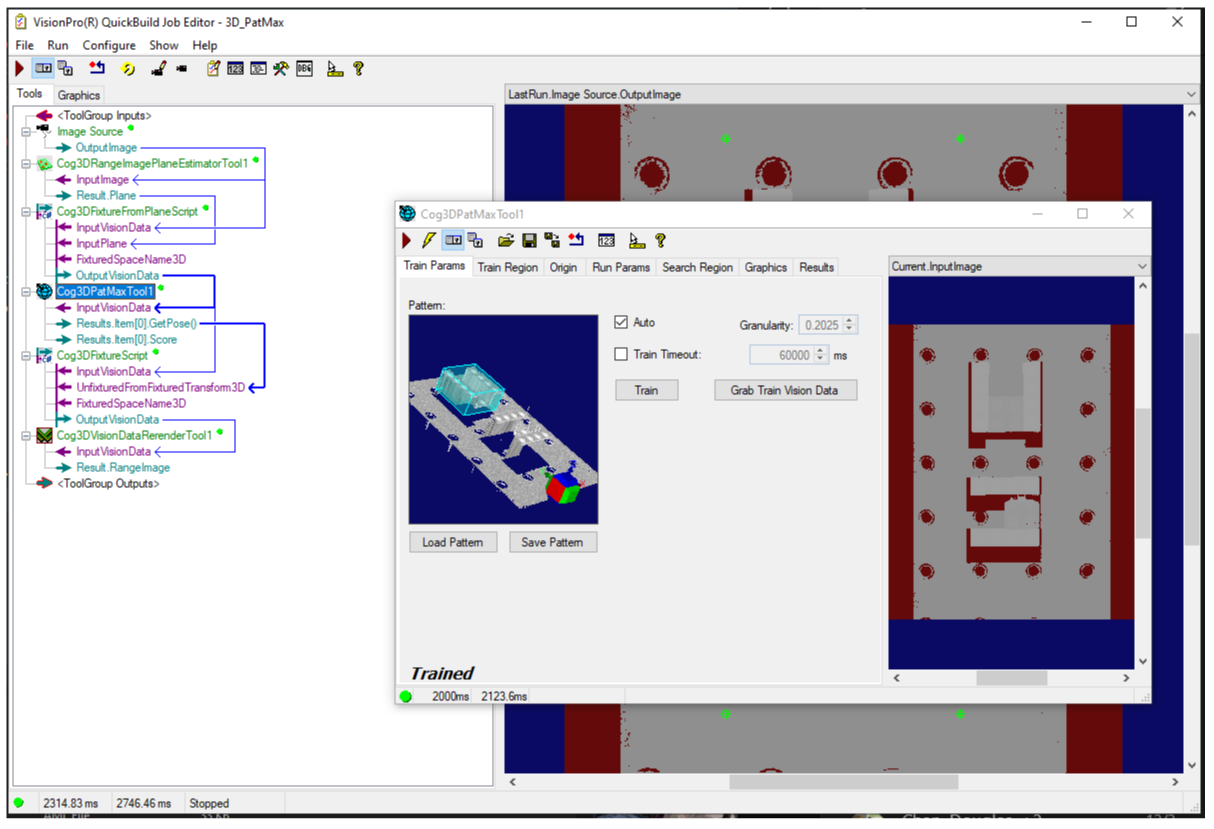
While the QuickBuild Image Source supports the Custom Properties tab, VisionPro reserves the Custom Properties tab for third-party acquisition devices. VisionPro provides the CogAcqProfileCamera class for setting 3D-L38 properties programmatically.
See the topics Acquiring Images with an Imaging Device and GenTL Architecture for more information on acquiring images with a third-party device.
Your VisionPro installation includes a sample Visual Studio solution compatible with the 3D-L38. Find the sample application at %VPRO_ROOT%\samples3d\Programming\ProfileCamera\C#\ProfileCameraAcquisition.sln