This topic contains the following sections.
The Fit Line edit control provides a graphical user interface to the CogFitLineTool vision tool, which takes a set of input points and returns the line that best fits those input points while generating the smallest root mean square (RMSError) error. A Fit Line tool requires a minimum of two input points.
The Fit Line edit control allows you to select the input points, specify a number of input points to ignore, and view vision tool results. The following figure shows the Fit Line edit control:
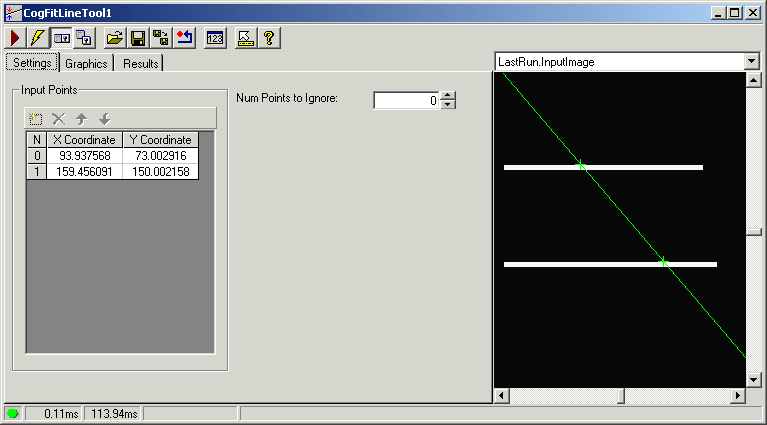
The edit control offers the following features:
- A row of control buttons at the top left
- A set of function tabs for specifying the input points, setting run-time parameters, and viewing the fitting results
- An image display window for displaying Fit Line tool images and graphics
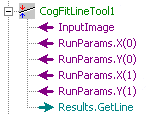
You can experiment with the edit control by using QuickBuild to create a CogFitLine tool. A new CogFitLine tool appears with the input terminals for two input points, as shown in the following figure:

The following table describes the function of each button:
| Button | Description | Function |
 | Run | Fit a line to the current set of input points, taking the present set of run parameters into consideration. |
 | Electric mode | Toggle electric mode, where the Fit Line tool executes automatically when particular configuration parameters change. In electric mode, a lightning bolt appears next to every electric property. |
 | Local image display | Open or close the local image display window. A Fit Line tool supports the following image buffers:
|
 | Floating image display | Open one or more floating image windows, which support the same image buffers as the local image display window. |
 | Open | Open a VisionPro persistence (.vpp) file that contains a set of saved properties for this vision tool object type. VisionPro reports an error if you try to open a .vpp file for another object type. |
 | Save | Save the current properties of the vision tool to a VisionPro persistence (.vpp) file. The edit control allows you to choose between saving the vision tool with or without its image buffers and tool results. |
 | Save As | Save the current properties of the vision tool to a new VisionPro persistence (.vpp) file. |
 | Reset | Reset the vision tool to its default state. This tool gives you a choice between resetting to the default-constructed state, which is appropriate when you are using it in a Visual Studio.NET application, and its template-initialized state, which is appropriate for QuickBuild applications. |
 | Show Floating Results | Open a separate results window with the same contents as seen in the Results tab. |
 | Show ToolTips | Enable or disable the display of tooltips for individual items in the edit control. |
 | Help | Open this VisionPro online help file. |
Use the Settings tab to specify the number of input points you want to use and the number of points you want the tool to ignore. The following figure shows the default Settings tab:
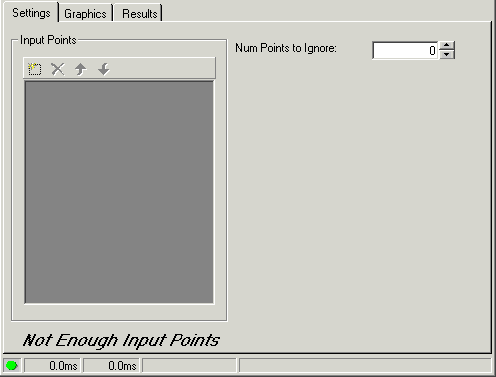
Use the Input Points grid of the Settings tab to specify the number and (x,y) coordinates of the input points for this Fit Line tool, which requires a minimum of two. Use the function buttons, shown in the following figure, to add, delete and reorder the input points:

The following table describes the function buttons:
| Button | Description |
 | AddPoint a new input point. Initially, the input point has the coordinates (0, 0), and you must reference a valid point result generated by another vision tool. With QuickBuild you can connect the output (x, y) terminals of a valid point to the input (x, y) terminals of a Fit Line point. In your custom vision application you use the SetPoint method. |
 | DeletePoint the currently highlighted input point from the list. If you have fewer than two input points plus the number of points to ignore, the edit control displays the message Not Enough Input Points and the Fit Line tool will not function properly. |
 | Move the highlighted input point up one position in the list, although the order of input points does not affect the operation of the Fit Line tool. |
 | Move the highlighted input point down one position in the list, although the order of input points does not affect the operation of the Fit Line tool. |
To add an input point to the list, you can either enter an (x,y) coordinate directly or use the Tool Group edit control link the (x,y) coordinates of a point result from another tool to the (x,y) coordinates of the input parameters for the Fit Line tool .
Use the NumToIgnore textbox to specify the number of input points the Fit Line tool can ignore while calculating the best fitting line. To determine which point to ignore, the Fit Line tool considers all possible subsets and keeps the set that produces the best possible score. Be aware that the larger the value, the more time the tool requires to execute.
Use the CreateResultGraphics tab to control which graphics the Fit Line tool generates and displays. The following figure shows the Graphics tab:
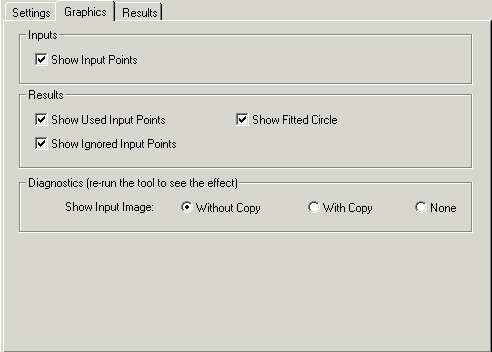
The following table describes the options in the Graphics tab:
| Area | Description |
| Inputs | Controls whether or not the input points appear in the Current.InputImage image buffer. |
| Results | Controls which graphics appear in the LastRun.InputImage buffer. |
| Diagnostics | Controls whether or not the input image is recorded as part of the diagnostic record, and whether the image is copied to the record or saved in the record as a reference. |
Use the CogFitLineResult tab to view the results of each execution of the Fit Line tool. The following figure shows the Results tab:
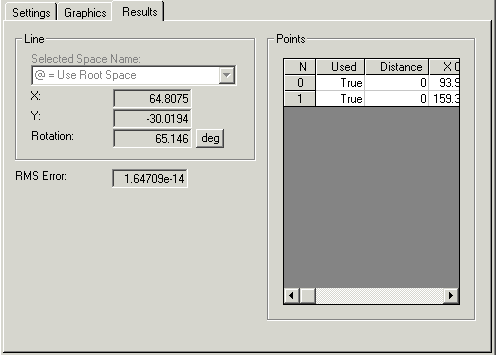
The following table describes the information in the Results tab:
| Area | Description |
| Line | Displays the coordinate space for the input image, as well as the center point and angle of rotation for the line. |
| RMS Error | Displays the RMS error for the fit of the line |
Points | Displays the following information for each input point:
|