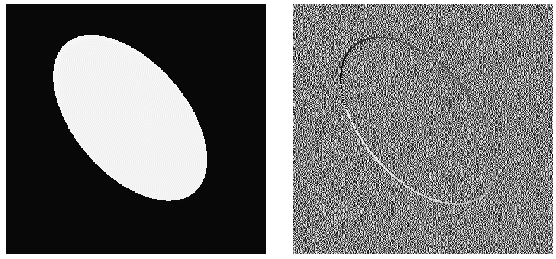
The edge angle generated by a Sobel Edge tool expresses edge angles relative to pixel space, where an edge angle of 0 degrees indicates a dark-to-light edge at a 90° angle to the x-axis. For pixels in the input image with an edge magnitude of zero, the edge angle is undefined. The Sobel Edge tool fills the edge angle image with random values for pixels with zero edge magnitude. For example, the following figure shows an input image with varying edge angles and the output image it generates:
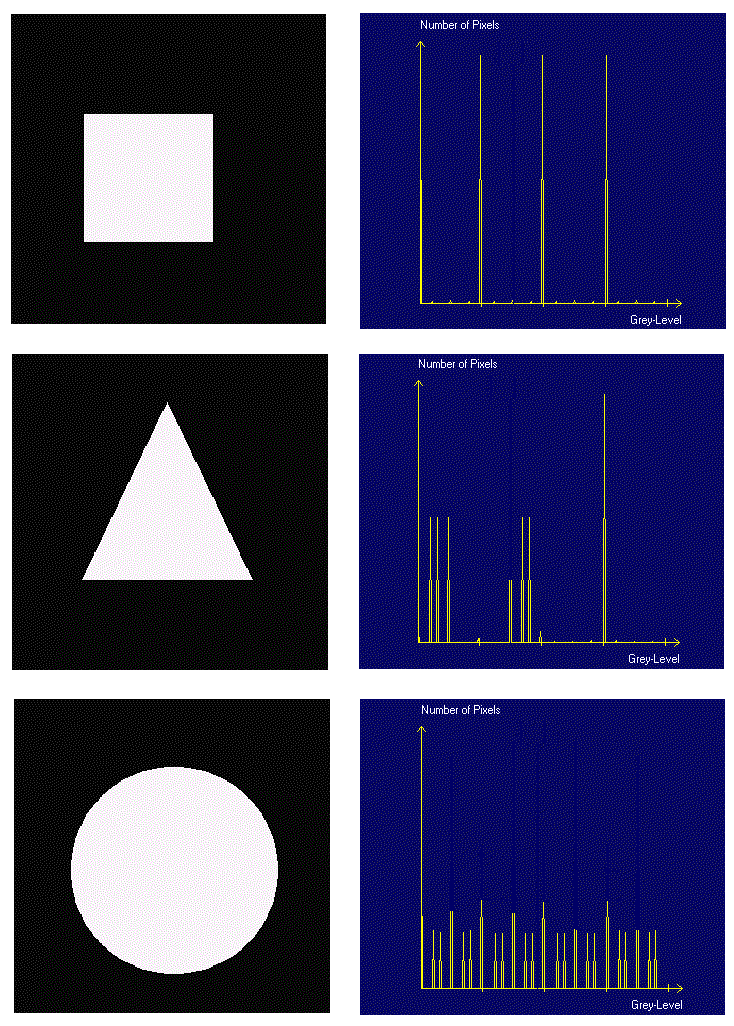
An edge angle image can be further analyzed to learn more about the object under inspection. For example, by passing the edge angle image to a Histogram tool, your vision application may be able to determine a great deal about the shape of the object. A square object will generate a histogram with four evenly spaced peaks of equal height, a rectangle will generate a histogram with four evenly spaced peaks with two high peaks and two low peaks. A circle, on the other hand, will generate a histogram with no peaks. To illustrate, the following figure shows several images and the histograms they can generate:
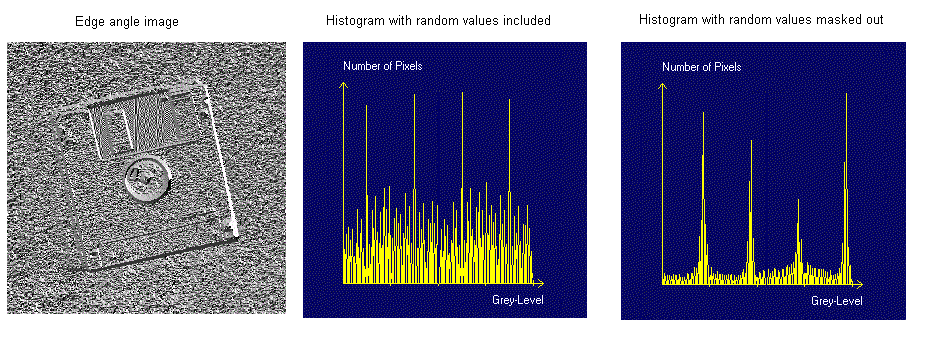
To create the most accurate histograms, the random values in the edge angle image should be masked out of consideration to generate a better measure of the dominant angles. To enable a mask, use the InputImageMask property of the Histogram tool, which overlays the mask on top of the edge angle image. A mask determines which pixels in the underlying edge angle image to consider, where non-zero mask values indicate Care Pixels and zero mask values indicate Don't Care Pixels. Don't Care Pixels appear in red in the Histogram tool Current.InputImage buffer, while Care Pixels are transparent to reveal the edge angle image underneath.
The following figure shows an edge angle image and the benefit of masking out the random values:
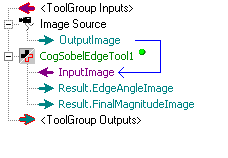
The following steps describe how to create a mask out of the edge magnitude image, and then use that mask to remove the random values in an edge angle image before passing it to a Histogram tool. The application starts with an Image Source and a Sobel Edge tool, as shown in the following figure:
Add an Image Processing One Image tool to the application.
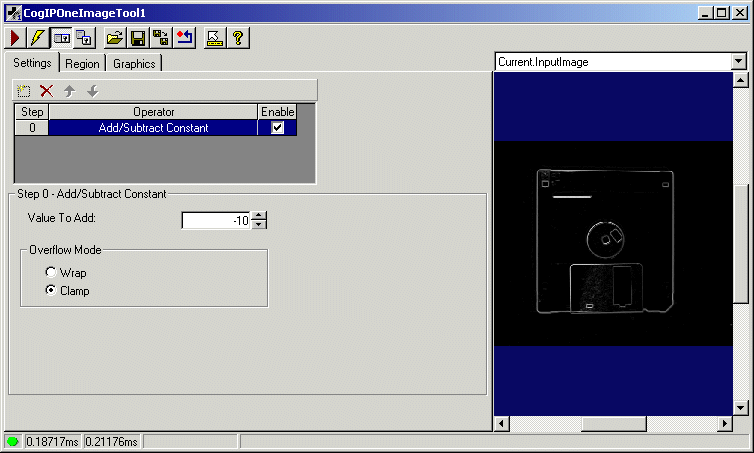
Pixels in the final magnitude image can have a low grey value but not actually equal zero. Pixels in a mask must be zero to prevent the underlying pixels from being processed. To ensure that the dark values are truly zero before passing it to the InputImageMask property, this process uses the One Image tool to add a value of -10 to each pixel in the final magnitude image. You may need to experiment with the actual negative value to add based on your application, to determine the best value that preserves the essential edge information.
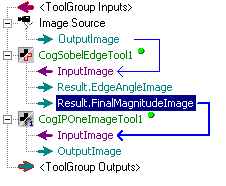
Pass the final magnitude image of the Sobel Edge tool to the InputImage of the One Image tool, as shown in the following figure:
Open the One Image tool edit control and select the Add/Subtract Constant operator, configuring it to add a value of -10 and to use the Clamp option, as shown in the following figure:
- Close the One Image tool edit control.
- Add a Histogram tool to the application.
Right-click on the Histogram tool and open the Member Browser dialog.
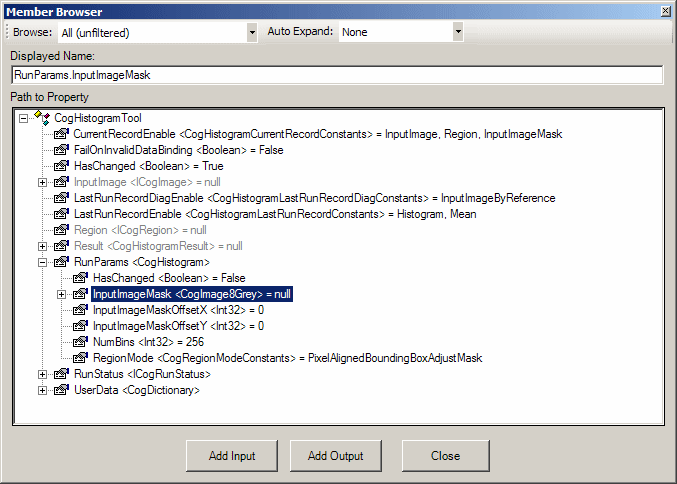
The Member Browser exposes the underlying structure of the tool which can be fairly complex. To reduce this complexity the browser provides three structure levels; Typical, Expanded and All which you can choose from the top pull-down menu. Typical, the default, displays only the most often used elements. Expanded displays a somewhat longer list and All displays the entire structure. Choose All from the pull-down menu to expose all of the elements (as shown).
The Auto Expand pull down menu gives you the option to automatically expand commonly used property collections. When you choose Common Members, the default, common members are expanded automatically when they are displayed. If you choose None, no property collections are expanded automatically. We use None in this example to minimize screen clutter.
- Select the InputImageMask property of RunParams, as shown in the following figure, click Add Input and then click Close.
Pass the OutputImage property of the One Image tool to the InputImageMask property of the Histogram tool, as shown in the following figure:
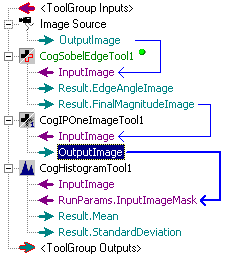
Pass the EdgeAngleImage property of the Sobel Edge tool to the InputImage property of the Histogram tool, as shown in the following figure:
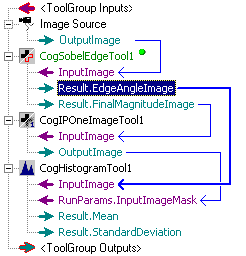
From this point on, the Histogram tool now generates a histogram with fewer random spikes, as shown in the following example:
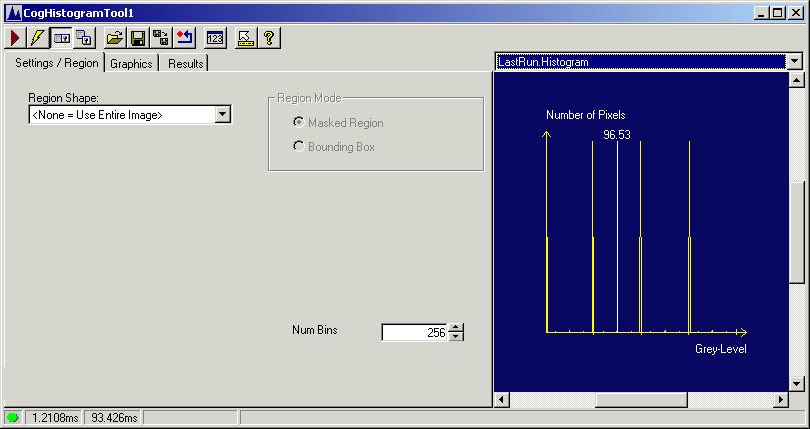
This histogram can be more easily analyzed by other vision tools.