This topic contains the following sections.
Some vision applications require large-format images. With current camera technology, megapixel sized images are becoming more common. Line scan imaging, in particular, is able to generate extremely large megapixel sized images. Depending on the vision tools an application uses to analyze such images, or the number of Jobs it contains, applications that works with large images can suffer from a "System Out of Memory" exception.
If you are observing a “System Out of Memory” exception there are steps you can take within QuickBuild and your application to help reduce memory usage. In some applications, a “System Out of Memory” is not thrown and instead you may observe an “Acquisition Error: acquisition failed abnormally [Error code #]”.
There is a limitation on all Microsoft 32-bit operating systems (32-bit Editions of Windows 2000, XP, Vista) that each application is only allowed 2 gigabytes (GB) of virtual address space. If a VisionPro application attempts to exceed – or even to approach – the 2 GB limit, a “System Out of Memory” exception will occur.
The 2 GB limit is a limit on the size of the virtual address space. The Windows operating system manages the virtual address space, usually splitting it between two physical storage locations: physical memory and a page file on the hard disk. The 2 GB limit cannot be increased by adding more physical memory, or by increasing the size of the page file. Even if your PC has 8 GB of RAM and a 32 GB page file, your application is still limited to 2 GB of address space.
Due to normal fragmentation of the memory space, the amount of memory available to a vision application can be significantly less than 2 GB. This is especially true in VisionPro applications where large images are in use.
Windows XP supports a boot.ini flag (/3GB) that can be used to expand the amount of virtual memory available to processes. Executables that support this expansion must be marked with the "LARGEADDRESSAWARE" flag, which can be done either with a linker flag or with the editbin utility.
VisionPro does not support this mode of operation. VisionPro applications must not be marked as LARGEADDRESSAWARE. However, VisionPro applications should have no problem running on a system that has the /3GB flag enabled as long as the they are not marked as LARGEADDRESSAWARE.
The exact amount of memory required for a VisionPro application can be difficult to compute, as memory usage depends upon many factors including:
- The number and resolution of the images your application acquires
- The particular vision tools you use, their number, and how they are configured
- Application parameters such as the number of Jobs you create and how many items you store in the Posted Items queue.
All of these factors play an important role in determining overall memory usage. The “System Out of Memory” exception can occur when using small or large image sizes or when using a small or large number of vision tools.
This section contains the following subsections.
- Posted Items Queue
- Vision Tool Result Graphics
- Acquisition and Large Images
- Training Region
- Failure Queue
- Display Windows
- Garbage Collection
- Application Wizard
Configuring particular features of your QuickBuild application can help control memory usage in large memory applications.
This section contains the following subsections.
The Posted Items queue is used for storing packets of result information. The packets can store images, tool records, or any other properties that you wish to make available. By default the Posted Items queue stores the LastRunRecords generated by each running Job, and stores the 32 most recently generated records.
In a finished application (for example, an application produced by the Cognex Application Wizard) items are removed from the queue and presented to the user. In QuickBuild, the items are not removed from the queue but stored for extraction by an encompassing .NET application. The presence of each item in the Posted Items queue increases the memory usage QuickBuild requires. There are two approaches to reducing memory usage. The first is to reduce the number of items you store in the Posted Items queue, and the second is to reduce the amount of data in each packet.
Queue Size
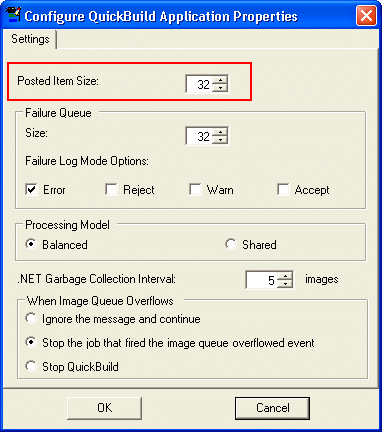
By default, QuickBuild allocates enough memory for 32 packets of information in the Posted Items queue. To decrease the size of the queue, select Configure->QuickBuild Application Properties from the QuickBuild menu and decrease the value for Posted Item Size, as highlighted in the following figure:
Queue Contents
By default each Job will add its LastRunRecord to the queue. Based on the number of vision tools you use, or if you are using large images, this LastRunRecord might be undesirably large. You can adjust the contents of the queue by selecting Configure->Posted Items from the QuickBuild menu and clearing the Include LastRunRecord image and graphics checkbox, as highlighted in the following figure:
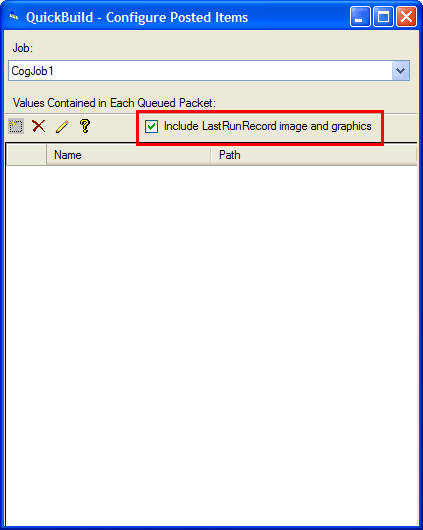
Do this for each Job if you wish to eliminate all LastRunRecords from the queue.
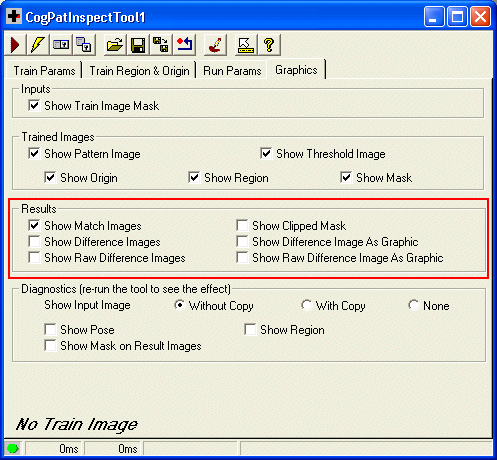
Each Job produces a LastRunRecord even if that record is not stored in the Posted Items queue. The contents of this record can be controlled, in part, by the choices you make for each tool’s result graphics. Some vision tools, like PatInspect and Blob, can be configured to produce additional images in the LastRunRecord. By turning off these images you can decrease the size of the LastRunRecord.
To turn off unwanted images, use the Graphics tab on the edit control for each vision tool. For example, the following figure shows how to disable most of the result images from a PatInspect tool:
Note: The PatInspect tool, in particular, can consume a great deal of memory. If you are working with large images, Cognex recommends you limit the number of PatInspect tools you use, reduce the image size by passing just the region of interest to the PatInspect tool, and turn off unwanted images generated as output.
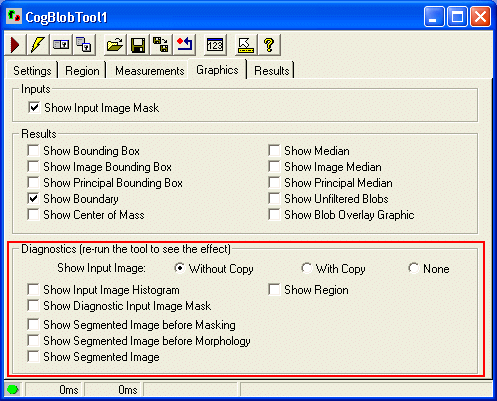
As another example, the following figure illustrates how all potential diagnostic images from a Blob tool are not saved in the LastRunRecord:
As a general rule, you can minimize memory usage by using the Without Copy option for Show Input Image for all tools.
Using large input images, such as those generated by line scan cameras and color cameras, will result in larger memory usage. This effect is compounded when acquiring large input images with multiple cameras or using multiple Jobs.
If you are using an MVS-8600/MVS-8600e Camera Link frame grabber and observe the message Acquisition Error: acquisition failed abnormally (Error code #) where # is a value between 1 and 20, then try adjusting the amount of memory allocated for acquisition.
Starting in VisionPro 4.4 the amount of memory allocated for acquisition can be controlled programmatically using the ICogAcqHardwareImagePool interface, or it can be controlled in QuickBuild on the Image tab with the Use Custom Value parameter to specify the number of images, as shown in the following figure:
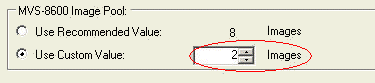
Prior to VisionPro 4.4 the ICogAcqHardwareImagePool interface did not exist and acquisition memory used for storing MVS-8600 Camera Link frame grabber images can be adjusted using the registry key HKLM\System\CurrentControlSet\Services\fg8600\PRVPH\MaxCPUBuffer. The value is expressed in hex, and indicates the number of megabytes of memory to reserve for the acquisition system for each acquisition fifo. The default value is 0x20, which corresponds to 32 megabytes of system memory. Increase this value to a number that accommodates the frame size desired. A good starting point is to specify no less than four times the number of megabytes required for one frame acquired by one camera.
Note: In VisionPro 4.2 and earlier releases, the hex value was not applied on a per fifo basis, but was applied to all acquisition fifos for each board.
Some vision tools, such as PMAlign and PatInspect, require training images, whose size can be controlled on the Train Region and Origin tab of the edit control for the tool. Whenever possible you should train using a reduced region of the image, rather than perform training using the entire image. This can greatly reduce the amount of memory used by the tool. See the following figure for an example of changing the region shape for the training image:
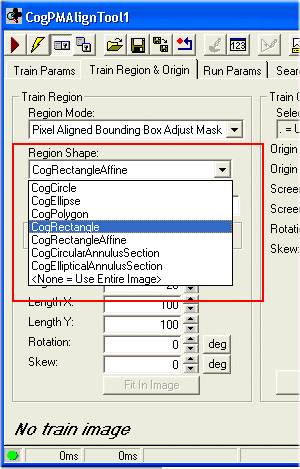
QuickBuild maintains a Failure Queue to store information packets when the Result property of a Job is set to Error. You can change the size of the queue as well as specify other Result property values that will cause the Failure Queue to store information about the latest Job result.
Choose Configure->QuickBuild Application Properties to access the Failure Queue, as shown in the following figure:
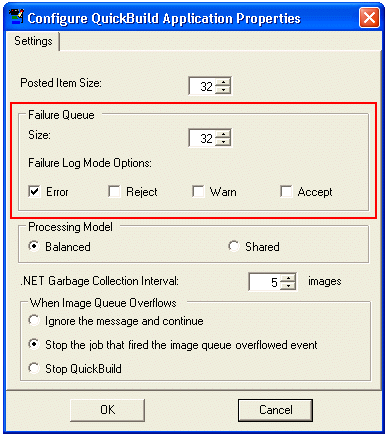
Reducing the number of failed images that can be stored can reduce the amount of memory in use. The failure logging mechanism can also be turned off entirely by enabling the Accept checkbox under Failure Log Mode Options.
Closing or minimizing display windows can reduce the amount of memory required to run the application. Minimizing display windows may not necessarily free up as much memory as closing the window. Cognex recommends you close as many edit controls and display windows inside of forms as possible. Displays inside of applications should also be closed. Images referenced by a display will not be freed from memory until the display window itself is destroyed.
The .NET garbage collection interval can be configured by choosing Configure->QuickBuild Application Properties, as shown in the following figure:
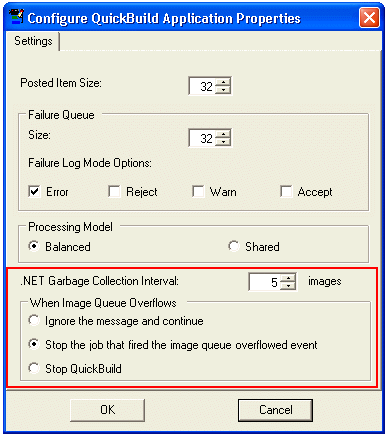
Reducing the interval might help reduce memory usage after each Job has run, but might not necessarily reduce the overall memory usage for the application. In addition, reducing the interval increases the load on the CPU.
The application generated by the Application Wizard contains queues that hold onto tool records. These queues are used to show the scrolling pass/fail records along the top of the generated application. There are two queues for each job. You can reduce the size of the queues by modifying the source code that the Application Wizard generates. The following global variables in the generated code may be reduced but must have a minimum value of 1.
private const int AllQueueLength = 16; //default
private const int FailureQueueLength = 16; //default