This topic contains the following sections.
A CogGeneralContour is a single shape that is itself made from a series of directed line segments and arc segments. The path of a contour can be followed from its starting segment to its final segment. A contour can be created by extracting shape models from an image, it can be created manually from existing line segments and arc segments, or it can be created by defining new segments dynamically.
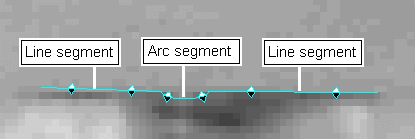
A contour consists of a collection of line segments and arc segments. The segments can be connected or disconnected. For example, the following figure shows a contour consisting of three connected segments:
If you double-click on any segment of a contour, the Shape Properties window for the entire contour will open. For example, the following figure shows the same contour as the previous figure, but now it is selected and its Shape Properties window is open:
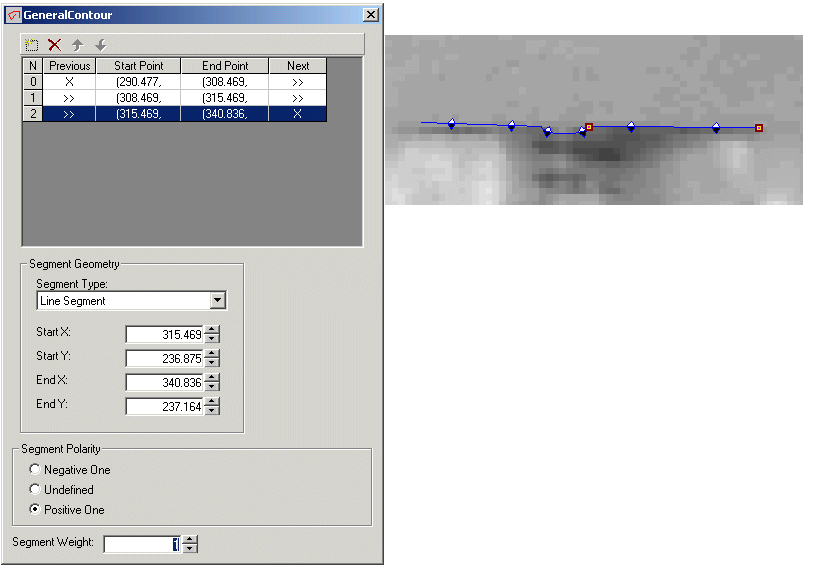
The top of a contour Shape Properties window contains a grid of coordinate locations for each segment of the contour. The following table describes the columns of the grid:
| Column | Description |
| N | The index for this segment. |
Previous | This field indicates whether the start point of the segment is connected to the previous segment. If connected to the previous segment this field shows a ">>>" symbol, while it shows an "X" symbol if the start point is disconnected from the previous segment. The first segment of a contour will always start with an "X" symbol. You can select this cell in the grid and toggle the setting and connect or disconnect this segment from the previous segment. If you select the cell of the first segment you have the option of connecting the start of the first segment to the end point of the last segment. If connected to the last segment the cell will show an "@" symbol. |
| Start Point | The coordinate of the start point. You can select this cell and change the coordinate. |
| End Point | The coordinate of the start point. You can select this cell and change the coordinate. |
Next | This field indicates whether the end point of the segment is connected to the next segment. If connected to the next segment this field shows a ">>>" symbol, while it shows an "X" symbol if the end point is disconnected from the next segment. The last segment of a contour will always start with an "X" symbol. You can select this cell in the grid and toggle the setting to connect or disconnect this segment to the next segment. If you select the cell of the last segment you have the option of connecting the end of the last segment to the start point of the first segment. If connected to the first segment the cell will show an "@" symbol. |
Above the segment grid is a function bar as shown in the following figure:

Use the function bar as described in the following table:
| Button | Description |
 | Insert or append either a new line segment or new arc segment. You cannot insert a new segment between connected segments, but you can always append a new segment to the end of the contour. A new segment you add or insert starts unconnected to the existing contour. |
 | Delete the selected segment from the contour. |
 | Move this disconnected segment down in the ordered list to the first available space between two other disconnected segments. If all the segments below this segment are connected, the segment is moved to the bottom of the list. |
 | Move this disconnected segment up in the ordered list to the first available space between two other disconnected segments. If all the segments above this segment are connected, the segment is moved to the top of the list. |
The Shape Properties window also allows you to change the polarity and weight value for any particular segment.
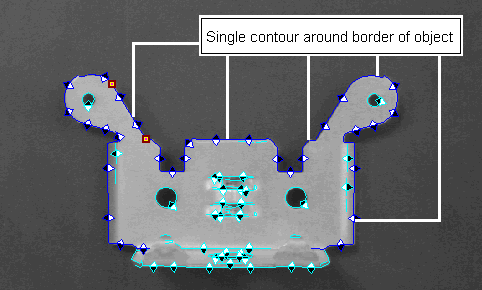
If you use the Extract Shapes tool to extract shapes from an existing image, the tool can generate one or several contours automatically. For example, the following figure shows how the Shape Extract tool generates a single contour from most of an object boundary:
See the topic How To Extract Shapes for information on using the Shape Extraction tool.
To create a new contour from existing line segments and arc segments, use the Compose Contour tool as described in the following procedure:
Click the Compose Contour tool
in the tool palette.
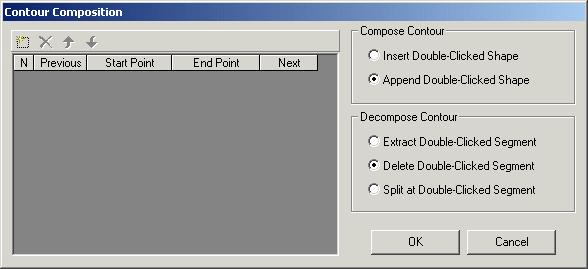
The Compose Contour tool appears as shown in the following figure:
Also, the Model Maker disables the graphics for any shapes that are not line segments or arc segments. For example, the following figure shows a portion of an image where a circle has been disabled while the two line segments and one arc segment remain available to the Compose Contour tool:
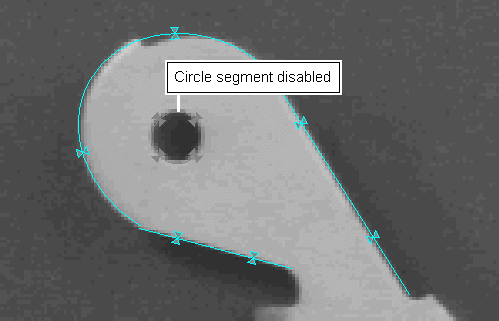
In addition, if you move the mouse over a valid line segment or arc segment in the image, the shape turns green, while it turns red if the segment is already a part of this contour.
- Double-click on the first line segment or arc segment you want to include in this contour. Valid segments appear green as you move the mouse over them in the image window.
Double-click on the next segment you want to include in the contour.
The new segment is included in the contour based on the current choice in the Compose Contour area of the Contour Composition tool. If you use the Insert Double-Clicked Shape option, new segments are inserted above the current selection in the segment grid. If you use the Append Double-Clicked Shape option, new segments are added to the end of the contour.
Continue to double-click on valid segments until you create the desired contour.
If you click on another contour, all the segments from that contour are added to the current contour.
Use the Decompose Contour area of the Contour Composition tool to remove the selected segment from the current contour. The selected segment appears in red in the image window. The Decompose Contour area has three options:
| Option | Description |
| Extract Double-Clicked Segment | Remove the selected segment from the contour. |
| Delete Double-Clicked Segment | Remove the selected segment from the contour and delete the segment from the shape model collection. |
| Split at Double-Clicked Segment | Split the contour into two contours. The first contour will consist of all segments preceding the selected segment, while the second contour will consist of the selected segment and all subsequent segments. |
Use the Add Contour tool to create a new contour by specifying the start point and end point of each segment. The Add Contour tool uses only line segments to define the new contour, but you can open the Shape Properties window for the contour later and modify the type of any segment.
Use the Add Contour tool as described in the following procedure:
Click the Add Contour tool
in the tool palette.
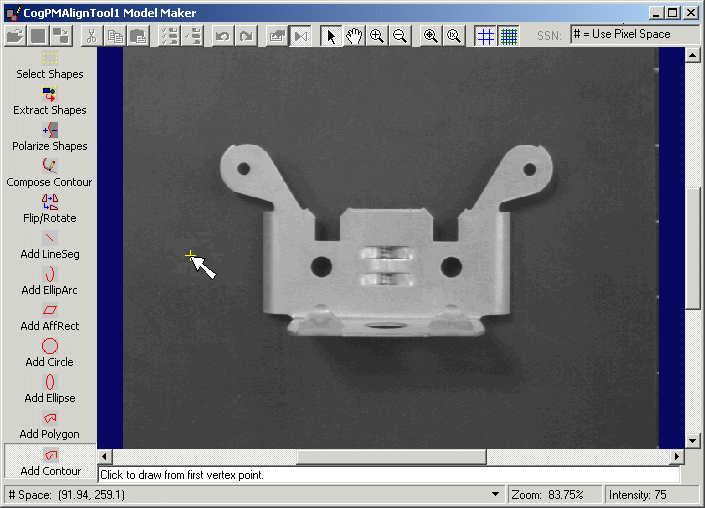
The cursor in Model Maker switches to a cross-hair for you to locate the start point of the first vertex, as shown in the following figure:
- Click on the location of the start point for the first segment of the contour. You might want to zoom in on the object to locate the vertex precisely.
- Drag the line segment graphic to the end point and left-click the mouse. This click defines the end point for the first segment and the start point for the next segment.
- Continue to left-click for each new vertex you want to add to the contour. When you have created the last line segment, double-click on the end point to exit the Add Contour tool.
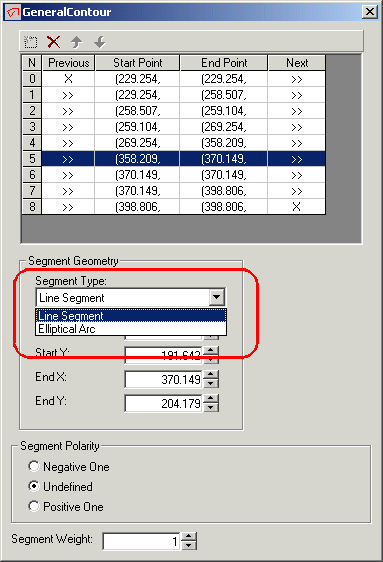
To change the type of any segment in the contour, use the Shape Properties window and the Segment Type drop-down list, as highlighted in the following figure: