This topic contains the following sections.
The Range Image Volume Calculator edit control provides a graphical user interface to the Cog3DRangeImageVolumeCalculatorTool vision tool, which calculates the volume of features in an area above a base plane in a range image (acquired from a Cognex 3D displacement sensor). The volume is returned in the units of the physical Sensor3D Space associated with the range image, that is, in cubic mm.
The tool returns the following results related to the volume calculation:
- The computed volume
- Diagnostics data about how the range image pixels were used to calculate the volume
The Range Image Volume Calculator edit control allows you to specify a Region within which volume calculation is performed. The following figure shows the Range Image Volume Calculator edit control:
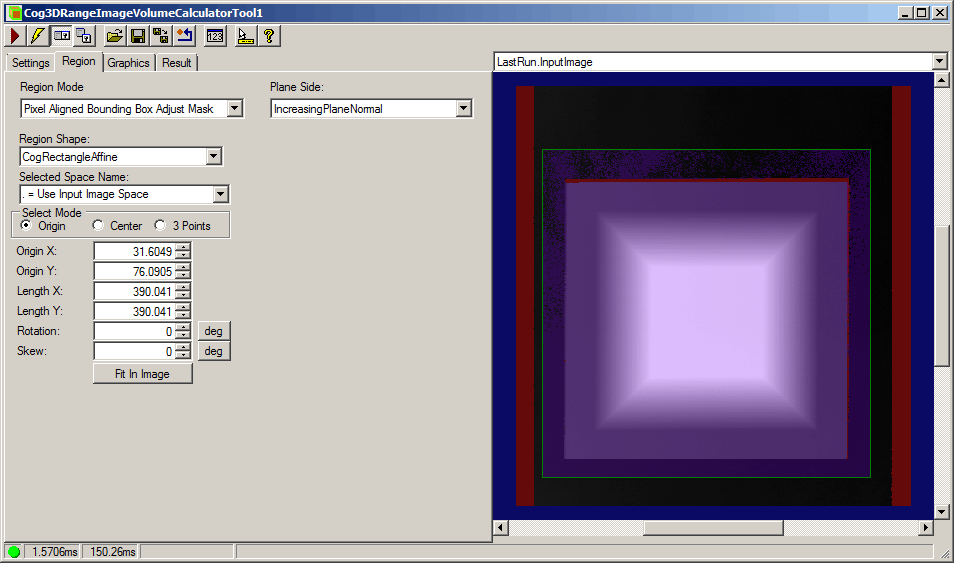
The edit control offers the following features:
- A row of control buttons at the top left
- A set of function tabs for specifying the area in which volume calculation is performed, the threshold (relative to the BasePlane) below which volume calculation is not performed, and for viewing the volume calculation results
- An image display window for displaying Range Image Volume Calculator tool images and graphics
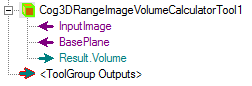
You can experiment with the edit control by using QuickBuild to create a Cog3DRangeImageVolumeCalculatorTool. A new Cog3DRangeImageVolumeCalculatorTool appears as shown in the following figure:

The following table describes the function of each button:
| Button | Description | Function |
 | Run | Uses the Region and the BasePlane to analyze the image stored in the Current.InputImage buffer to calculate the volume. |
 | Electric mode | Toggles electric mode, where the Range Image Volume Calculator tool executes automatically when particular configuration parameters change. In electric mode, a lightning bolt appears next to every electric property. |
 | Local image display | Opens or closes the local image display window. A Range Image Volume Calculator tool supports the following image buffers:
|
 | Floating image display | Opens one or more floating image windows, which support the same image buffers as the local image display window. |
 | Open | Opens a VisionPro persistence (.vpp) file that contains a set of saved properties for this vision tool object type. VisionPro reports an error if you try to open a .vpp file for another object type. |
 | Save | Saves the current properties of the vision tool to a VisionPro persistence (.vpp) file. The edit control allows you to choose between saving the vision tool with or without its image buffers and tool results. |
 | Save As | Saves the current properties of the vision tool to a new VisionPro persistence (.vpp) file. |
 | Reset | Resets the vision tool to its default state. |
 | Show ToolTips | Enables or disables the display of tooltips for individual items in the edit control. |
 | Help | Opens this VisionPro online help file. |
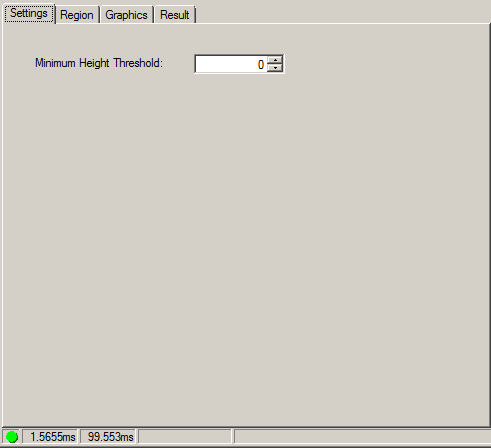
Use the Settings tab to configure the MinimumHeightThreshold to specify the height threshold relative to the BasePlane below which range image pixels are not included in the volume calculation. The following figure shows the default Settings tab:
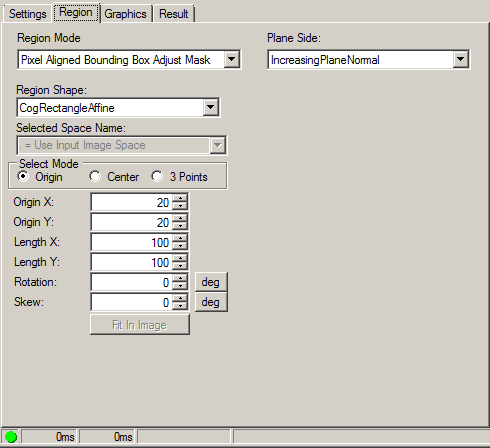
Use the Region tab to configure the Region within which volume calculation should be performed. You can also configure the orientation of the Normal of the BasePlane on this tab. The following figure shows the default Region tab:
| Feature | Description |
| RegionMode | Specifies how the input Region is applied to the input image. Controls whether the optional run time input image mask is applied to the input image. |
Region Shape | Selects the shape of the Region within which the Range Image Volume Calculator tool will perform volume calculation (above the BasePlane). Points outside of this Region will not be considered during volume calculation. You can select one of the following shapes:
Adjust the various properties of the Region with the shape you selected. |
| PlaneSide | Specifies which side of the BasePlane to consider when computing the volume. This is specified by the orientation of the BasePlane Normal, which can be either increasing or decreasing. Only range image pixels that are on the specified side of the BasePlane will be used in computing the volume. |
Use the Graphics tab to control which graphics the Range Image Volume Calculator tool generates and displays. The following figure shows the default Graphics tab:
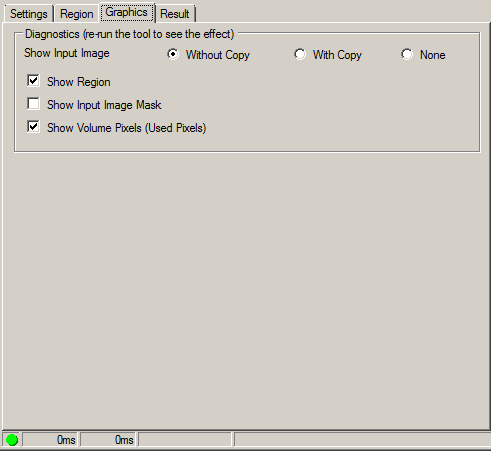
| Feature | Description |
| Show Input Image | The Without Copy, With Copy, and None options determine whether or not the input image is recorded as part of the diagnostic record; and whether the image is copied to the record or saved in the record as a reference. |
| Show Region | Displays the input Region within which volume calculation is performed. |
| Show Input Image Mask | Displays the input image mask, if specified. |
| Show Volume Pixels (Used Pixels) | Marks the range image pixels that were used in the volume calculation using a purple mask. |
Use the Result tab to view the result of each execution of the Range Image Volume Calculator tool. The following figure shows the Result tab:
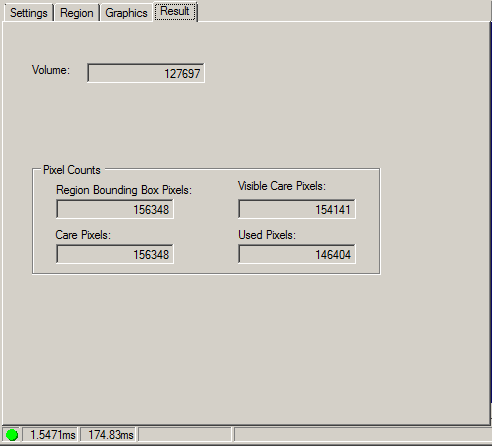
| Feature | Description |
| Volume | The calculated volume. |
| PixelCounts | The numbers of pixels in the following categories:
|