This topic contains the following sections.
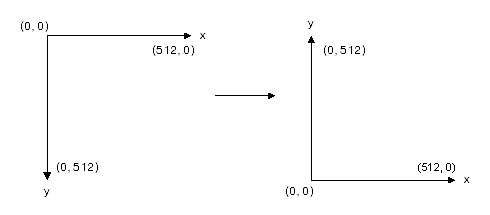
This topic shows you how to map points from an CogImage8Grey left-handed, root coordinate space to those in a standard, right-handed coordinate space. You will use the CogTransform2DLinear object to perform this conversion. You will also add the resulting coordinate space to the CogCoordinateSpaceTree associated with the image.
Make sure you have installed VisionPro and added to your project a reference to the Cognex.VisionPro assembly. The sample code provided in this topic uses the CogImage8Grey, CogTransform2DLinear, and CogCoordinateSpaceTree objects.
Each image has an associated root coordinate space, the origin of which is usually at the upper-left corner of the upper-left pixel of the image. The root space is left-handed. In this example, you map points from this space to the new right-handed coordinate space.
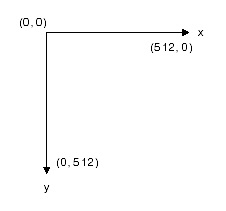
The following code creates a new CogImage8Grey object and initializes its dimensions to those of the shown root space. Normally, you would acquire an image from an ICogAcqFifo object.
' Create a new image and initialize its height and width
CogImage8Grey img = new CogImage8Grey(512, 512);
img.Allocate(512, 512);
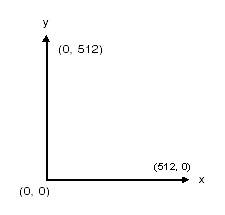
The CogTransform2DLinear object represents a two-dimensional transform. It enables you to map points from the root space to the new right-handed coordinate space. So, for example, it would map the root space's origin (0,0) to point (0, 512) in the following figure.
This code example creates a CogTransform2DLinear object and sets its Skew, and TranslationY properties to correctly map points to a right-handed coordinate system.
' Create a transform object
' and set its skew and translation
' to be that of the right-handed coordinate space.
CogTransform2DLinear ctrSkewTranslation = new CogTransform2DLinear();

' Skew the transform by 180 degrees or 3.14159265358979 radians.
ctrSkewTranslation.Skew = CogMisc.DegToRad(180);

' Translate the transform by the height of the image.
ctrSkewTranslation.TranslationY = img.Height;
Alternatively, you can create the correct transformation object by setting the SetMatrixElement and TranslationY values. The following code sets the value of the matrix element 1,1 to -1, the equivalent of skewing an unrotated, unscaled coordinate space by 180°.
' Create a new transform object
' and set its MatrixElement and Translation properties.
CogTransform2DLinear ctrMatrixElement = new CogTransform2DLinear();
ctrMatrixElement.SetMatrixElement(1, 1, -1); // note - no more doubly indexed getter/setter
ctrMatrxiElement.TranslationY = img.Height;
You should note that the two approaches to creating the transformation object are equivalent; they both yield identical matrices. The transformation that maps points from the root space (A) to the new space (B) can be represented as:

You can use the transformation object's MapPoint method to verify that it correctly maps points to the Cartesian coordinate space. In the following code, the origin (0, 0) of the root space is mapped through the ctrSkewTranslation transform. The corresponding mapped point should be (0, 512). A user-defined type of Point is created to represent points.
' Verify mapped points by showing that
' the origin (0, 0) of the root space is mapped
' to point (0, 512) in the Cartesian coordinate space.
double originRootX, originRootY, mappedRootX, mappedRootY;
originRootX = 0.0;
orignRootY = 0.0;
ctrSkewTransaltion.MapPoint(originRootX, originRootY, out mappedRootX, out mappedRootY);
MessageBox.Show(String.Format(
  "The origin (0,0) mapped through ctrSkewTranslation is: ({0}, {1})",
mappedRootX, mappedRootY));Each image has an associated CogCoordinateSpaceTree. The coordinate space tree contains the image's root space and all the user spaces you create. You can retain the transform you have created by adding it to the image's coordinate space tree as a new coordinate space. You can then use the coordinate space tree to map between other coordinate spaces and the newly-created coordinate space.
In the following example, calling the transform's Invert method provides the correct input for the space tree's AddSpace method. This method takes a transform that maps to the parent space from the newly added space. Note that, in this case, the inversion does not change the math: the transform created in the above examples is equal to its own inverse.
' Add the Cartesian coordinate space
' to the image's coordinate space tree.
img.CoordinateSpaceTree.AddSpace("@", "Standard Space", ctrSkewTranslation.Invert(),
true, CogAddSpaceConstants.DuplicateIsError);The following code summarizes this topic. It provides a public method to add a Cartesian coordinate space to an image, and a private method to verify that the transform correctly maps points from the original space to the Cartesian space. It uses the Point data type defined earlier.
' Add a Cartesian coordinate space to the supplied image.
public void addCartesianSpace(
  ref ICogImage img,
  string parentSpaceName)
{
CogTransform2DLinear ctrCartesian = new CogTransform2DLinear();
ctrCartesian.Skew = CogMisc.DegToRad(180);
ctrCartesian.TranslationY = img.Height;
img.CoordinateSpaceTree.AddSpace(parentSpaceName, "Cartesian", ctrCartesian.Invert(),
true, CogAddSpaceConstants.DuplicateIsError);
}

public void addCartesianSpace(
  ref ICogImage img)
{
addCartesianSpace(ref img, "@");
}

public void verifyMapping(
  ICogTransform2D transform,
  double fromPointX,
  double fromPointY)
{
double mappedX, mappedY;
mappedX = 0.0;
mappedY = 0.0;
transform.MapPoint(fromPointX, fromPointY, out mappedX, out mappedY);
MessageBox.Show(String.Format(
"The point ({0},{1}) mapped through the transform is: ({2},{3})",
fromPointX, fromPointY, mappedX, mappedY));
}You might use these methods as follows:
' Test the addCartesianSpace method.
CogImage8Grey testImage = new CogImage8Grey(300, 500);
ICogImage imgIfc = (ICogImage)testImage;
addCartesianSpace(ref imgIfc);
verifyMapping(testImage.GetTransform("Cartesian", "@"), 0.0, 0.0);