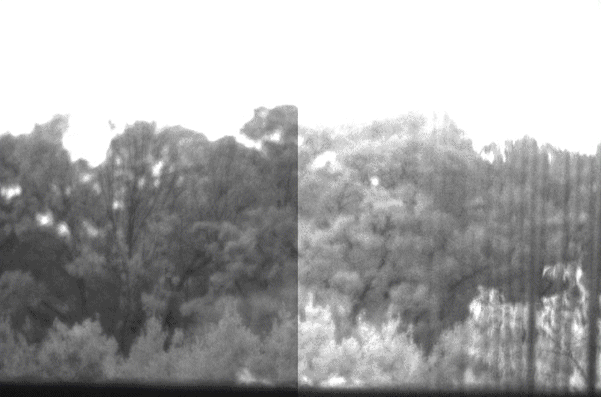
Some GigE Vision cameras support a dual-tap feature to optimize the acquisition frame rate. To use these cameras with your VisionPro application, however, the dual-tap feature must be balanced. For example, the following figure shows an image acquired from a GigE Vision camera where the dual-tap feature is unbalanced.
Perform the following procedure to configure QuickBuild to balance a dual-tap GigE Vision camera:
- Open the Image Source dialog box for the Job that uses the dual-tap camera.
Select the Custom Properties tab.
Refer to the topic Configuring an Image Source for details on how to use the Custom Properties tab to add and modify custom properties.
Configure the Custom Properties tab as shown in the following figure:
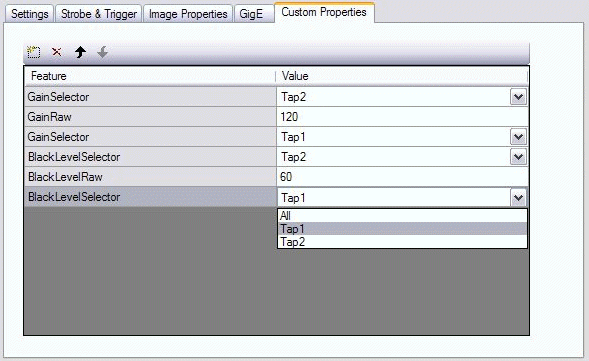
Adjust the values in the Custom Properties tab and the Settings tab until the image appears balanced.
Getting a seamless image can require experimentation to find the right values for your production environment.