A Cognex Display toolbar allows you to manipulate the image within a Cognex Display control, while a Cognex Display status bar displays information about that image. See the topic Displaying An Image for details on showing the images you acquire with your Visual Studio.NET application. The following figure shows a Cognex Display control along with a toolbar and status bar:
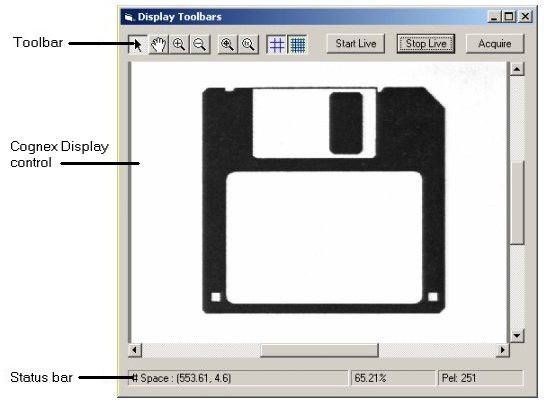
To add a toolbar and status bar to your Visual Studio.NET application, perform the following steps:
- Choose Project->Add References and add a reference to the assembly Cognex.VisionPro.Controls, which contains the objects and instances of the toolbar and status bar.
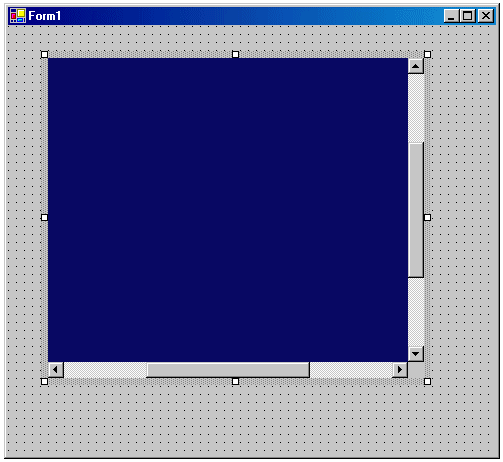
Add a Display control to your Windows form as described in the topic Displaying An Image. The following figure shows a Windows form with a Cognex Display control:
Switch to the VisionPro System Controls tab of the Visual Studio.NET toolbox and select CogDisplayToolbarV2, which is shown in the following figure:

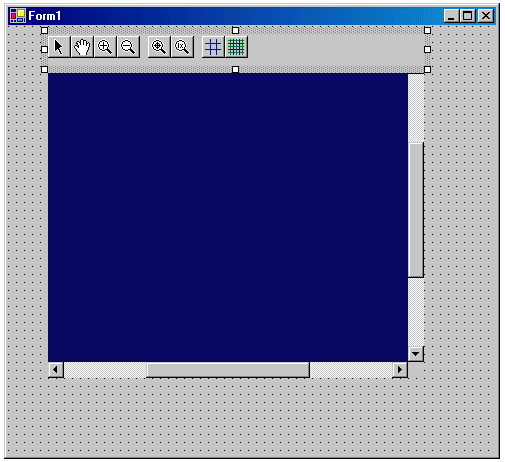
Add the CogDisplayToolbarV2 control to your Windows form, as shown in the following figure:
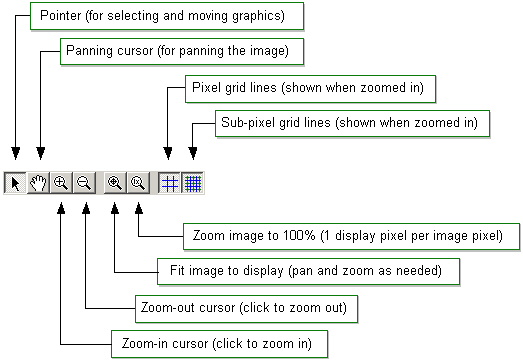
The following figure describes the function of each buttons:
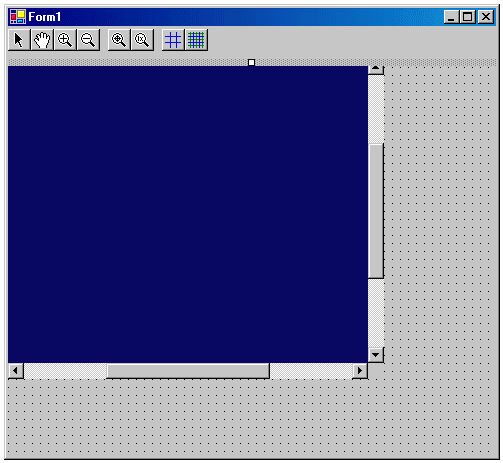
(Optional) You may choose to dock the toolbar to the top of the Windows form, as shown in the following figure:
Note: If your form uses ToolStrips instead of a toolbar, or if you want to add the controls to an existing toolbar, use the CogDisplayToolStrip instead of the toolbar control:

Connect the toolbar to the Cognex Display control, as shown in the following C# example, where the toolbar variable is cogDisplayToolbarV21 and the Display control variable is cogDisplay1.
cogDisplayToolbarV21.Display = cogDisplay1;
Select CogDisplayStatusBarV2 from the Visual Studio.NET toolbox, as shown in the following figure:

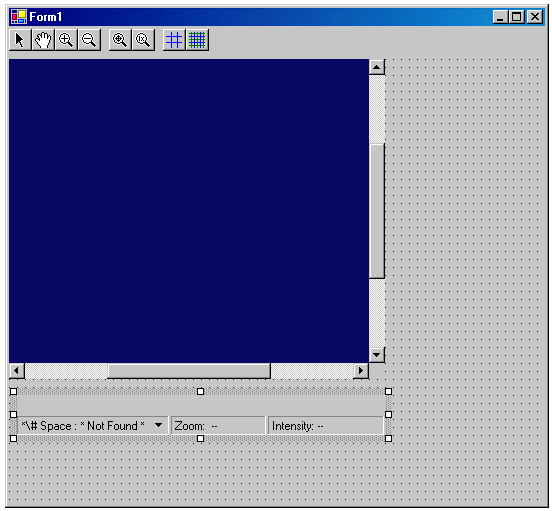
Add the CogDisplayStatusBarV2to your Windows form, as shown in the following figure:
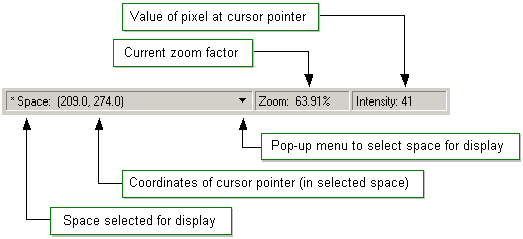
The following figure describes the various parts of the status bar:
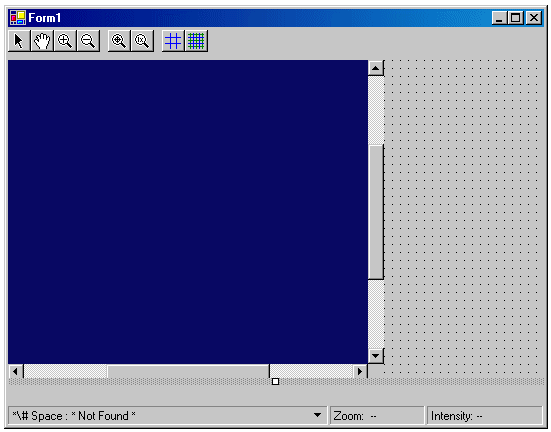
(Optional) You may choose to dock the status bar to the bottom of the Windows form, as shown in the following figure:
Connect the status bar to the Cognex Display control, as shown in the following C# example, where the status bar variable is cogDisplayStatusBarV21 and the Display control variable is cogDisplay1.
cogDisplayStatusBarV21.Display = cogDisplay1;
The toolbar and status bar will now work with the CogDisplay control.