This topic contains the following sections.
As you create and test your application, you may find it useful to acquire static images from an image-database file. Ideally, the image database will contain a range for the kinds of images your deployed application is likely to encounter. If you do not have an image-database file, you can create one from a series of bitmap files. VisionPro offers a variety of methods for creating an image-database file.
VisionPro software includes the Cognex IDB Editor for creating and viewing image-database files. To launch the Cognex IDB Editor, choose Start->Programs->Cognex->VisionPro->Utilities->IDB Editor:
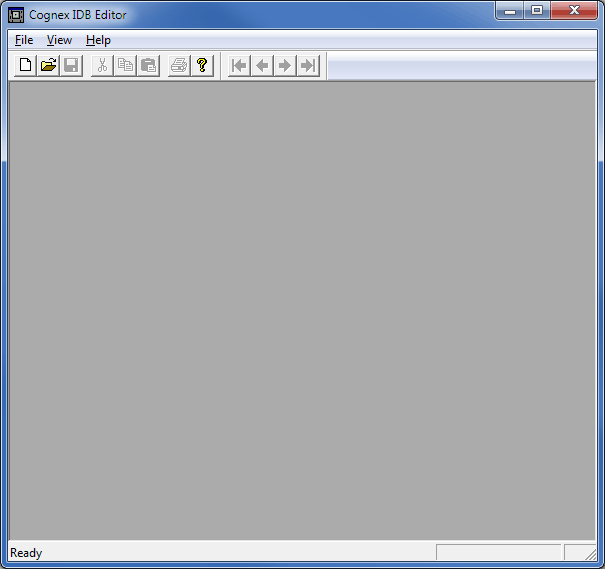
To create a new image-database file, choose File->New or click the New button:

A blank image-database file appears within the IDB Editor:
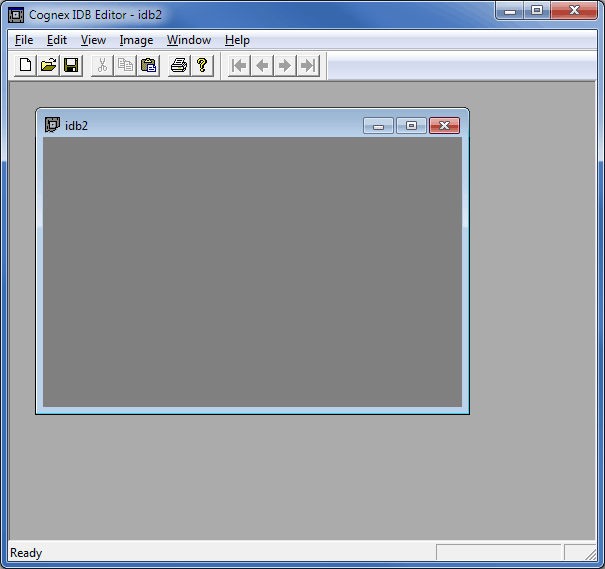
Choose Edit->Preferences to set desired preferences for bitmaps that you bring into this new image-database file:
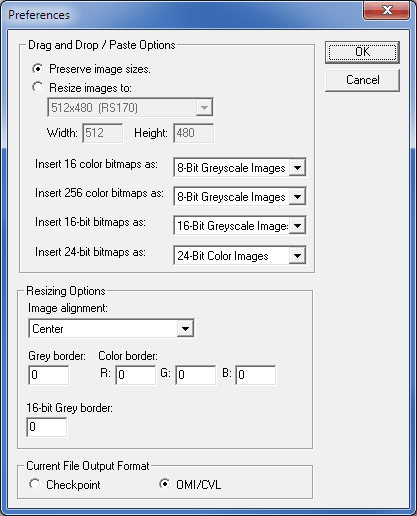
For example, you may choose to preserve the color information of imported bitmaps or convert all imported bitmaps to 8-bit greyscale.
With a new image-database file open, you can use the drag and drop or the copy/paste method to import bitmaps from other applications. By default, new bitmaps are added to the end of the file. The button bar along the top of the IDB Editor allows you to browse the images the file currently contains.
Regarding DS1000 series range images, you can visualize the 16-bit height profile image components of DS1000 series range images in an image-database file. You can insert the greyscale component of a range image into another image-database file either as a 8-bit greyscale image or as a 24-bit color image. Inserting the greyscale component of a range image as a 16-bit greyscale image is not supported.
You can save the image-database file at any time for use in your VisionPro application.
The topic Creating a Vision Application: QuickBuild contains an example of using an image-database file as an image source.
An Image File object allows you to acquire images from an image file, as well as save acquired images to an image file for later use. VisionPro offers several classes for an Image File object, depending on the image format you want to use:
- Use a CogImageFileCDB object for CDB/IDB files
- Use a CogImageFileBMP object for bitmap files
- Use a CogImageFileTIFF object for TIFF files
If your application requires you to read multiple file types, use the generic CogImageFile object.
Writing to an image file with an Image File object requires the following steps:
- Create an Image File object.
- Open the image file for writing.
- Append acquired images to the file.
The following C# statements are taken from a .NET Windows application:
private int tNum;
private CogFrameGrabbers myFrameGrabbers;
private ICogFrameGrabber myFrameGrabber;
private ICogAcqFifo myAcqFifo;

private CogImageFile myImageFileTool;
private bool logImages;

private void InitializeFifo()
{
        const string VIDEO_FORMAT = "Sony XC75 640x480";
        myFrameGrabbers = new CogFrameGrabbers();

        myFrameGrabber = myFrameGrabbers[0];

        myAcqFifo = myFrameGrabber.CreateAcqFifo(VIDEO_FORMAT,
                Cognex.VisionPro.CogAcqFifoPixelFormatConstants.Format8Grey, 0, false);

        myImageFileTool = new CogImageFile();
        logImages = false;
}

private void InitializeImageFile()
{
        myImageFileTool.Open("C:\\home\\VisionPro\\idb1.idb", CogImageFileModeConstants.Update);
}

private void button2_Click(object sender, System.EventArgs e)
{
        logImages = true;
}

private void button1_Click(object sender, System.EventArgs e)
{
        cogDisplay1.Image = myAcqFifo.Acquire(out tNum);

        if (logImages == true)
                myImageFileTool.Append(cogDisplay1.Image);
}See the topic Acquire Images from an Image Database File for more information on using an Image File object.