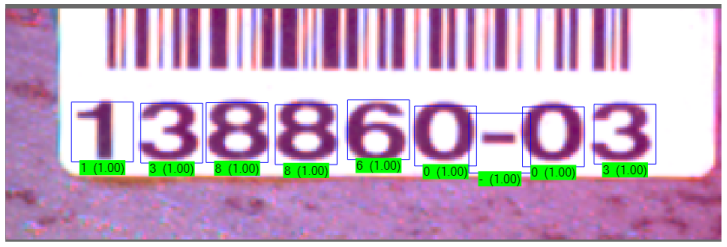
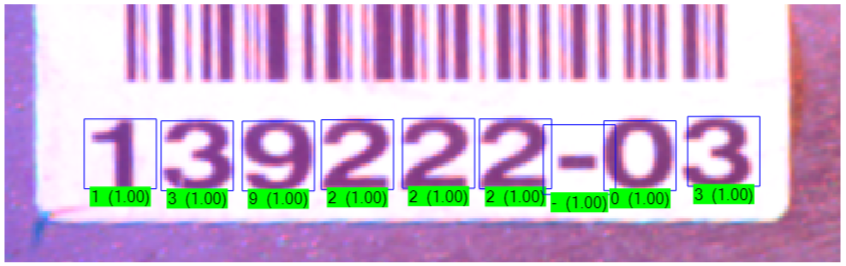
Use a ViDiEL OCR tool to train an application to find and identify characters in your run-time images. The following figure shows a character string and the confidence score for each character (between 0 1.00):
Unlike other VisionPro OCR tools, a ViDiEL OCR tool does not require you to provide parameters that:
- Distinguish desired characters from the background.
- Define the minimum and maximum width of characters.
- Differentiate crowded characters from each other.
A ViDiEL OCR tool can identify many known characters from a single training image, but using additional training images improves the ability of the tool to identify expected characters after you deploy your complete vision application. Cognex recommends you use a comprehensive set of training images (a minimum of three) that represent the range of characters and acceptable variations the application might encounter.
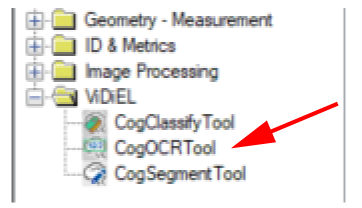
In addition, Cognex recommends you train a ViDiEL OCR tool using its QuickBuild edit control. Find the ViDiEL OCR tool edit control under the ViDiEL folder in the list of vision tools for any Job:
See the following sections for more information on using a ViDiEL OCR:
Train a ViDiEL OCR tool with the features of your character set using live images or images stored in an image database. The following procedure trains a ViDiEL OCR tool using QuickBuild and an image database:
- Add a ViDiEL OCR tool to a QuickBuild ToolBlock.
Double-click on the edit control in the ToolBlock to open the user interface:
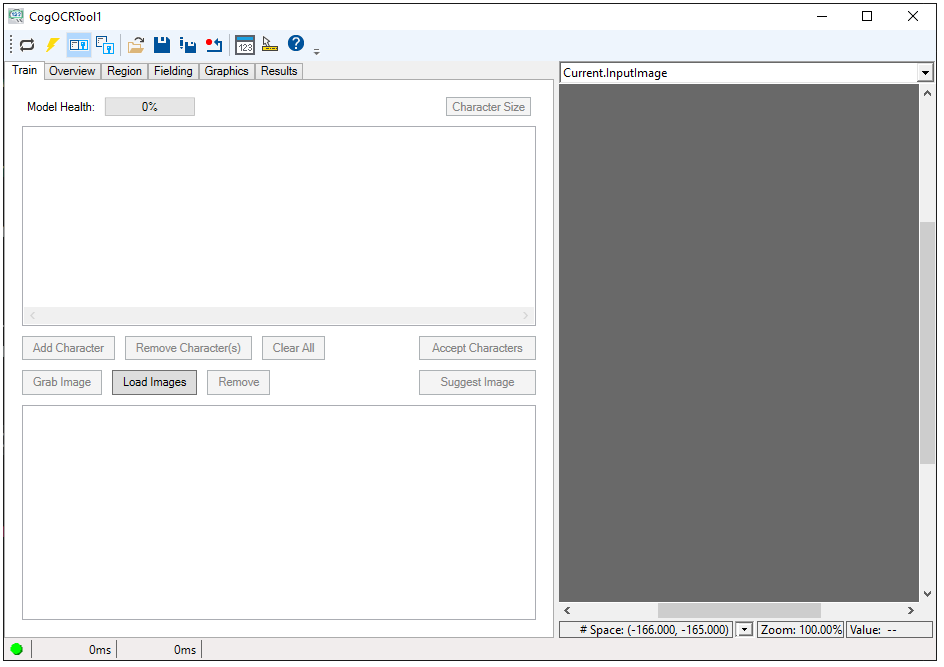
Click Load Images and select an image-database file of images showing the character set you want to identify.
QuickBuild displays a pop-up with an image from the image database and a region graphic:
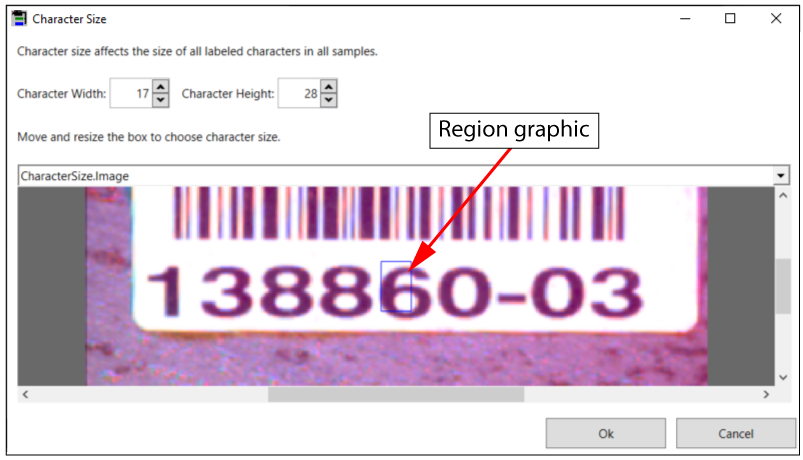
Use the region graphic to closely surround one character in the image. Choose one of the wider characters in the string and zoom in on the image to assist in making the graphic fit tightly around the character. Resize the dialog box as needed to verify the graphic fits the desired character closely:
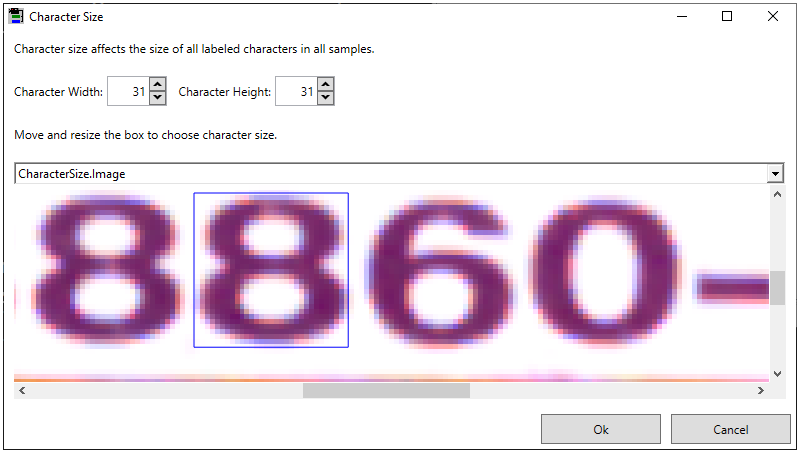
Click OK.
The edit control takes this character size and applies it to an image in the image database to locate all characters and displays the results in the Current.DatabaseImage:
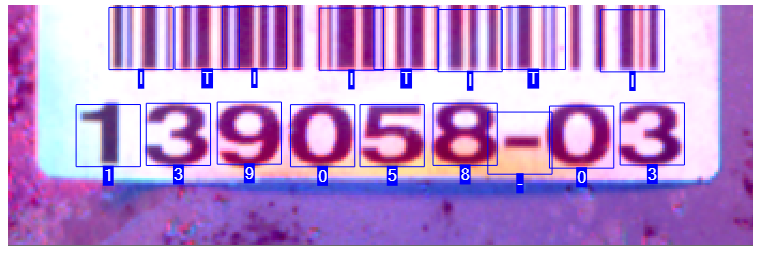
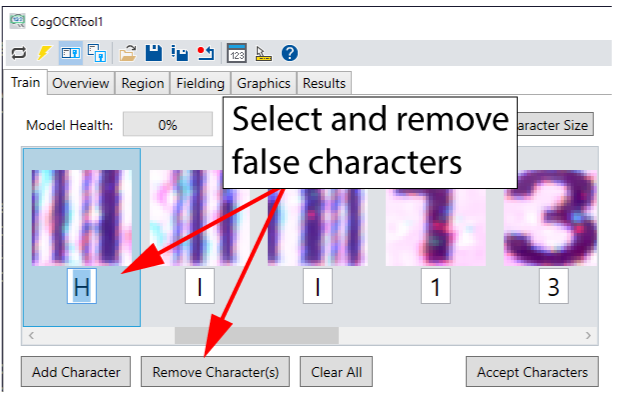
In this case, the tool identifies features that are not characters. Use the Train tab of the edit control to remove false characters:
Verify that the tool correctly identified all the actual characters:
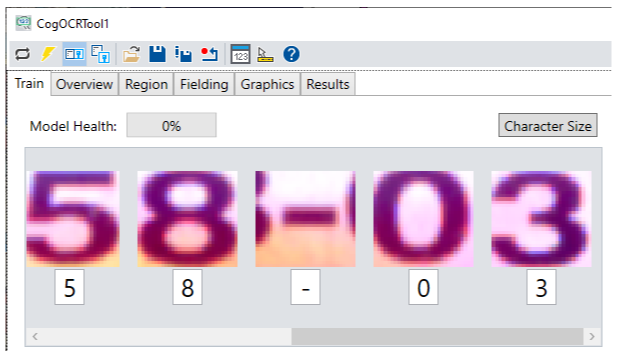
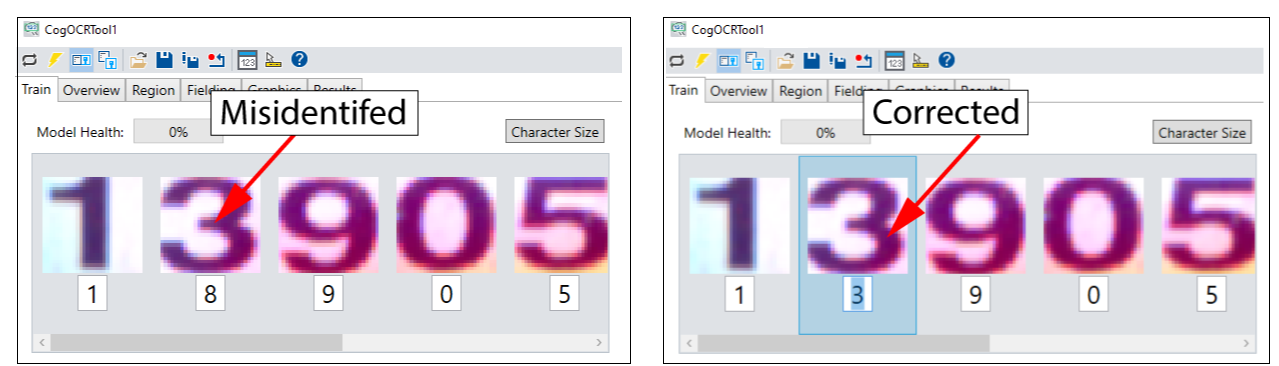
If the tool misidentifies a character, click on it and enter its correct label:
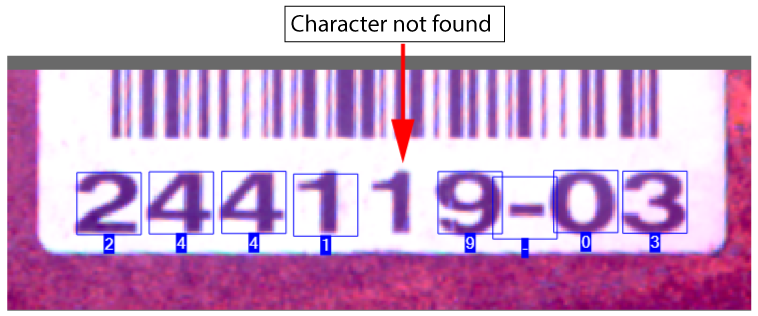
Verify that the tool did not fail to find a character:
To add a character to a source image:
- Click on the character before the missing character.
Click Add Character. The tool displays a new character region to the right of that character or at the end of the string if you do not select a character in the previous step.
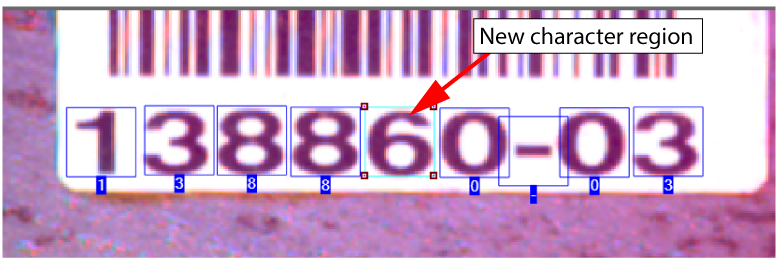
Use Alt+Left/Right/Up/Down to adjust the position of the character region to place it around the character that was not found and enter a label for the character:
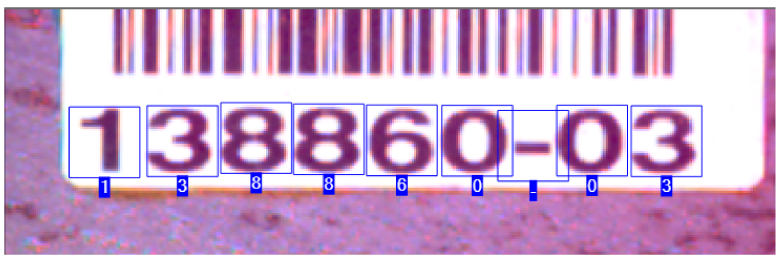
Note: Do not adjust the size of the character region to fit this character, or the tool retrains all the trained images with the new region size. Use Alt+Left/Right/Up/Down to adjust the position of the character region.
- Click Accept Characters for the Current.DatabaseImage. VisionPro trains this OCR tool with these characters and selects another image from the image-database file automatically.
- Repeat this process for a minimum of three training images in the image database.
See the section Training Characters from an Image Database for full details on training a character set. The ViDiEL OCR tool can be trained in less time using an image-database file, but supports the following procedure for acquiring from individual images:
- Configure your input image source (image database or camera).
- Add a ViDiEL OCR tool to your CogJob.
Connect your Image Source to the ViDiEL OCR tool:
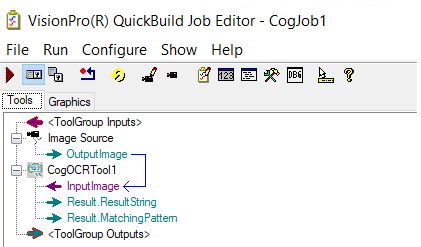
Run the CogJob to give the ViDiEL OCR tool an image.
QuickBuild will report the CogJob fails because the ViDiEL OCR tool is not trained.
Open the ViDiEL OCR tool edit control. The Current.InputImage contains an input image.
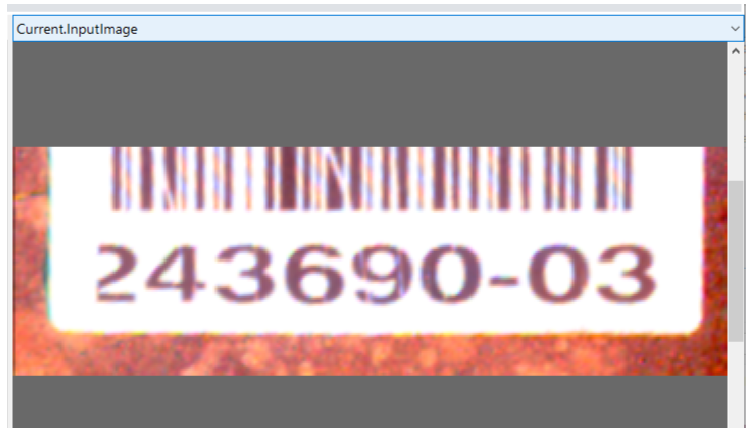
Click Grab Image on the edit control.
The Character Size popup appears as it does when you train an image using an image-database file:
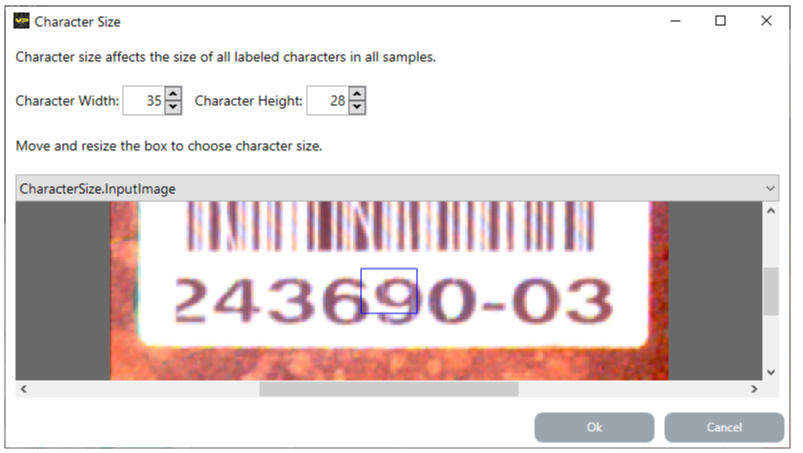
- Follow the procedure outlined in the section Training Characters from an Image Database for details on training a character set.
After using three images to train the tool, an OCR tool reports a value for Model Health, which indicates a score for the confidence you can have that the tool will recognize characters in your acquired images. Higher scores for Model Health indicate a higher expected accuracy for the tool:
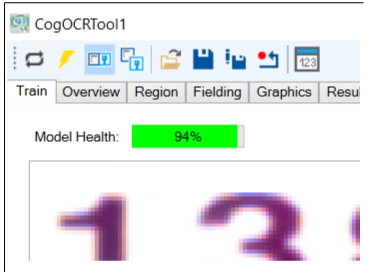
Increase the value by training more character images or by using the Overview tab to inspect your character set. The edit control allows you to click on any full image or character image to bring the source image to the Current.DatabaseImage buffer.
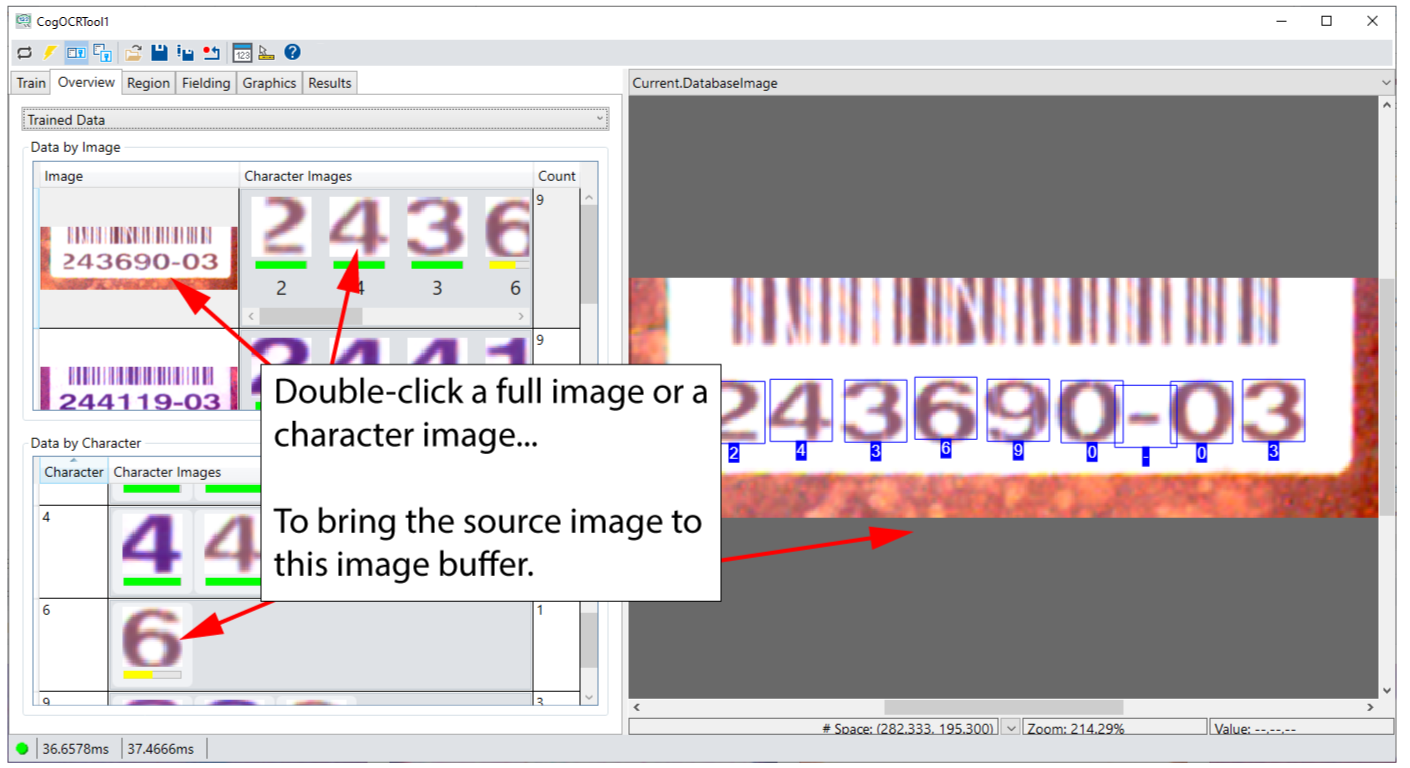
The top of the Overview tab allows you to view Trained Data - the images the tool used to train the character set, or Untrained Results - images available to the tool but not used to train the character set. The ViDiEL OCR tool still analyzes all the untrained data and can show you the confidence scores for each character as a colored bar.
Click Suggest Image on the Train tab to have the tool select an image that represents potentially confusing characters. Training with these images can improve the Model Health score. In addition, check the Overview tab for any of the following:
Characters that are falsely identified as other characters:
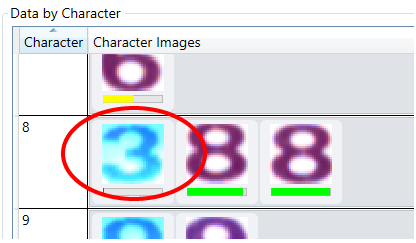
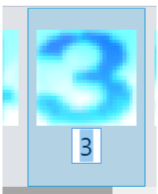
Double-click the character to view the source image and correct the label of the character:
Characters with a single example and weak confidence score (appears in yellow or red):
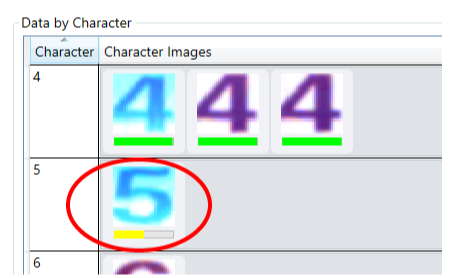
Train the tool with more images of that character.
Characters with multiple examples but one instance with a weak confidence value:
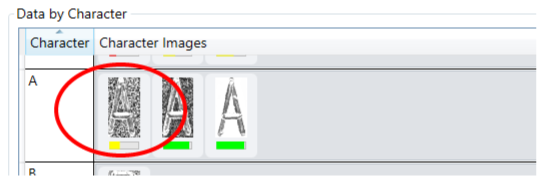
In some cases, viewing the source image and modifying the location of the character region can improve the confidence score for this character image.
Training more images with that character can also improve the overall Model Health.
A ViDiEL OCR tool supports fielding, which can limit the characters the tool identifies based on character patterns you specify. See the topic ViDiEL OCR Edit Control for details on how to enable fielding.
See the following sections for more information:
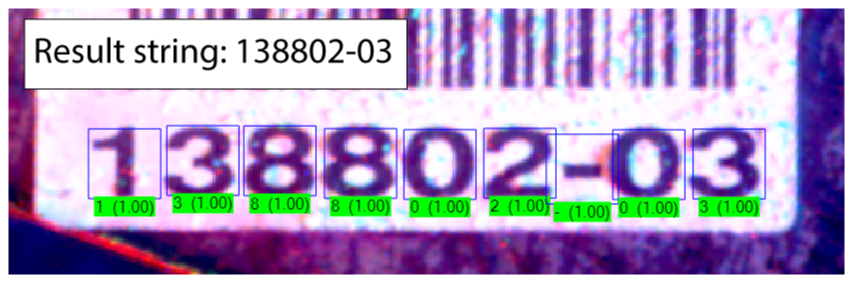
Basic Fielding limits which characters the tool will identify in each character string. For example, a ViDiEL OCR tool can be trained with all numeric characters as well as the "-" (dash) symbol. With no fielding enabled, the tool can return the following result for an input image:
If you enable Basic Fielding and limit the allowed characters to "0", "1", and "2", the same image produces the following result:
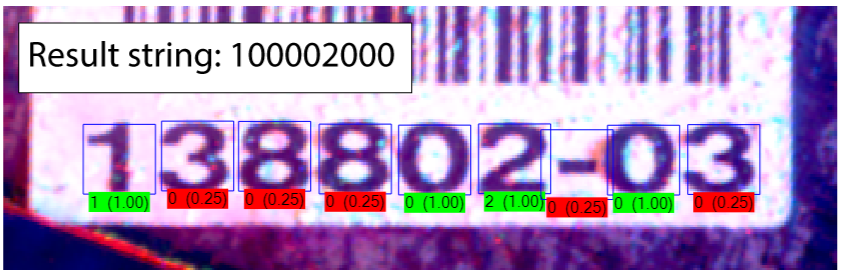
For any character outside the fielding range, the tool returns the first character within the range, with the score assigned based on the scores of all characters in the range.
Use explicit characters in your Basic Fielding range or use one of the following special characters to indicate a set of allowed characters in your images:
- \d: Any numerical character
- \l: Any alphabetic character
- \w: Any numerical or alphabetic character
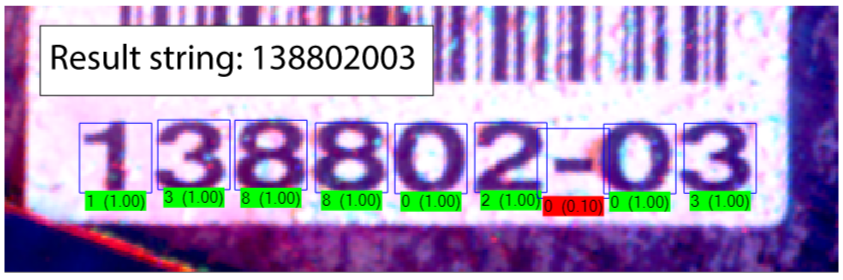
For example, if you specify a Basic Fielding range of "\d", the same image as before produces the following result:
Advanced Fielding also limits which characters the tool identifies in each character string, but gives you more options and greater control than Basic Fielding. With Advanced Fielding, you specify the allowed characters at every position of the found string. Advanced Fielding supports the same special characters as Basic Fielding:
- \d: Any numerical character
- \l: Any alphabetic character
- \w: Any numerical or alphabetic character
The tool also allows you to use specifc characters at any position, or place multiple characters between "[ ]" to allow any one of them to be at that position.
For example, the pattern "\d\d\d\d\d\d-[012]3" matches the following character string:
The tool allows you to specify multiple patterns and each pattern can have multiple lines.
Note: Be aware the tool fails to execute if the character string does not match any defined Advanced Fielding pattern.