This topic contains the following sections.
Use a Results Analysis tool to define a set of criteria that will allow the last run of a tool group or CogToolBlock to be given an Accept, Warn, or Reject result. Using a Results Analysis tool, you can combine the results from one, several, or all the vision tools and generate a value that can be used to judge whether the tool group generates a Warn or Reject status. VisionPro ultimately uses this Warn or Reject status to determine the value of the Result property for the tool group.
Note: The Results Analysis tool is intended for use in QuickBuild applications. There is no programmatic interface to it.
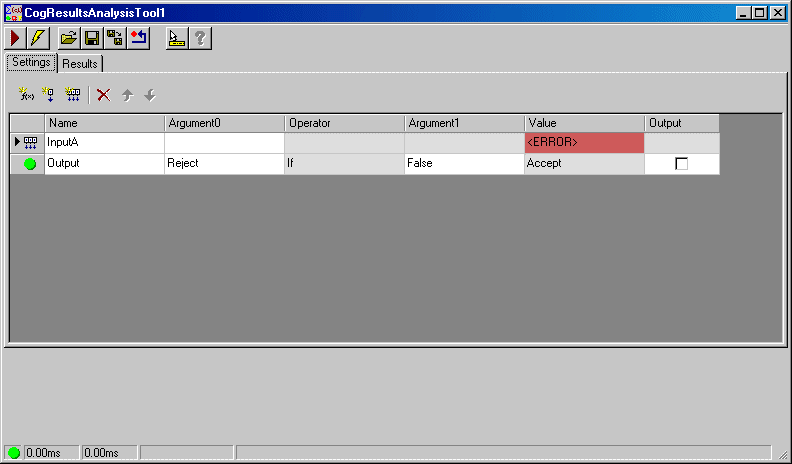
To use Results Analysis, double-click on the CogResultsAnlaysisTool in the VisionPro toolbox. The following figure shows an empty Results Analysis tool dialog box:
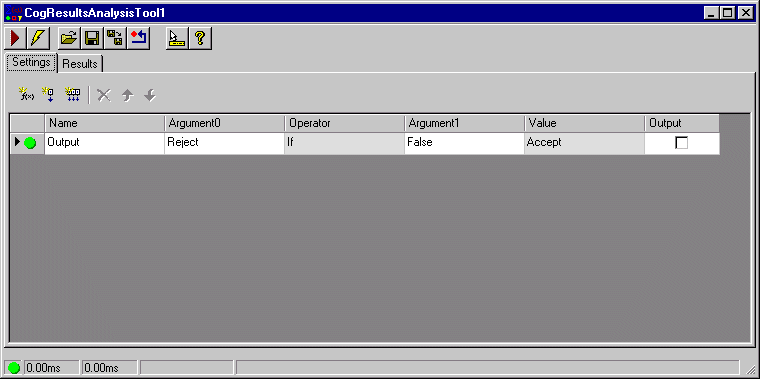
The dialog box contains a Settings tab for generating expressions that determine whether the tool produces a Warn or Reject status, and a Results tab for viewing the results of the expressions you define.
To generate the criteria for an analysis, you must create one or more expressions needed to generate a result. The following figure shows an example expression:

Ultimately, you must generate a result that can be expressed as a single boolean value, a value which can be used to determine the warning-level or reject-level result of the tool.
Each expression in a Results Analysis tool contains an operation on one or two arguments in order to produce a result. You can use the following types of arguments:
| Type | Description |
Constant | You can specify a numeric, string, or boolean constant as an argument. For example, you can compare a vision tool result against the value 5, against the string value "Cognex", or against the boolean value True. The following figure shows an example of a string constant in an argument field:  The operation you choose allows the Results Analysis tool to determine whether the constant value you specify is valid. For example, if you choose a logic operation and specify the string "123" as an argument, the Results Analysis tool will report an error until you supply a boolean value. |
Value Input | You can choose any numeric, string, or boolean result from a vision tool in your application. The following figure shows an example of a value input:  The Results Analysis tool gives the value input a default name starting with Input. The section Creating Value Inputs and Vector Inputs describes how to add a value input to a Results Analysis dialog box. |
Vector Input | While a value input lets you use the value of a single tool result, you can choose a vector input and allow Results Analysis to perform an analysis on the entire array of values in a collection. For example, if your application uses a Blob tool, you can choose all the Area results. The size of the vector would correspond to the number of area results for this Blob tool. The following figure shows an example of a vector terminal in an argument field:  Notice that the Results Analysis dialog box uses an ellipses [...] to distinguish it from a value input argument. An operation that involves a vector terminal can produce a vector result. For example, if you perform an operation to compare a vector terminal against a string constant, the result is a vector of boolean values, with a value of True for each item in the vector that matches the string. The Value field shows an ellipses [...] for a vector of values. You can click on the Value field to display the contents of the vector, as shown in the following figure: 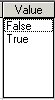 The Results Analysis tool gives the value input a default name starting with Input. The section Creating Value Inputs and Vector Inputs describes how to add a value input to a Results Analysis dialog box. |
Cell Reference | For many tool groups, a single operation between two arguments is not enough to determine the scalar boolean value for the entire Results Analysis. For example, if the first operation in a grid generates a vector result of boolean values, a second operation is likely needed to determine if any of the results equal True or False. When one operation relies on the result of a previous operation, you can specify the cell reference of the previous operation as an argument. The following figure shows an example of a cell reference in an argument field:  This argument uses the result of the expression ExprB as the first argument for the expression ExprC. |
The Results Analysis tool offers the following operation types:
| Type | Operations | Description |
Arithmetic | Add Subtract Multiply Divide | Perform the arithmetic operation on two numeric arguments. Any nonzero result evaluates to a boolean value of True, while any zero result evaluates to a boolean value of False. |
Numerical comparison | LessThan LessThanOrEqual GreaterThanOrEqual GreaterThan | Generate a True or False result based on the comparison between the two numeric arguments. |
Logic | And Or Xor | Generate a True or False result based on the logical comparison between the two arguments. You can use constants, cells, value terminals, and vector terminals of boolean values as arguments. Any nonzero result evaluates to a boolean value of True, while any zero result evaluates to a boolean value of False. |
| Logic | Not | Reverse the True or False value of the argument. |
Reducing Logic | Logic And All Logic Or All | The Logic And All operation reduces a vector of boolean values to True if all the values in the vector are True, and False one or more values are False. The Logic Or All operation reduces a vector of boolean values to True if one or more values in the vector are True, and False if no values are True. |
Unary Operators | Abs Sqrt | Generate the absolute value or the square root of the numeric argument. |
The tool offers the following vector processing operation types:
| Operator | Description |
| Count | This operator takes a vector as Argument0 and outputs an integer whose value equals the number of elements in the supplied vector. It is an error for Argument0 to not be a vector. |
| Min | This operator takes a vector as Argument0 and outputs a double precision value that corresponds to the minimum value encountered in the supplied vector. It is an error for Argument0 to not be a vector. It is an error for any element in Argument0 to not be convertible to a double. |
| Max | This operator takes a vector as Argument0 and outputs a double precision value that corresponds to the maximum value encountered in the supplied vector. It is an error for Argument0 to not be a vector. It is an error for any element in Argument0 to not be convertible to a double. |
| Median | This operator takes a vector as Argument0 and outputs a double precision value that is the median of the values encountered in the supplied vector. It is an error for Argument0 to not be a vector. It is an error for any element in Argument0 to not be convertible to a double. |
| Mean | This operator takes a vector as Argument0 and outputs a double precision value that is the mean of the values encountered in the supplied vector. It is an error for Argument0 to not be a vector. It is an error for any element in Argument0 to not be convertible to a double. |
| SDev | This operator takes a vector as Argument0 and outputs a double precision value that is the standard deviation of the values encountered in the supplied vector. It is an error for Argument0 to not be a vector. It is an error for any element in Argument0 to not be convertible to a double. |
| Sum | This operator takes a vector as Argument0 and outputs a double precision value that is the sum of the values encountered in the supplied vector. It is an error for Argument0 to not be a vector. It is an error for any element in Argument0 to not be convertible to a double. |
| Sort | This operator takes a vector as Argument0 and outputs a new, equally sized vector that has been sorted into ascending order. It is an error for Argument0 to not be a vector. It is an error for any element in Argument0 to not support the “less than” comparison. |
| Reverse | This operator takes a vector as Argument0 and outputs a new, equally sized vector whose elements have been reversed in order. It is an error for Argument0 to not be a vector. |
The tool offers other non-vector mathematical operators:
| Operator | Description |
| Mod | This operator takes two numerical arguments and outputs their modulus. That is, it divides Argument0 by Argument1 and outputs the remainder. It is an error for Argument1 to be equal to zero. |
| Floor | This operator takes a single numerical argument and outputs the largest integral value that is less than or equal to the supplied value. |
| Ceiling | This operator takes a single numerical argument and outputs the smallest integral value that is greater than or equal to the supplied value. |
The tool offers other non-vector mathematical operators:
| Operator | Description |
StringEqual StringEqualCaseInsensitive | Generate a True or False result based on the comparison between the two string arguments. |
StringMatch StringMatchCaseInsensitive | Generate a True or False result based on comparing the string in Argument1 to the string in Argument0. For example, comparing the string "Cognex" to "Cognex Corporation" produces a True result, but comparing "Cognexx" to "Cognex Corporation" produces a False result. |
| StringToUpper | Takes a single argument and maps any lower case characters to upper case, and outputs the resulting string. |
| StringToLower | Takes a single argument and maps any upper case characters to lower case, and outputs the resulting string. |
| StringLength | Takes a single argument and returns the integer number of characters in that string. An empty string has length zero. |
| StringAdd | Takes two arguments and returns a concatenation of the two. |
| StringIf | Takes two arguments, a boolean and a string, and returns the string if the boolean argument is True, or returns an empty string if the boolean argument if False. |
To create a value input or vector input to be used in a Results Analysis expression, perform the following steps:
- Add output terminals, as necessary, for any vision tool whose results you want to use in a Results Analysis tool.
- Add a Results Analysis tool to your QuickBuild job.
Double-click on the Results Analysis tool to open the Results Analysis dialog box, as shown in the following figure:
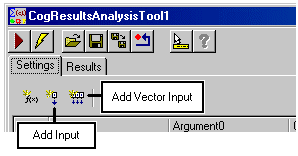
Click the Add Input icon or the Add Vector Input icon on the Settings tab to create a value input or vector input, respectively. The following figure highlights these icons:
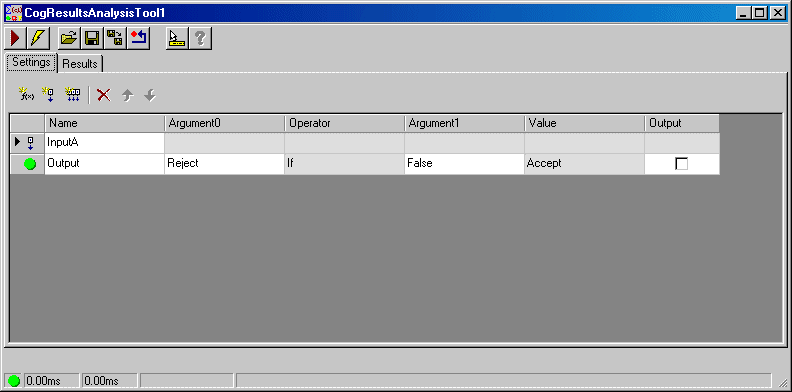
If you create a value input, it appears in the Results Analysis dialog box as shown in the following figure:
If you create a vector input, it appears in the Results Analysis dialog box as shown in the following figure:
In addition, a new input terminal for the Results Analysis tool appears, as shown in the following figure:
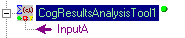
Note: If you delete this input terminal at any point in developing your application, you can restore it by right-clicking on the Results Analysis tool and selecting Add Terminals to open the CogFloatingPropertyBrowser window. Next, select the RunParams property, open the Item property corresponding to this value, and then open the CogResultsAnalysisVectorInputExpression or CogResultsAnalysisInputExpression property, whichever is valid for your input terminal. Finally, select the Value field and click Add Input at the bottom of the CogFloatingPropertyBrowser window. Close the CogFloatingPropertyBrowser window.
- In your QuickBuild job, click the "+" next to the CogResultsAnalysis tool to display the value input terminal or vector input terminal.
Link the output terminal of the result you want to use to the appropriate value input terminal or vector input terminal. A vector input terminal requires a collection of valid results from a tool that has successfully generated results.
For example, the following figure shows the output terminal of a Blob tool linked to the value input terminal of a Results Analysis tool:
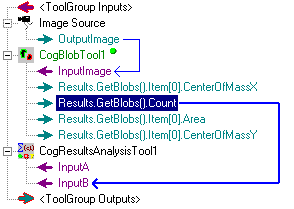
When you make the link with a value input terminal, the Results Analysis tool updates its dialog box with the current value, as shown in the following figure:

- (Optional) Click inside the Name field and change the default name of the input to give it a more meaningful name for your application.
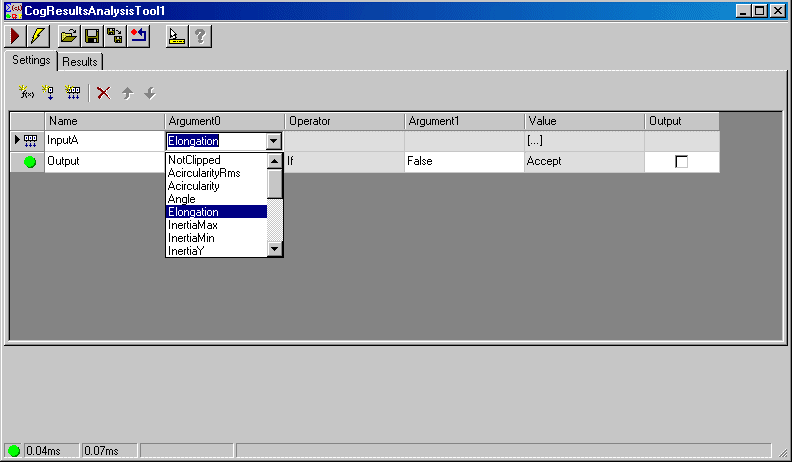
If you are creating a vector input from a results collection, you must select which specific result you want in the Argument0 field. For example, the following figure shows the results of a Blob tool with the Elongation result selected:
To create an expression for a Results Analysis tool, perform the following steps:
- Add the value inputs and/or vector inputs you need to perform a Results Analysis. See the previous section for details.
Click the Add Expression icon on the Settings tab. The following figure highlights this icon:
A new expression appears in the Results Analysis dialog box as shown in the following figure:
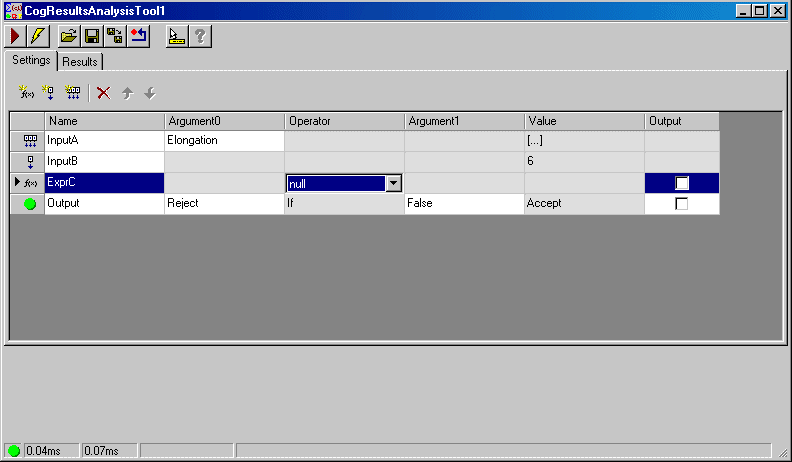
Select an operator from the Operator field. See the section Operation Types for a description of all the operators.
Depending on the operator you select, the Results Analysis tool will enable one or both arguments in the expression. For example, the following figure shows an expression when the Add operator is used:

Select the appropriate values for Argument0 and Argument1, as necessary.
To use a constant value, type the value into the argument field. To use a value input or vector input, use the drop down list the field provides to select the appropriate argument. Be aware that if both arguments are vectors, they must be the same size or the expression cannot be successfully evaluated.
After you select valid arguments based on the current operator, the Value field of the expression will update with a numerical, string, or boolean value. If the expression you created generates a vector result, the Value field shows [...].
Create as many expression as you need to generate a single True/False or zero/nonzero result. See the Example Application at the end of this topic for an example of how to create and link multiple expressions.
Every Results Analysis tool contains an Output expression that determines the overall result for the tool. The Output expression determines the Warning or Reject status of the tool by testing the singular result of another expression. This expression must evaluate to a boolean value or a numerical result. If you attempt to specify any vector of results for the Output expression, the Results Analysis tool will generate an error.
Perform the following steps to configure the output expression:
Select Argument0 in the Output expression and choose either Warning or Reject.
If you need your application to generate either a Warning status or a Reject status based on different criteria, use multiple Results Analysis tools.
Select Argument1 and choose the expression that evaluates to a single boolean value or numerical result.
If you are generating a Warning status or Reject status based on a boolean value, the value of the tool will equal the value of the expression you choose for Argument1. If you use an expression that evaluates to a numerical value, the Output expression will generate an Accept result if the value is zero or a Warning/Reject result if the value is nonzero.
- Test the application to ensure the Output expression generates the correct value.
The last column of each expression contains an Output checkbox. For every expression with the Output checkbox enabled, the tool group will expose that value as an output terminal. Output terminals can be useful in applications where you use nested tool groups. For example, the following figure shows the expressions for a rejection-analysis with two of the equations exposed to the tool group:
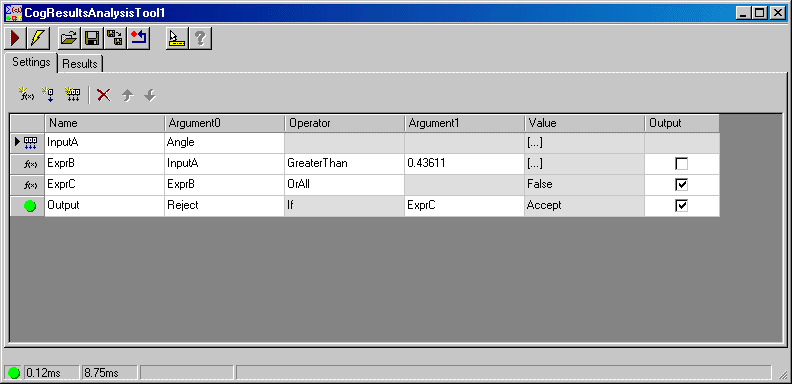
You can specify the exact data and data type for the value of an exposed output terminal by right-clicking on one and selecting Modify, which launches the Modify Output Terminal dialog box:
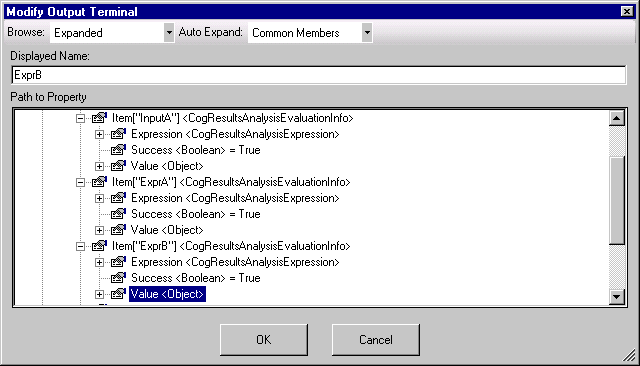
Use the Modify Output Terminal dialog box to specify the exact value you want to expose.